
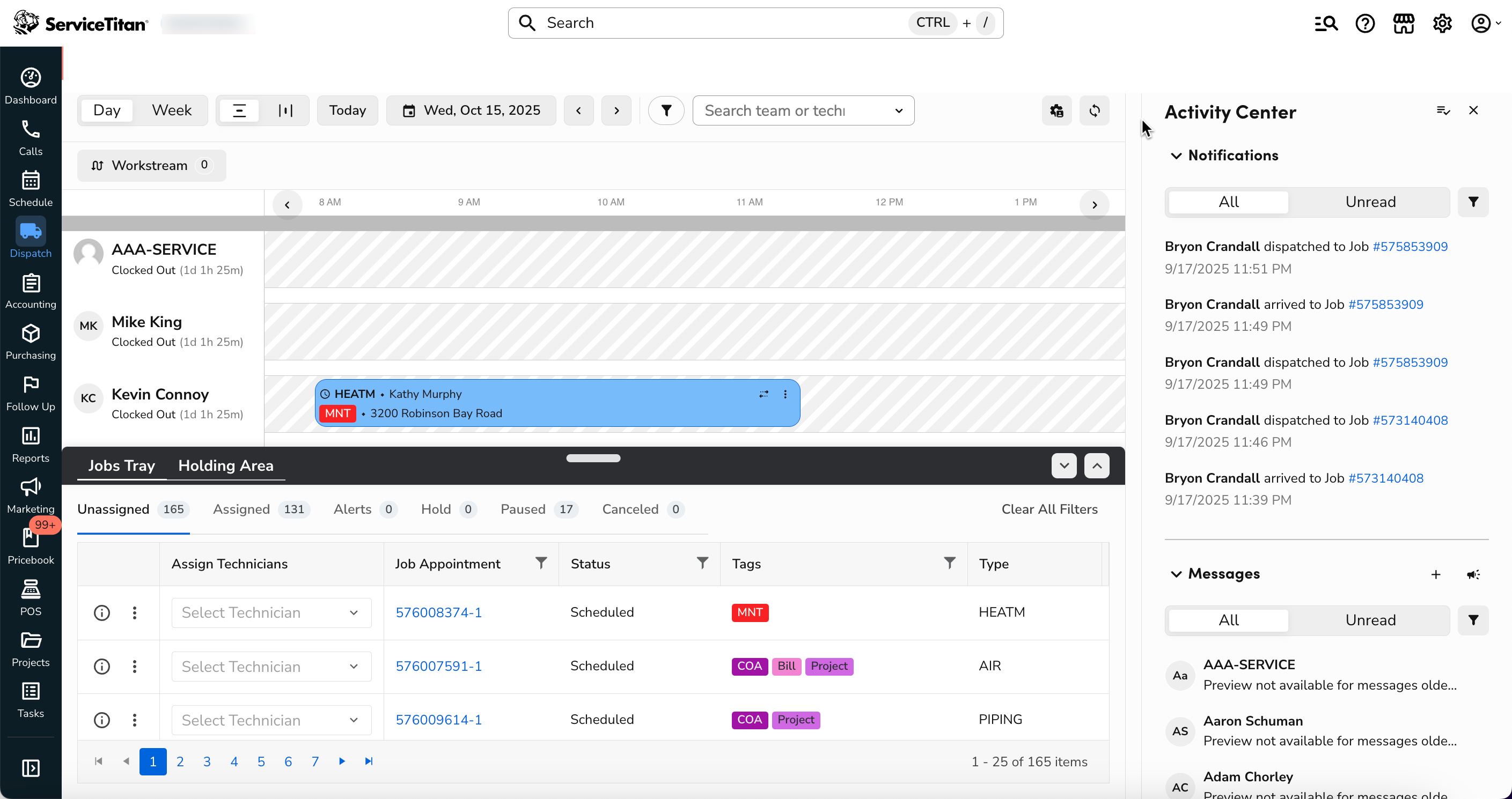
focusServiceTitan's dispatching features help your office staff properly manage technician schedules and coordinate job appointments. With a simple point-and-click, jobs can be extended, shortened, or rescheduled, making it easy to ensure everyone stays on time.
Note: For day-to-day dispatching, use Open and view technician statuses to monitor technician statuses.
Release notes
Upcoming
Setup
What you need to get started
To prepare for dispatching workflows in ServiceTitan, we recommend that you set up skills and business units so you can use the Dispatch Board optimally.
Note: Account configuration is required to set up skills. Please contact Technical Support for details.
Quick start guide
To get started with dispatching workflows in ServiceTitan:
Use the Dispatching icon and alert glossary to learn how to identify items in the Dispatch Board and Job Tray.
Use the Daily Board or Enhanced Daily Dispatch Board and Weekly Board to manage technicians and job appointments in various statuses.
Use the Daily Job Tray and Weekly Jobs Tray to manage unassigned job appointments, job alerts, and more.
Use the Schedule Board to filter your calendar and keep an eye on longer projects, jobs, and appointments.
New and upcoming dispatching features
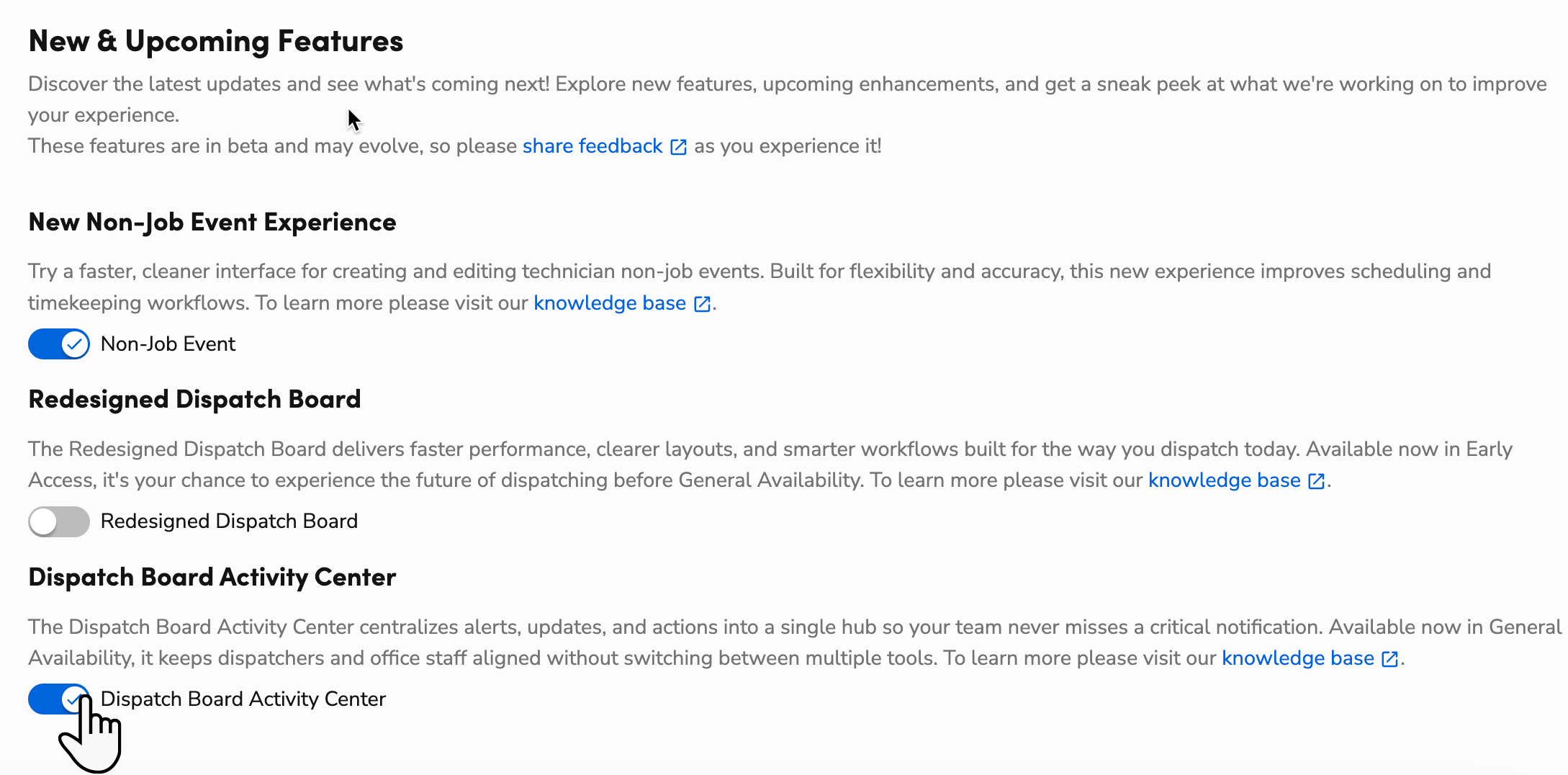
In the Settings > Dispatch Board > New & Upcoming Features section, you can view the latest updates and upcoming features for Dispatching. If a new feature is available, you'll see its name along with a toggle switch that lets you turn it on and try it out. See new features in ServiceTitan release notes.
Dispatching settings
Efficiently manage your dispatching settings in ServiceTitan:
GPS integrations
GPS integrations give dispatchers real-time visibility into technician locations, helping improve response times and optimize job scheduling.
Key workflows
Industry best practices
Dispatchers
Filter the Dispatch Board to make navigation easier so you can more easily find the correct technician for an appointment.
Use property data to help you choose the best technician for the job.
Use the Job Details Flyout to quickly view and edit job appointment details.
Manage workspaces on the dispatch board to view only the technicians and jobs relevant to them.
Set up custom fields on the Dispatch Board as columns to see the most relevant information at a glance.
Owners and managers
Automate dispatch notifications and set up job hold and cancel reasons in Settings>Operations>Cancel and Hold Reasons to enhance customer experience.
This helps provide insight into your customers' behavior and your business operations.
Administrators and managers
Ask dispatchers why appointments were rescheduled by configuring and running the Rescheduled Reason Survey report.
This helps you gather data and understand why appointments are being rescheduled.
Manage technician teams
Efficiently manage technician teams:
Manage technician schedules
Efficiently manage technician schedules:
Manage technicians on appointments
Efficiently manage technicians on job appointments:
Manage jobs and appointments
Efficiently manage jobs and appointments:
Manage technician communications, notifications, and memos
Manage technician communications in one place, without having to leave the Dispatch Board. You can call technicians, send text messages to technicians, and more directly from the Dispatch Board:
Manage multi-day construction crew jobs
Manage crew assignments by setting roles like Foreman or Apprentice, spotting weekly gaps or overlaps, and keeping long projects running smoothly.
Troubleshooting and FAQ
Troubleshooting
Check out the top five troubleshooting articles for dispatching. Each article provides a clear, step-by-step solution.
What should I do if my booked jobs are not showing on the Schedule Board calendar?
Technician shift details not appearing on the Dispatch Board
Office employees can only see one business unit on the Dispatch Board
FAQ
Check out the top five most frequently asked questions for dispatching:
Why are some of my technicians missing from the Dispatch Board on a previous date?
To appear on the Dispatch Board for a previous date, technicians must:
Be assigned to a job
Have a scheduled non-job event
Have clock-in or clock-out timesheets
How can I hide a technician on the Dispatch Board?
To hide a technician on the Dispatch Board, check them out using Dispatch Configuration.
For more, see the Configure Technician Management section of Configure Dispatch Board appearance and settings.
Things to keep in mind:
Checking a technician in or out changes everyone's view of the Dispatch Board. When a technician is checked out, it means the technician isn't available to work. It also helps declutter the Dispatch Board, so that Dispatchers can find available technicians faster.
Checking technicians in or out only applies to the day you set it for. If your company does not have technician clock-in and clock-out enabled, then changes to technician check-in and check-out persist until you change it again.
If you check out a technician who has a scheduled job for that day, the job bubble disappears from the Dispatch Board and the technician can't be dispatched to the job.
How do I prevent certain messages from appearing on the Dispatch Board chat?
To prevent certain messages from appearing on the Dispatch Board, update your Notifications settings in Dispatch Configuration. The types of notifications you can enable or disable include:
SMS
Technician Dispatched
Technician Arrived
Appointment Done
Technician Wrap Up Messages
Technician Requested Additional Appointment
For more, see the Configure Notifications section of Configure Dispatch Board appearance and settings.
How can I optimize arrival windows for better efficiency in dispatching?
Arrival windows are time slots that allow you to schedule jobs without providing customers with exact times. This gives you flexibility to align jobs to your available capacity.
When using arrival windows:
Use custom arrival windows for jobs that span more than one calendar day, such as jobs that go past midnight on the first day and into the next.
Use preset arrival windows for your most commonly used arrival windows to help expedite the booking process.
Note: The arrival window for a job doesn't affect where it shows up on the Dispatch Board. Jobs with arrival windows still show up on the Dispatch Board based on their job start times. Dragging a job on the Dispatch Board doesn't update or change its arrival window in any way. The job start time updates as usual, to the time you place the job on the Dispatch Board.
For more, see Set up arrival windows and Use arrival windows.
How do I ensure consistency in color coding across the Dispatch Board for better organization?
To help dispatchers quickly distinguish tags on the Dispatch Board, try to use different colors for each tag or colors with high contrast if you need to use the same color in different places.
For example, if you have several tags that are related, you could use the same color for them but in different shades that contrast each other.
For more, see Set up and prioritize tags for the Dispatch Board.
For more, see: