Coming Soon to the Field Mobile App 26.0 Release
This release rolls out in phases. Improvements will appear first, followed by new features, over a two-week period. You may not see all changes at once.
To check your release version, open the Field Mobile App and go to Menu
> About
. For steps on how to manually update your release version, see Update the Field Mobile App.
Overview
If your office schedules your work on projects, you can see that schedule in the Field Mobile App. Project events appear on your Home screen and calendar, next to your jobs. Tap one to open the project and log your time.
Who uses this feature
Technicians
Primarily benefits Commercial Construction and Residential Construction business types
Applies to all trades
Feature configuration
The Field Mobile App is optimized for iOS, iPadOS, and Android phones and tablets. For more, see System requirements and mobile app information.
If you're using the Field Mobile App and need support, please contact Technical Support (through the office) or reach out directly to support@servicetitan.com.
This feature is currently in Private Preview and available for specific accounts. It is subject to change.
Account configuration and office setup are required to use this feature. Please contact your office for details.
The View My Projects permission is required to use this feature. Please contact your office for details.
Things to know
A project event is the time the office scheduled for you on a project, a task group, or a single task in the project plan.
Project events are view-only. You can't dispatch, arrive, close out, clock in to, or reschedule them.
A project event never becomes your current job. If you're dispatched to or working on a job at the same time, that job comes first.
To log time for a project event, add a timesheet from the project.
Your Home screen shows today's project events. On Android, they appear on the standard technician Home screen, not on the Sales or role-based dashboards.
Project events you've already loaded stay on screen if you lose your connection. Dates you haven't opened online don't show them.
Best practices
Check your Home screen at the start of each day to see your project work and service jobs in one place.
Add your timesheet from the project so your time is logged against the right project and task.
Use cases
As a Commercial Construction technician, you open the app in the morning and see the task Rough on Summit > South Wing, 7 AM to 3 PM, next to a service job. You tap it, get directions from the address, and add a timesheet for the task.
As a Residential Construction technician who also runs service calls, you see your project task and your jobs together on Home, so you know what your whole day looks like.
View project events on your Home screen
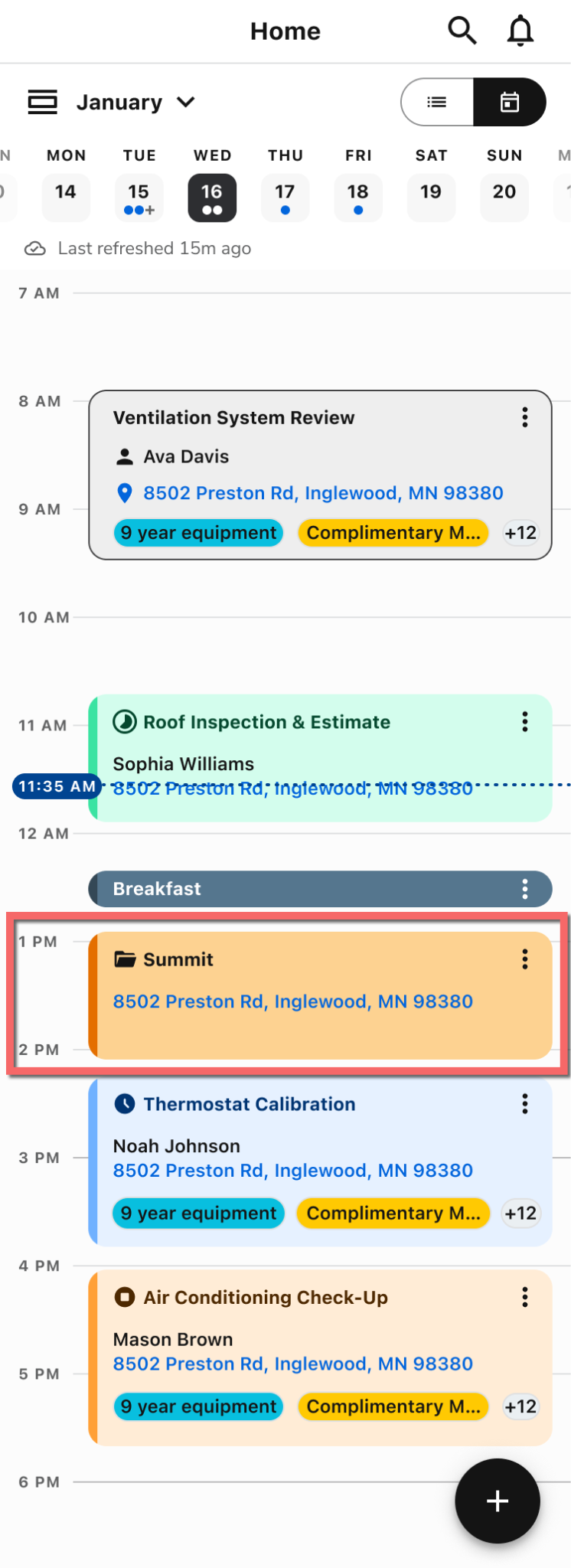
Open the Field Mobile App. Project events appear in Today's schedule on the Home screen, with your jobs and non-job events.
 Each project event shows the project number, the project, task group or task name, where it sits in the project, the scheduled dates and time, and the address.
Tap View all to see more of your schedule.
View project events on the calendar
Tap Calendar  .
Project events appear in Day view next to your jobs and non-job events.
To see the month, switch to Month view. Days with project events show them alongside your other items.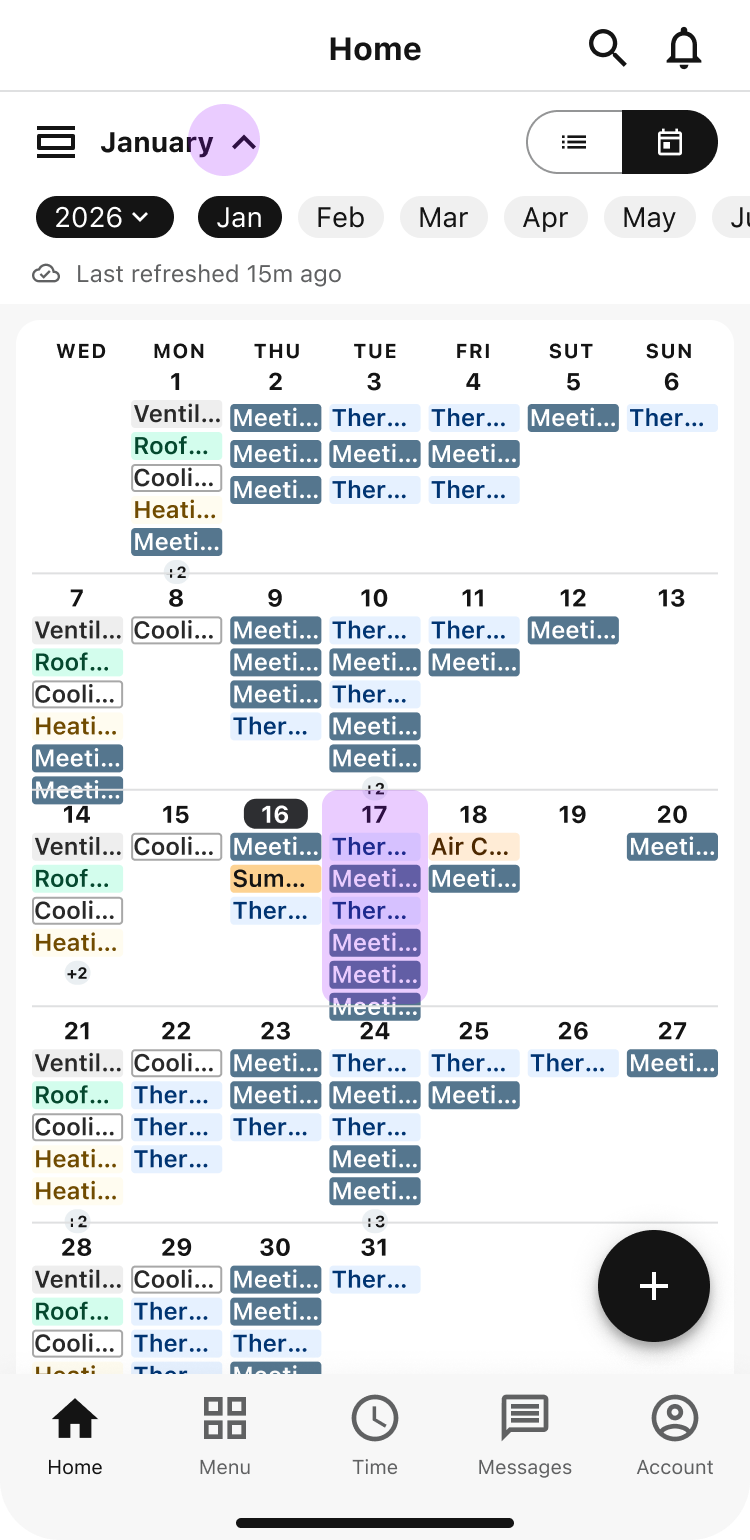
Note: Project events can't be rescheduled from the app. If you press and hold a project event in Day view, the app shows This event can't be rescheduled. Tap Call Office if it needs a new time, or Cancel to close the message. Call Office appears only when an office phone number is available.
Open the project and add a timesheet
On the Home screen, tap the project event. The project opens.
Tap Add Timesheet.
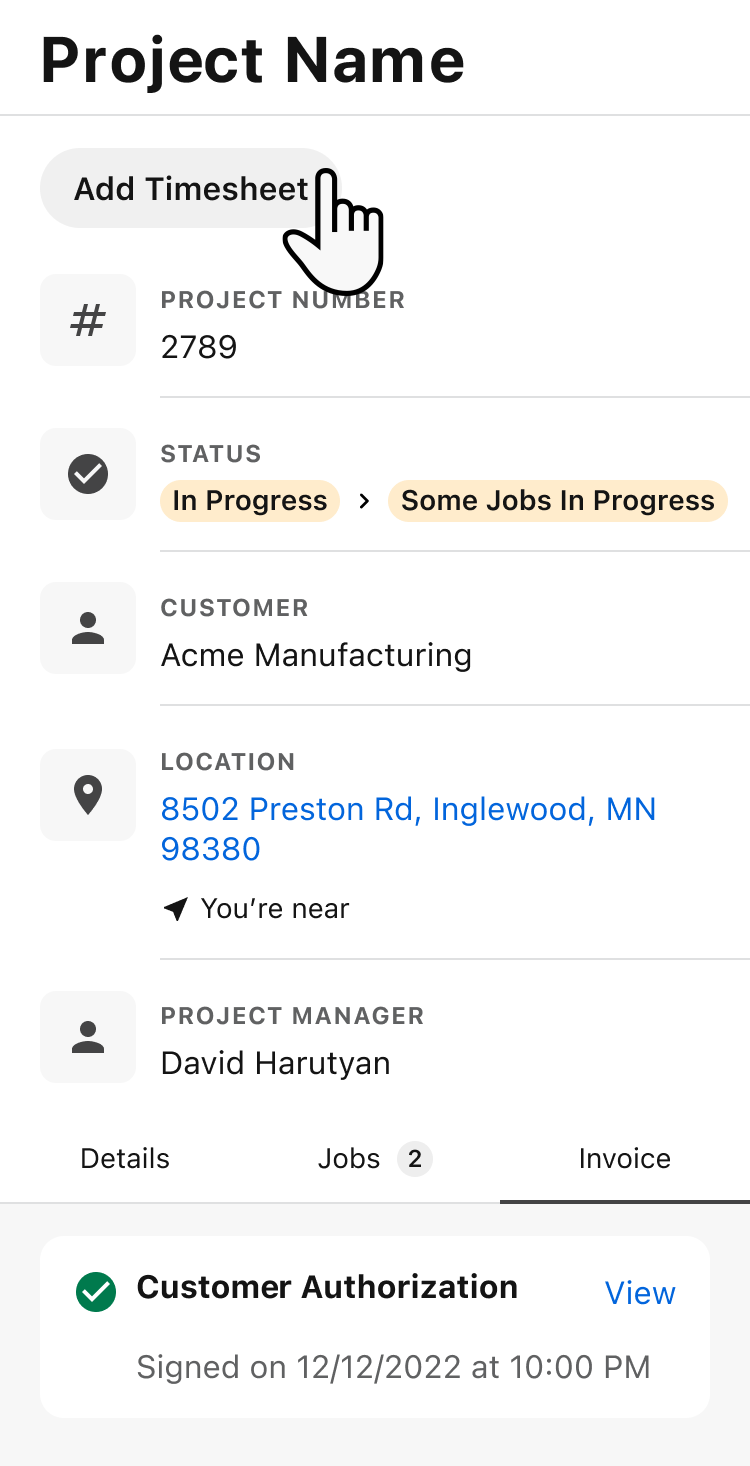
The project is filled in for you. Select the task if it isn't already filled in, enter your time, and save.
For more on timesheets, see Use manual timekeeping in the ServiceTitan Field Mobile App.