Below are common errors that you might experience when exporting from ServiceTitan to QuickBooks Desktop (QBD). The resolution to each error is listed to help you quickly resolve any identified issues.
Who uses this feature
Administrators, office employees, managers, accountants, and bookkeepers
Applies to all business types
Applies to all trades
Feature configuration
Account configuration is required to use this feature. Please contact Technical Support for details.
Things to know
Export errors appear in the Export Error Report under Reports. You can also see export errors in the Batch feed of the Invoice section of the Accounting screen
If you’re looking for the solution to a specific error on this page, press Ctrl + F and search for it
The errors here are for QuickBooks Desktop. If you are using QuickBooks Online, see Fix common QuickBooks errors - QBO.
If your batch successfully exported but you are still seeing the export error on the Accounting screen, you can unpost, repost your batch and even re-export if necessary. This clears the export error message on your batch.
The GL account names should match in ServiceTitan and QuickBooks.
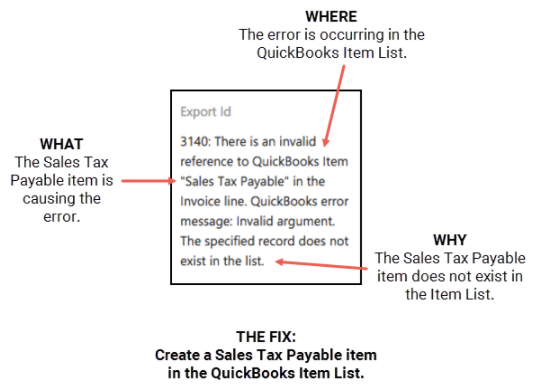
Read errors in QuickBooks
Typically, the first part of a QuickBooks error will generally specify where the error is occurring (Customer list, Item list, etc.) and what item is causing the error (the specific service, customer, business unit, and so on). The second part of the QuickBooks error will generally explain why the error occurred.
1000
Error 1000 There has been an internal error when processing the request.
The connection between ServiceTitan and QBD was disrupted or the amount of data being exported exceeded the timeout limit.
In ServiceTitan, export the batch again. For more, see Batch, post, and export transactions.
If the error persists, run the reconciliation tools under Settings  > Integrations > QuickBooks Desktop. For more information, see Reconciliation Tools (Customers, Pricebook, & Vendors)
3000-3100
Error 3000 The given object ID in the field "list id" is invalid
The full error reads: The given object ID [remote key] in the field "list id" is invalid.
You may see it on a ServiceItem, MaterialItem, EquipmentItem, or Invoice.
Why this happens
This error appears on records that have already exported successfully at least once, so an active mapping already links the ServiceTitan record to its QuickBooks counterpart. The export fails because the record's type was changed manually in one of the two systems, and the two no longer agree.
Which type QuickBooks needs depends on your inventory export setting, so check that first.
Fix the item type in QuickBooks
In ServiceTitan, go to Settings > Integrations > QuickBooks Desktop.
Open your active company file, find Export Inventory to QuickBooks, and note whether it is on or off.
In the Export Error Report, click the record name to open it in ServiceTitan. Note the item code or description.
In QuickBooks Desktop, go to Lists > Item List.
Search for the matching item code and open it.
Set the item's Type according to your setting:
Export Inventory to QuickBooks is off — the item should be a Non-inventory Part. If someone changed it to Inventory Part, Service, or Other Charge, change it back.
Export Inventory to QuickBooks is on — an item that ServiceTitan tracks as inventory should be an Inventory Part. If it is currently a Non-inventory Part, change it and accept the QuickBooks prompt warning that the change cannot be undone.
Click OK to save.
Return to the Accounting tab in ServiceTitan and export the batch again.
Important: Do not create a duplicate item in ServiceTitan to work around this error, and do not rename the record in ServiceTitan — including adding an asterisk (*) or any other character to the name. Either approach severs the mapping and causes QuickBooks to create a brand-new record on the next export. On an inventory-tracked item, this breaks the connection between your current ServiceTitan item and the QuickBooks history that holds your actual quantities and valuations, leaving duplicate items that are difficult to reconcile. Fix the type in QuickBooks instead.
If QuickBooks won't let you change the type
QuickBooks does not always allow a type change — converting an existing item to or from Inventory Part may be blocked. If that happens:
In QuickBooks, rename the existing item and mark it inactive.
Contact Technical Support to clear the item's stored mapping. This allows ServiceTitan to create a correctly typed item on the next export.
Export the batch again.
If you don't want to sync inventory quantities at all
If you don't intend to track physical inventory in QuickBooks, turn Export Inventory to QuickBooks off. With that setting off, an item that ServiceTitan tracks as inventory can map to a Non-inventory Part in QuickBooks without triggering this error.
If the error continues
Occasionally the mapping stays stuck even after the types match. Clearing the backend mapping is a change only ServiceTitan Support can make — it isn't available in your ServiceTitan settings. Contact Technical Support, name the record, and include the full text of the export error.
Error 3070 The string in the given field is too long.
An object in ServiceTitan has a filed value that exceeded QuickBook's limit for number of characters allowed. This is a limitation from QuickBooks in regards to reference numbers for transactions.
For more, see https://quickbooks.intuit.com/learn-support/en-us/set-up-printing/character-limitations-for-fields-in-quickbooks/00/201937
In ServiceTitan:
Unpost the batch and confirm the data within the field is accurate.
If it's an Invoice or Purchase Order (PO), confirm the character limit is under 11.
Export again.
Error 3090 Names in this list cannot contain a colon. The colon is a special character used to indicate a parent/child relationship.
This is due to the customer name having a colon, which indicates a parent/child relationship. We do not export to child customers in QuickBooks.
In ServiceTitan, remove the colon from the customer name.
Error 3100 The name of the list element is already in use.
The name of the entity you're trying to export already exists in QuickBooks. QuickBooks requires unique names across all lists. Common QuickBooks lists are: Customer, Vendor, Item, Class, and Other Name.
In QuickBooks, change the name of the entity associated with the error to be unique.
3120
Error 3120 Object "___" specified in the request cannot be found.
A GL account of the specified object was improperly added to ServiceTitan or the original invoice or its adjustment invoice was modified in QuickBooks after it was exported.
Make adjustments in ServiceTitan, then export again.
If the specified Pricebook item has no assigned GL Account:
Go to the navigation bar and click Pricebook.
Click Services, Material, or Equipment.
Click View/Edit for the specified Pricebook item.
Assign a GL account.
Click Save.
Unpost the batch and repost so ServiceTitan can record the changes on the transaction.
Export batch to QuickBooks Desktop.
If the specified Pricebook item has a GL Account assigned:
Go to the navigation bar and click Settings.
In the side panel, click Integrations > QuickBooks Desktop.
Click the appropriate company file.
Click Edit for Chart of Accounts Mapped.
Ensure the Pricebook item's GL account is mapped correctly. For more information, see ServiceTitan Web Connector Setup Guide.
Unpost the batch and repost so ServiceTitan can record the changes on the transaction.
Export the batch to QuickBooks Desktop.
If the Pricebook item is mapped to the correct accounts in ServiceTitan and QuickBooks:
Go to the navigation bar and click Pricebook.
Click Services, Material, or Equipment.
Click View/Edit for the specified Pricebook item.
Change the Pricebook item code by adding a "*" and make it inactive.
Add a new Pricebook item with a code matching to the existing item you have in QuickBooks Desktop.
Note: Make sure you also add the correct and exact amount, description and details as the item you just deactivated in step 4.
Unpost the invoice you are trying to export.
Remove the service item from step 4 and add the new service item created from step 5.
Note: Editing the invoice does not remove any signatures received from your customer, but changes are reflected in the job Audit Trail in ServiceTitan.
Post and export the batch.
If the error refers to a payment or credit memo and not an invoice:
Check the details of the invoice to make sure they match exactly with QuickBooks.
Apply the payment to the invoice manually in QuickBooks.
Bypass the batch in ServiceTitan.
If the error refers to an adjustment invoice that isn't synced with the original invoice:
If both invoices (adjustment and original) are in QuickBooks, manually attach the adjustment invoice to the original invoice.
If customer profiles were merged after invoice export but before payment export:
For payments that can't link to invoices, bypass the payment in ServiceTitan and manually apply in QuickBooks.
Error 3120 There is an invalid reference to QuickBooks AR Account "Accounts Receivable" in the invoice. QuickBooks error message: Invalid argument. The specified record does not exist in the list.
"Accounts Receivable" is a default GL account in QuickBooks that all AR-related ServiceTitan transactions map to.
In ServiceTitan:
Go to the navigation bar and click Settings
.In the side panel, click Integrations > QuickBooks Desktop.
Click the appropriate company file.
Click Edit for Chart of Accounts Mapped.
Confirm there is a GL account titled exactly "Accounts Receivable".
Confirm the QuickBooks Type of that GL Account is also Accounts Receivable. For more information, see ServiceTitan Web Connector Setup Guide.
Unpost the batch and repost so ServiceTitan can record the changes on the transaction.
Export the batch to QuickBooks Desktop.
3140
Error 3140 The specified account does not exist in the list.
An account was not assigned to a Service Item, Material Item, or Equipment Item, depending on the Entity type.
Caution: Switch QuickBooks Desktop to Single User Mode before making any GL account changes.
In ServiceTitan, assign the appropriate income, COGS, and inventory account via the pricebook and apply retroactively.
Also check for inactive items with the same names.
Error 3140 You cannot use the same item in two different line items in this transaction.
The inventory adjustment contains the same material/equipment twice in the adjustment.
In ServiceTitan:
From the Inventory tab, go to the Adjustment screen.
Search for and select the adjustment and click Actions > Edit.
Consolidate the materials instead of having them appear more than once.
Adjust the quantity of one of the items to consolidate it into one line.
Delete the additional line of the same item.
When finished, click Save.
Error 3140 You cannot associate an item with Sales Tax Payable, Undeposited Funds, Accounts Receivable, Accounts Payable or non-posting accounts.
QuickBooks only allows for one instance of each of these accounts
In ServiceTitan:
Go to the invoice(s) that failed to export.
Click Edit
 on each item to see what GL accounts they are assigned to.
Go to the navigation bar and click Settings > Integrations > QuickBooks Desktop > Company file.
Click Edit for Chart of Accounts Mapped.
Click the Show All toggle.
Ensure that Sales Tax Payable, Undeposited Funds, Accounts Receivable, Accounts Payable aren't mapped to the GL accounts assigned to the items on the invoice(s) that failed to export.
If any of the invoice items are mapped to these accounts:
Remap the GL accounts.
Click Save.
Re-export the batch. For more, see Batch, post, and export transactions.
Error 3140 There is an invalid reference to QuickBooks Item "Shipping" in the Bill line. QuickBooks error message: Invalid argument. The specified record does not exist in the list.
Shipping item is missing in QuickBooks.
In QuickBooks:
Go to the QB Item List.
Create a new item with item type as Other Charge.
Enter "Shipping" as the item name.
Add a GL Account.
Error 3140 There is an invalid reference to QuickBooks AR Account "Accounts Receivable" in the invoice. QuickBooks error message: Invalid argument. The specified record does not exist in the list.
The Accounts Receivable default account was renamed or modified in QuickBooks.
In ServiceTitan:
Confirm that there is a GL account labeled exactly Accounts Receivable. If labeled differently, change it to Accounts Receivable.
Confirm the type of that GL account is also Accounts Receivable. If it is different, change it to Accounts Receivable.
Error 3140 There is an invalid reference to QuickBooks Item "Tax" in the Bill line. QuickBooks error message: Invalid argument. The specified record does not exist in the list.
Tax item is missing in QuickBooks.
In QuickBooks:
Go to the QB Item List.
Create a new item with the item type Other Charge.
Enter "Tax" as the item name.
Add a GL Account.
Error 3140 There is an invalid reference to QuickBooks Account "____" in the Item Service. QuickBooks error message: Invalid argument. The specified record does not exist in the list.
The GL Account in the quotation marks does not exist in QuickBooks.
Re-map your pricebook item to a GL Account that exists in QuickBooks. Apply this change retroactively and save.
If you want to continue using the GL account listed in error, you must create the GL account in QuickBooks.
After you've created the Account in QuickBooks, sync the GL Account in ServiceTitan.
Go to Settings
> QuickBooks Desktop > Company file > Chart of Accounts > Edit.Match the GL Account and click Save.
Error 3140 There is an invalid reference to QuickBooks Class. The specified record does not exist in the list.
Either the class doesn't exist in QuickBooks or the Business unit of the transaction is not mapped the corresponding class in QBD.
In ServiceTitan:
Go to Settings
> Accounting Integrations > QuickBooks desktop > Company file > Business Units Assigned > EditMake sure all Business Units are mapped to the correct class in QBD.
Error 3140 There is an invalid reference to QuickBooks Post Account "____" in the ItemService. QuickBooks error message: To change the posting account, you must switch to single-user mode.
GL Account assigned to an item in QuickBooks doesn't match the GL Account for the item in ServiceTitan.
In QuickBooks:
Switch to Single User Mode.
In ServiceTitan:
Go to the navigation bar and click Pricebook.
Click Services, Material, or Equipment.
Select the item referenced in the error message.
Review the GL account.
If the GL account in ServiceTitan doesn't match the one in QuickBooks:
Update the GL account in ServiceTitan or QuickBooks.
Error 3140: There is an invalid reference to QuickBooks Term "xxxxxx" in the Invoice. QuickBooks error message: Invalid argument. The specified record does not exist in the list.
The payment term being used within ServiceTitan is not set up in QuickBooks. To fix this, identify the payment term being used in ServiceTitan then:
In QuickBooks:
Go to Lists > Customer & Vendor Profile Lists > Terms List
From the Terms dropdown, select New.
Enter the payment term and click OK.
In ServiceTitan:
Unpost and post the batch.
Export the batch.
Error 3140: There is an invalid reference to QuickBooks Vendor Type "xxxxxx" in the Vendors. QuickBooks error message: Invalid argument. The specified record does not exist in the list.
A vendor type in QuickBooks has a different name than the one in ServiceTitan.
In QuickBooks:
Go to Lists > Customer & Vendor Profile Lists > Vendor Type List.
Locate the vendor type referenced in the error message.
Change the vendor type's name so it matches the one in ServiceTitan exactly.
If the vendor type is not in the list, create it by selecting New.
Unpost and re-post the batch before exporting again. For more, see Batch, post, and export transactions.
Error 3140 You cannot use the same tax item in both the line items and the transaction tax.
Sales tax is turned on in QuickBooks.
Create a GL account in QuickBooks and label it ST Sales Tax.
Create a service item in QuickBooks and label it ServiceTitan Sales Tax.
Map the ServiceTitan Sales Tax service item in ServiceTitan.
In QuickBooks:
Create a new GL Account with the type Other Current Liability and name it ST Sales Tax.
Go to the QB Item List.
Create a new item with the item type Service.
Enter "ServiceTitan Sales Tax" as the item name.
In ServiceTitan:
Go to the navigation bar and click Settings
.In the side panel, click Invoicing > Tax Zones.
In the Sales Tax Item field, enter "ServiceTitan Sales Tax".
Click Save.
3150
Error 3150 Cannot use SalesOrPurchaseMod aggregate when the item is reimbursable.
There is a missing GL Account for the item in QuickBooks.
In QuickBooks:
Ensure the GL Account in QB is the same as in ServiceTitan.
If the item type is a Service in QBD, then deselect the box This item is used in assemblies or is purchased for a specific customer: job.
If the item type is non-inventory Part, then select the box This item is used in assemblies or is purchased for a specific customer: job.
3170
Error 3170 There is already an item with this name. You cannot merge them because their types are incompatible.
Typically, this occurs because a material/equipment was changed from non-inventory to inventory or an item was created manually in QuickBooks instead of being exported from ServiceTitan.
In QuickBooks, change the name of the old item and make it inactive. The new ServiceTitan item will be automatically created.
Alternatively, add the asterisk character ( * ) to the item code in ServiceTitan and export to create a new item in QuickBooks. Then merge the items in QuickBooks.
Error 3170 There was an error when modifying a ItemNonInventory. Cannot use SalesAndPurchaseMod aggregate when the item is not reimbursable.
There is a missing GL Account for the item in QuickBooks.
The Service Task Item has more than 31 characters.
In QuickBooks:
Ensure that GL Account in QB is the same as in ServiceTitan.
Select the box This item is used in assemblies or is purchased for a specific customer: job. Make sure each Service Task Item has no more than 31 characters.
Error 3170 There was an error when modifying a ItemInventory list, element "Entity Name". QuickBooks error message: Cannot merge list elements.
A pricebook item's inventory tracking is classified differently in ServiceTitan and QuickBooks Desktop. The item must be marked as inventory or non-inventory in ServiceTitan and QBD.
Ensure that inventory tracking is enabled or disabled for the item in ServiceTitan and QBD.
Check that the item names and item types match up both in QuickBooks and ServiceTitan.
Make sure the GL account is the same in both platforms.
Unpost and re-post the batch before exporting again. For more, see Batch, post, and export transactions.
Ensure there are no inactive items with the same name in ServiceTitan or QuickBooks.
Rename the active items as needed and mark items as active to successfully export them.
Error 3170 This list is in use by another user. Try again later.
Another QuickBooks user is making changes in QuickBooks during the time of export.
In ServiceTitan:
Export the batch again. For more, see Batch, post, and export transactions.
In QuickBooks:
Either run QuickBooks in single-user mode to ensure no one else is in QuickBooks or have the other user in QuickBooks finish making their changes.
Confirm that all windows are closed within QuickBooks. This applies to all logged in QuickBooks users.
Error 3170 There was an error when modifying a Customers list, element "Entity Name". QuickBooks error message: This list has been modified by another user.
A different user has the customer profile open in their instance of QuickBooks.
Switch to Single User Mode and re-export the batch.
Error 3170 There was an error when modifying a Customer, element "Entity Name". QuickBooks error message: Cannot merge list elements.
The name of the customer you are trying to export already exists within the customer list.
The customer's export level has changed.
In ServiceTitan:
In the customer profile, ensure the customer name is identical in QuickBooks. If the customer name is different in ServiceTitan, update it to reflect the QuickBooks name.
In ServiceTitan, if the customer is a duplicate, then merge the customer with the matching customer. For more, see Merge or Unmerge Duplicate Customer and Location Records.
Unpost and re-post the batch before exporting again. For more, see Batch, post, and export transactions.
Error 3170 There was an error when modifying a Customers list, element "Entity Name". QuickBooks error message: Cannot merge list elements.
The name of the customer you are trying to export already exists within the customer list. In the customer profile, make sure the customer name is identical in QuickBooks. If the customer name is different in ServiceTitan, update it to reflect the QuickBooks name.
In ServiceTitan, if the customer is a duplicate, merge the customer with the matching customer.
Unpost and re-post the batch before exporting again.
Note: You may need to merge customer profiles in QuickBooks. For more, go here.
Error 3170 There was an error when modifying a Vendor, element "Entity Name". QuickBooks error message: Cannot merge list elements.
The name of the vendor you're trying to export already exists within the vendor list.
In ServiceTitan, if the vendor is not a duplicate of an existing one, then rename the vendor:
Go to the navigation bar and click Settings
.In the side panel, click Inventory > Vendors.
Click the vendor you want to change the name for.
Click Edit.
Enter a new Vendor name.
Click Save.
Unpost and re-post the batch before exporting again. For more, see Batch, post, and export transactions.
Error 3170 There was an error when modifying a Vendors list.
The name of the vendor you're trying to export already exists within the vendor list.
In ServiceTitan, if the vendor is not a duplicate of an existing one, then rename the vendor:
Go to the navigation bar and click Settings
.In the side panel, click Inventory > Vendors.
Click the vendor you want to change the name for.
Click Edit.
Enter a new Vendor name.
Click Save.
Unpost and re-post the batch before exporting again. For more, see Batch, post, and export transactions
Error 3170 There was an error when modifying an ItemInventory list, element "___". QuickBooks error message: There is already an item with this name. You cannot merge them because their types are incompatible.
ServiceTitan is trying to create an item but the item exists as a different type than what ServiceTitan is creating.
In ServiceTitan, change the item name in the pricebook.
In QuickBooks:
Go to Lists > Item List.
Change the name of the item.
Error 3170 There was an error when modifying a service item, element "Entity Name". QuickBooks error message: Cannot merge list elements.
The name of the service item you're trying to export already exists within the item list with a different type.
In ServiceTitan, if the service item is not a duplicate of an existing one, then rename the service.
In ServiceTitan, go to the navigation bar and click Pricebook.
Click the Service tab.
Click the service you want to edit the name of.
Enter the new service name.
Click Save.
Unpost and re-post the batch before exporting again. For more, see Batch, post, and export transactions.
3171-3179
Error 3171 An attempt was made to modify an invoice with a date that is on or before the closing date of the company.
A closing date has been set in QuickBooks. This prevents changes to transactions with a date on or before the closing date.
A payment is being exported for an exported invoice that is dated before the closing date.
In ServiceTitan: Change the invoice date to be after the closing date. Unapply the payment and export it as a credit.
In QuickBooks:
If you have administrative permissions, you can remove the password for editing transactions on or before the closing date.
Warning: This is not recommended since this transaction affects financial activity for a closed accounting period.
Error 3173 The related credit transaction object specified by the ID was deleted or modified.
The invoice may have been changed or deleted in QuickBooks, so ServiceTitan can't auto apply the transaction to QuickBooks.
In QuickBooks, check to see if the transaction exported successfully. Then, apply the credit manually.
Error 3176 This list has been modified by another user.
Multiple users in QuickBooks accessing the same data simultaneously.
In QuickBooks:
Switch to single-user mode.
In ServiceTitan:
Re-export the batch.
Error 3176 There was an error when modifying a ItemInventory/ItemService list, element "Item Name". QuickBooks error message: This list is in use by another user. Try again later.
Another QuickBooks user is making changes to an item you are trying to use in QuickBooks during the time of export.
In ServiceTitan:
Repost and export the batch. For more, see Batch, post, and export transactions.
In QuickBooks:
Either run QuickBooks in single-user mode to ensure no one else is in QuickBooks or have the other user in QuickBooks finish making their changes.
Confirm that all windows are closed within QuickBooks. This applies to all logged in QuickBooks users.
Error 3176 To change the posting account, you must switch to the single-user mode or Invalid Reference to QB Asset/COGS/Expense To change the switch to single-user mode.
GL Account assigned to an item in QuickBooks doesn't match the GL Account for the item in ServiceTitan.
In QuickBooks:
Switch to Single User Mode.
In ServiceTitan:
Go to the navigation bar and click Pricebook.
Click Services, Material, or Equipment.
Select the item you want to review the GL Account for.
Error 3176 A related object is already in use, or failed to acquire the lock for this object.
Contact Technical Support if you encounter this error.
Error 3176 A related transaction object specified by the ID "__________" is already in use, or failed to acquire the lock for this object.
In QuickBooks, a modal box was opened prior to or during the export attempt.
In QuickBooks:
Ensure all edit, preferences, and product information windows are closed.
In ServiceTitan:
Try to export again. For more, see Batch, post, and export transactions.
Note: When exporting, be sure to not open new windows until the export has been completed.
Error 3177 The transaction object "____ " may only be provided once in this request.
The same payment was partially applied to the same invoice more than once.
Unapply the partially applied payment and apply it again to the invoice in one transaction. For more, see Edit or delete payment credits with Payment Collections.
3180
Error 3180 You cannot use more than one A/R or A/P account in the same transaction.
QuickBooks only allows for a transaction to debit/credit A/R or A/P once.
In ServiceTitan, go to Settings > Invoicing > Payment and Invoice Types and change the Payment Types GL account to something other than Accounts Receivable or Accounts Payable.
Error 3180 There was an error when saving a BillCredit.
The return contains an inactive line item.
In ServiceTitan, reactivate the item or change the item to reflect an active item in the pricebook.
Error 3180 There was an error when saving an Item Non-Inventory list, element "########". QuickBooks error message: An expense account must be specified.
ServiceTitan has attempted to create the item in QuickBooks Desktop, however, the proper account fields were not assigned in the pricebook.
Ensure the item has an account assigned in the pricebook. In ServiceTitan:
Go to the navigation bar and click Pricebook.
Select the item type that is causing the error, Services, Materials, or Equipment.
Click Edit on the item causing the error.
Ensure the Income Account, COGS Account, and Asset Account (where applicable) have a GL Account assigned.
Click Save.
Click Apply Retroactively to make changes to existing invoices with that item.
If the item already has a COGS account assigned:
Go to the navigation bar and click Settings
> Integrations > QuickBooks Desktop > Company file.Click Edit for Chart of Accounts Mapped.
Make sure the GL of the item is mapped and save.
Try to export again. For more, see Batch, post, and export transactions.
Error 3180 There was an error when saving an Item/Inventory list, element "Item Name". QuickBooks error message: An asset/posting account must be specified.
An asset account is missing for the item in ServiceTitan.
In ServiceTitan:
Go to the navigation bar and click Pricebook.
Click Services, Material, or Equipment.
Select the item you want to review the GL Account for.
If the item already has an asset account assigned:
Go to the navigation bar and click Settings
> Integrations > QuickBooks Desktop > Company file.Click Edit for Chart of Accounts Mapped.
Make sure the GL of the item is mapped and save.
Try to export again. For more, see Batch, post, and export transactions.
Error 3180 There was an error when saving an Item Non-Inventory list, element "Entity Name". QuickBooks error message: An income account must be specified.
The pricebook item is missing an Income Account.
In ServiceTitan:
In the Export Error Report, click the item associated with this error.
In your pricebook, select the correct GL Account and click Save.
If the item already has an income account assigned:
Go to the navigation bar and click Settings
> Integrations > QuickBooks Desktop > Company file.Click Edit for Chart of Accounts Mapped.
Make sure the GL of the item is mapped and save.
Try to export again. For more, see Batch, post, and export transactions.
Error 3180 The transaction could not be saved because the quantity on hand of item would go negative to x on xx/xx/xxxx.
QuickBooks does not hold enough quantity of an item.
Reconcile ServiceTitan and QuickBooks. Export any outstanding POs or bills, inventory adjustments, and transfers.
In QuickBooks:
Confirm that quantities match between both systems.
If quantities don't match in ServiceTitan and all adjustments, transfers, POs/bills have been exported into QBD, an inventory reconciliation is recommended.
Error 3180 There was an error when saving a Invoice. QuickBooks error message: Transaction amount must be positive.
Items on the invoice have positive quantities and negative prices. Each transaction must have a positive amount.
If a transaction needs to be in negative, ensure the tasks are properly configured so only the quantity is negative and not the price.
Error 3180 There was an error when saving an invoice. QuickBooks error message: Transaction not in balance.
Your ServiceTitan account is configured to have Quickbooks use Invoice Tax and sales tax isn't enabled in QBD.
A payment already exists in QBD with the same reference ID or date.
Enable sales tax tracking in QuickBooks.
In QuickBooks, go to Edit > Preferences > Sales tax > Company preferences and select Yes next to Do you charge sales tax?
Error 3180 There was an error when saving a Invoice. QuickBooks error message: You may not create or edit a transaction dated on or before the dividing date.
There are invoices in the batch with invoice dates set before the dividing date.
In QuickBooks:
Review the dividing date.
In ServiceTitan:
Unpost the batch.
Update the invoice dates to be before the dividing date.
Try to export the batch again. For more, see Batch, post, and export transactions.
Error 3180 There was an error when saving a ReceivePayment. QuickBooks error message: The transaction is empty.
QuickBooks does not accept $0 payments.
In ServiceTitan, bypass the batch and set the Payment as exported.
3200-5000
Error 3200 The provided edit sequence "____" is out-of-date.
An edit was made in QuickBooks that is not accounted for in ServiceTitan.
In ServiceTitan, try to export the batch again. For more, see Batch, post, and export transactions.
Error 3250 Cannot create/update inventory item. Inventory module is disabled in QBD.
This is related to settings in QuickBooks for advanced inventory. If your ServiceTitan account is on QuickBooks Enterprise, you will have these settings. If your ServiceTitan account is not on QuickBooks Enterprise, you can't track inventory.
In QuickBooks, go to Edit > Preferences > Items & Inventory > Advanced Inventory Settings and confirm that Multiple Inventory Sites is enabled.
Error 3250 This feature is not enabled or not available in this version of QuickBooks.
Advanced Inventory in QuickBooks is not enabled.
In QuickBooks:
Confirm you are using QuickBooks Enterprise Solutions and have a license that supports Advanced Inventory, then contact your implementation or success manager.
Error 3260 Insufficient permission level to perform this action.
You don't have the appropriate permissions in QuickBooks.
Please contact the account administrator on your team to make sure your QuickBooks permissions are updated. Or ask someone else on your team to help export.
Error 3260 This transaction action is not allowed for this user.
You don't have the proper permissions to export this transaction type into QuickBooks.
Ask your local administrator to grant the appropriate permissions in QuickBooks so you can export the batch. For more on required permission levels in QuickBooks, see QuickBooks export permissions.
Error 3280 The type of the item is different from the type of the parent.
There's a parent item that is a different type than the child item that ServiceTitan is trying to create in QuickBooks.
In ServiceTitan, change the parent item reference or make the item the same type as the parent in QuickBooks.
In QuickBooks, change the parent type, if possible. Otherwise, rename the parent and recreate the parent with the appropriate item type that matches ServiceTitan.
4000- QueryParserError: Encountered " <INTEGER> "## "" at line #, column ##.
This error occurs if you have items on your Pricebook that contains invalid characters, such as " ' ." To resolve this error, remove the invalid character on the name and item numbers in your Pricebook and try to export again.
6000-6999
Error 6000 - Business Validation Error: You can't create or modify a transaction with a date that comes before you started tracking quantity on hand for the following: XXXXX-XXXX. A business validation error has occurred while processing your request.
In ServiceTitan:
Go to the pricebook item and make a small change to the item code, such as adding an asterisk.
Export the batch again.
Error 6130 - Cannot Change Who Customer Bills With Error
In QuickBooks:
Go to the customer list view.
Look for any parent:child relationships between customers.
If there is a parent:child relationship, go to the edit page of the child customer.
Uncheck the is sub-customer option.
Try to export the batch again.
If the error persists, contact ServiceTitan support for further assistance.
Note: Parent:child relationships with customers in Quickbooks Online is not supported by ServiceTitan
ServiceTitan (ST) errors
Create operation is not allowed due to lock level
The full error reads: [Entity type] error: Create operation is not allowed due to lock level, source key: [local key].
The entity type varies. You may see ServiceItem, MaterialItem, EquipmentItem, Customer, or Vendor.
Why this happens
This error appears on records that have already exported successfully at least once, so an active mapping already links the ServiceTitan record to its QuickBooks counterpart. The export fails because the record's type or another required field was changed manually in one of the two systems, which breaks that link.
The most common version involves inventory settings. When Export Inventory to QuickBooks is turned off in ServiceTitan, an item that ServiceTitan tracks as inventory is expected to match a Non-inventory Part in QuickBooks. If someone edits that item in QuickBooks to a different type — Inventory Part, Service, or Other Charge — the types no longer agree and the next export fails.
IMPORTANT
Do not use the asterisk (*) workaround
Adding an asterisk (*) — or any other character — to a record's name in ServiceTitan is not a valid resolution for this error. This workaround has circulated for a long time, but it does not fix the underlying mismatch and it causes new problems.
Renaming the record in ServiceTitan severs the integration link, and QuickBooks creates a brand-new record on the next export. On an inventory-tracked item, this breaks the connection between your current ServiceTitan item and the QuickBooks history that holds your actual quantities and valuations, leaving duplicate items that are difficult to reconcile.
Always resolve the mismatch in QuickBooks instead.
Fix the type mismatch in QuickBooks
In the Export Error Report, click the record name to open it in ServiceTitan. Note the item code or description, and the record's type.
In QuickBooks Desktop, go to Lists > Item List.
Search for the matching item code and open the item.
Change the item's Type back so it matches ServiceTitan. If you are not exporting inventory, set the type to Non-inventory Part.
Click OK to save.
Return to the Accounting tab in ServiceTitan and export the batch again.
You can safely rename a non-inventory item in QuickBooks to realign it. Do not rename a true inventory item, because the name is tied to quantity tracking and item validation between the two systems.
If the error is on a Vendor record
A Vendor-type lock level error usually means QuickBooks has more than one record for the same vendor. Use the Vendor ID shown next to the vendor name in QuickBooks to identify which record is the correct one — the name alone is not reliable when duplicates exist.
In QuickBooks Desktop, open the Vendor Center and locate the vendor named in the error.
Compare the Vendor ID next to each matching vendor name to determine which record is correct.
Resolve the duplicate using one of the following options:
Rename and deactivate the duplicate. Use this when the duplicate has no transactions posted to it. Rename it so the name is unique, then mark it inactive.
Merge the records. Use this when transactions are appearing under both vendor records, so history stays in one place.
Return to the Accounting tab in ServiceTitan and export the batch again.
Make these changes in QuickBooks, not in ServiceTitan.
Note: Merging vendors in QuickBooks Desktop cannot be undone. Back up your company file before you merge.
If you find no duplicate vendor records, contact Technical Support.
If the error continues
Occasionally the mapping between the two records stays stuck even after the types match. Clearing it requires a change that only ServiceTitan Support can make. Contact Technical Support and include the entity type and the source key from the error message.
ST Error Critical error: Bill update is not provided
The connection was interrupted.
Check if a window opened in QuickBooks during the export.
If a window opened, follow the instructions to solve the QuickBooks issue, close the window, and try the export again.
If the window did not appear, confirm this did not happen for any other QuickBooks users who are logged in.
ST Error Critical error: Inventory returns update is not provided.
The return (vendor credit) has already been added to QuickBooks manually with the same number.
Find the credit in QBD. If it's the same one as in ServiceTitan, then bypass the return. If the returns are different, change the return number in QBD.
ST Error Critical error: Inventory transfer update is not provided.
The transfer's reference number is already used in QuickBooks.
Change the reference number in QBD and re-export the batch.
ST Error Critical error: object was not processed.
The ServiceTitan web connector is not open or the user connection associated with the QuickBooks file is offline.
Locate the ServiceTitan web connector on the computer where QuickBooks is installed.
If the web connector is not opened, then open it and confirm the connection displays as Online. For more, see Web Connector Troubleshooting Guide.
ST Error Critical error: Sequence contains no matching element
The payments you exported appeared in QuickBooks as customer credit since they didn't apply to their corresponding invoices.
In QuickBooks, look through the invoices and apply the payments accordingly. Once you make sure all the payments in the batch are applied to their invoices in QuickBooks, re-export or bypass the batch.
ST Error Critical error: Sync error. Code: 500 Entity type "Inventory Adjustment".
Beginning Balance Excel Import did not include the Import Reference and Reference Number fields.
In ServiceTitan:
Delete the Beginning Balance Adjustments within ServiceTitan.
Re-import the Beginning Balance Adjustments with the Reference Number and Import Reference fields populated.
ST Error Critical error: The given key was not present in the dictionary.
This is most likely related to our auto-apply logic when sending down payments/credit memos.
In ServiceTitan, bypass the batch to clear the error as all transactions are already in QuickBooks.
In QuickBooks:
Check if the transaction did export into QuickBooks.
Apply the transaction manually in QuickBooks.
ST Error Critical error: The operation was canceled.
The Web Connector or QBD file was closed in the middle of exporting.
Open the ServiceTitan Web Connector and your QBD file.
Re-export the batch.
ST Error Dependent entity of type CreditMemo (ID = xxxxxxx) is not synced. The invoice doesn't have active items.
Inactive invoice items should not be exported as they are usually made inactive because they are no longer being used.
Confirm the inactive item should be used.
If yes, make the item active. Confirm a general ledger (GL) account is being used, and apply retroactively to all posted and exported transactions.
If no, unpost the batch, change the pricebook item on the invoice, post the invoice, and export again.
ST Error Dependent entity of type CustomerJob (ID = XXXXXX:0) is not synced yet
This error occurs if the service location on the invoice has been deactivated or the invoice is a Counter Sale or Point of Sale (CS, POS) invoice and the payment is not exporting because there is no service location assigned on those invoices.
To resolve this error:
Reactivate the service location or change the service location to an active one.
If the invoice has already been exported, bypass the invoice and add the invoice manually in QuickBooks.
ST Error Dependent entity of type Invoice (ID = xxxxxxx) is not synced. There was an error adding, modifying or deleting ___ because it is already in use. QuickBooks error message: The transaction could not be locked. It is in use by another user.
The invoice sync statuses need to be re-assigned to the correct online connection.
Login to QuickBooks in single-user mode.
Confirm the invoices are displayed correctly in QuickBooks.
Check the sync statuses.
If the sync status says Action Required on the invoices, resync and ensure the invoices are assigned to the correct QuickBooks connection.
Re-export the batch.
ST Error Error has occurred when syncing customer data to QuickBooks
ServiceTitan was unable to connect to the QuickBooks file that was originally set up.
In ServiceTitan, confirm the ServiceTitan web connector is open and on the same computer as the open QB file.
In QuickBooks, confirm the correct QuickBooks file is open and on the same computer as the ServiceTitan web connector.
For more, see Web Connector Troubleshooting Guide.
ST Error LazyProxyImpl
The exported payment did not apply to the invoice in QuickBooks.
In ServiceTitan, find the payment and determine what invoice it is applied to.
In QuickBooks:
Find the invoice within QuickBooks and apply the payment or journal to this invoice so there is no longer an unapplied payment/journal entry.
Check the QuickBooks Invoice balance and confirm that the balance matches the invoice balance in ServiceTitan.
In ServiceTitan, export the batch again to clear the export error. (Exporting the batch will not send any additional information over to QBD). For more, see Batch, post, and export transactions.
ST error Sync failed when trying to export a batch to QuickBooks Desktop, ServiceTitan was unable to connect to the QB file that was originally set up.
The ServiceTitan web connector is not open on the same computer as QuickBooks or the correct QuickBooks file is not open on the same computer as the ServiceTitan web connector.
Confirm the ServiceTitan web connector is open and on the same computer as the open QuickBooks file:
Go to the computer or server where you use QuickBooks.
In the system tray in the bottom right corner of the desktop next to the clock, click the arrow pointing up to see if there is a green ST icon for the web connector. If the green ST icon is not there, the web connector is not on.
Search for and open the ServiceTitan web connector on the computer. The icon appears in the bottom right corner.
Confirm the correct QuickBooks file is open on the same computer as the ServiceTitan web connector:
Go to the computer or server where you use QuickBooks.
Confirm the ServiceTitan web connector is on, as described in the previous steps.
In ServiceTitan, Go to Settings
> Integrations > QuickBooks Desktop and click the company QuickBooks file.
On the mapping screen, under Connections, confirm the Local File Path is the same location as where you open QuickBooks.
For more, see Web Connector Troubleshooting Guide.
ST Error The invoice doesn't have active items.
The invoice line items are inactive in ServiceTitan or the invoice has no items at all, but there is a tax total.
In ServiceTitan, activate the items or recreate the invoice to reflect active items.
If the invoice is empty, add a task, clear the tax, unapply any payments, and re-export the batch.
ST Error The bill doesn't have active items.
The items on the Purchase Order (PO) don't have items that are active in ServiceTitan.
In ServiceTitan, activate the items or recreate the Purchase Order to reflect active items.
ST Error The payment is either already exported, or a duplicate.
The payment's ID number already exists in QuickBooks.
Check to see if the payment is already in QuickBooks. If it is, bypass the batch in ServiceTitan.
If the payment is not in QuickBooks, add it manually and bypass the batch in ServiceTitan.
ST Error Unable to reconcile.
This error occurs when a transaction in the batch has a reference number or identifier that already exists in QuickBooks Desktop. Common causes include:
An inventory adjustment surpassed the limit of 500 line items per adjustment.
An ACH payment was exported with a check number or memo field that matches a check number or memo already in QuickBooks.
If the error is related to an inventory adjustment:
In ServiceTitan, break up the batch's inventory adjustments into multiple smaller adjustments.
If the error is related to an ACH payment with a duplicate check number or memo:
In QuickBooks, find the existing transaction with the matching check number or memo.
Change the check number or memo on the existing transaction in QuickBooks, or bypass the batch in ServiceTitan and manually record the payment in QuickBooks.
ST Error You must specify a QBD account for the Inventory Adjustment. Ensure the "QBD Inventory Adjustment Account" has an assigned GL account under ServiceTitan Settings > Inventory > Configuration.
The Inventory Module setup is incomplete and is missing a GL account.
In ServiceTitan:
Unpost the batch that experienced the error.
Go to the navigation bar and click Settings
.In the side panel, click Inventory > Configuration.
From the QBD Inventory Adjustment Account dropdown, select a GL Account for inventory adjustments.
Repost and export the batch. For more, see Batch, post, and export transactions.
ST Error You must specify a Sales Tax Item for the Tax zone.
Tax Zones is missing Tax Item.
In ServiceTitan:
Go to the navigation bar and click Settings
.In the side panel, click Invoicing > Tax Zones.
In the Sales Tax Item field enter "ST Sales Tax".
Click Save.
In QuickBooks:
Create a new GL Account with the type Other Current Liability and name it Sales Tax Payable-ST.
Go to the QB Item List.
Create a new item with the item type as Service.
Enter "ST Sales Tax" as the item name.
Add the GL Account called Sales Tax Payable - ST.
The tax zone assigned to the invoice has not been mapped to a QuickBooks sales tax item. Please access the QuickBooks file in Settings > Integrations and map a QuickBooks sales tax item to the ServiceTitan tax zone before re-exporting.
You must add your tax zones and properly map them to QuickBooks. For more on mapping tax zones, see Map ServiceTitan tax zones to QuickBooks Desktop tax rates or Map ServiceTitan tax zones to QuickBooks Desktop tax rates for Canada.
Miscellaneous errors
Action cancelled - Error from QuickBooks: An invoice for a canceled job can't have a non-zero total or any items
To resolve, remove the affected invoice from the batch, then bypass exporting the batch in ServiceTitan. You can then manually update QuickBooks.
Action cancelled: The QuickBooks file you selected is not configured properly on the ServiceTitan side
The full error reads: Action cancelled: The QuickBooks file you selected is not configured properly on the ServiceTitan side. Please go to Settings > Integrations > QuickBooks Desktop, and make sure the file is configured there.
Why this happens
The export stops immediately — as soon as you confirm it, before any transactions are attempted. This means the company file exists in ServiceTitan but has not been marked as fully configured. One or more required mapping steps are incomplete, or the configuration was never saved through to the end.
Complete the company file configuration
In ServiceTitan, go to Settings > Integrations > QuickBooks Desktop.
Find the company file named in the error message and click Edit.
Open the Web Connector on the computer or server where QuickBooks runs, and confirm the connection is active. The status icon changes from red to green in both the Web Connector and ServiceTitan.
Click Edit on the Chart of Accounts Mapped line.
Assign each ServiceTitan general ledger account to its QuickBooks equivalent, completing every field marked with a red Mapping Required tag, then click Save & Next.
On the business units screen, choose which business units export to this company file. You can also map business units to QuickBooks Classes. Click Save & Next.
On the inventory screen, click Save & Next. If you don't use inventory, no changes are needed here.
On the customer level screen, choose your export level and click Save & Next.
On the payment terms screen, choose whether to export payment terms and click Save.
Refresh the Accounting tab and export the batch again.
If the error continues even though everything looks mapped
A company file isn't marked fully configured until every screen has been saved, so a file can look complete and still be flagged as incomplete.
Return to Settings > Integrations > QuickBooks Desktop and click Edit on the first configuration line.
Click Save & Next on every screen, all the way through to the last one.
Click Save on the final screen.
Refresh the Accounting tab and export the batch again.
If the error persists after this, contact Technical Support.
Action Cancelled - Error from Quickbooks: The ticket parameter is invalid when exporting batch #___.
Close QuickBooks and the ServiceTitan Web Connector.
Reopen both by running as an Administrator. To do this, right-click on the application icons and select Run as administrator. This may require a password.
Unpost the batch in ServiceTitan.
Post the batch again and export.
Could not add "Customer Name and Number" to the list "Customers" because the list contains the maximum number of items. To find the list limits for your version of QuickBooks, search QuickBooks Help for "Maximum numbers of list items".
In ServiceTitan:
Go to the customer causing the error.
Add an * to the customer name.
Create a new customer with the same name.
Merge the old customer with the * on the name, from step 2, to the new customer you created in step 3.
Export the invoice again.
If you are still experiencing the error, uninstall and reinstall the Web Connector.
Critical error: Error from Quickbooks: Unexpected error. Check the "qbsdklog.txt" file for possible additional information.
When you encounter this error, check ServiceTitan Web Connector and QuickBooks to see if the .txt file is missing. If the file is not missing, check the file name and make sure the file name matches the file name referenced in the error message.
You can also:
Close QuickBooks and the ServiceTitan Web Connector
Restart your computer
Run both QuickBooks and ServiceTitan Web Connector normally.
Re-export your batch
Deposit subtotal cannot be a negative number.
This message appears after exporting a refund invoice from ServiceTitan.
In ServiceTitan:
Go to Settings > Invoicing > Payment and Invoice Types
On the Payment Types section of the screen, find the Refund payment type and click Edit.
Change the Export as setting from Payment to Journal Entry.
When finished, click Save.
If you still see the warning message, you may need to manually adjust the refund record in QuickBooks. This involves balancing out the negative amount with a positive amount to allow for the deposit. For detailed steps on how to resolve negative deposits in QuickBooks, see How to resolve negative deposits and How to clear negative entries from Undeposited Funds and the Bank Deposit screen.
Dependent entity of type Invoice (ID = #########) is not synced. Object "########-##########" specified in the request cannot be found. QuickBooks error message: Invalid argument. The specified record does not exist in the list.
This error may be due to an invoice being edited or deleted in QuickBooks.
Open QuickBooks Desktop.
Find the invoice that is causing the error message.
If the invoice is not in QuickBooks, create it manually.
Bypass the payment in ServiceTitan.
Add the payment manually to the invoice in QuickBooks.
Error 0x80040400 Critical error: Error from QuickBooks: QuickBooks found an error when parsing the provided XML text stream.
The description contains special characters.
In ServiceTitan:
Check the transaction in ServiceTitan for any special characters that would trigger this error (e.g. item name, customer name, etc).
Edit names, then try exporting again.
If still unsuccessful, contact Technical Support.
Export of Credit Card Refunds with No Invoice Applied is Not Supported by ServiceTitan as of Now
This error occurs when you attempt to export a negative or refund payment and the payment type is set to Refund (credit card). To resolve this issue and export this type of payment, set the Refund (credit card) payment type to export as a journal entry.
Fix these issues
Click the Fix these issues hyperlink.
Make that a Customer Record does not already exist within QuickBooks Desktop.
In QuickBooks, click Create Record to create a new customer profile to associate with the invoice, bill, or payment.
Try to export the batch again.
If the issue persists, there may be other reasons causing the problem. Contact Technical Support for further assistance.
GL account '' does not exist in QB. Please change this item's GL account to an existing account in QB or create this account in QB
This error occurs if your GL account is not properly set up or is not matching the GL account in QuickBooks.
To properly set up a GL account in ServiceTitan:
Go to the navigation bar and click Settings.
In the side panel, click Operations > General Ledger Accounts.
Click Add Account.
Copy and paste the GL account from QuickBooks directly into the Name field in ServiceTitan to ensure that the names of the GL accounts are identical.
If you are still getting this error, download your account list from QuickBooks directly into a spreadsheet. This spreadsheet lists the full name of the GL accounts in the format ServiceTitan uses to locate during export. Check for accounts that are actual sub-accounts as these need to be notated with a colon ( : ) in ServiceTitan to indicate that it is a sub-account to a parent account.
Note: Make sure there isn't a space before or after the colon. You should also not include any account numbers unless you added them to the Account Name field of the account in QuickBooks.
Invalid argument. The specified record does not exist in the list.
Go to Settings > Tax Zones > the Sales Tax Item section and check if there are no extra spaces and if it matches with the Service task in QuickBooks.
Not able to batch invoice because on inventory item there is no invoice location or sold by technician
Materials on the invoice do not have an inventory location or a sold by technician.
In ServiceTitan:
Search and open the invoice that is not exporting.
At the top of the invoice, click the job number that is associated with the invoice.
From the job record, click the Edit job.
From the Edit job screen, click the Sold By dropdown and select the technician that the job was sold by.
When you're finished, click Save. The Sold by technician and associated truck is now added to the invoice.
QuickBooks error message: QB error 3415
Tax codes are not set up in QuickBooks.
Note: This error is only related to the Canadian version of QuickBooks Desktop.
In QuickBooks:
Go to Edit > Preferences > Sales Tax > Company Preferences.
Ensure Use Customer Tax Codes is on.
Tax Code is set to a Sales Tax Item for Tax for Sales.
QuickBooks error message: Error: could not load string. Check status.
QuickBooks is trying to add a tax code to the item despite sales tax being disabled.
In QuickBooks:
Enable sales tax.
Create a commonly used tax, taxable tax code and nontaxable tax code.
Disable sales tax.
QuickBooks error message The transaction could not be saved because the quantity on hand of item would go negative
The quantity on hand in QBD would go negative if the transaction was exported.
In ServiceTitan:
Check if you haven't exported positive transactions for the item referenced in the error message. For example. receipts/adjustments/transfers dated before the transaction you're trying to export.
Create an inventory adjustment to add quantity to the truck/warehouse. The date of the adjustment should be the day before the invoice date.
After creating the inventory adjustment, export the adjustment and Invoice so QBD is updated to the appropriate quantity on hand.
Note: If you're not using the ServiceTitan Inventory module, manually add the Inventory adjustment directly to QBD. The date of this adjustment should be the marked as a day prior to the invoice date.
Remote Key Deleted
In QuickBooks:
Find the item mentioned in the error.
Unselect the This service is used in assemblies or is performed by a subcontractor or partner.
Change the item type to Service.
Save your changes.
Export the batch again.
There is an invalid reference to QuickBooks Item Sales Tax '___' in the Invoice. QuickBooks error message: Invalid argument. The specified record does not exist in the list.
Make sure you are mapping your ServiceTitan Tax Zones to the Sales Tax Items in QuickBooks and not Sales Tax Groups. If they are mapped incorrectly, create the sales tax as Sales Tax Items and re-map them in ServiceTitan, matching the formatting in QuickBooks.
There was an error when modifying a ItemNonInventory list, element "XXXXXXXX-XXXXXXXXXX". QuickBooks error message: Invalid parent specified
To resolve, open QuickBooks and make sure the item is a non-inventory item. If there is a colon in the Pricebook name or code, remove that as well.
There was an error when modifying a ItemService. Cannot use SalesOrPurchaseMod aggregate when the item is reimbursable
To resolve, open Retainage in QuickBooks and uncheck Used in Assemblies.
There was an error when saving a Bill. QuickBooks error message: You have no items or one or more of your amounts is not associated with an item. Please enter an item.
Check if the item is marked as inventory in ServiceTitan but not in QuickBooks. If so, change it to match in QuickBooks.
Check if the vendor name matches in ServiceTitan and QuickBooks, including punctuation. If not, correct it.
Check if the ZIP code matches in ServiceTitan and QuickBooks. If not, correct it.
Check if the items named Tax and Shipping have the Service type on their QuickBooks account (Lists > Item list) and have the same QuickBooks expense account assigned in ServiceTitan.
Check if the items named Tax and Shipping have anything written in their description fields. If they do, delete them.
Check if the items named Tax and Shipping are named correctly. The first letter is capitalized and the other letters are undercase. Make sure there are no additional characters next to the names.
There was an error when saving a Customers list, element 'xxxxx'. QuickBooks error message: This customer already has job information. To add a new job, the customer's current job information must be moved into its own job.
In QuickBooks:
Find the customer associated with the error.
Right-click on the customer and select Add Job.
Click OK.
QuickBooks assumes you want to create a new job. On the job screen, click Cancel.
The job associated with the parent company is created with the name Job 1.
There was an error when saving a General Journal transaction. QuickBooks error message: Only one a/r or a/p account allowed per transaction.
In ServiceTitan:
In the navigation bar, click Reports.
Click Export Error Report.
Locate the batch number mentioned in the error message.
Check the Payment Type for the payments in this batch. If any of them are set to Retainage Receivable, change them to a payable or another General Ledger account based on your setup, but not Accounts Receivable.
Note: If the Payment Type is set to Journal Entry, note that this type of payment is usually used for negative payments. If you keep the Payment Type as a Journal Entry, the payment will export but will not apply to the original invoice as it will search for an adjustment to be applied, and after not finding it, it will be under the customer only.
There was an error when saving a Item Non-Inventory list, element "XXXXXXXXXXX*". QuickBooks error message: An expense account must be specified.
This error occurs if you do not have the GL account associated with the item or equipment mapped to QuickBooks. To resolve this:
In ServiceTitan, go to Settings > Integration > QuickBooks Desktop.
Select your QuickBooks file and connect.
Find the Cost of Goods Sold: Equipment account and map it.
There was an error when saving a TransferInventory. QuickBooks error message: You must assign a location to every line item with an inventory or assembly item.
Inventory Sites Integration is turned off in ServiceTitan QuickBooks Settings.
Make sure QuickBooks and the ServiceTitan Web Connector are open.
In ServiceTitan, go to Settings
> QuickBooks Desktop.Click the active Company file > Inventory Sites Integration > Edit and let it run.
Validation Exception was thrown. Details:The name supplied already exists. : null. 6240 - The name supplied already exists. : null Duplicate Name Exists Error
This error occurs when there are duplicate customer names. Check all lists for duplicate names in ServiceTitan and QuickBooks, including: Customers, Vendors, Items, and Employees.
Note: Check for inactive names as well.
Verify that the spacing between names in ServiceTitan and QuickBooks is the same. We recommend you copy and paste the names in ServiceTitan and QuickBooks Online.
WARNING: The following skus do not have an account setup in settings. Please go to settings and enter the appropriate account name for each of the following skus. Misc WARNING: The following GL Accounts in ServiceTitan do not match accounts in Quickbooks. GL account "_____" does not exist in QB. Please change this item's GL account to an existing account in Quickbooks
The GL account referenced in the error does not exist in QuickBooks. Create the GL account in QuickBooks or assign an existing GL account to the item in ServiceTitan.
FAQ
What should I do if I am receiving "Error: There is an invalid reference to QuickBooks Item..." on the Pending Export Report?
If you are receiving this error, you may need to:
Set up a QuickBooks item for the tax zone. Refer to "Creating a QuickBooks item for each tax zone" for setup details.
Go to Settings > Tax Zones and ensure a QuickBooks item is linked to each tax zone. Refer to Tax zone setup for setup details.
What should I do if I am receiving "Error: There is an invalid reference to QuickBooks Item "Sales Tax Payable"…" on the Pending Export Report?
If you are receiving this error, you will need to create a Sales Tax Payable item in the Item List.
What should I do if I am receiving "Error: There is an invalid reference to QuickBooks Item "TAX0001"…" on the Pending Export Report?
This error may occur if you turned sales tax on in QuickBooks and then off, or vice versa.
If you are receiving this error, you will need to rename your Sales Tax Payable item to "TAX0001" in the QuickBooks Item List. You can do this by navigating to the List menu > Item List > Sales Tax Payable > Right-click > Edit Item.
Sales tax will now show on your QuickBooks invoices as "TAX0001". When you run the QuickReport for sales tax liability, you will need to run it for TAX0001.
What should I do if I am receiving another type of error on the Pending Export Report?
If you are receiving another type of error, ensure your services and equipments are mapped to the appropriate account or class in QuickBooks.
How can I troubleshoot item synchronization issues with QuickBooks?
If an item was changed from inventory to non-inventory (or vice versa), QuickBooks may block the export. To fix this, duplicate the item in ServiceTitan, update the new version as needed, and deactivate the original to avoid conflicts.
Also, remove any special characters from item names or descriptions and keep them under 100 characters, as longer names can cause sync errors in QuickBooks.