Coming Soon to the Field Mobile App 26.0 Release
This release rolls out in phases. Improvements will appear first, followed by new features, over a two-week period. You may not see all changes at once.
To check your release version, open the Field Mobile App and go to Menu
> About
. For steps on how to manually update your release version, see Update the Field Mobile App.
Overview
Request the materials and equipment you need for a job directly from the Field Mobile App. Your office reviews each request and fulfills it from warehouse stock or with a purchase order. Purchasing stays in the office, and you stay on the job instead of driving to a supply house.
Who uses this feature
Technicians
Primarily benefits Residential, Commercial, and Roofing business types
Applies to all trades
Feature configuration
The Field Mobile App is optimized for iOS, iPadOS, and Android phones and tablets. For more, see System requirements and mobile app information.
If you're using the Field Mobile App and need support, please contact Technical Support (through the office) or reach out directly to support@servicetitan.com.
Account configuration and office setup are required to use this feature. Please contact your office for details.
The following permissions are used with this feature. Please contact your office for details.
Allow technician to create item requests: Required to request items.
Allow job completion with open requisition: Lets you complete a job while a request from a sold estimate is still open.
Things to know
To send a request, you must be assigned to a truck that belongs to a warehouse.
You don’t need to be dispatched or arrived to request items or to sell an estimate.
You can request items while you’re offline. The request shows as Sync Pending and is sent to the office when you’re back online.
After you submit a request, you can’t edit or cancel it.
When the office completes a request, the item details are added to the job’s invoice.
An open request made from a sold estimate can stop you from completing the job. For more, see Close out a job with an open requisition below.
Best practices
Check the truck and warehouse quantities shown on each item before you submit, so you only request what you need.
When the parts are on a sold estimate, request them from the estimate. The request lists the estimate’s materials and equipment with the quantities required for the job.
If an open request is holding up the job, follow up with your office about its status.
Use cases
You sell an equipment replacement, but the unit isn’t on your truck. You select Perform work now, need items, and the office sends the unit from the warehouse.
Partway through a repair, you find you need a part that isn’t on any estimate. You request it from the job’s invoice.
You already sent a request from an estimate and need one more part. You make a second request from the job’s invoice.
Request items for a job in the Field Mobile App
Open your job and tap the Invoice tab.
Commercial: Open your work order and tap the Work Order tab.
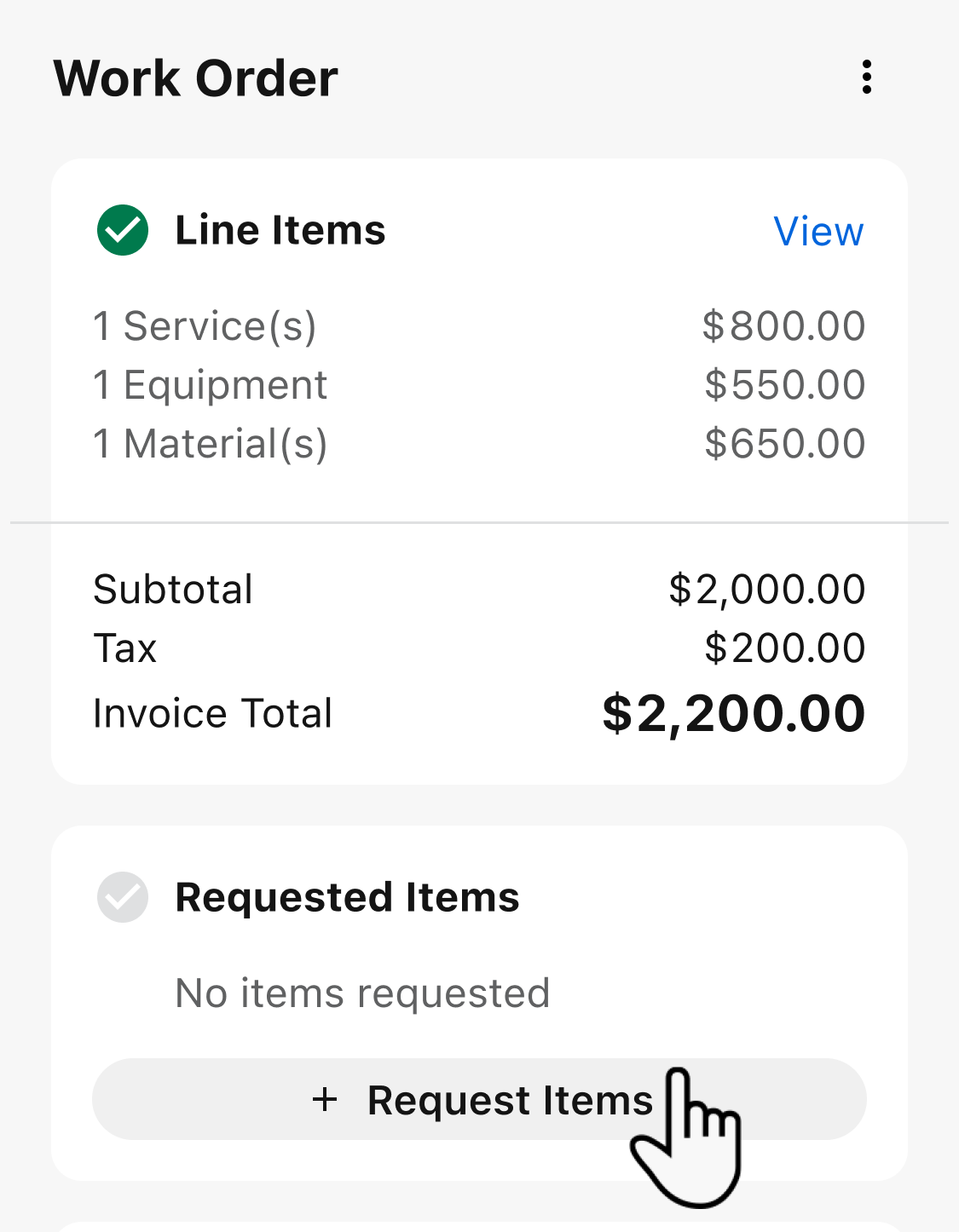
Go to the Requested Items section and tap Request Items.
On the Request Items screen that opens, review the Request Details: the request number, the warehouse, and the status.

Tap Add Items.
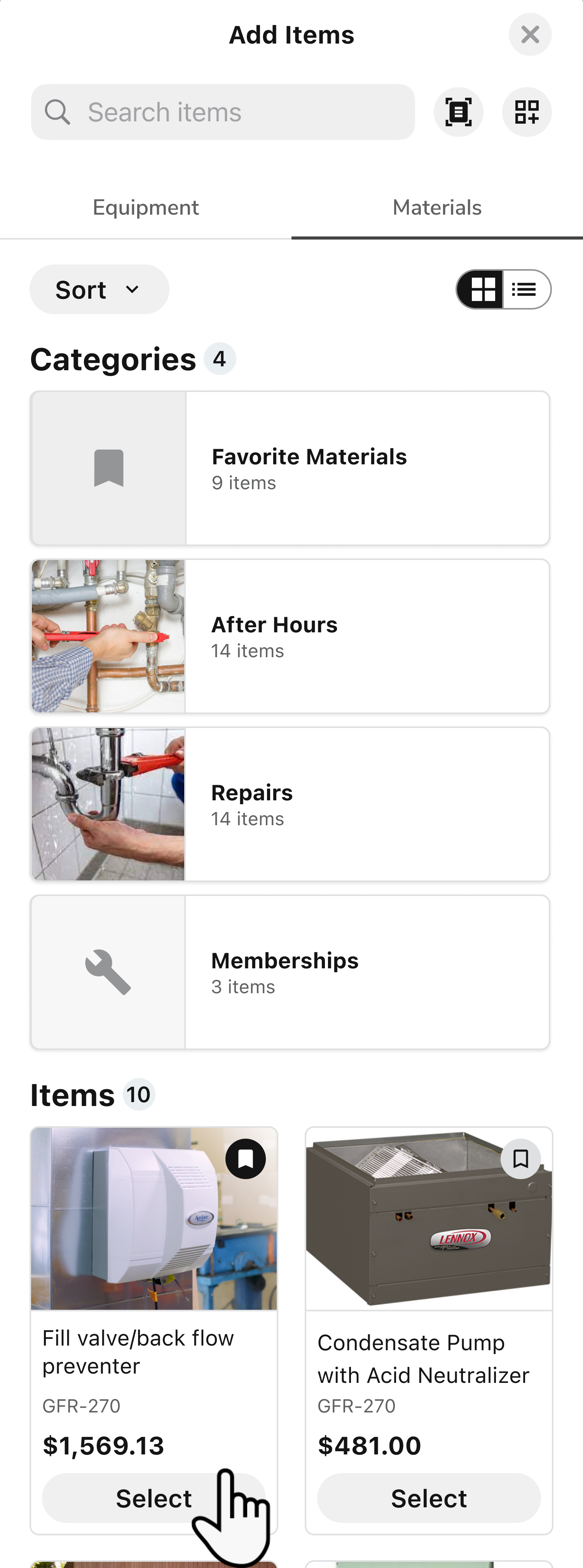
On the Add Items screen that opens, go to the Equipment or Materials tab. Tap Select next to each item you need, then tap Add items.
Note: If your account tracks chemicals, the Chemicals tab also shows here.
Tip: To find an item faster, scan its barcode. For more, see Use Pricebook in the ServiceTitan Field Mobile App.
For each item, set the Qty to Order with the – and + icons.
Note: When the quantity is 1, the – icon changes to a Delete icon that removes the item.
Note: When you’re online, each item shows how many are in your truck and in the warehouse. When you’re offline, you see Truck data unavailable in offline mode. You can still submit the request.
Tap Request Items. On the Submit to Office? window that opens, tap Submit.
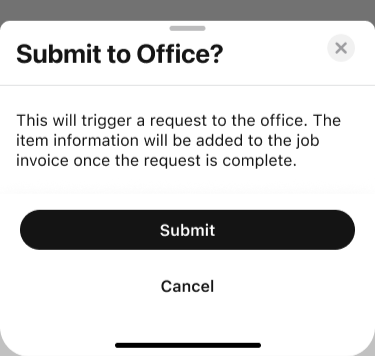
The request is sent to the office, and you return to the job.
Note: If a quantity is 0, you see Enter a quantity above 0, or remove this item. Fix the quantity or remove the item before you submit.
Caution: If you tap Cancel on the Request Items screen after you add items, the Discard changes? window opens. Tapping Discard removes the items you added and doesn’t send a request.
Request items from an estimate in the Field Mobile App
You can request an estimate’s materials and equipment when you sell the estimate or later from the sold estimate’s actions menu.
Request items when you sell an estimate
What you see after accepting the customer’s authorization depends on how your office set up your account.
Note: If your office has set Always perform work later, you can’t request items when you sell the estimate. The estimate’s items aren’t added to the current job’s invoice, and your office schedules the work on a different job.
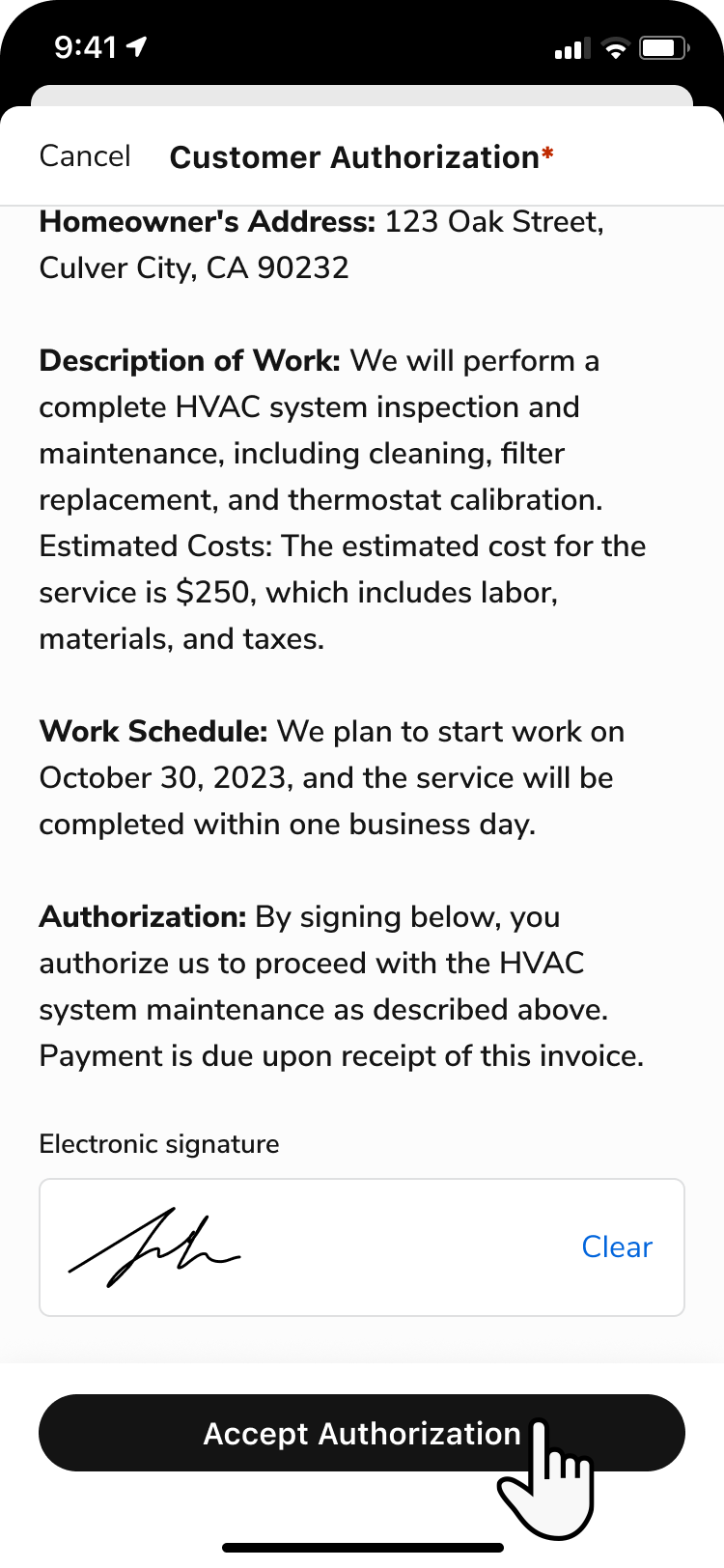
After the customer signs the Customer Authorization, tap Accept Authorization.
Follow the instructions for the screen that opens:
When will this work be performed?: Select Perform work now, need items, then tap Save. If the Change invoice window opens, tap Keep items to keep the invoice’s existing items and add the estimate’s items, or Replace to replace them with the estimate’s items.
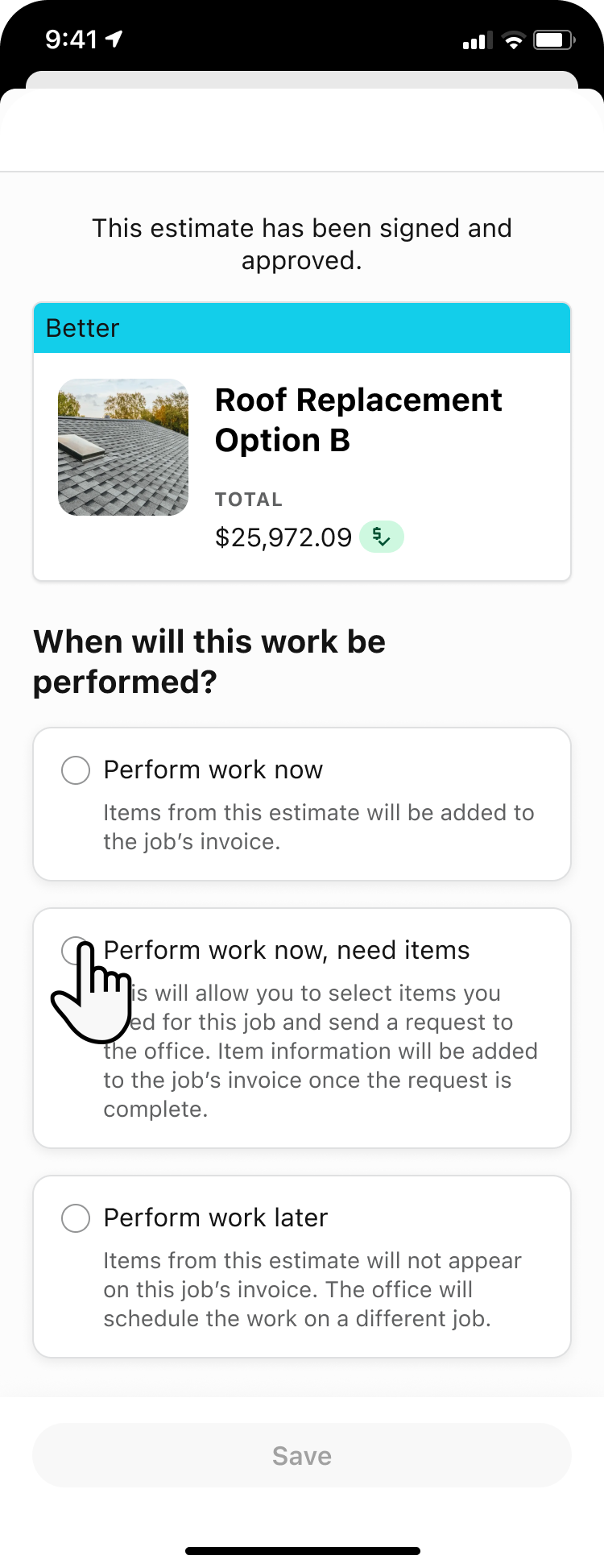
Note: Perform work now, need items appears only when the estimate has materials or equipment. This is also applicable if the Requisitions are enabled for your account.
Sold estimate screen: If the invoice already has items, choose Keep items to keep them and add the estimate’s items, or Replace items to replace them with the estimate’s items. Then tap the Request Items card.
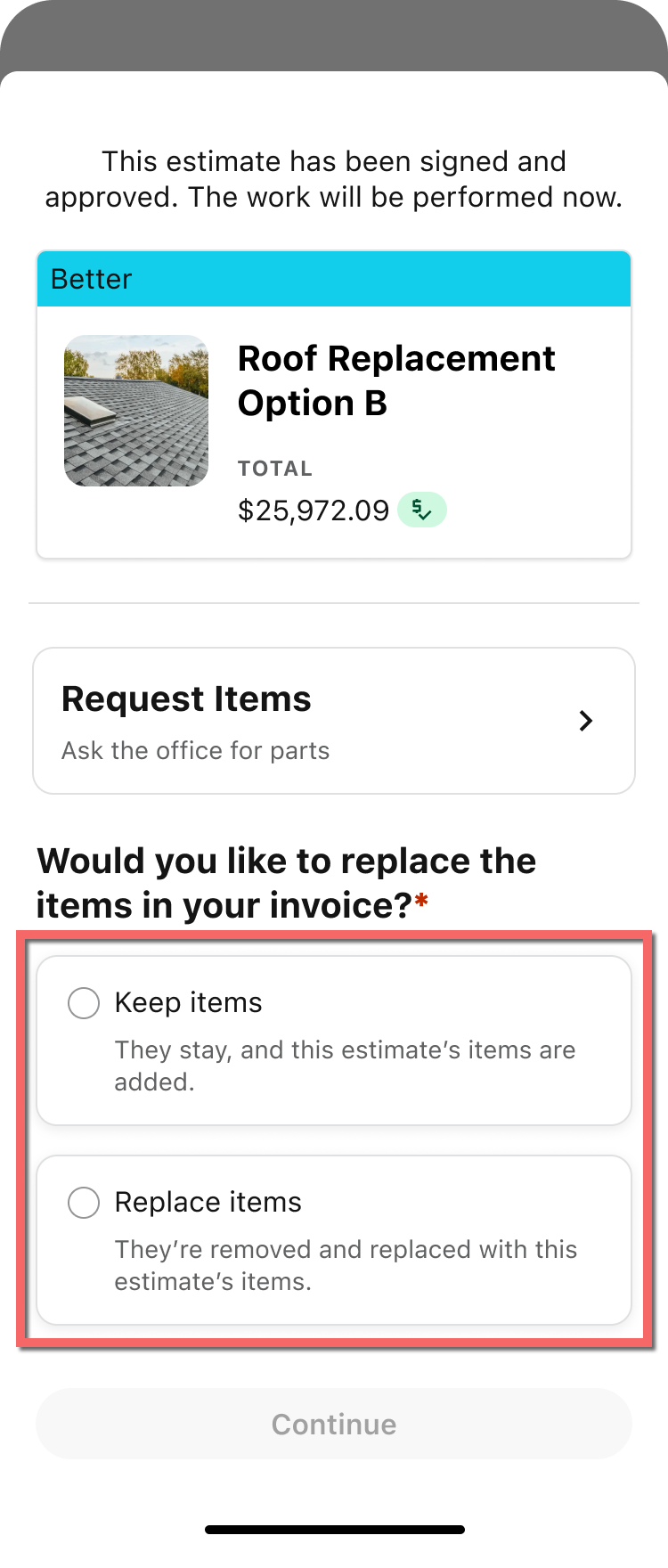
Note: If you don’t need to request items, tap Continue instead.
On the Request Items screen, follow the steps in Review and submit your request.
Request items from a sold estimate
You can return to a sold estimate to request items if you closed the request without submitting it or need additional quantities.
Note: This option is available only for estimates sold with Perform work now, need items that have materials or equipment.
Open your job and tap the Estimates tab.
Next to the sold estimate, tap More
 .
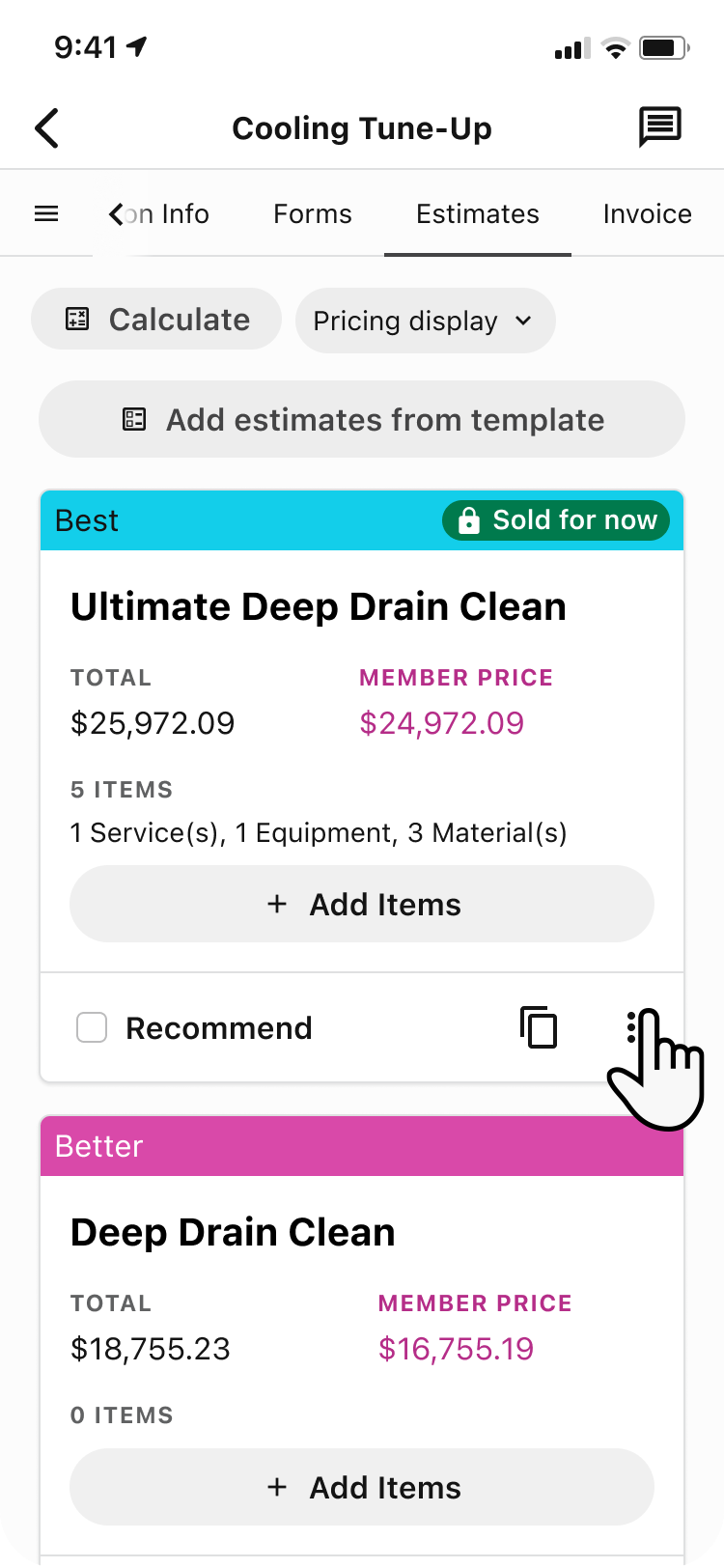
In the Estimate actions menu, tap Request Items.
If the estimate already has an open request, the Open Requisition window appears. Tap Continue to request more items.
On the Request Items screen, follow the steps in Review and submit your request.
Review and submit your request
On the Request Items screen, review the estimate’s materials and equipment. Each item shows the quantity required for the job. Change the quantities as needed.
Tip: To change all quantities at once, tap Actions and choose the default quantities, the maximum quantities required for the job, or zero.
Tip: To review an item’s details, tap the item. You can change its quantity there, then tap Update.
Note: Items with a quantity of 0 aren’t requested. You can’t add other items to a request from an estimate. To request items that aren’t included in the estimate, create a separate request from the job’s invoice.
Tap Request Items.
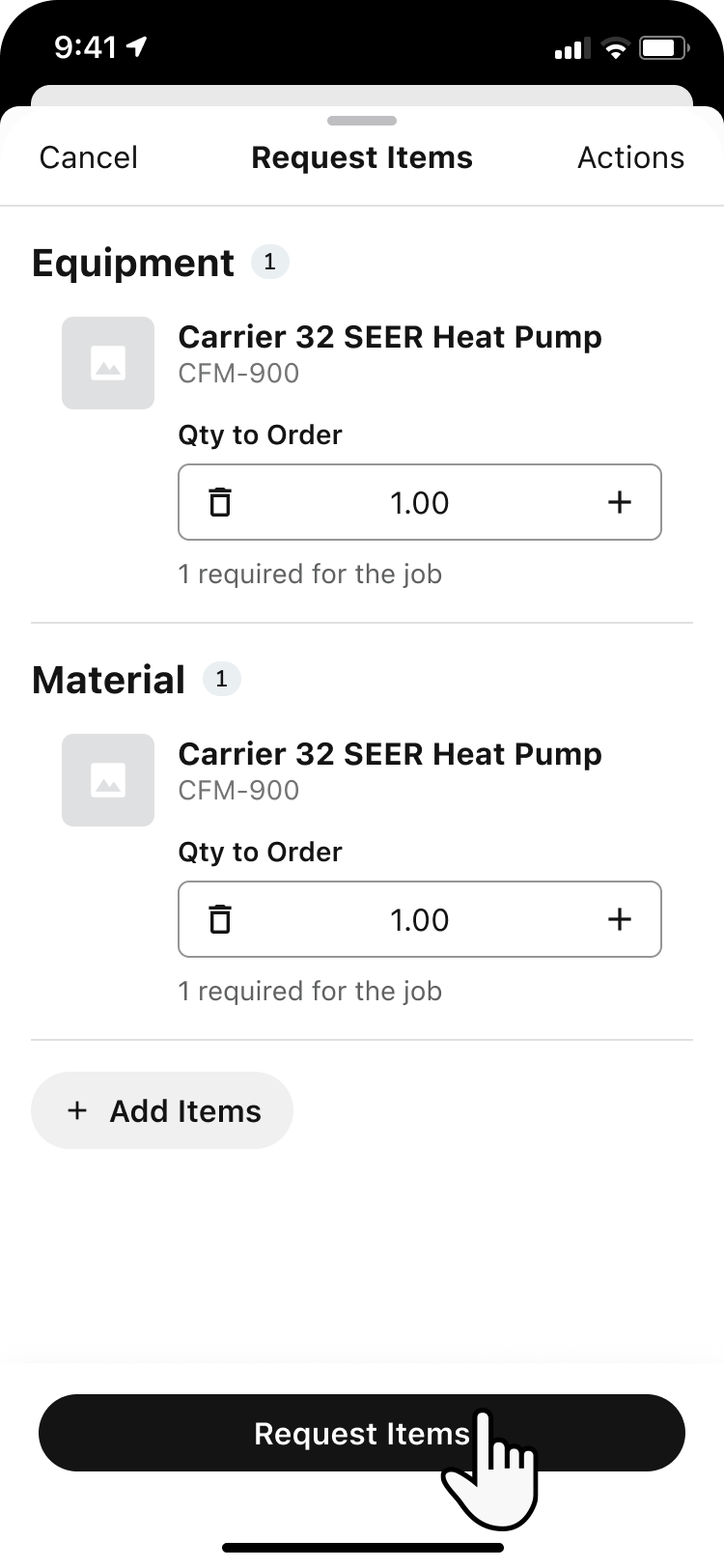
In the confirmation window, tap Submit.
Close out a job with an open requisition in the Field Mobile App
An open requisition from a sold estimate may prevent you from completing a job, depending on your permissions. A requisition is open when its status is Not Started, In Progress, or Sync Pending.
Note: Requests created from the job’s invoice don’t prevent you from completing the job.
Open your job and tap Close Out, then follow the instructions below based on whether Complete Job is available.
If Complete Job is available
You can proceed with closing out the job even if an estimate has an open requisition.
Tap Complete Job.
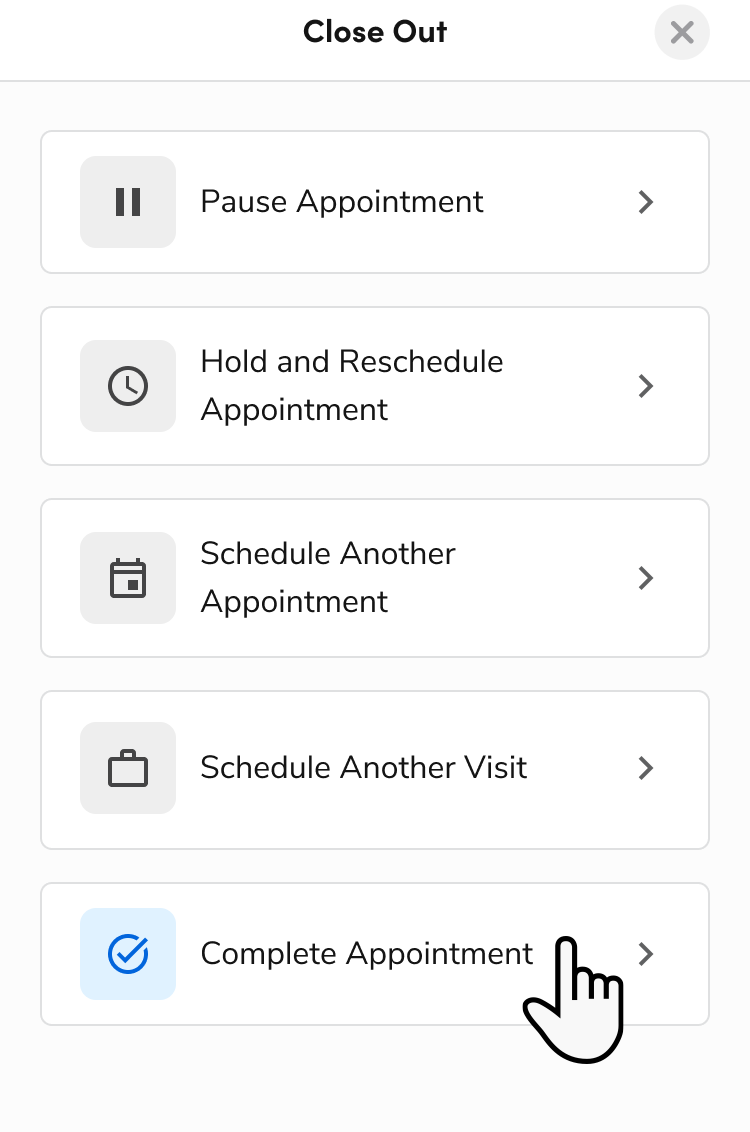
On the job-completion screen, complete any required information, forms, and signatures, then proceed to finish the job.
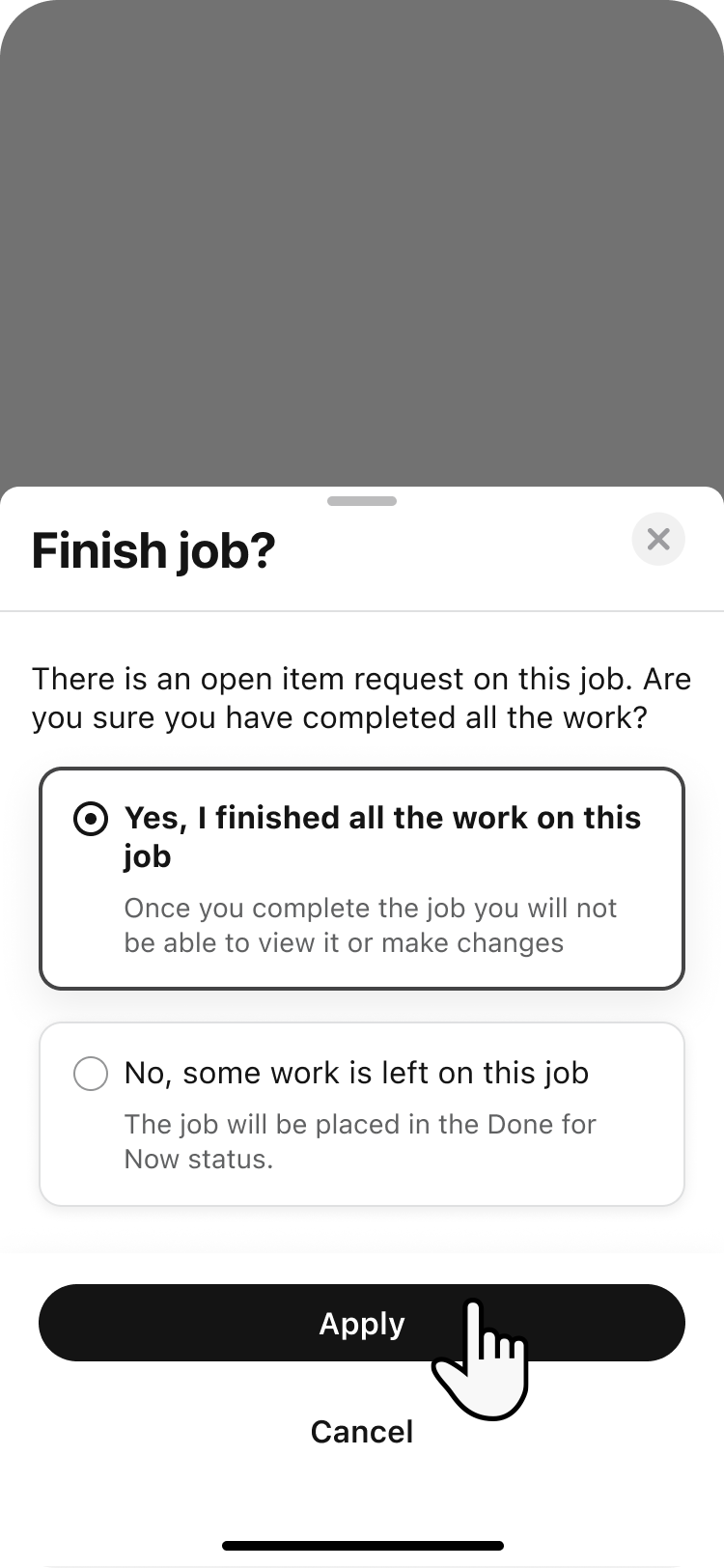
In the Finish job? window, select one of the following:
Yes, I finished all the work on this job: Completes the job. After completion, you can’t view the job or make changes.
No, some work is left on this job: Sets your appointment to Done for Now and keeps the job open.
Note: If you don’t have permission to pause appointments, selecting No and applying your choice completes the job and adds a note so your office can follow up.
Tap Apply.
If Complete Job is unavailable
You don’t have permission to complete a job with an open estimate requisition. The Close Out screen shows Job can not be marked as Finished with an open requisition.
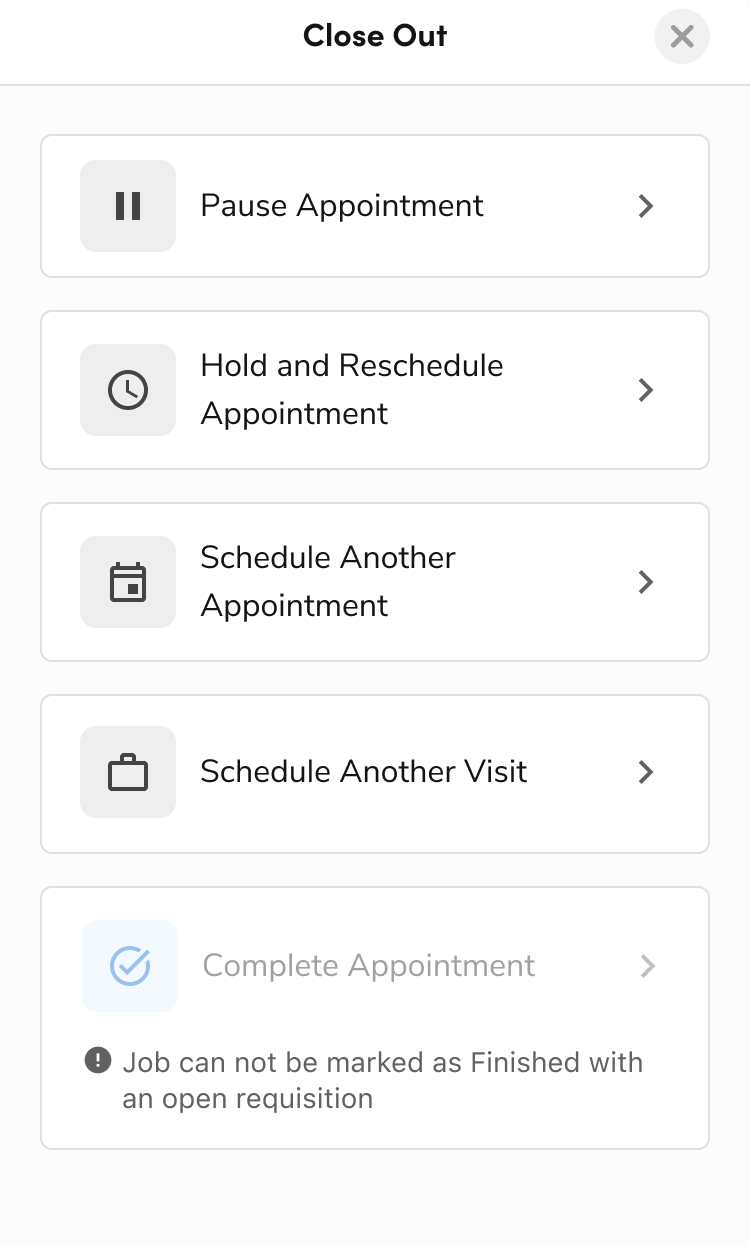
Tap Pause Appointment to keep the job open while your office resolves the request. Once the request is resolved, return to the job to complete it.
For more information, see Pause an appointment in the ServiceTitan Field Mobile App.