Overview
Using Marketing Pro template builder helps you build your own email templates to quickly start marketing campaigns. You can also customize your email templates to include your company logo and a customized unsubscribe link to send unique emails identifying your brand.
Make sure you’re viewing the correct Marketing Pro content
This article is for Marketing Pro. If you are using Marketing Pro v2, see Create email templates for content specific to your experience.
You can check your version following these steps:
Go to the navigation bar and click Marketing
 .
.If the side menu under Analytics includes One-Time Campaigns and Automated Campaigns, you're using Marketing Pro v2. If these options aren't visible, you're using Marketing Pro.

Who uses this feature
Marketing managers, business owners, and other marketers on your team
Primarily benefits Residential Service & Replacement and Commercial Service & Replacement business types
Applies to all trades
Feature configuration
To get started with Marketing Pro, request a demo on our Pro Products page, or reach out to your Customer Success Manager (CSM) or Pro Account Manager (PAM).
Things to know
Add merge tags to your content to personalize the email experience for your customers. For more, see Add merge tags to your email content.
Email templates can be archived, unarchived, and cloned. For more, see Manage Marketing Pro functions.
You can’t edit the email templates made by ServiceTitan, but you can edit a cloned ServiceTitan email template. For more, see Manage Marketing Pro Email Templates.
Email templates created and shared with you in the last 30 days have a New tag.
Create an email template
Go to the navigation bar and click Marketing
. On the Marketing screen, click Email Templates.
On the Email Templates screen, click Create New.
.png?sv=2026-02-06&spr=https&st=2026-10-24T06%3A14%3A30Z&se=2026-10-24T06%3A26%3A30Z&sr=c&sp=r&sig=1a9FqN%2BgrnnqNrKQ3nMT9cF37KpoES6ldnMbvu4TsQg%3D)
Add a Name for the new email template.
Select a Campaign Type and click Continue.
.png?sv=2026-02-06&spr=https&st=2026-10-24T06%3A14%3A30Z&se=2026-10-24T06%3A26%3A30Z&sr=c&sp=r&sig=1a9FqN%2BgrnnqNrKQ3nMT9cF37KpoES6ldnMbvu4TsQg%3D)
On the Configure Email Template screen that opens, add your email content:
TestUse the Content, Rows, and Settings tabs to drag and drop the content to the white space.
Organize the elements as you go.
Tip: On the Configure Email Template screen, there are different link types and merge tags that you can insert into your email to further customize it.

To preview your template, click the Actions dropdown and select Preview. The Preview mode screen opens.
Note: You can select between the Desktop or Mobile view.
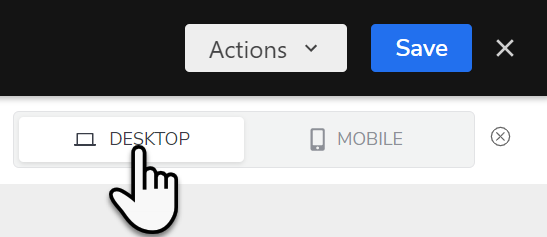
When finished, click Save.
Preview an email template
Go to the navigation bar and click Marketing
. In the side menu, click Email Templates.
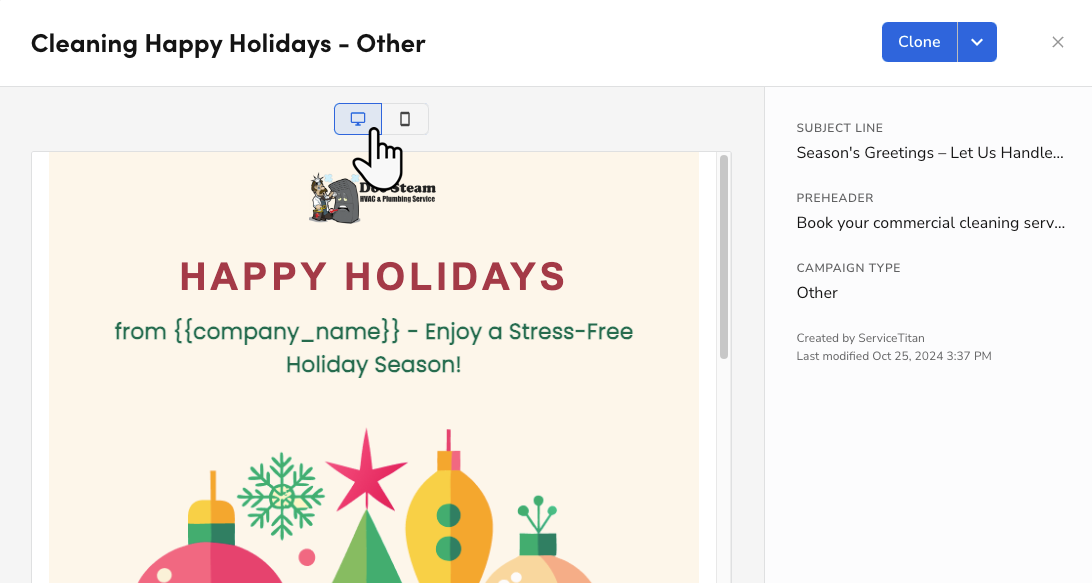
On the Email Templates screen that opens, hover over the email template and click Preview.
Click Desktop or Mobile to switch between the desktop and mobile views.
Test an email template
Send a test email to see how your email template will look to customers. This option is available only for cloned ServiceTitan templates or those created by your company.
Go to the navigation bar and click Marketing
. In the side menu, click Email Templates.
Hover over the email template and click Edit.
Click the Actions dropdown and select Send Test.
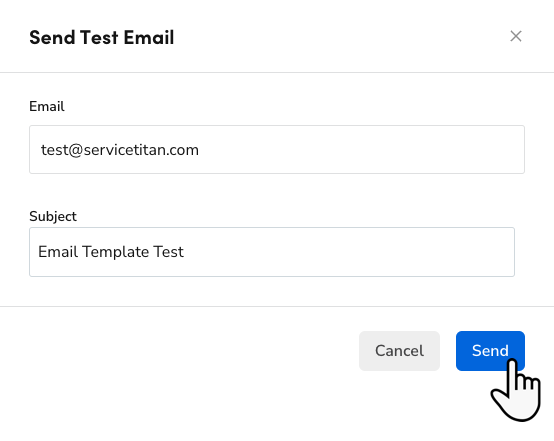
In the Send Test Email pop-up that opens, enter the Email address you want to send the test to and the Subject of the email.
When finished, click Send.
Want to learn more?
Visit ServiceTitan Academy to enroll in Getting Started with Marketing Pro