Dispatch Pro setup step 2: Resolve issues found by the Dispatch Pro setup check
Last updated on 10/25/2024
Who uses this feature
Administrators and managers
Primarily for Residential Service and Replacement business types
Feature configuration
To get started with Dispatch Pro, review pricing and select your package here. You can also request a demo on our Pro Products page, or reach out to your Customer Success Manager (CSM) or Pro Account Manager (PAM).
Certain permissions are required to set up and manage Dispatch Pro. To have these enabled, please contact the account administrator on your team. For more, see the Required permissions section of Dispatch Pro.
After the Dispatch Pro setup check is finished running, review the details for each recommendation or warning. This helps you troubleshoot any issues that might affect Dispatch Pro accuracy and return on investment (ROI).
Take action on setup check recommendations and warnings
When the setup check is finished running, go to Settings  > Dispatch Pro > Settings and click Open Setup Recommendations Panel.
In the side menu that opens, each recommendation or warning lists actions you can take to resolve issues.
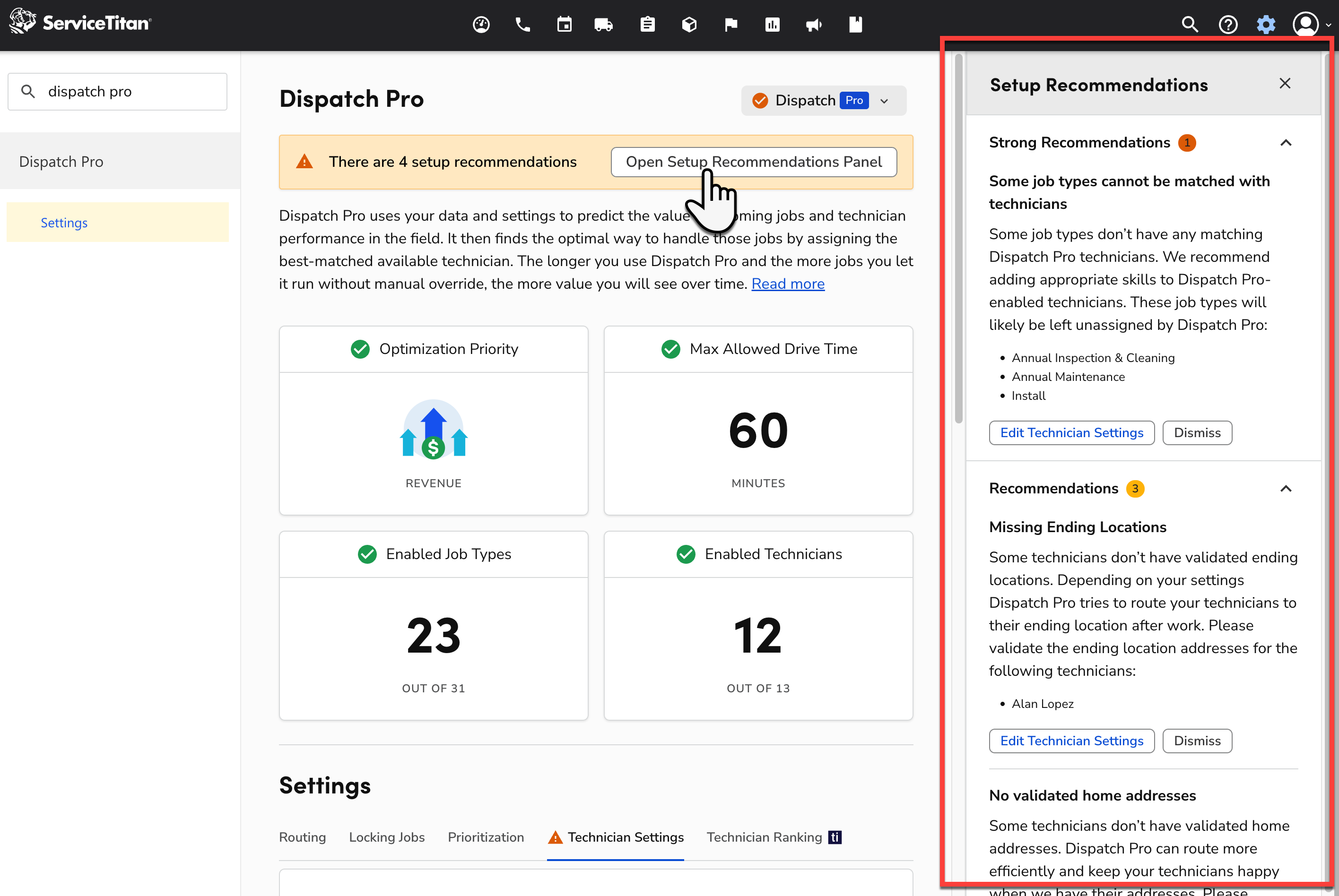
After you resolve setup check issues, click Dismiss on a recommendation or warning to dismiss it, or click Setup Check from the Dispatch Pro dropdown to re-run it and clear resolved issues.
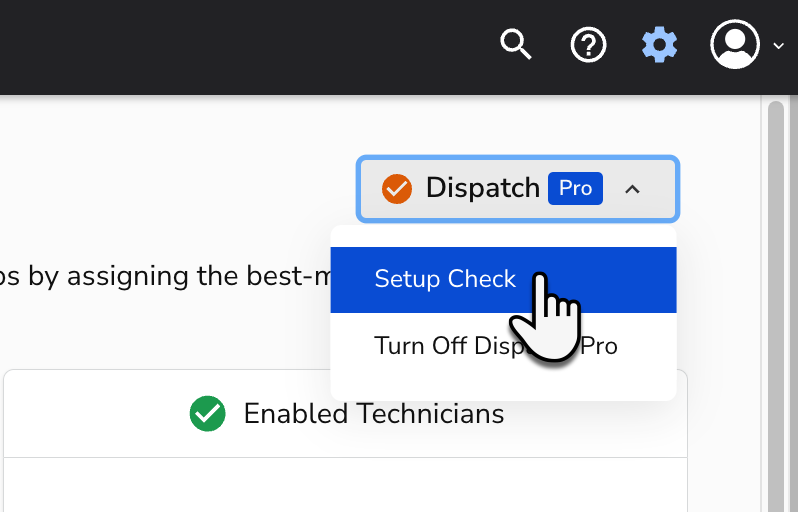
If you see a Check  icon next to the Dispatch Pro dropdown, any recommendations are suggestions only and Dispatch Pro is live and running. If you see an Off
  icon next to the Dispatch Pro dropdown, the issues found need to be addressed before Dispatch Pro can go live.
Types of setup check recommendations and warnings
Below are the specific recommendations and warnings you might see in the setup check:
Warning | Level | Action |
|---|---|---|
Arrival Windows are Turned Off: Arrival windows feature is off in your account. Dispatch Pro will assign jobs freely throughout the whole day bound only by business hours and technician shifts. If you provide arrival windows to your customers, Dispatch Pro can only read them when arrival windows are turned on and set up. | Regular Warning for past jobs. This is an area for improvement that we recommend you address, but nothing is critical. | Click Set Up Arrival Windows. This takes you to Settings > Operations > Job Booking where you can enable arrival windows. For more, see Set up arrival windows |
No technicians assigned to scheduled jobs for some Zones: Some Dispatch Pro-enabled jobs are booked within zones that have no Dispatch Pro-enabled technicians. These jobs are likely to be unassigned. Please add Dispatch Pro-enabled technicians to the following zones:
| Serious Warning for future jobs. We highly recommend that you address this issue. If you don’t address it, the accuracy of Dispatch Pro might be affected. | Click Edit Technician Settings. This takes you to question 4.1 in Dispatch Pro settings where you can assign zones to technicians. For more, see the Overwrite settings for specific technicians section of Adjust Dispatch Pro Technician Settings. |
No technicians in some zones where jobs were scheduled in the past: Some Dispatch Pro-enabled jobs are booked within zones that have no Dispatch Pro-enabled technicians. If jobs for these zones come up in the future Dispatch Pro might not be able to assign them. Please add Dispatch Pro-enabled technicians to the following zones:
| Regular Warning for past jobs. This is an area for improvement that we recommend you address, but nothing is critical. | Click Edit Technician Settings. This takes you to question 4.1 in Dispatch Pro settings where you can assign zones to technicians. For more, see the Overwrite settings for specific technicians section of Adjust Dispatch Pro Technician Settings. |
Some zones are not set up: Some zones assigned to Dispatch Pro-enabled technicians are missing zip codes and city names. Please specify which areas the following zones cover:
| Regular Warning. This is an area for improvement that we recommend you address, but nothing is critical. | Click Edit Zones Settings. This takes you to Settings > Operations > Zones where you can add zip codes and city names to your zones. For more, see the Assign technicians to zones section of Set up and use zones. |
No Dispatch Pro-enabled technicians: There are no Dispatch Pro-enabled technicians. Dispatch Pro requires at least one enabled technician. Please select at least one technician. | Critical Warning. This is a blocker issue that must be addressed before Dispatch Pro can be turned on and go live. | Click Edit Technician Settings. This takes you to question 4.1 in Dispatch Pro settings where you can enable Dispatch Pro for your technicians. For more, see the Enable or disable Dispatch Pro for your technicians section of Adjust Dispatch Pro Technician Settings. |
Missing Starting Locations: Some technicians don’t have validated starting locations. Dispatch Pro will route more efficiently when we have starting location addresses. Please validate the starting location addresses for the following technicians:
| Serious Warning. We highly recommend that you address this issue. If you don’t address it, the accuracy of Dispatch Pro might be affected. | Click Edit Technician Settings. This takes you to question 4.1 in Dispatch Pro settings where you can see which technicians don’t have validated addresses. From there, you can complete validation. For how to validate technician addresses, see the Edit a Technician Profile section of Add and manage technician profiles. For how to validate business unit addresses, see the Address tab section of Add and edit business units. |
Missing Ending Locations: Some technicians don't have validated ending locations. Depending on your settings Dispatch Pro tries to route your technicians to their ending location after work. Please validate the ending location addresses for the following technicians:
| Regular Warning. This is an area for improvement that we recommend you address, but nothing is critical. | Click Edit Technician Settings. This takes you to question 4.1 in Dispatch Pro settings where you can see which technicians don’t have validated addresses. From there, you can complete validation. For how to validate technician addresses, see the Edit a technician profile section of Add and manage technician profiles. For how to validate business unit addresses, see the Address tab section of Add and edit business units. |
No validated home addresses: Some technicians don’t have validated home addresses. Dispatch Pro can route more efficiently and keep your technicians happy when we have their addresses. Please validate the addresses for the following technicians:
| Regular Warning. This is an area for improvement that we recommend you address, but nothing is critical. | Click Edit Technician Settings. This takes you to question 4.1 in Dispatch Pro settings where you can see which technicians don’t have validated addresses. From there, you can go to their profile to complete validation. For how to validate technician addresses, see the Edit a technician profile section of Add and manage technician profiles. |
No assigned skills: Some technicians don’t have any assigned skills. Skills help with Dispatch Pro accuracy. Technicians without skills can be assigned only to jobs that don’t require any skills. Please assign skills to the following technicians:
| Regular Warning. This is an area for improvement that we recommend you address, but nothing is critical. | Click Edit Technician Settings. This takes you to question 4.1 in Dispatch Pro settings where you can assign skills to technicians. For more, see the Generate skills for technicians section of Adjust Dispatch Pro Technician Settings. |
No Technicians Shifts set up: None of your Dispatch Pro-enabled technicians have shifts. Without shifts we will use your business hours for availability. We recommend regularly creating shifts at least a month in advance to improve Dispatch Pro accuracy. | Regular Warning. This is an area for improvement that we recommend you address, but nothing is critical. | Click Edit Technician Shifts. This takes you to Schedule > Technician Shifts where you can create technician shifts. For more, see Use Technician Shifts. |
No Technician Shifts set up: Some technicians don’t have shifts. These technicians are viewed as unavailable for Dispatch Pro. Please add appropriate shifts for the following Dispatch Pro-enabled technicians:
| Serious Warning. We highly recommend that you address this issue. If you don’t address it, the accuracy of Dispatch Pro might be affected. | Click Edit Technician Shifts. This takes you to Schedule > Technician Shifts where you can create Technician Shifts. For more, see Use Technician Shifts. |
Some technicians work in unassigned zones: Some technicians had multiple jobs within zone(s) that aren't assigned to them. We recommend reviewing the following technician zone settings:
| Regular Warning. This is an area for improvement that we recommend you address, but nothing is critical. | Click Edit Technician Settings. This takes you to question 4.1 in Dispatch Pro settings where you can assign zones to technicians. For more, see the Overwrite settings for specific technicians section of Adjust Dispatch Pro Technician Settings. |
Some technicians might have no optimal skills assigned: Some technicians had multiple jobs with skills that aren’t assigned to them. We recommend reviewing the following technician skills settings:
| Regular Warning. This is an area for improvement that we recommend you address, but nothing is critical. | Click Edit Technician Settings. This takes you to question 4.1 in Dispatch Pro settings where you can assign skills to technicians. For more, see the Generate skills for technicians section of Adjust Dispatch Pro Technician Settings. |
No Dispatch Pro-enabled job types: There are no Dispatch Pro-enabled job types. Dispatch Pro requires at least one enabled job type. Please select at least one job type. | Critical Warning. This is a blocker issue that must be addressed before Dispatch Pro can be turned on and go live. | Click Edit Job Type Settings. This takes you to question 3.1 in Dispatch Pro settings where you can enable Dispatch Pro for job types. For more, see the Choose which job types to optimize automatically section of Adjust Dispatch Pro Prioritization Settings. |
No job type durations: Some job types don’t have durations. Please add durations to these job types to increase Dispatch Pro accuracy. The following job types don’t have durations:
| Serious Warning. We highly recommend that you address this issue. If you don’t address it, the accuracy of Dispatch Pro might be affected. | Click Edit Job Type Settings. This takes you to question 3.1 in Dispatch Pro settings where you can add durations to job types. For more, see the Choose which job types to optimize automatically section of Adjust Dispatch Pro Prioritization Settings. |
Additional job types might benefit from Dispatch Pro: Some job types were performed by Dispatch Pro-enabled technicians in the past. We recommend enabling the following job types:
| Regular Warning. This is an area for improvement that we recommend you address, but nothing is critical. | Click Edit Job Type Settings. This takes you to question 3.1 in Dispatch Pro settings where you can enable Dispatch Pro for job types. For more, see theChoose which job types to optimize automatically section of Adjust Dispatch Pro Prioritization Settings. |
Some job types cannot be matched with technicians: Some job types don’t have any matching Dispatch Pro technicians. We recommend adding appropriate skills to Dispatch Pro-enabled technicians. These job types will likely be left unassigned by Dispatch Pro:
| Serious Warning. We highly recommend that you address this issue. If you don’t address it, the accuracy of Dispatch Pro might be affected. | Click Edit Technician Settings. This takes you to question 4.1 in Dispatch Pro settings where you can assign skills to technicians. For more, see the Generate skills for technicians section of Adjust Dispatch Pro Technician Settings. |
Some job types don’t have required skills assigned: Some job types don’t have any assigned skills. We recommend adding appropriate skills to Dispatch Pro-enabled job types to improve Dispatch Pro accuracy. These jobs will be assigned to any Dispatch Pro-enabled technician:
| Serious Warning. We highly recommend that you address this issue. If you don’t address it, the accuracy of Dispatch Pro might be affected. | Click Edit Job Type Settings. This takes you to question 3.1 in Dispatch Pro settings where you can assign skills to job types. For more, see the Generate skills for job types section of Adjust Dispatch Pro Prioritization Settings. |
Cannot find Dispatch Pro-enabled jobs: Dispatch Pro wasn’t able to find any enabled jobs. Please verify all appropriate job types are Dispatch Pro-enabled. | Serious Warning. We highly recommend that you address this issue. If you don’t address it, the accuracy of Dispatch Pro might be affected. | Click Edit Job Type Settings. This takes you to question 3.1 in Dispatch Pro settings where you can enable Dispatch Pro for job types. For more, see theChoose which job types to optimize automatically section of Adjust Dispatch Pro Prioritization Settings. |
Want to learn more?
See Dispatch Pro setup step 1: Run the Dispatch Pro setup check
See Dispatch Pro in the ServiceTitan Knowledge Base
AI-powered dispatching product that analyzes job requirements, technician skills, drive time, and capacity to optimize job assignments.
What it does: Maximizes technician utilization and on-time arrivals by algorithmically routing and assigning jobs — reducing the cognitive load on dispatchers.
Also called: AI dispatch, Smart dispatch
Tags: Dispatch Pro, ServiceTitan Max, AI-Powered
The time range communicated to a customer for when a technician will arrive.
What it does: Sets customer expectations proactively, reducing 'where's my tech?' calls and improving satisfaction scores.
Tags: Core
A zone is a group of zip codes. Zones are generally used for organizational purposes. By setting up Zones in ServiceTitan, a color coded system will be created to help you organize jobs in certain locations both on the Dispatch Board and the Schedule Page. You may refer to zones as service areas within your business.
The user record for a field technician in ServiceTitan, containing schedule, skills, pay rates, certifications, and performance history.
What it does: Centralizes all information needed to schedule, pay, and evaluate a technician from a single record.
Also called: Tech profile, Field user record
Tags: Core