Coming Soon to the Field Mobile App 26.0 Release
This release rolls out in phases. Improvements will appear first, followed by new features, over a two-week period. You may not see all changes at once.
To check your release version, open the Field Mobile App and go to Menu
> About
. For steps on how to manually update your release version, see Update the Field Mobile App.
Overview
Scan an item's barcode to find it in the pricebook instead of searching by name. Technicians can scan materials, equipment, and chemicals while adding items in the Field Mobile App. This saves time and helps you add the right item to the invoice.
Who uses this feature
Technicians
Primarily benefits Residential, Commercial, and Roofing business types
Applies to all trades
Feature configuration
The Field Mobile App is optimized for iOS, iPadOS, and Android phones and tablets. For more, see System requirements and mobile app information.
If you're using the Field Mobile App and need support, please contact Technical Support (through the office) or reach out directly to support@servicetitan.com.
Account configuration and office setup are required to use this feature. Please contact your office for details.
The Add Estimate and Invoice Item permission is required to use this feature. Please contact your office for details.
Things to know
Matching a scan to a pricebook barcode requires the Purchasing module. Without it, the scanner still checks serial numbers on your truck and searches by item name.
Barcode matching runs on your device, so you can scan items while you're offline.
New barcodes reach your device with the next barcode sync.
A scan finds only items you could find with a normal pricebook search, based on your business unit and category access.
Barcode scanning matches only active pricebook items and is available only in the Equipment and Materials sections of the pricebook. It isn’t available in Services.
Serial number matches are exact and case-sensitive.
Scanning works the same on iOS and Android.
Best practices
Ask your office to add barcodes to the items you use most, so you can scan instead of search.
If a new barcode doesn't match, your device may not have synced it yet. Search for the item by name instead.
For serialized equipment, scan the unit's serial number so the Field Mobile App selects the exact unit from your truck.
Use cases
A technician pulls a box of fittings from the truck and scans the label to add the right item to the invoice.
A technician installing a water heater scans its serial number, and the Field Mobile App opens the item with that unit selected.
A technician working in a basement with no signal scans materials offline and finishes the invoice.
Scan a pricebook barcode in the Field Mobile App
From an invoice
Open the job or work order, then go to the appropriate tab:
Residential: Tap Invoice.
Commercial: Tap Work Order.
Scroll to Invoice Items (Residential) or Work Order Items (Commercial), then tap View.
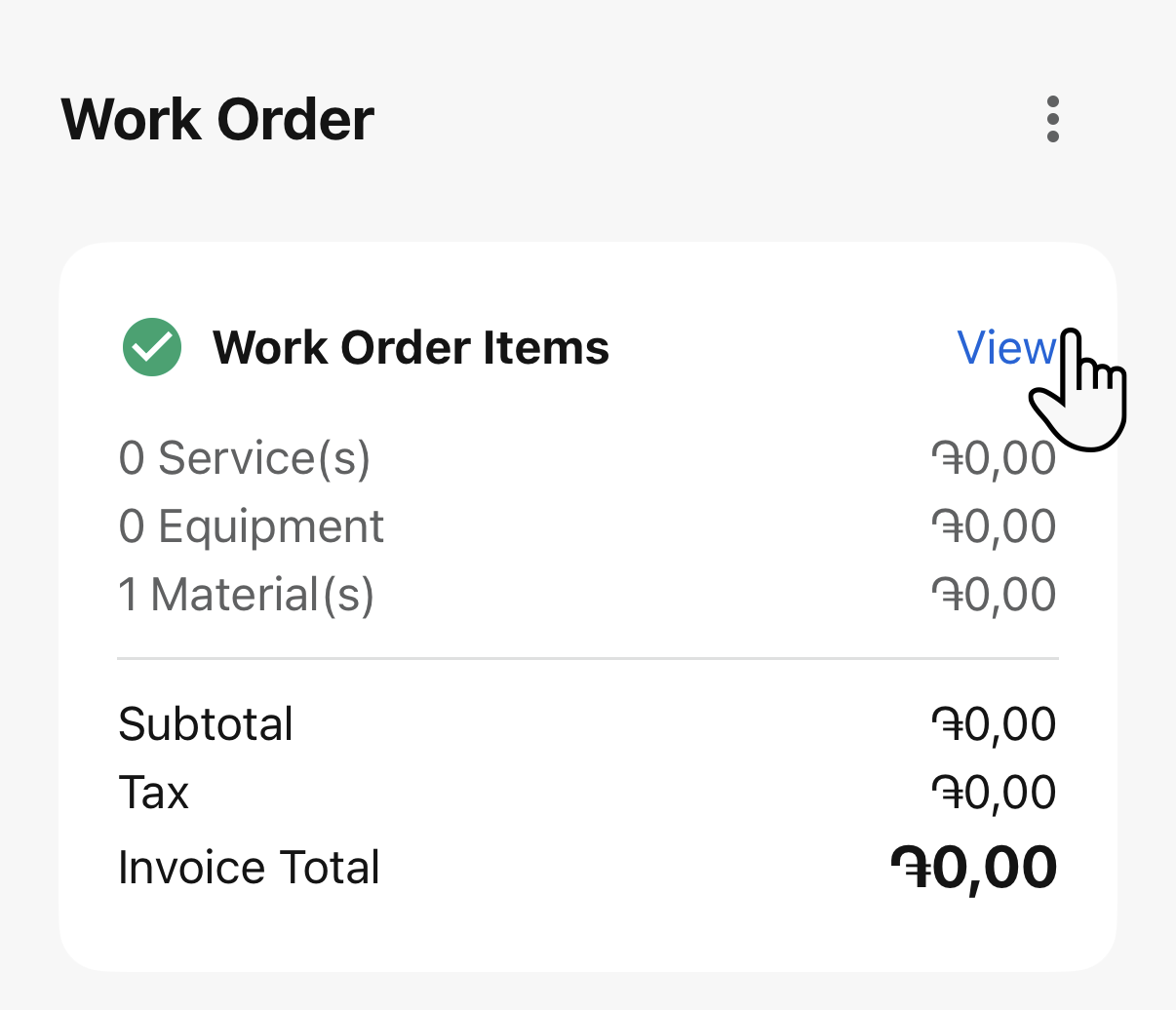
Scroll to the bottom of the items screen and tap + Add Items.
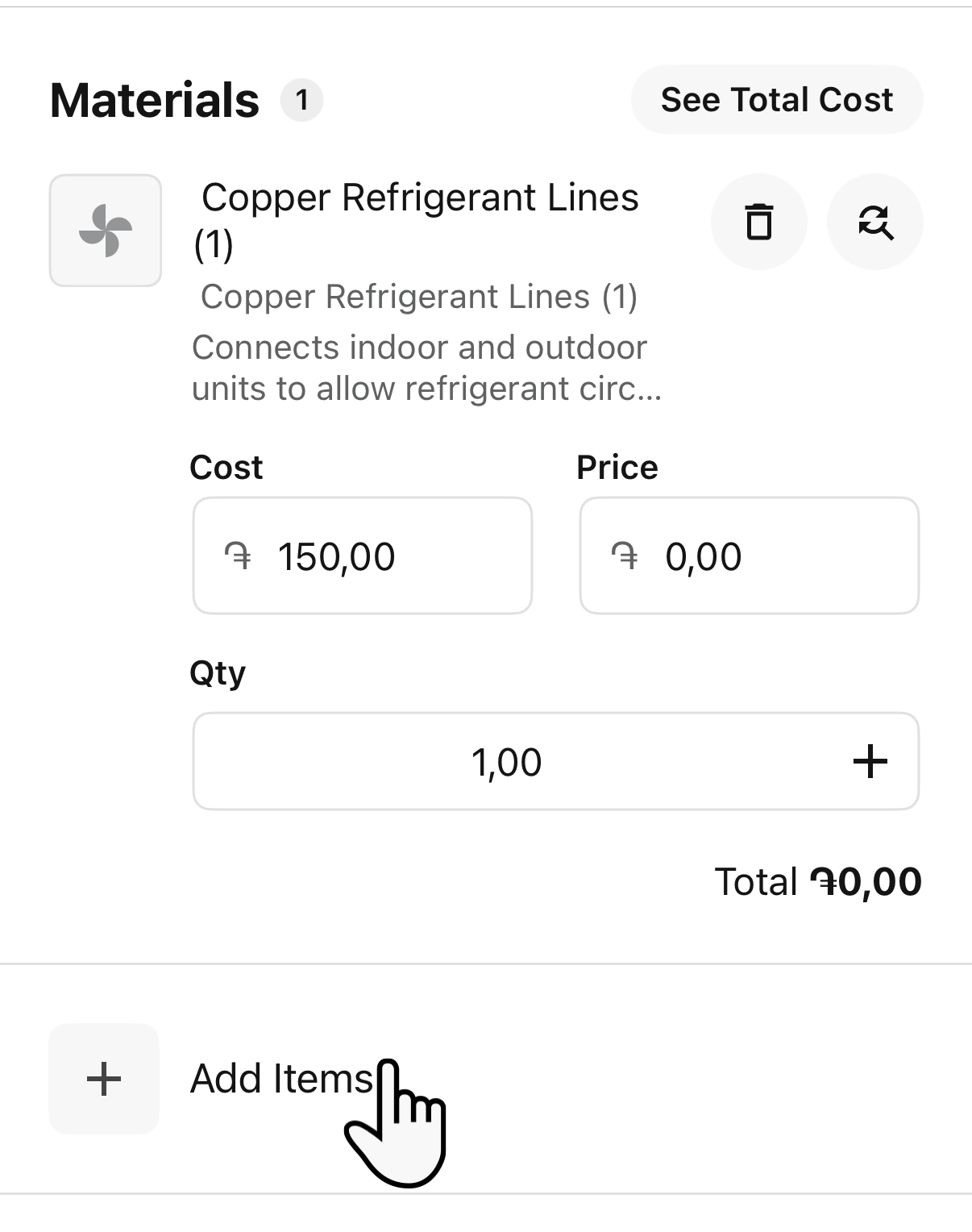
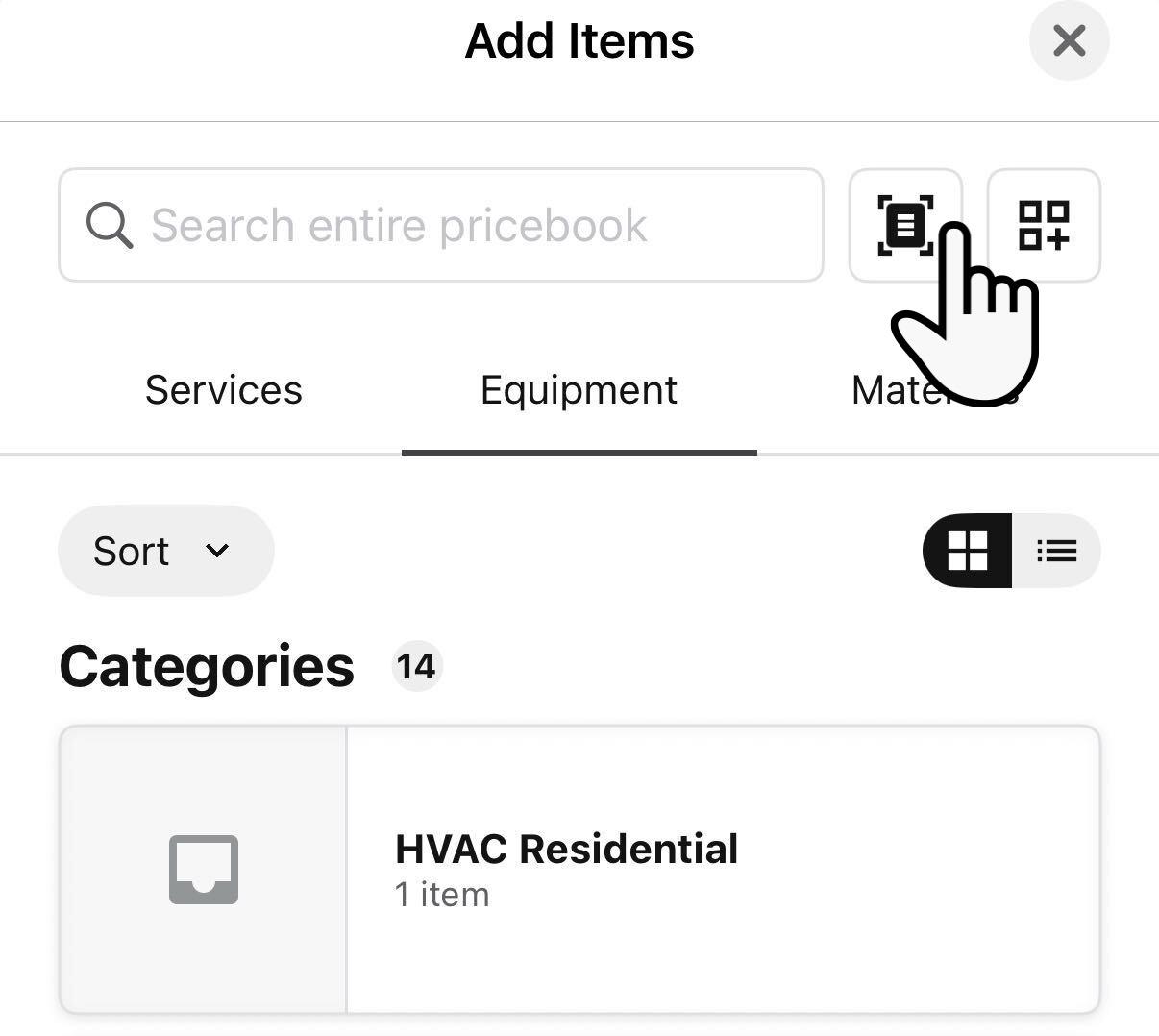
In the pricebook, tap Materials, Equipment, or Chemicals.
Note: The Chemicals tab appears only if your account tracks chemicals.
Tap Scan
 at the top of the tab.
When the camera opens, tap Barcode Scanner.
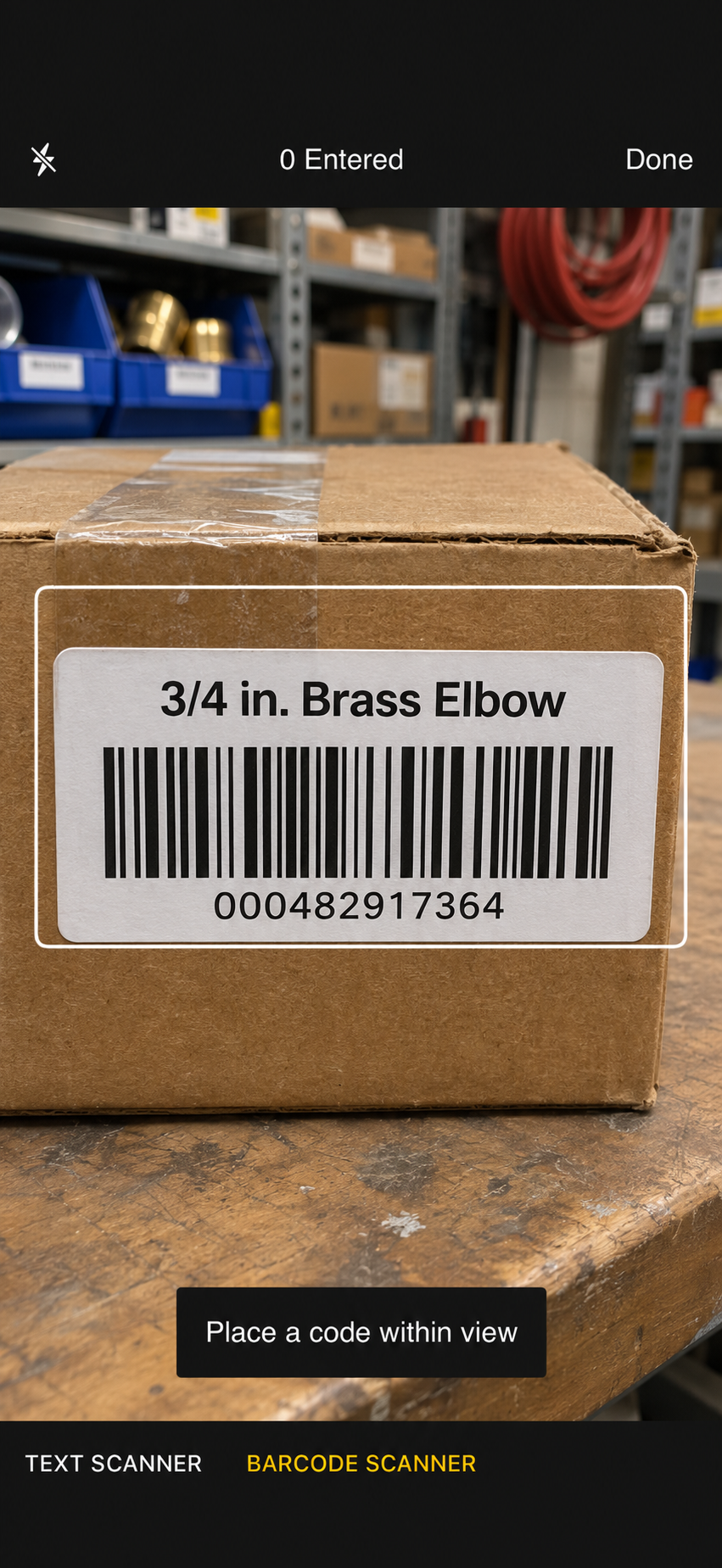
Point your device’s camera at the item’s barcode.
When the app finds a match, the item’s details open. Review the details, then tap Add.
From an estimate
Open the job or work order and tap the Estimates tab.
Tap Custom Estimate or From Template to create an estimate.
Tap Add Items.
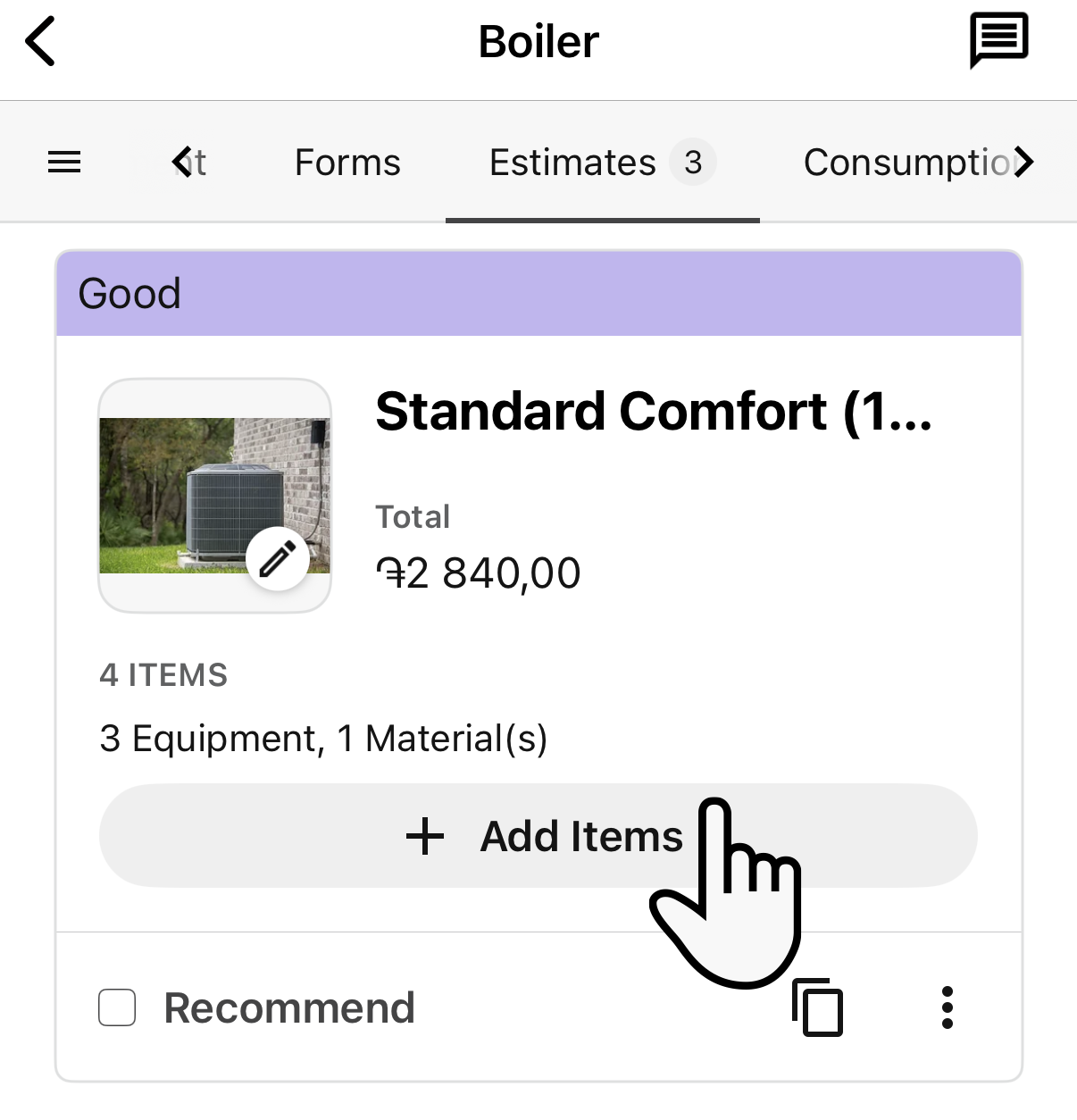
In the pricebook, tap Materials or Equipment.
Tap Scan at the top of the tab.
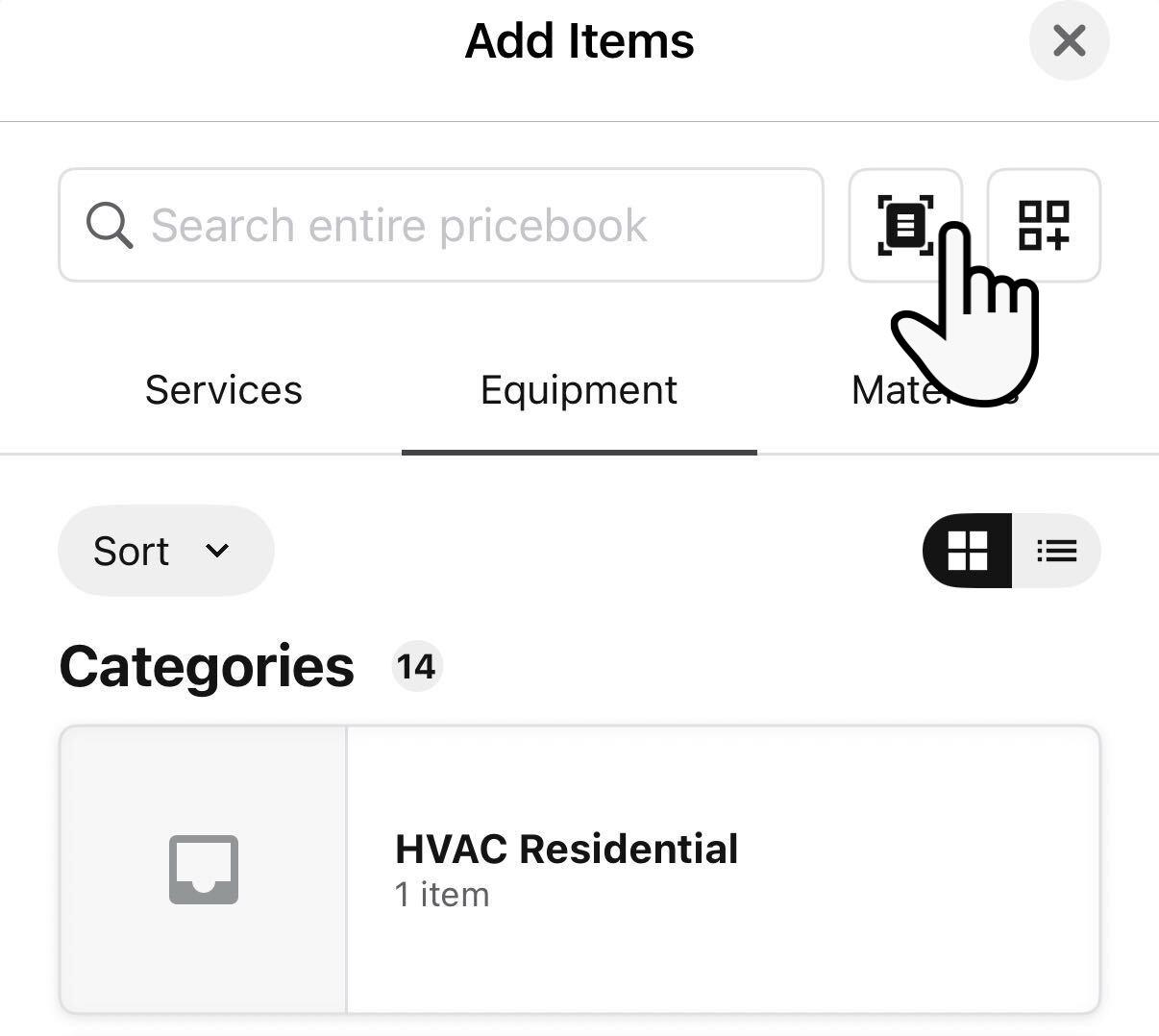
When the camera opens, tap Barcode Scanner.
Point your device’s camera at the item’s barcode.
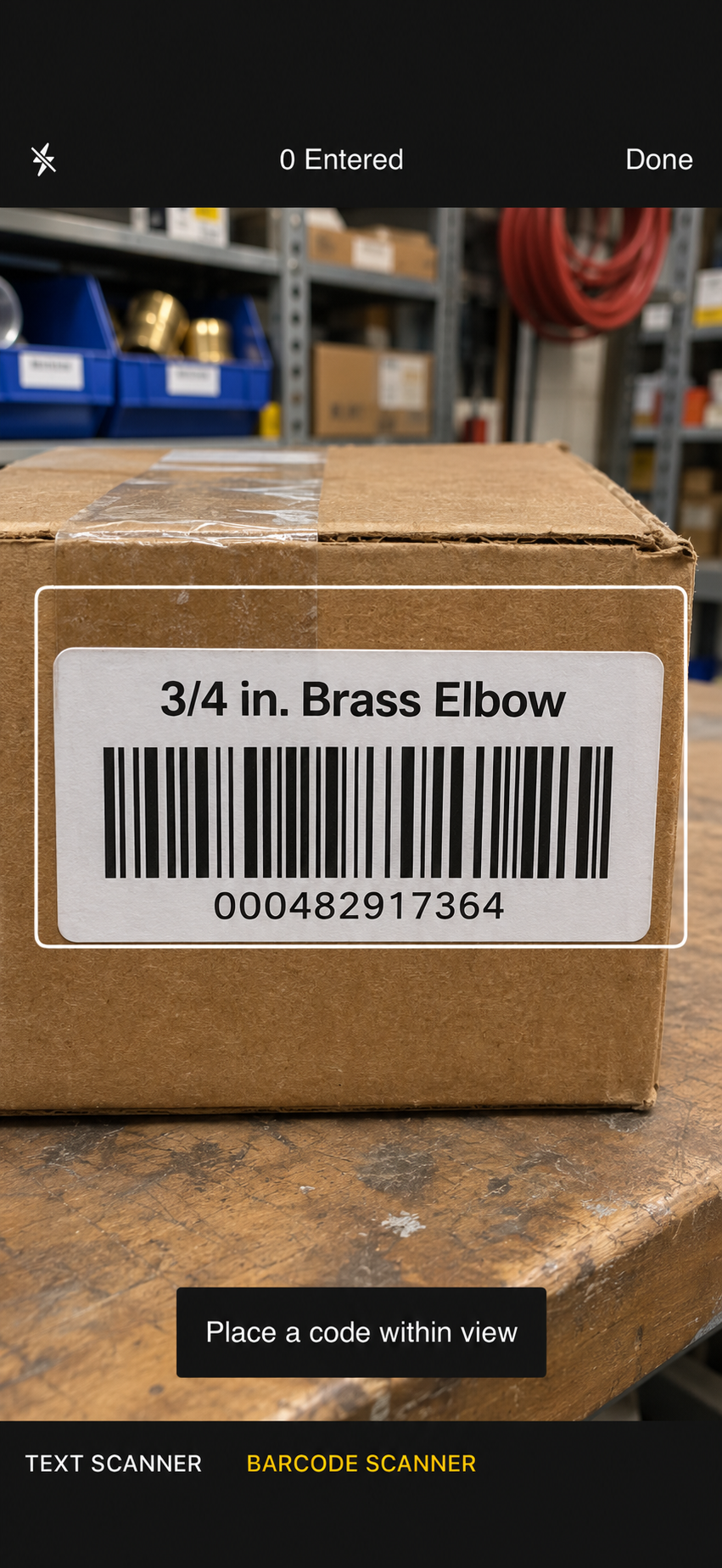
When the app finds a match, the item’s details open. Review the details, then tap Add.
How the Field Mobile App finds a match
The Field Mobile App checks the scan in this order:
Serial numbers on your truck. If serialized inventory is on and the scan matches a serial number on your truck, the item opens with that unit selected.
The pricebook barcode. If the scan exactly matches the barcode on an active item, that item opens. Spaces and capital letters don't matter. This step needs the Purchasing module.
The item name. If there's no barcode match, the Field Mobile App searches by name. The item opens only if exactly one item matches.
If the barcode isn't found
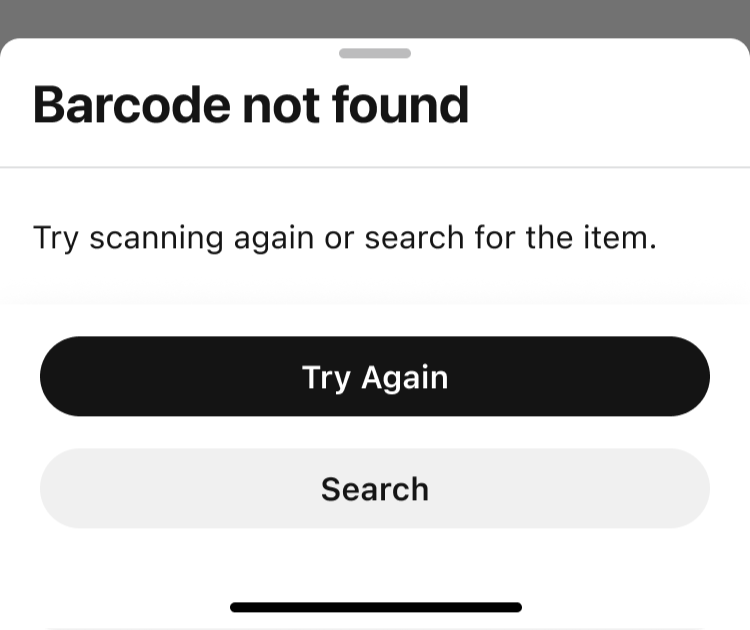
If nothing matches, the Barcode not found window opens. Select one of the following:
Try again: Opens the scanner so you can scan again.
Search: Opens the pricebook search so you can type the item's name.
Want to learn more?
See Add serialized items to invoices in the ServiceTitan Field Mobile App
See Barcode scanning in ServiceTitan Mobilefor the legacy ServiceTitan Mobile app