Overview
In SmartPay, you can view the status of checks, including which checks were processed, declined, returned, and more. You can also view the reason for a check status.
Who uses this feature
Accountants
Feature configuration
Account configuration is required to use this feature. Please contact your success or implementation manager for details.
Things to know
To process check payments with ServiceTitan SmartPay, account configuration is required. If you haven't already signed up for ServiceTitan Payments, click here for more information.
View check status
To view the status of checks in SmartPay, complete the following:
Log into SmartPay.
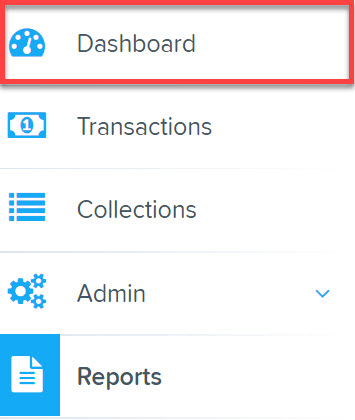
Navigate to Dashboard.
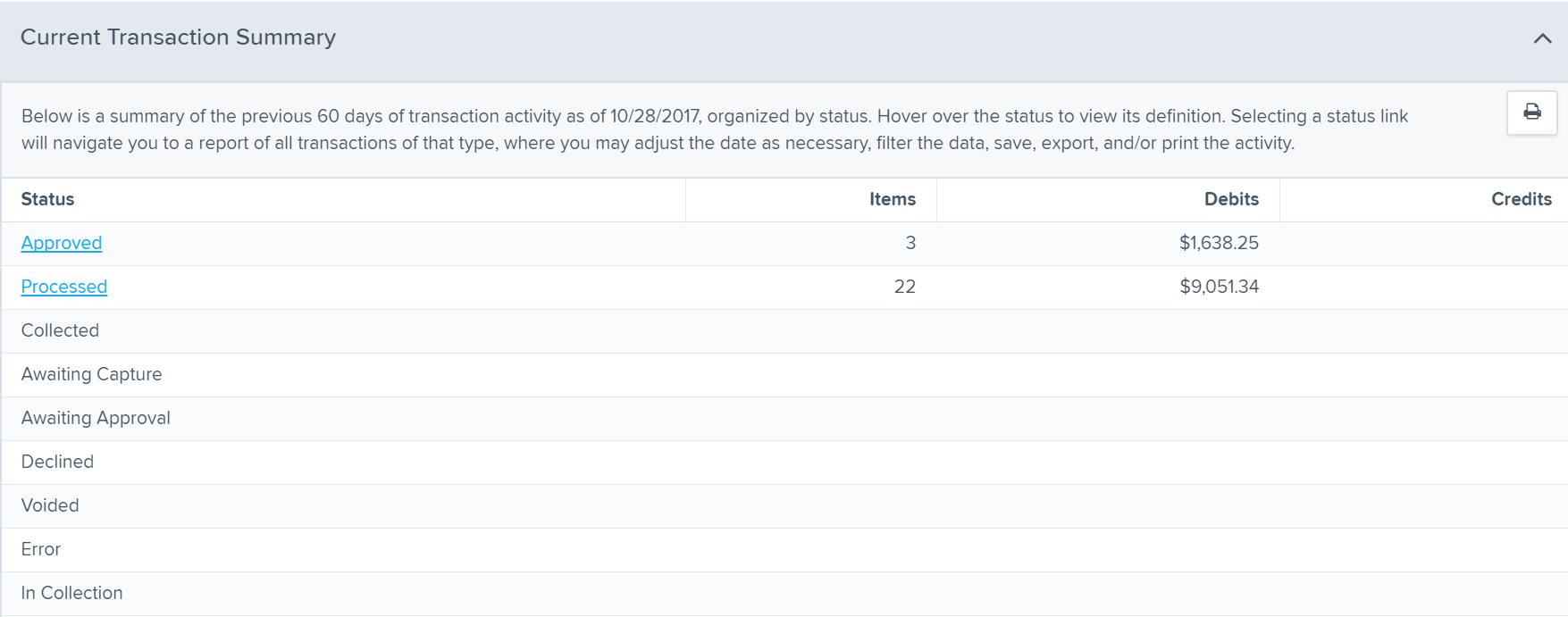
Review the list of transaction summaries. See the table below for a list of common statuses, definitions, and causes where applicable.
Status
Definition
Causes for Unsuccessful Transactions
Approved
Transaction has been verified and will be processed at the designated cut-off time. Search for an Approved transaction if you would like to void it.
Not applicable
Processed
Transaction has been processed and transmitted. Search for a Processed transaction if you'd like to issue a refund.
Not applicable
Declined
Transaction has been declined by the system and will not be processed. If you see a transaction here, you must re-process it if you'd like to collect payment from it.
Entered an invalid routing number (user error)
Velocity settings have been exceeded
Unauthorized
Transaction has been returned unauthorized by the account holder.
Account holder identified this transaction as unauthorized
Account holder has a Debit Block in place (automated block on ACH debit transactions)
Uncollected NSF
Transaction has been returned and funds could not be collected.
Non-sufficient funds (NSF)
Disputed
Transaction has been authorized, but disputed by the account holder.
Account holder disputed the transaction due to various reasons, e.g. processed for the wrong amount
Invalid / Closed Account
Transaction has been returned because the account number was invalid.
Entered an invalid account number (user error)
Entered an account number of a closed account
Click into the desired status of transaction summaries.
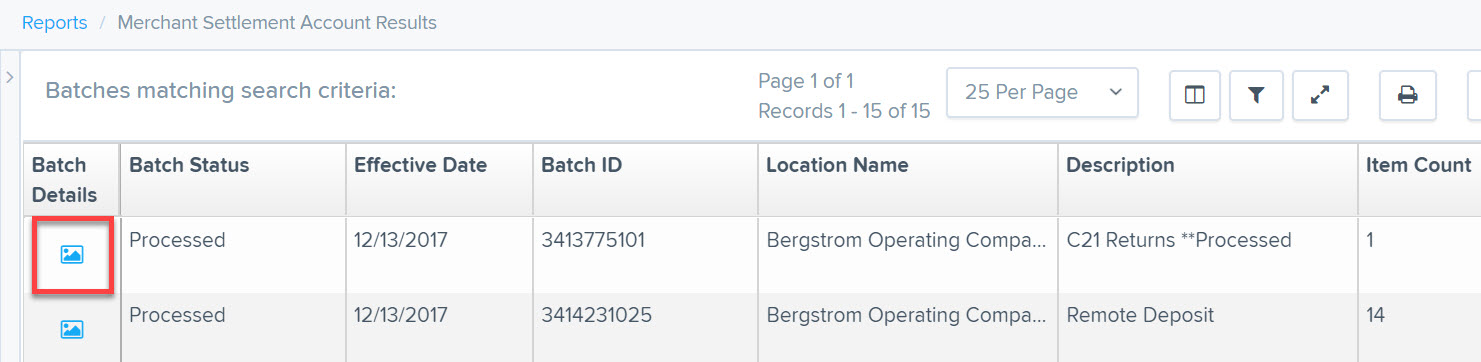
Click the View icon next to the desired Batch.
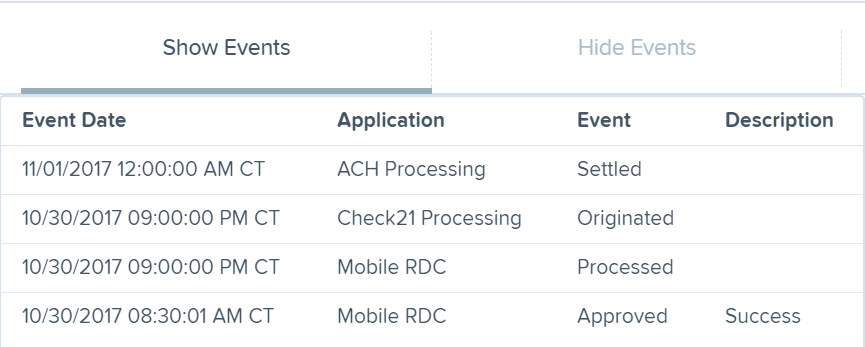
Click Show Events.
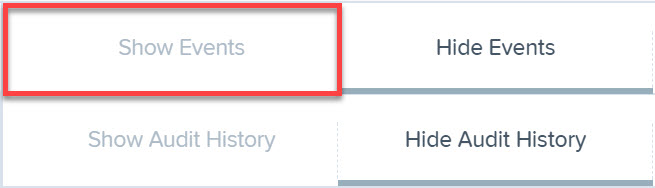
Event details appear, where you can view the status of the check.
FAQ
What do all these different transaction statuses on my SmartPay homepage mean?
See View check and ACH transaction status in SmartPay to see common transaction statuses and causes where applicable.
What is the difference between a returned transaction and a declined transaction?
A return is when a transaction is processed successfully but is returned a few business days later due to various reasons, such as insufficient funds, invalid account numbers, and more. A decline is when the transaction is declined immediately and is never processed in the first place.
Will I know whether a check has been returned immediately (due to insufficient funds, account closure, and so on)?
No, unfortunately there is no real-time connectivity between financial institutions that provides this. However, you will have access to an online portal (SmartPay Business) where you can access the current status of all your transactions, including returns, declines, and so on.
Transactions returned due to insufficient funds or account closure are received within two banking days after the transaction settlement date. Transactions returned due to consumer unauthorization can be received up to 60 calendar days from the transaction settlement date.
Where can I see the reason for return of an unauthorized, declined, or other unsuccessful transaction?
Sign in to your ServiceTitan SmartPay homepage and click the status you wish to view.
Locate the desired transaction and click the View icon (picture of a map) to open it.
Click Show Events located on the right side of the screen.
A description provided by the financial institution will be available.
Why did my check transaction get declined? How do I know my transaction limit?
Each merchant is notified with an approved set of transaction limits at the time their merchant account is created. If the transaction exceeds any of your transaction limits, ProfitStars will decline the transaction. ProfitStars will notify you immediately through email with the reason for decline.
Examples of transaction limits:
Maximum number of checks processed in a day or month
Maximum volume from checks processed in a day or month
Maximum amount for a single check
We know that circumstances change and that original transaction limits may not reflect your current processing accurately. As such, we can always adjust these limits ahead of time to prevent declines, for example, if you anticipate a high-ticket job coming up. To do so, please contact paymentsupport@servicetitan.com with either your business name or merchant ID.