Overview
If your administrator enables the Project-Associated Work Order Actions permission, you can open and edit work orders within a visible project even if you are not directly assigned to them. This lets you act on project work without waiting for reassignment, while your existing action-level permissions still control what you can do. You can also book a follow-on work order directly from the project detail screen, with the customer name and location pre-filled and the new work order automatically linked to the project.
Who uses this feature
Technicians
Primarily benefits Commercial Construction and Residential Construction business types
Primarily benefits Roofing/Exterior trades
Feature configuration
The Field Mobile App is optimized for iOS, iPadOS, and Android phones and tablets. For more, see System requirements and mobile app information.
If you're using the Field Mobile App and need support, please contact Technical Support (through the office) or reach out directly to support@servicetitan.com.
The following permissions are required to use this feature. Please contact the account administrator on your team.
Project-Associated Work Order Actions: Lets you take actions on work orders within a visible project, even if you are not directly assigned to the work order. Your existing action-level permissions still apply.
View My Projects: Allows you to access the Projects screen and scopes results to only projects you sold or are assigned to. For more, see View projects in the ServiceTitan Field Mobile App.
Search All Projects: Allows you to access the Projects screen and search for projects, regardless of assignment. For more, see Find projects in the ServiceTitan Field Mobile App.
Note: When View My Projects is enabled, it takes precedence over Search All Projects, even if both are turned on.
Create Work Order: Required to book a new work order. For more, see:
Things to know
The Project-Associated Work Order Actions permission applies only when you open a work order from the Project screen. It does not apply to work orders opened from other entry points.
When Project-Associated Work Order Actions is enabled, your existing action-level permissions still apply. For example, you can only sell estimates on a non-assigned work order if you also have the relevant estimate permission.
When Project-Associated Work Order Actions is disabled, all work orders within a project that you are not directly assigned to open in read-only mode.
Best practices
Before heading to a location, confirm with your office that the Project-Associated Work Order Actions permission is enabled for your role if you expect to work on work orders that aren't directly assigned to you.
Use the Create Work Order action from the project detail screen when a customer needs follow-on work. The customer and location are pre-filled, and the new work order is automatically linked to the project, so you save time and avoid booking errors.
Note: The Create Work Order permission is required to book a new work order. Please contact the account administrator on your team.
If you manage multiple projects as a sales manager, ask your administrator to enable Search All Projects along with Project-Associated Work Order Actions so you can act on work orders across all projects.
If you are a salesperson who primarily works on projects you sold, ask your administrator to enable View My Projects along with Project-Associated Work Order Actions for a focused, scoped experience.
Use cases
A sales manager reviewing a project notices a work order that needs an estimate sold but the work order isn't assigned to them. With Project-Associated Work Order Actions enabled, they tap the work order from the Project screen, open it in editable mode, and sell the estimate on the spot—no reassignment needed.
A salesperson needs to add a follow-on work order for additional roofing work discovered during an inspection. They open the Project screen, create a work order, and the new work order is created with the customer name and location pre-filled and automatically linked to the project.
A technician working on a multi-job project needs to add materials to a work order that isn't assigned to them but is visible within the project. With the right permissions, they open the work order from the project detail screen and add the materials directly.
Take actions on a non-assigned work order within a project in the Field Mobile App
When Project-Associated Work Order Actions is enabled, you can open and edit work orders within a project even if you are not the assigned technician. Your existing action-level permissions still control what actions are available to you.
Open the Field Mobile App and tap Projects.
Search for and open the project you want to work on.
On the project detail screen, scroll to the Work Orders section.
Tap the work order you want to act on.
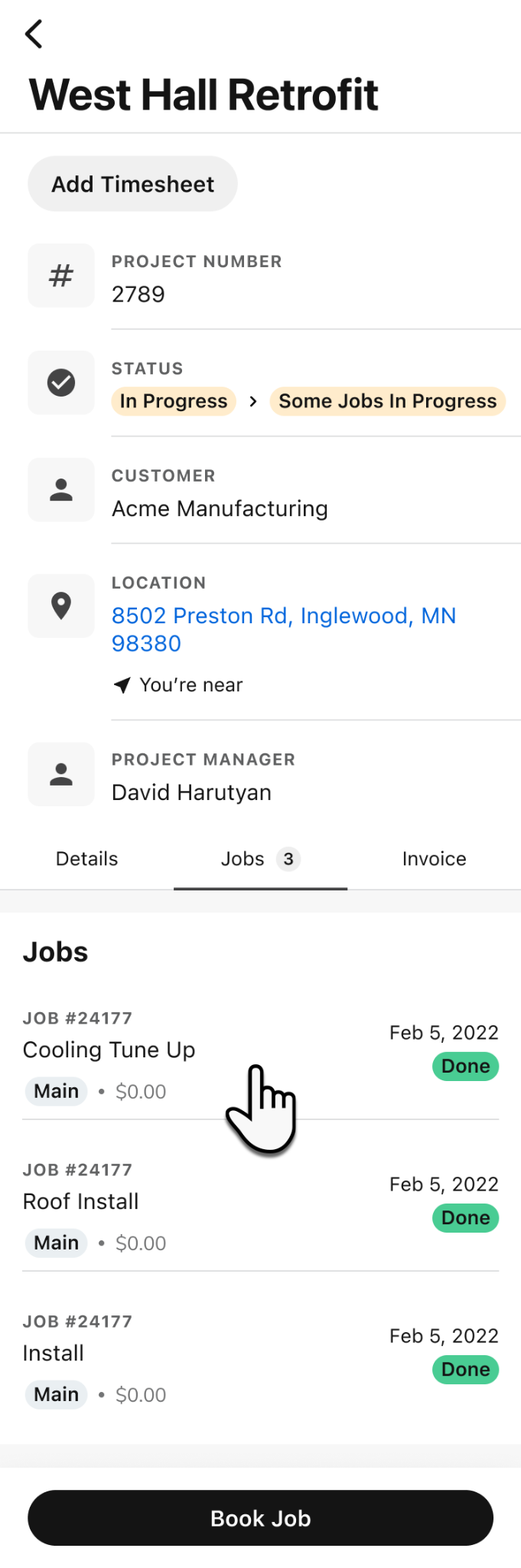
Note: If a work order contains multiple appointments, you'll see a sheet with a list of appointments to choose from.
On the work order that opens, you can take actions based on your existing permissions, such as adding estimates, materials, notes, or media.
Note: If the Project-Associated Work Order Actions permission is not enabled, the work order opens in read-only mode.
Book a follow-on work order from a project in the Field Mobile App
If you have the Create Work Order permission, you can book a new work order directly from the project detail screen. The customer name and location are pre-filled from the project, and the new work order is automatically linked to the project.
Open the Field Mobile App and tap Projects.
Search for and open the project you want to create a work order for.
On the project detail screen, tap + Create Work Order. fie
The Create Work Order screen opens with the customer name and location pre-filled from the project.
Complete the remaining fields required to book the work order. For more, see:
The new work order is created and automatically linked to the project. It appears in the Work Orders section of the project detail screen.
Note: If you have the Leave Unassigned sub-permission (under Book job), you can create a work order without assigning it to yourself. Please contact the account administrator on your team to have this permission enabled. For more, see Book a job for an existing service location in the ServiceTitan Field Mobile App.