Overview
Explore work order details in the Field Mobile App to the different actions you can take.
Who uses this feature
Technicians
Applies to all business types
Feature configuration
The Field Mobile App is optimized for iOS, iPadOS, and Android phones and tablets. For more, see System requirements and mobile app information.
If you're using the Field Mobile App and need support, please contact Technical Support (through the office) or reach out directly to support@servicetitan.com.
Things to know
Pull to refresh the app. The time the screen was last refreshed is shown at the top.
Note: The Pull To Refresh action is only available when you’re online. It's not available if you don’t have internet access.
On a tablet, the Field Mobile App uses a tablet-optimized layout with additional features. For more on the tablet experience, see Use the tablet-optimized layout in the ServiceTitan Field Mobile App.
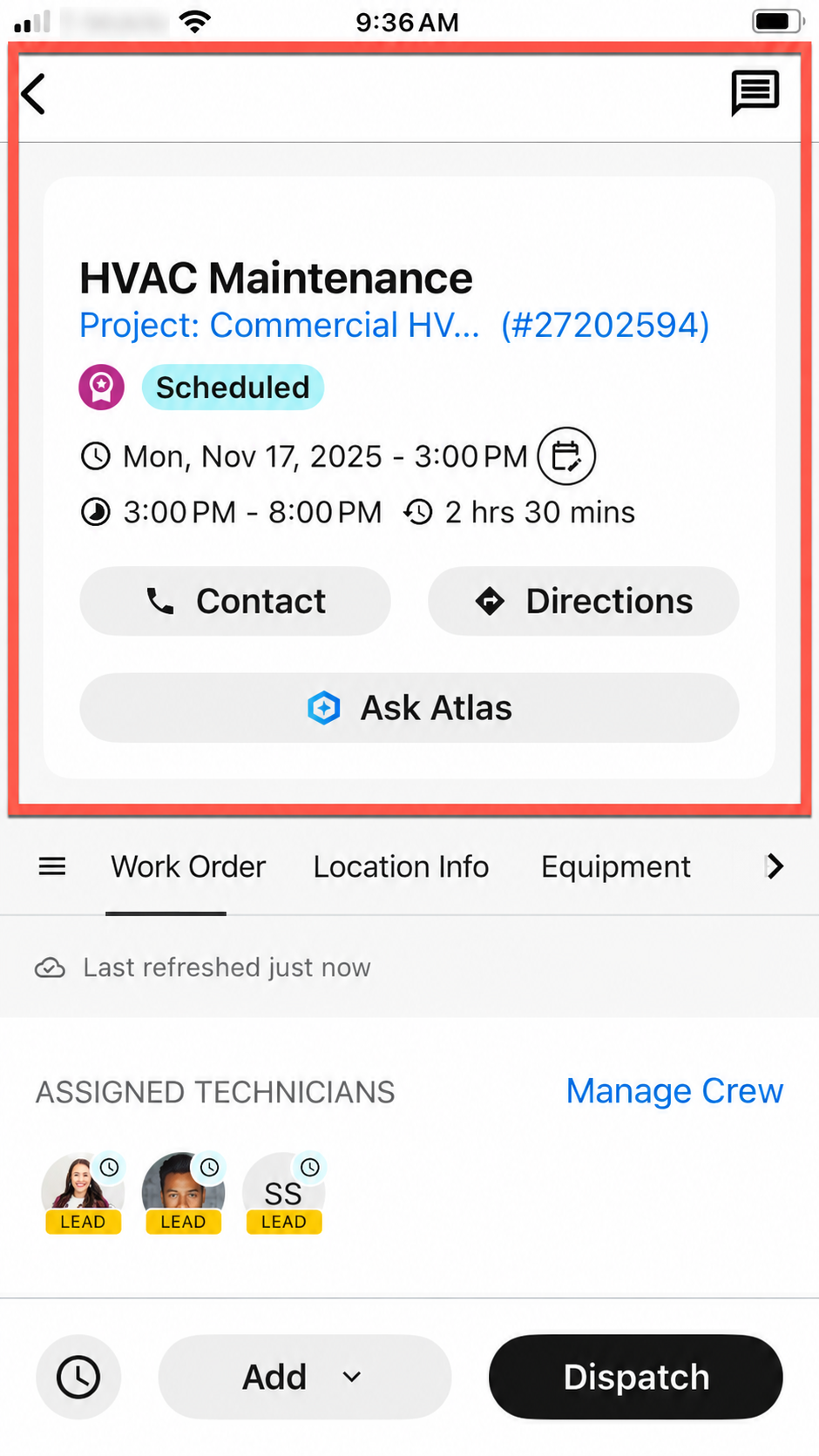
Use the top header section of a work order in the Field Mobile App
Here, you can view key status details, such as the work order name and more.
Note: This section collapses as you scroll down. Scroll up to reopen it.
Chat
 : Read any chats between the customer and the office. For more, see Review customer messages, media, and calls in the ServiceTitan Field Mobile App.
Note: The View customer chats permission is required to read chats in the Field Mobile App. Please contact the account administrator on your team.
Work Order Number: The work order number, including the appointment number after the dash.
Work Order Name: The name of the work order.
Project: If the work order is associated with a project, you can quickly access the project by tapping the link.
Work Order Status: The status of the work order appointment.
Day, Date, and Time: The scheduled day, date, time, Arrival Window, and duration of the work order appointment.
Contact
 : View the customer’s phone number and call them. For more, see Call customers and add contact information in the ServiceTitan Field Mobile App.
Directions
 : Get directions to the work order through the native map application on your mobile device.
Ask Atlas
 : If your account is configured for it, you can use Atlas—powered by Titan Intelligence (TI)—to efficiently manage your work orders. For more, see Use Atlas in mobile.

Note: On a tablet, Contact, Directions, and Ask Atlas appear in the right side of the top header instead of at the bottom. For more, see Use the tablet-optimized layout in the ServiceTitan Field Mobile App.
Use the bottom actions for a work order in the Field Mobile App
Work Order actions
After you've been assigned a work order and it's in Scheduled status, you can Dispatch, Arrive, and Closeout to update your status for the work order you’re working:
Dispatch: Signal to the office that you're dispatched and en route to the work order appointment. For more, see Dispatch and Arrive with the ServiceTitan Field Mobile App.
Arrive: Signal to the office that you’ve arrived and the work order appointment is in Working status. For more, see Dispatch and Arrive with the ServiceTitan Field Mobile App.
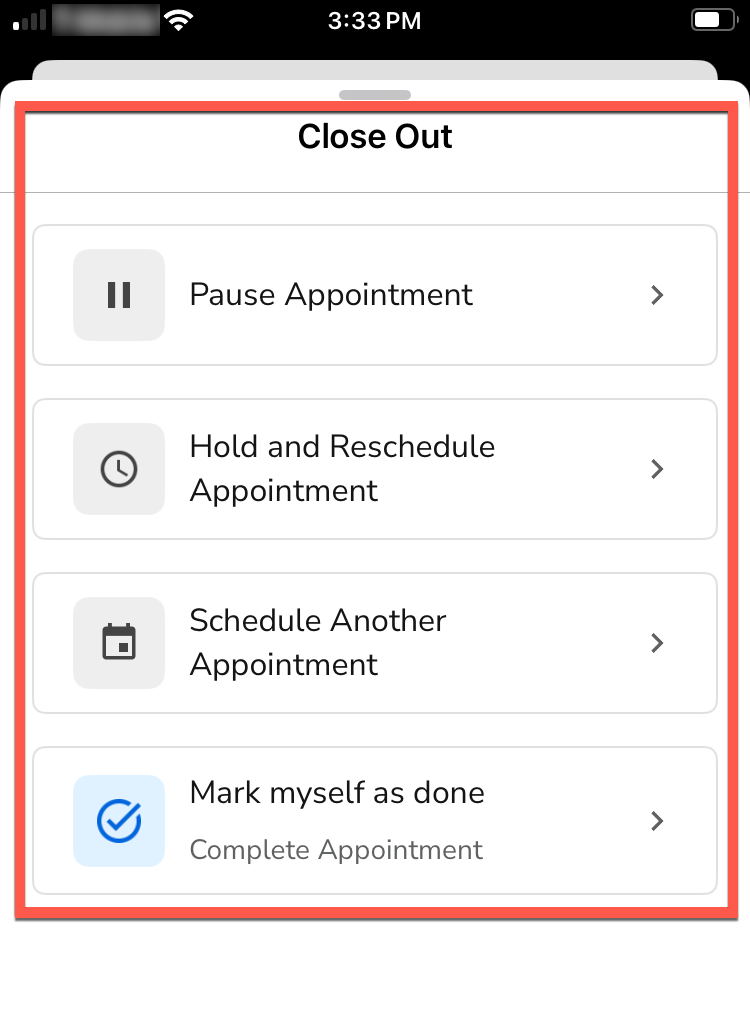
Close Out: Signal to the office that you’re ready to leave the work order appointment. After you tap Close Out, take one of the following actions:
Pause Appointment
 : Pause the appointment if you plan to return later and complete the work. For more, see Pause an appointment in the ServiceTitan Field Mobile App.
Hold and Reschedule Appointment
 : Place the appointment on hold so it can be rescheduled by the office. For more, see Hold and reschedule an appointment in the ServiceTitan Field Mobile App.
Schedule Another Appointment
 : Add another appointment if you need more time to complete the work. For more, see Schedule another appointment in the ServiceTitan Field Mobile App.
Mark Myself as Done
 : If there are remaining appointments on the work order, complete the current appointment you’re working to leave the work order open for the remaining appointments. If there are no more appointments left on the work order or all work has been completed, complete the work order. For more, see Complete an appointment in the ServiceTitan Field Mobile App and Complete a job with the ServiceTitan Field Mobile App.
Note: Depending on your office’s account settings, some notifications are sent to customers in addition to the office. For more, see Customer notifications.
Additional actions
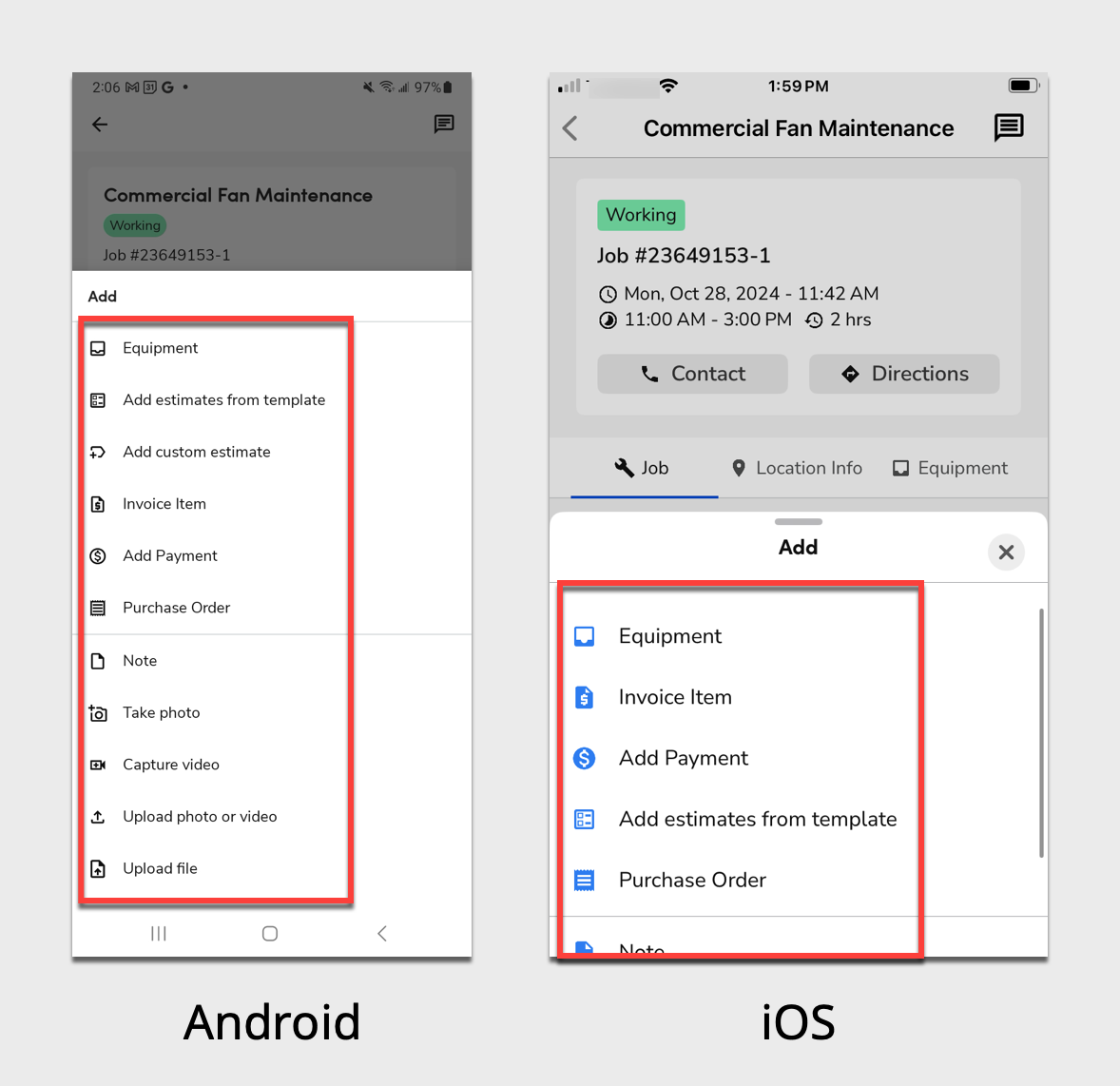
After you tap Add, you can take the following actions:
Note: Some of these options are only available after you tap Arrive and the work order appointment is in Working status.
Equipment
 : Fill out the form that opens to add existing equipment to the Location Record. For more, see Add equipment to a service location in the ServiceTitan Field Mobile App.
Add Work Per formed Log
 : Fill out the form that opens to add a log of the work performed for the work order. If the work order spans multiple dates, you can add a separate log for each appointment. For more, see Add, edit, and view work performed logs in the ServiceTitan Field Mobile App.
Work Order Item
 : Select Services, Equipment, or Materials from the pricebook to add to the invoice.
Add Payment
 : Add a payment against the invoice balance.
Add estimates from template
 : Use a template to build an estimate for the work order. For more, see Create estimates in the ServiceTitan Field Mobile App.
Purchase Order
 : Create a purchase order for the work order. For more, see Create, send, and edit purchase orders in the ServiceTitan Field Mobile App.
Note
 : Add an internal note about the work order, location, or customer. For more, see Add and edit notes in the ServiceTitan Field Mobile App.
Note: The Set notes on customer, location, or job permission is required to add notes in the Field Mobile App. Please contact the account administrator on your team.
Take Photo
 : Take a new photo and attach it to the work order. After you take a photo, tap Review > Add to add it to the work order, or tap Back
 to discard it. For more, see Manage photos, videos, and files in the ServiceTitan Field Mobile App.
Note: On iOS, there isn’t a separate option to take a photo. Instead, it’s grouped into one option called Take Photo or Video
.Capture Video
 : Record a new video and attach it to the work order. After you record a video, tap Review > Add to add it to the work order, or tap Back to discard it. For more, see Manage photos, videos, and files in the ServiceTitan Field Mobile App.
Note: On iOS, there isn’t a separate option to capture video. Instead, it’s grouped into one option called Take Photo or Video
.Upload Photo or Video
 : Upload an existing photo or video from your phone and attach it to the work order. If you need to remove a photo or video after uploading it, tap it to enlarge it, then tap Delete
 . For more, see Manage photos, videos, and files in the ServiceTitan Field Mobile App.
Upload File
 : Upload an existing file from your phone and attach it to the work order.
Timekeeping actions
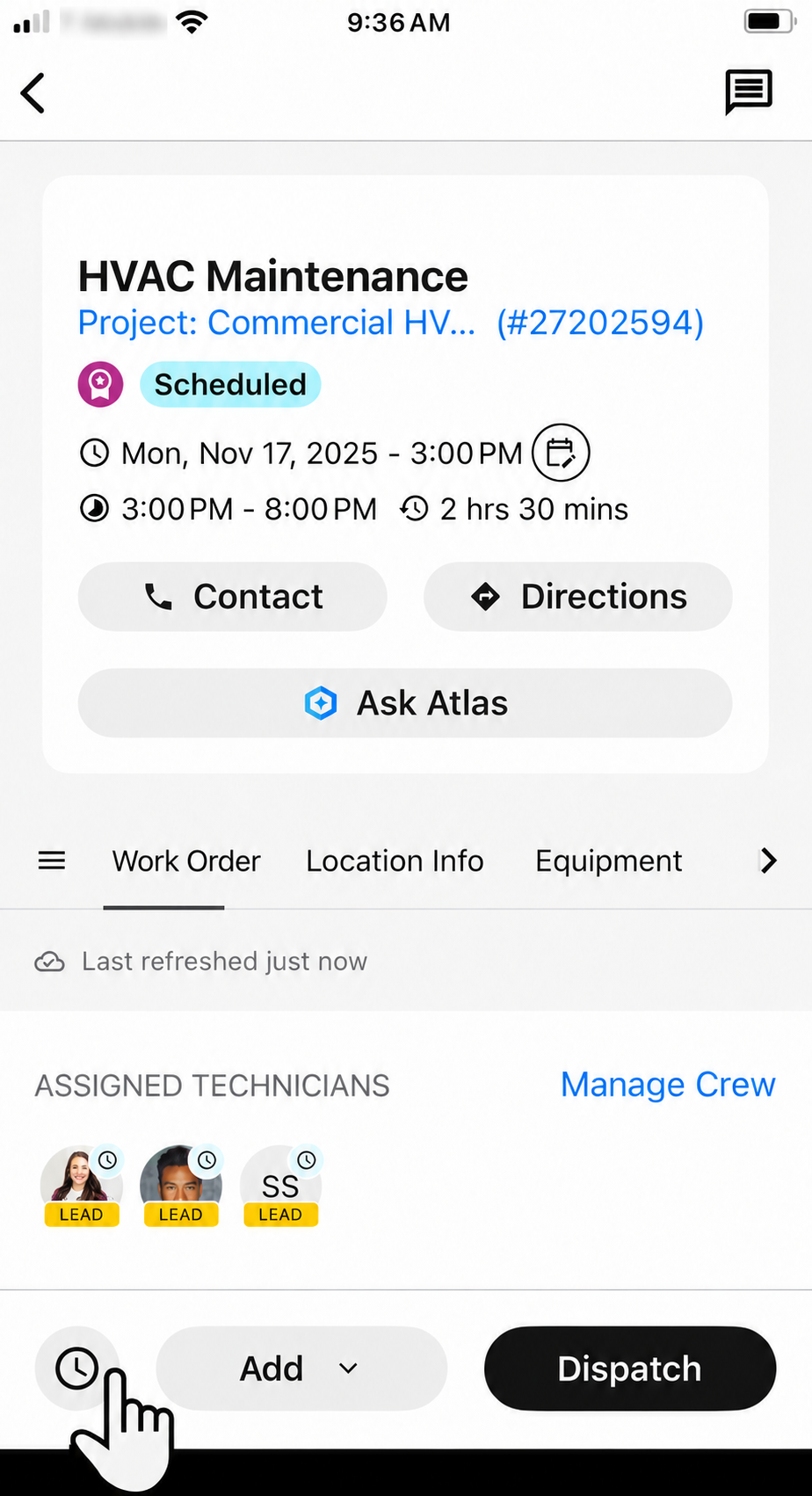
After you tap Time , you can:
Add Timesheet: How you clock in and out to create and close timesheets depends on your company's setup. For more, see Compare the different ways to use Flexible Timekeeping with the ServiceTitan Field Mobile App.
View Timesheets: Find a timesheet and edit or delete it if you need to.
Note: You can’t edit a timesheet in a locked pay period, as indicated by the Lock
 icon. The Allow to edit timesheets permission is required to edit timesheets. Please contact the account administrator on your team.
Use the different tabs of a work order in the Field Mobile App
Each work order includes the following tabs:
Work Order: For more on this tab, see the Use the Work Order tab section below.
Location Info: For more on this tab, see the Use the Location Info tab section below.
Note: The View location record permission is required to see all details on this tab in the Field Mobile App. Please contact the account administrator on your team.
Equipment: For more on equipment, see Track equipment.
Forms: For more on forms, see Complete and send forms in the ServiceTitan Field Mobile App and Manage forms for equipment in the ServiceTitan Field Mobile App.
Estimates: For more on estimates, see Create estimates in the ServiceTitan Field Mobile App.
Work Order: For more on invoices, see Present or email an invoice in the ServiceTitan Field Mobile App.
Note: The Work Order tab also includes the pricebook. For more, see Use Pricebook in the ServiceTitan Field Mobile App.
Tip: You can pull to refresh each of these tabs. The time the tab was last refreshed is shown at the top of the screen. This action is only available when you’re online. It's not available if you don’t have internet access.
Note: On a tablet, these tabs are replaced by a side navigation menu. Tap any item in the side menu to go directly to that tab. For more, see Use the tablet-optimized layout in the ServiceTitan Field Mobile App.
Use the Work Order tab
This is your main view of the work order and includes:
Assigned Technicians: This is only shown if there's more than one technician assigned to the work order.
Work Order Details: If the office wrote a summary about the work order, read it here.
Special Instructions: This is only shown if the office wrote special instructions for the work order.
Location:
Tap the customer name to see:
The type of customer (Residential or Commercial)
The customer’s zone
The Bill To name and address of the customer
The customer’s current balance
Contact methods for the customer (phone and email)
Any memberships the customer has. For more, see Verify a customers memberships in the ServiceTitan Field Mobile App.
Tap the address or See Distance and Drive Time
 to see the service location on a map. You can tap Get Directions to open the address in Google Maps or Copy Address to copy it to your clipboard and paste in another map application.
Tap Property Data
 to see key details about the property.
Note: If no property data is available, this button is hidden.
Pinned Notes: If the office pinned any notes on the customer or location record, read them here. To view any other notes, tap View All
 .
Tags: View any tags added by the office. Tags are sorted by work order, location, and customer.
Work Order Media: If you or the office uploaded any media for this work order, you see it here.
Allocated Hours: This shows the hours estimated for the work order—usually carried over from a service agreement's Project-stage estimate—tracked against your actual timesheet.
Note: The Allocated Hours requires additional account-level configuration. Contact ServiceTitan Support (through the office) or email support@servicetitan.com to check whether it can be enabled for your business.
More:
Call Recording
: If the work order was booked from a recorded call, you can review the call to gain context.Note: The Listen to Call Recording permission is required to listen to call recordings in the Field Mobile App. Please contact the account administrator on your team.
Recurring services
 : If there are recurring services, you can view the name and date of the recurring visits that are part of the Service Agreement.
Purchase Orders
: If there are purchase orders, you can view them here. For more, see Receive purchase orders in the ServiceTitan Field Mobile App and Create, send, and edit purchase orders in the ServiceTitan Field Mobile App.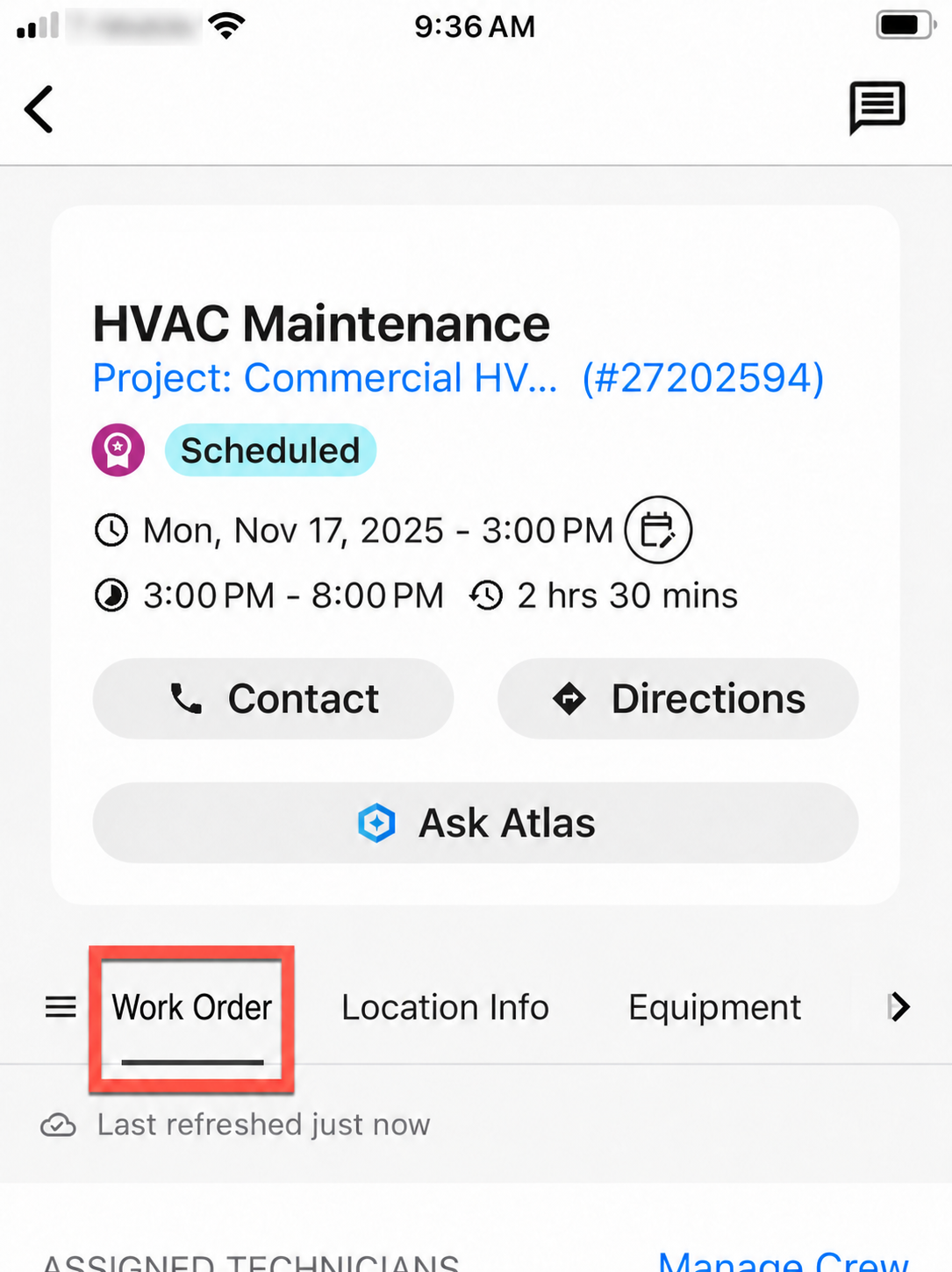
Note: On a tablet, the Location section also has an inline map with an automatic route preview. Tap the map or tap Get Directions to open the full route in your device's maps app. For more, see Use the tablet-optimized layout in the ServiceTitan Field Mobile App.
Use the Location Info tab
The History screen is now called Location Info
Note: The View location record permission is required to see all details on this tab in the Field Mobile App. Please contact the account administrator on your team.
The Location Info tab and includes:
All Work Orders: View all work orders booked at this location. This includes past, present, and future work orders.
Previous opportunities: If you have the correct permissions, this shows opportunities you can follow up on from unsold estimates on completed work orders. For more, see Set follow-up reminders for opportunities in the ServiceTitan Field Mobile App.
Note: The Access follow ups and Edit estimates in follow up permissions are required to use this feature. Please contact the account administrator on your team.
Recurring services: If there are recurring services, you can view the name and date of the recurring visits that are part of the Service Agreement. For more, see Mark a recurring service as complete in the ServiceTitan Field Mobile App.
Documents: View all media pertaining to this location.
Projects: This is only shown if there are existing projects for this location.
Note: On a tablet, certain sections open in a Split-view layout on iOS devices. You can browse a list on the left and view full content on the right without leaving the page. For more, see Use the tablet-optimized layout in the ServiceTitan Field Mobile App.
Want to learn more?
See Before and after guide: Compare the legacy mobile app with the new Field Mobile App
See Explore the main layout of the ServiceTitan Field Mobile App
See Use the tablet-optimized layout in the ServiceTitan Field Mobile App