Overview
The Modular Dashboard lets you view up-to-the-minute performance metrics on all aspects of your business. Make sure your account is configured to take advantage of the insights the dashboard can provide.
Note: Depending on your account's configuration, you might see one or more of the following:
Items and Pricing instead of Pricebook.
Customer instead of Homeowner.
Procurement instead of Inventory.
The names are different, but everything works the same way. For more, see Commercial Personalization Platform - FAQ.
Who uses this feature
Administrators and managers
Update your browser
The Modular Dashboard supports Google Chrome version 86 and above. Make sure to update your browser to the latest version to access all the dashboard features.
Set up divisions and business units
The Technician Scorecards section of the dashboard uses Business Unit (BU) divisions to analyze technician performance. Each division corresponds to a scorecard. For example, if you have a plumbing maintenance BU, you can map it to the Maintenance scorecard. Metrics from plumbing maintenance work orders are included on the Maintenance scorecard.
Create divisions
A technician scorecard is created for each of your active BU divisions. We recommend creating divisions with the names Install, Maintenance, Service, and Sales.
Note: If a technician sells estimates on a non-sales work order, the sales metrics are included on the Sales tab of the work order type’s division.

For more, see Add a business unit category.
Assign business units to divisions
Assign your BUs to divisions to include them on the dashboard. For example, if you serve multiple trades, you can have separate HVAC install and plumbing install BUs. You can assign them both the Install division you created earlier.
Note: A BU can only be mapped to one division.

For more, see Add and edit business units.
Set up your Items and Pricing
To track revenue from items in Items and Pricing, configure your Items and Pricing to work with the Modular Dashboard.
Add sold hours
Sold hours, also known as billable hours, are the number of labor hours estimated to complete a service or equipment installation as set in your pricebook. ServiceTitan compares sold hours to actual job hours to measure technician efficiency.
For more, see Add sold hours to pricebook items.
Set up general ledger accounts
To properly calculate revenue, set up general ledger (GL) accounts for your ServiceTitan account. Make sure you have the following GL account types: Income, Liability, Asset, Expense, and Equity.
Note: This feature requires account configuration. Please contact Technical Support for details.
For more, see Set up general ledger accounts.
Connect pricebook items with income GL accounts
ServiceTitan uses income items to calculate revenue. Income items are pricebook items assigned to an income general ledger (GL) account.
To assign an income account, edit the pricebook item and enter the income account in the General Ledger Account field.
Note: If you use QuickBooks Desktop, select the account from the Income Account dropdown.
For more, see Edit pricebook items.
Set up replacement opportunities
When installed equipment at a service location reaches the replacement age for that equipment type, it is considered a replacement opportunity. This triggers a replacement tag to appear on the customer record.
To set up your account for replacement opportunities:
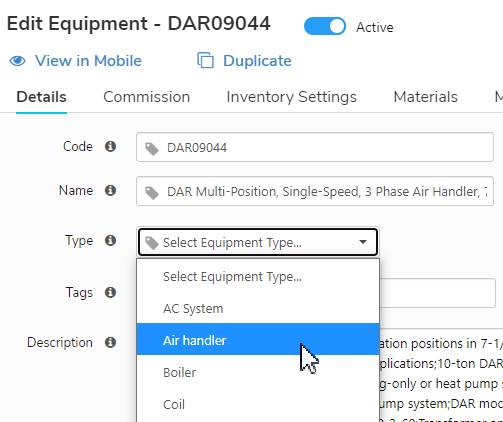
Assign equipment types by editing the type field for equipment items in your pricebook.
Add sold hours
Sold hours, also known as billable hours, are the number of labor hours estimated to complete a service or equipment installation as set in your Items and Pricing. ServiceTitan compares sold hours to actual work order hours to measure technician efficiency.
For more, see Add sold hours to items in Items and Pricing.
Set up general ledger accounts
To properly calculate revenue, set up general ledger (GL) accounts for your ServiceTitan account. Make sure you have the following GL account types: Income, Liability, Asset, Expense, and Equity.
Note: This feature requires account configuration. Please contact Technical Support for details.
For more, see Set up general ledger accounts.
Connect items in Items and Pricing with income GL accounts
ServiceTitan uses income items to calculate revenue. Income items are Items and Pricing items assigned to an income general ledger (GL) account.
To assign an income account, edit the item in Items and Pricing and enter the income account in the General Ledger Account field.

Note: If you use QuickBooks Desktop, select the account from the Income Account dropdown.
For more, see Edit items in Items and Pricing.
Set up replacement opportunities
When installed equipment at a service location reaches the replacement age for that equipment type, it is considered a Replacement opportunity. This triggers a replacement tag to appear on the Customer Record.
To set up your account for replacement opportunities:
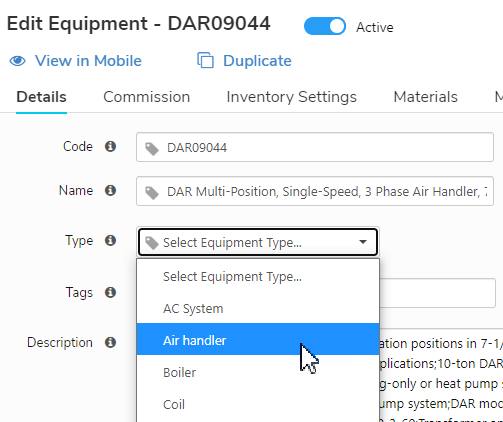
Assign equipment types by editing the type field for equipment items in your Items and Pricing.
Set up work order types
When you create job types, the sold threshold setting is used to measure sales and job performance. Essentially, it’s the least amount of money where a job of that type is worthwhile to your business.
For example, you create a job type for toilet installations. Based on your overhead and other costs, you set a sold threshold of $300 for toilet installations:
When a sales tech sells a toilet install estimate for $300 or more, the sales opportunity considered closed.
When a technician completes a toilet install with an invoice subtotal of $300 or more, the job opportunity is considered converted.
For more, see Set up and use job types.
Set up call details
Set up call reasons
Call reasons allow CSRs to classify incoming calls. The dashboard uses call reasons to track work order booking rates.
For more, see Set up call reasons.
Add marketing campaigns
Incoming calls are classified by marketing campaign. The dashboard’s Marketing Scorecard shows call and booking metrics for each of your campaigns.
For more, see Adding marketing campaigns in ServiceTitan.
Enable work order completion surveys
The Technician Scorecards include customer satisfaction metrics. To include these, make sure to enable work order completion surveys, which are automatically delivered to customers by text or email to customers when a work order is completed.
For more, see Enable work order completion surveys (text and/or email).
Want to learn more?
Visit ServiceTitan Academy to enroll in Modular Dashboard