Overview
Explore the main layout of the Field Mobile App to learn your way around it.

Who uses this feature
Technicians
Applies to all business types
Feature configuration
The Field Mobile App is optimized for iOS, iPadOS, and Android phones and tablets. For more, see System requirements and mobile app information.
If you're using the Field Mobile App and need support, please contact Technical Support (through the office) or reach out directly to support@servicetitan.com.
Things to know
Pull to refresh the app. While data is syncing in the background, a Refresh in progress indicator appears below Today's schedule and disappears when the sync completes. The time the screen was last refreshed is shown at the top.
Note: The Pull To Refresh action is only available when you’re online. It's not available if you don’t have internet access.
On a tablet, the Field Mobile App uses a tablet-optimized layout with additional features. For more on the tablet experience, see Use the tablet-optimized layout in the ServiceTitan Field Mobile App.
Use the Home screen in the Field Mobile App
When you open the Field Mobile App, the Home  screen is what you see first. It shows today’s schedule and your current work order.
If the app can’t load all work order data, a Not all data is available banner appears at the top. Tap Retry in the banner to refresh all work orders, or tap the X to dismiss the banner.
Done
 : The work order's data is fully loaded.
Downloading
 : The work order's data is still downloading in the background.
Warning
 : The work order failed to load. Tap the icon and then select Try Again to retry loading that work order.
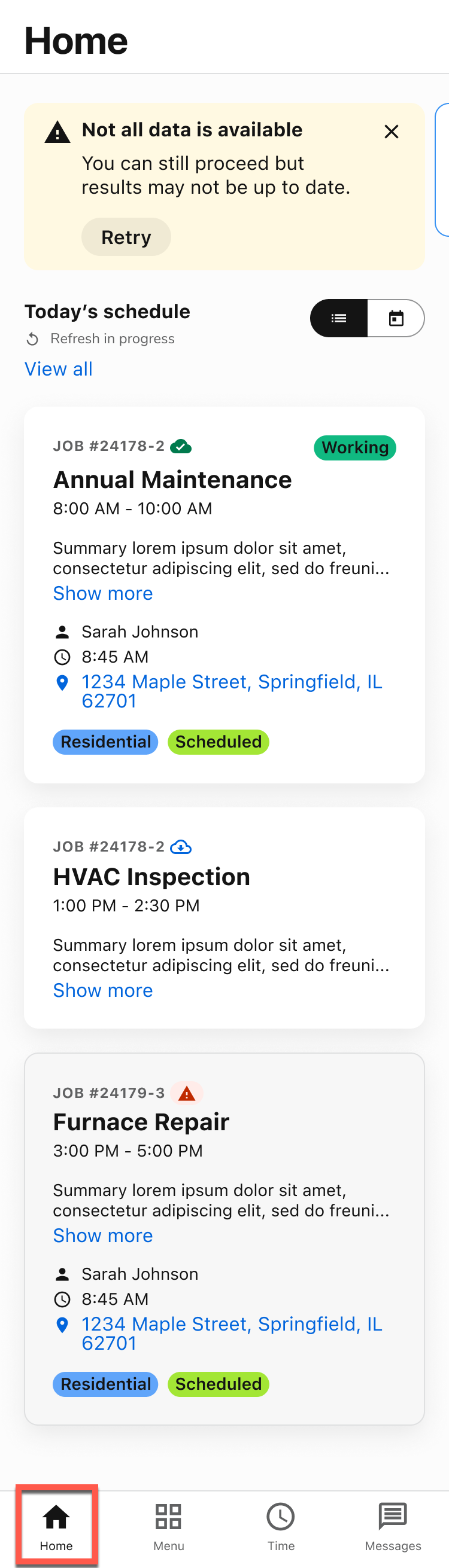
Tap View all under Today’s schedule to see all your work orders in the following tabs:
Today: Your current work order and any other work orders you have today.
Upcoming: Your work orders scheduled for tomorrow and other future work orders assigned to you. This also includes work orders in the past that are still in Scheduled status. It does not include work orders in Working or Dispatched status.
Previous: Search for previously completed or canceled work orders, customers, or locations. You can also filter previous work orders by their start and end date.
Paused: Your work orders marked as Paused or On Hold. You can re-dispatch yourself to a Paused work order, but an On Hold work order needs to be updated by the office before you can resume work.
Note: The Show all assigned/dispatched/working appointments permission is required to see everything in the Today and Upcoming tabs. The View History Tab permission is required to see and use the Previous tab. Please contact the account administrator on your team.

On any tab, you can tap a work order card to open the job details and actions for that work order.

Work Orders and non-job events (such as meetings or training) are shown in chronological order on your Home screen. As events are started or completed, the list reorders automatically to reflect the current schedule.
Note: On both phones and tablets, if your terminology is set to Commercial, the service location name is shown instead of the customer name on the work order card.
.png?sv=2026-02-06&spr=https&st=2026-11-09T10%3A46%3A18Z&se=2026-11-09T11%3A02%3A18Z&sr=c&sp=r&sig=0lSF7iKnmfrOZdTdjMy2kXRhWsI8Xp7Om35%2FmTgnKvs%3D)
Note: After you navigate to the work order page, the work order card includes quick action buttons for Directions, Contact, and Atlas. After you tap Arrive on a work order, the Directions button changes to Wrap-Up. Tap Wrap-Up to send your estimated time remaining (15–90 minutes) to dispatch.

Use the Time screen in the Field Mobile App
Tapping Time  opens the Time screen where you can clock in and out to track your hours.

How you clock in and out to track your hours depends on your company’s setup. For more, see Track your time and work.
Use the Menu screen in the Field Mobile App
Tapping Menu  opens the Menu screen where you can take various actions and update your settings.

Your shortcuts
Book job
 or Customer and Location details
 : Book a new work order for yourself and view customer and location details before a work order is booked.
Note: If the Create Work Order permission disabled but the View Historical Details permission is enabled, Book job
changes to Customer and Location details . At least one of these permissions is required to see and use this feature. Please contact the account administrator on your team. For more, see: Card Reader Management
 : Connect a card reader to use for customer payments.
Note: Account configuration and office setup are required to see and use this feature. Please contact your office for details. For more, see Process credit card payments in the ServiceTitan Field Mobile App with your Adyen, BBPOS, or ID TECH reader.
Opportunities
 : Review opportunities from previously completed work orders and set reminders to follow up with them.
Note: Permissions are required to see and use this feature. Please contact the account administrator on your team. For more, see:
Financing History
 : Search for and manage financing applications.
Note: Account configuration and office setup are required to see and use this feature. Please contact your office for details. For more, see Offer financing.
Settings
Business Terminology: Set the Field Mobile App to show terminology that applies to your business type: Residential
 or Commercial
 . For more, see Show Residential or Commercial terms in the ServiceTitan Field Mobile App.
Customize navigation
 : Rearrange or hide items on the bottom navigation to prioritize the features you use most. To do this, drag
 , remove
 , or add
 navigation buttons to suit your needs.
.png?sv=2026-02-06&spr=https&st=2026-11-09T10%3A46%3A18Z&se=2026-11-09T11%3A02%3A18Z&sr=c&sp=r&sig=0lSF7iKnmfrOZdTdjMy2kXRhWsI8Xp7Om35%2FmTgnKvs%3D)
Appearance
 : Set the Field Mobile App to Light mode, Dark mode, or have it follow what’s configured in your device settings.
Activity status bar
 : Set the Field Mobile App to show or hide your current timesheet activity status. This status shows your current activity, the time elapsed, and gives you an option to go to your current activity.
Note: This setting is only available if your account is configured for Continuous Timekeeping.

Media upload quality
 : Set the Field Mobile App to upload media at Standard quality or High quality.
Clear external media
 : Delete all images stored in the external Field albums in your device photos. The images will remain on any work orders or forms.
Update Pricebook
 : Choose to Update Pricebook now or Clear Pricebook & Redownload. This syncs any recent updates made by the office if you’re online.
General
Switch environment
 : Switch between the Go live environment and the Next sandbox environment.
Note: Always use Go to work on real work orders. Only use Next to test features and workflows. For more, see Switch between Next and Go environments in the Field Mobile App.
Change Password
 : Reset the password you sign in with. For more, see Reset your password in the Field Mobile App.
Help
 : Go to the ServiceTitan Knowledge Base.
About
 : View the app Version, Terms of Use, and Privacy Policy.
Provide feedback
 : Send feedback to our team about your experience using the Field Mobile App.
Sign Out
 : Sign out of the Field Mobile App.
Want to learn more?
See Before and after guide: Compare the legacy mobile app with the new Field Mobile App
See Explore job details and actions in the ServiceTitan Field Mobile App
See Use the tablet-optimized layout in the ServiceTitan Field Mobile App