This article shows you how to identify memberships with skipped and missed billing dates and how to charge members for skipped or missed Next Billing Dates.
Things to know
Customers should have an Active membership with a billing frequency set to be visible in the Recurring Billing feature.
Workflows
Identify missed or skipped Next Billing Dates
To identify the missed or skipped Next Billing Dates:
In ServiceTitan, go to the navigation bar and click Accounting.
Click Recurring Billing.
In the Create Run page, select a Start Date and End Date range for the day.
Click Search Members. In the top right corner there will be a button listing the number of Next Billing Dates Prior To the selected date if there are any members with a skipped or missed billing date before that day.
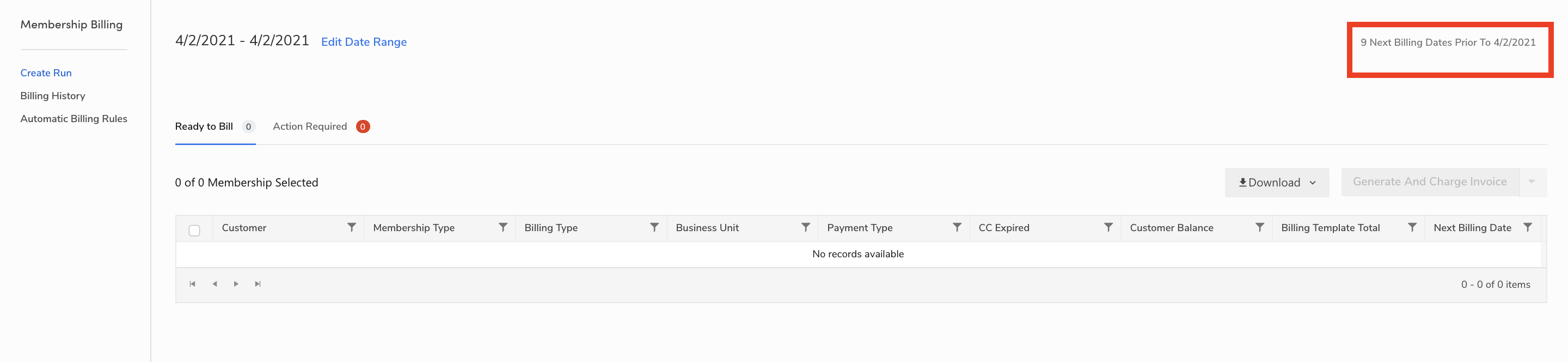
Click the Next Billing Dates Prior To button listing the number of prior dates.
Click the Next Billing Date in the Next Billing Date column for the member you wish to update the Next Billing Date. The Change Next Billing Date window opens asking if you wish to update the Next Billing Date and select for which missed or skipped dates you want to charge the member or just update the Next Billing Date.
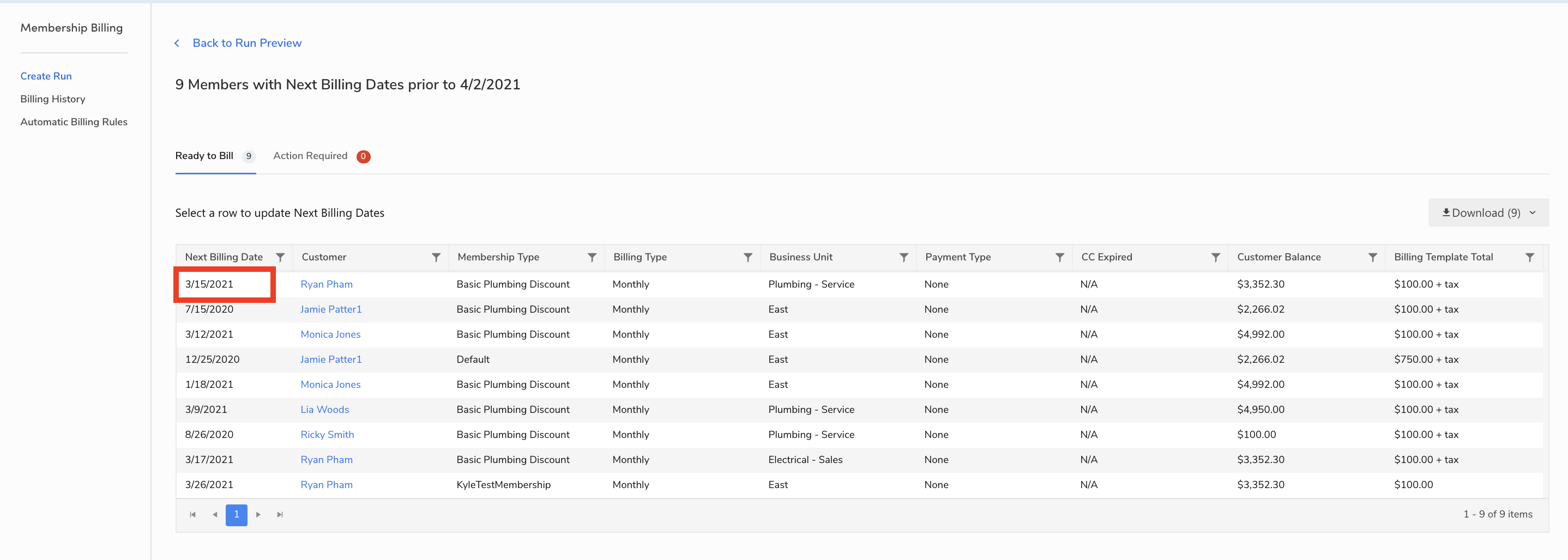 If you want to charge the member for missed or skipped dates:
 Select the Update Next Billing Date to XXXX and select skipped invoice dates to generate invoices option.
Click Update. You will see a list of skipped Invoice Dates.
Select the dates for which you want to charge the billing dates.
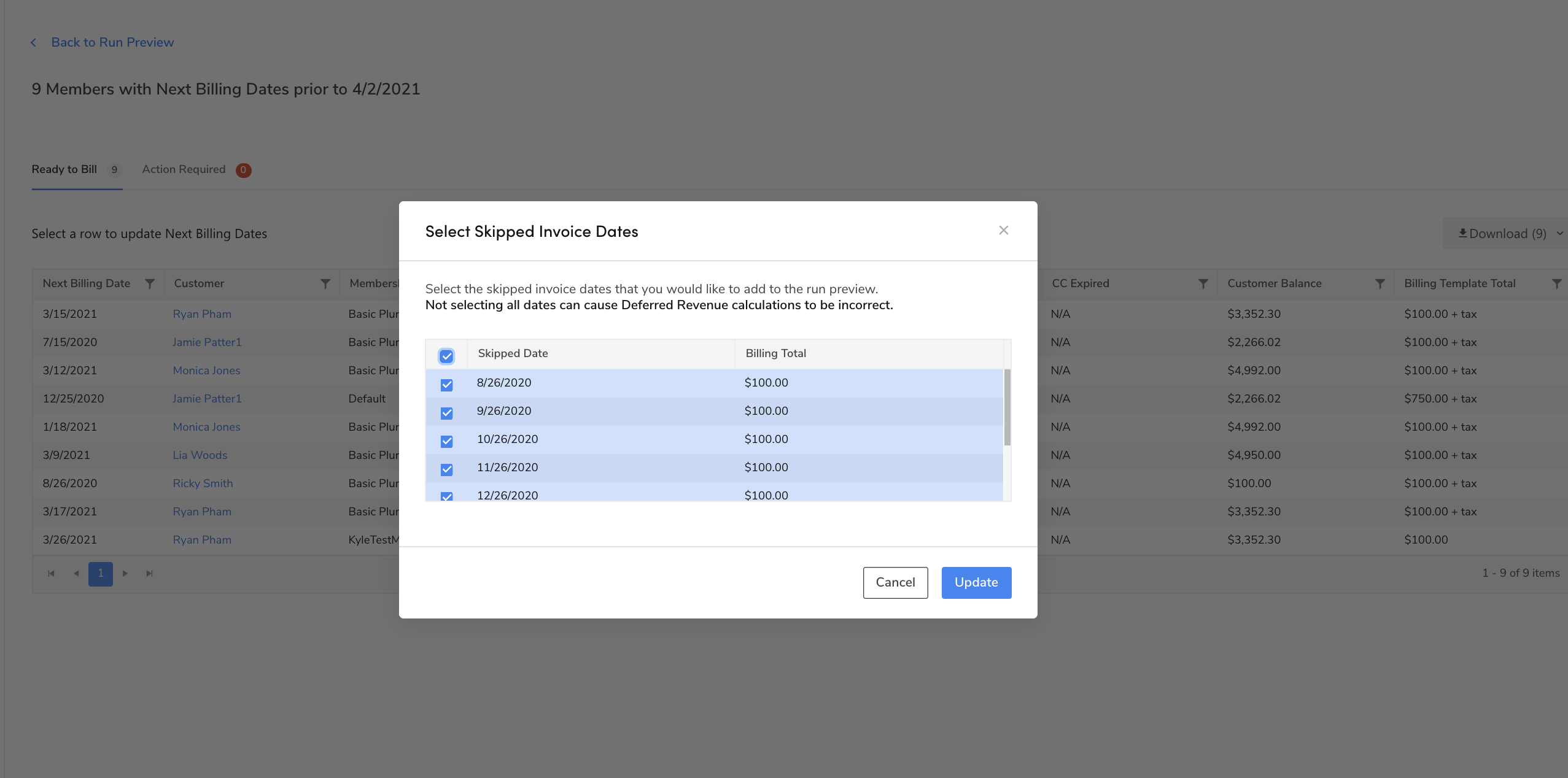 After you click Update, the member will be removed from the Ready to Bill chart.
 Note: this step neither generates the invoices nor charges the member.
Repeat the above workflow for all customers you want to charge.
Note: Some customers may be listed in the Action Required tab for various reasons. To solve these errors, see the How do I resolve these errors article.
To charge members for missed or skipped Next Billing Dates:
Click Back to Run Preview.
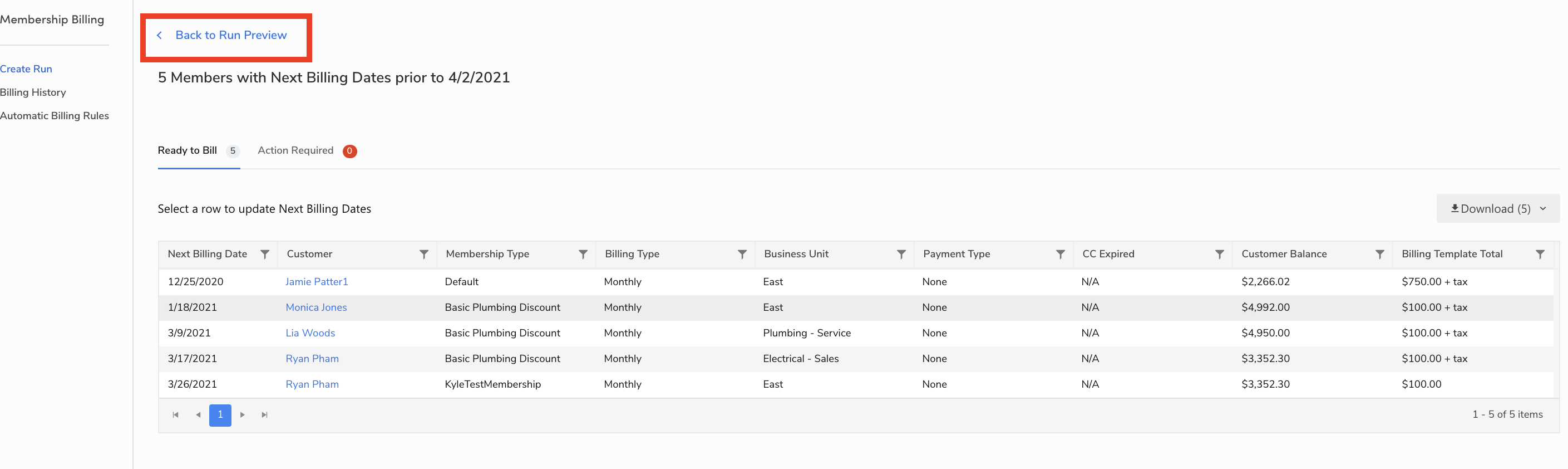
Select the members for which you want to charge and / or generate invoices.
Click Generate and Charge Invoices. Note: If you want to generate invoices but not charge any members yet, in the Generate And Charge Invoice dropdown, select Only Generate Invoices.
After finishing, you will be directed to a page listing all the newly generated invoices categorized by Failed Payment, Unattempted Payment, and Paid.