Overview
If your account uses both Dispatch Pro and Voice Agent (VA), you can configure how Dispatch Pro handles VA-booked jobs directly from your Dispatch Pro settings. This integration lets Dispatch Pro automatically dispatch jobs booked by the Voice Agent, reducing the need for manual intervention — even for after-hours calls.
Which article do you need?
This article is for accounts that have Dispatch Pro. With Dispatch Pro, Dispatch Pro assigns VA-booked jobs.
If your account does not have Dispatch Pro, see Set Up Voice Agent After-Hours Booking (Without Dispatch Pro) instead — in that setup, Voice Agent assigns the job directly to an on-call technician.
Who uses this feature
Administrators and managers
Applies to all business types
Applies to all trades
Feature configuration
This feature requires both Dispatch Pro and an active Voice Agent configuration on your account. Contact your Customer Success Manager (CSM) or Pro Account Manager (PAM) to get started.
The Forwarding Number Settings and Phone Settings permissions are required to use Voice Agent. Please contact the account administrator on your team.
Things to know
The Voice Agent tab only appears in Dispatch Pro settings if a Voice Agent is configured on your account.
For Dispatch Pro to auto-dispatch VA-booked jobs, Dispatch Pro must be running in Auto Mode with solving set to at least Light. Set this on the Dispatch Pro Modes tab. You can choose Light or Full solving depending on your preference.
Turn on Use On Call Technician Shifts so on-call technicians are available to receive after-hours VA-booked jobs.
Non-VA jobs on Voice Agent accounts show as disabled in the Dispatch Pro board with a tooltip explanation. VA jobs outside the configured scope also show as disabled, with an explanation. Only eligible VA jobs within scope are auto-dispatched.
If a VA-booked job is not eligible for auto-dispatch, office staff must manually intervene to assign a technician.

Open Voice Agent settings in Dispatch Pro
Go to the top toolbar and click Settings.
In the side panel, go to Dispatch Pro > Settings.
Under Dispatch Pro Settings, click the Voice Agent tab.
Set the VA Job Scope
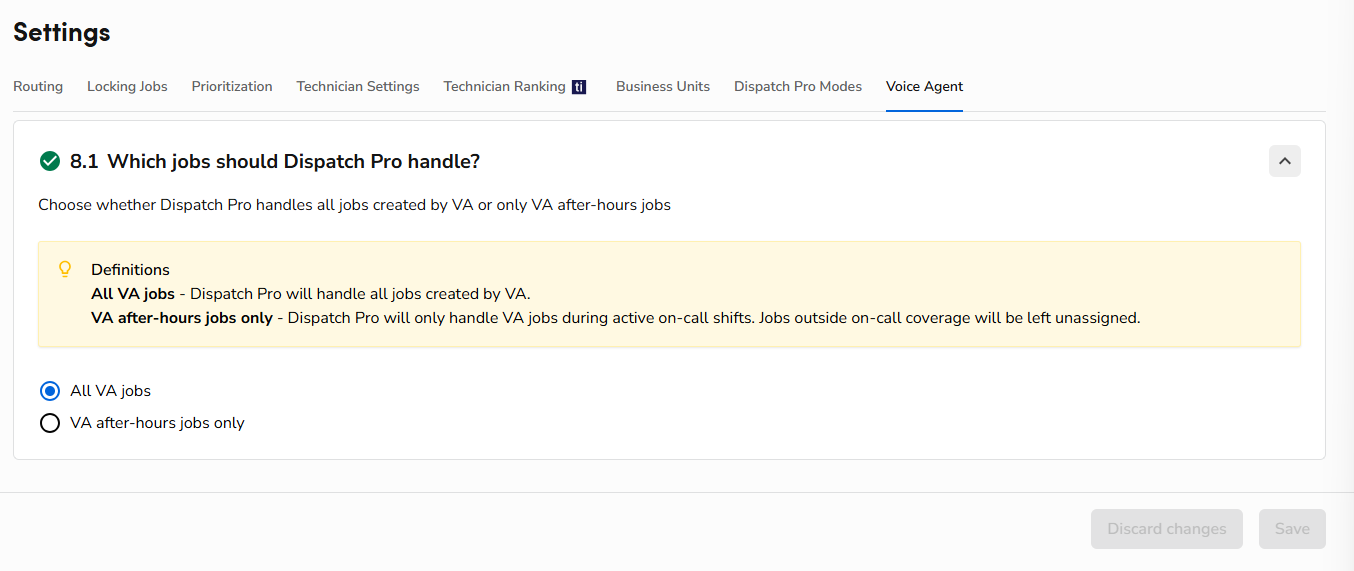
On the Voice Agent tab, the Which jobs should Dispatch Pro handle? setting determines which VA-booked jobs Dispatch Pro automatically handles.
Select one of the following options:
All VA jobs: Dispatch Pro handles all jobs created by the Voice Agent.
VA after-hours jobs only: Dispatch Pro handles VA jobs only during active on-call shifts. Jobs outside on-call coverage are left unassigned.
Click Save.
Troubleshoot VA job dispatching
If a VA-booked job is not being auto-dispatched, check the following:
Dispatch Pro is not in Auto Mode: Auto-dispatch only runs when Dispatch Pro is in Auto Mode with solving set to at least Light.
Job is not booked through Voice Agent: Dispatch Pro only auto-dispatches jobs identified with the VA Job Flag. If the job was booked through another channel, it will not be eligible.
Job is outside the configured scope: If your VA Job Scope is set to VA after-hours jobs only, VA jobs booked outside active on-call shifts are left unassigned and will not be auto-dispatched.