
Overview
The Project Plan allows project managers to map out the work by defining project, phase, and task durations to track real-time progress. Planning Tasks supports both office and technician task assignment, allowing for more granular and responsive project tracking.
Who uses this feature
Technicians
Primarily benefits Residential Construction and Commercial Construction business types
Applies to all trades
Feature configuration
The Field Mobile App is optimized for iOS, iPadOS, and Android phones and tablets. For more, see System requirements and mobile app information.
If you're using the Field Mobile App and need support, please contact Technical Support (through the office) or reach out directly to support@servicetitan.com.
This feature is currently in Limited Release and available for specific accounts. It is subject to change.
Account configuration and office setup are required to use this feature. Please contact your office for details.
Things to know
Tasks can be assigned to both office staff and technicians.
You can view and update a task's status and progress (percentage complete) directly from the Field Mobile App. If you set a task to Won't Do, you're asked for a reason.
If your office has turned on Hard Blocking for dependencies, you won't be able to start or complete a task until its predecessor task reaches the status the dependency requires. The Field Mobile App will tell you which task is blocking you.
View and update your assigned Planning Tasks in the Field Mobile App
Open the Field Mobile App and tap Tasks.

On the Tasks screen, tap Planning Tasks.
Filter by tasks assigned to you or search for a specific project to view its tasks.
Tip: You can also access tasks directly from the project or job.
Tap a task to open it.
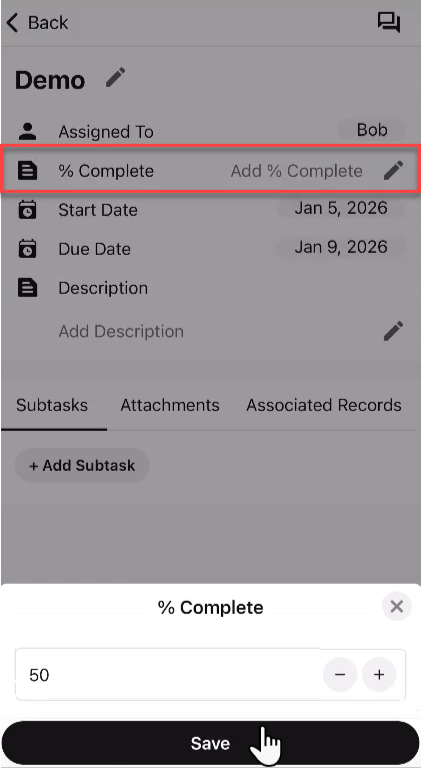
Tap % Complete.
Enter the % Complete and tap Save to update real-time progress for the office.
Note: If you set a task to 100% Complete, it is automatically marked as Completed on the office side.
Note: If a task you're assigned is blocked by an incomplete dependency task, opening it in the Field Mobile App shows a message that you can't proceed until that predecessor task is completed first. If a task can be started but not completed yet, Completed is grayed out when you change its status.

Log time against a Planning Task in the Field Mobile App
Coming soon: Release ST-83
If your company uses Flexible Timekeeping and Time Tracking on Tasks is set up for your account, you can log time against a Planning Task in the Field Mobile App.
On the Add Timesheet Entry screen, select the project, then choose the task in the Task field.
The task's cost code fills in automatically if the project offers that cost code. On Android, if the job already has a cost code, the job's cost code is used instead.
Note: The Task field only appears after you select a project, and only if the timesheet activity you choose can be used on a project. On Android, the project must also have Planning Tasks.
