To set up Zones in ServiceTitan, go to Settings > Zones and add relevant zones based on zip codes. Once zones are set up, reach out to your ServiceTitan point of contact to enable the Limit Jobs and Locations to be within Zones configuration.
This feature restricts customer service representatives (CSRs) from booking jobs or adding locations outside of designated service areas, ensuring all jobs and locations are within your service zones. Inform your staff of this new workflow to prevent issues when booking jobs or adding Location Records.
Problem
Before enabling the Limit Jobs and Locations to be within Zones configuration, you need to set up zones for your account.
Solution
The Limit Jobs and Locations to be within Zones configuration will limit your customer service representatives (CSRs) from booking jobs that are outside your service area. CSRs will also be unable to add a location to any Customer Record that is not within a designated service area. If an existing location is outside of the service area, the Book Job button will be disabled and the CSR will not be able to make edits to that location.
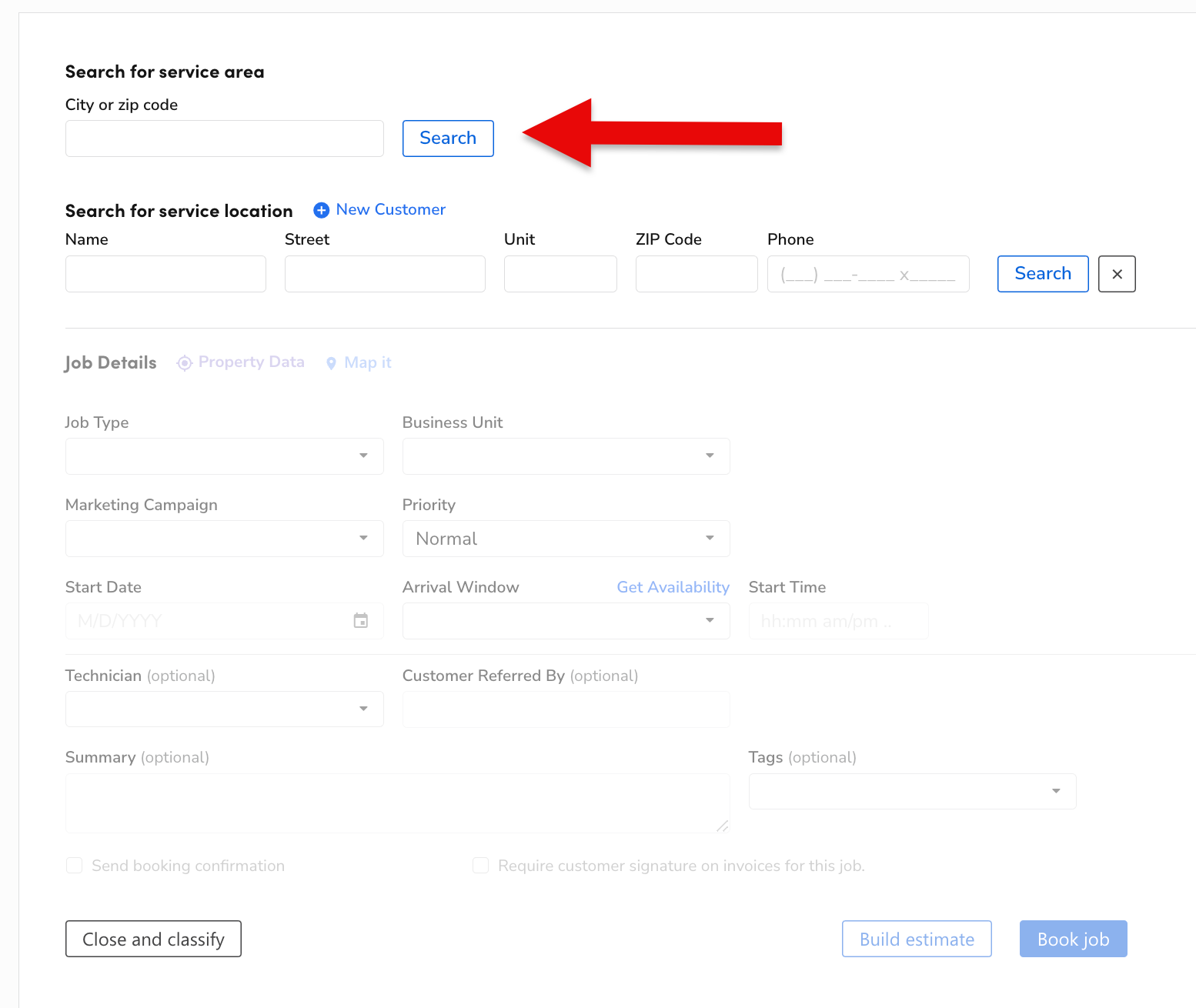
The service area will be based on zip codes configured in Settings > Zones.
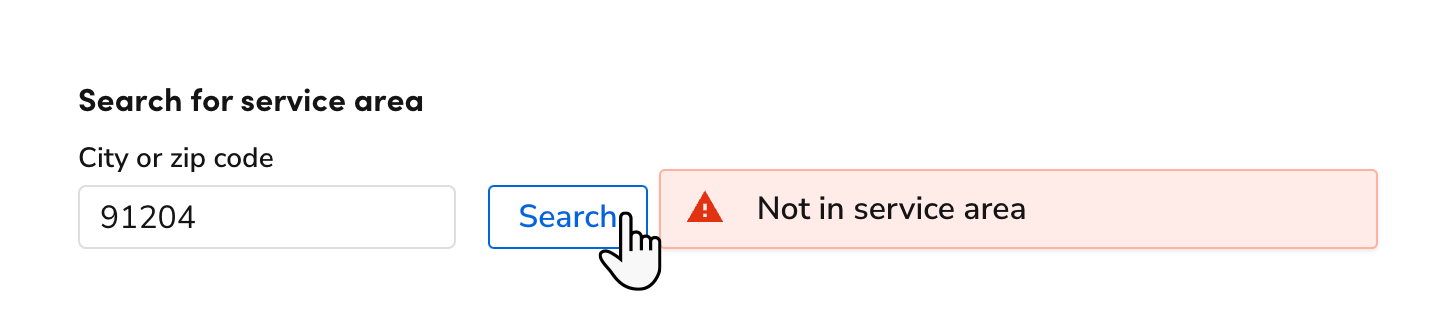
Before booking a job, the CSR will search the customer's zip code to see if it is within an assigned service area. If the zip code is not in any service area, the CSR will be unable to book a job for that location.
Review the article on how to Set up and use zones.
Add relevant Zones for your business.
Reach out to your ServiceTitan point of contact and request that the Limit Jobs and Locations to be within Zones configuration is enabled for your account.
Inform your staff of the new changes to avoid any issues with the new workflow to booking jobs and adding new location records in your account.