Overview
Many membership tasks are done using membership settings, but some membership configurations are set up in the pricebook. Understanding Recurring service types, Invoice templates, and pricebook tasks using both the pricebook and memberships wizard will help you assemble the exact membership you want. All information below is based on a membership that is billed once, for which revenue is deferred.
Who uses this feature
Administrators, Managers, and Accountants
Things to know
If this accounting scenario does not apply to you, see Membership Accounting Options to learn about other membership accounting options.
You will need to set up recurring service types and recurring service invoice templates before you set up membership add-ons.
Step one: Add a membership
Membership setup, including creating a new membership, is done in the memberships wizard. To access the memberships wizard, go to the top toolbar and click Settings  > Invoicing > Membership types. Click Add.
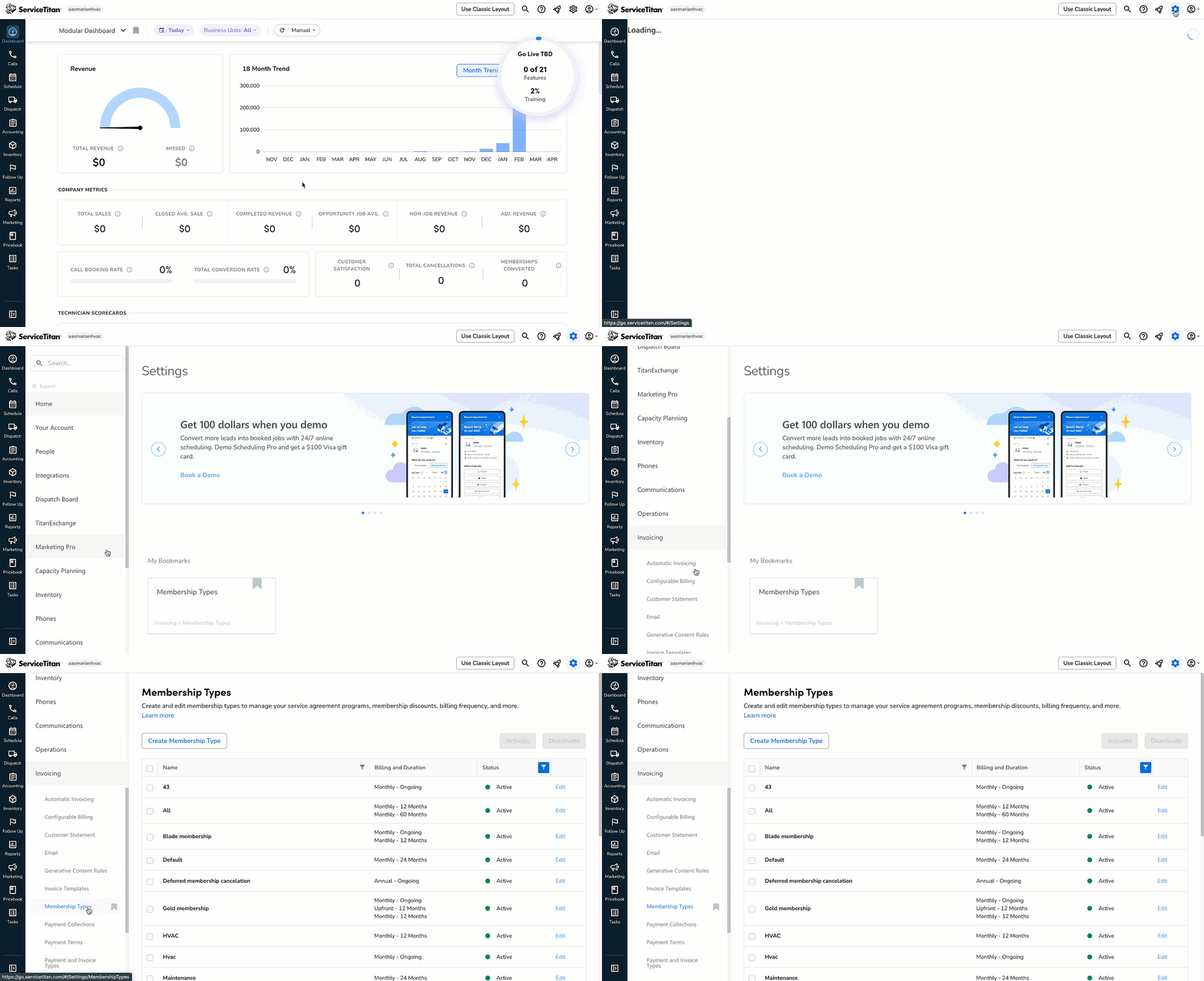
To learn more about membership settings, see Create membership types
Step two: Complete additional setup
Some membership setup will need to be done directly in the pricebook. To access the pricebook, go to the top toolbar and click Settings > Invoicing > Pricebook.
The column Memberships Wizard or Pricebook details whether membership setup is part of the memberships wizard or done directly in the pricebook.
After you've added a membership, you can configure the membership to create a new sale, Renewal task, or set up Deferred revenue for Recurring services.
Task | Purpose | Fields | Membership Wizard or Pricebook |
|---|---|---|---|
Create a new sale task | A new sale task is placed on the invoice to sell a membership. | Details
Commission Tab Enter a bonus amount or commission you want to pay when the membership sells.
Materials tab
Equipment tab
Workflow tab
| Membership Tab
If you want to select an existing pricebook task, you can use the memberships wizard. Click Billing>New Sale Tasks>Existing Tasks. In the Existing Tasks field, select from an existing pricebook task. |
Create a renewal task | Renewal tasks are used when you generate renewal estimates. You can also add renewal tasks to an existing invoice if the customer indicates they want to renew their membership. | Details
Commission Tab
Materials tab
Equipment tab
Workflow tab
| Membership Tab
If you want to select an existing pricebook task, you can use the memberships wizard. Click Billing>New Sale Tasks>Existing Tasks. In the Existing Tasks field, select from an existing pricebook task. |
Add deferred revenue (+/-) tasks | Deferred revenue tasks are placed on recurring service invoice templates so revenue can be realized when the service is performed. Each recurring service requires both a positive (+) and negative (-) task. The price of these tasks together should equal zero. Create or edit deferred revenue tasks by going to the navigation bar and clicking Settings. In the side panel, click Invoicing>Pricebook>Services. The positive (+) task is the amount of revenue being realized when the service is performed. The negative (-) task reconciles this revenue in your liability account. | Details
Commission tab N/A Materials tab N/A Workflow tab There is no need to enter any membership settings here. Revenue recognition tasks are not used to trigger a new membership or renewal. | Memberships Wizard Create deferred revenue tasks in the third step of the Memberships Wizard by clicking Add Recurring Service>Create New Service>Invoice Template>Create). You can also use the Memberships Wizard to attach an existing recurring service (Step Three:Recurrences>Add Recurring Services>Add Existing Service). The deferred revenue tasks are already on the recurring service invoice template. Note In the third step of the membership wizard, ensure Deferred is selected. |
Step three: Set up recurring services
While you are at a customer job site, you may have time to perform work related to the customer's membership. By marking a recurring service as complete, you will make sure that the office does not schedule unnecessary work, or work that you have already performed.
Task | Purpose | Fields | Membership Wizard or Pricebook |
|---|---|---|---|
Create a recurring service type | Every service included with a membership needs to have a separate recurring service type. The recurring service type will determine the frequency of the membership service. To assist customer service representatives, you can enter job details in the Memberships Wizard. |
| Memberships Wizard Create deferred revenue tasks in the third step of the memberships wizard by clicking Recurrences>Create New Service>Save). You can also use the memberships wizard to attach an existing recurring service (Step Three:Recurrences>Add Recurring Services>Add Existing Service). The deferred revenue tasks are already be on the recurring service invoice template. |
Note: To edit an existing recurring service type, click Settings>Invoicing>Recurring Service Types.
Optional: Set up add-ons for the membership
Task | Purpose | Fields | Membership Wizard or Pricebook |
|---|---|---|---|
Add membership add-ons | You can customize membership plans with add-on services and add-on charges. When you sell an add-on, the add-on price will be rolled into the membership (the customer does not see a breakdown). If the add-on is for an extra recurring service or recurring service upgrade, these services will automatically appear on the membership. | Set up a pricebook task for each membership add-on. When doing so, you can:
See Set up membership add-ons for more information about setting up membership add-ons. | Pricebook Create membership add-ons in the pricebook by clicking Settings>Invoicing>Pricebook). When adding a new service, add the membership add-on price to the Add On Price field in the Details tab. |