Overview
The Invoice Summary of a work order shows what work has been performed. To ensure it is filled out, you can make it a required field for specific technicians, work order types, and work orders. This allows you and your customers to always have a paper trail of work performed on certain work orders.
Who uses this feature
Administrators, office employees, managers, accountants, and bookkeepers
Applies to all business types
Applies to all trades
Feature configuration
Account configuration is required to use this feature. Please contact Technical Support for details.
Accounting and email permissions are required to use this feature. Please contact the account administrator on your team.
The Edit Invoice Summary Requirement is required to use this feature. Please contact the account administrator on your team.
Things to know
When a work order’s invoice summary is required, the technician or office employee can’t close it out until they write something for the summary.
Each work order has its own invoice summary requirement that can be enabled or disabled. If it is enabled, a technician or office employee will need to fill out the summary before the work order can be marked as complete.
Work order Summary is a separate field that can be manually filled in by an office employee or automatically added from Work Order Type settings. It can’t be set as a required field.
Appointments can be closed out without the invoice summary if the work order hasn’t been completed.
Make Invoice Summaries required for a technician
If you want a technician to fill out the Invoice Summary for every work order they’re assigned to:
Go to the navigation bar and click Settings
 .
In the side panel, click People > Technicians.
Click Edit for the technician you want.
Click the Permissions tab. The technician’s permissions screen opens.
Select Invoice Summary is Required.
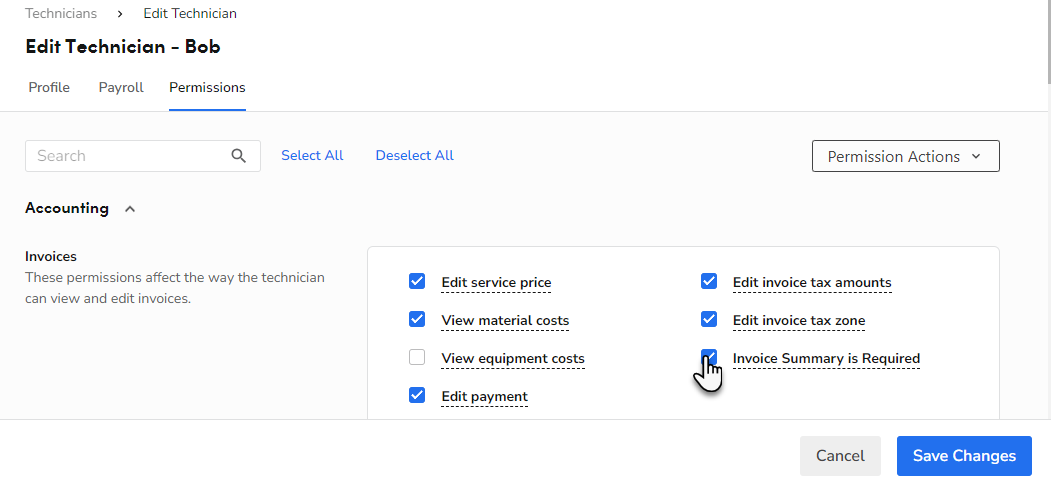
When you're finished, click Save Changes.
Note: If multiple technicians are assigned to a work order and the one completing it doesn’t have the permission enabled, the Invoice Summary is not required.
Make Invoice Summaries required for a work order type
If you want a work order type to always mark the Invoice Summary as required by default:
Go to the navigation bar and click Settings
. In the side panel, click Operations > Work Order Types.
Click Edit for the work order type you want. The work order type’s edit screen appears.
Select Require an invoice summary to complete a work order with this invoice type.
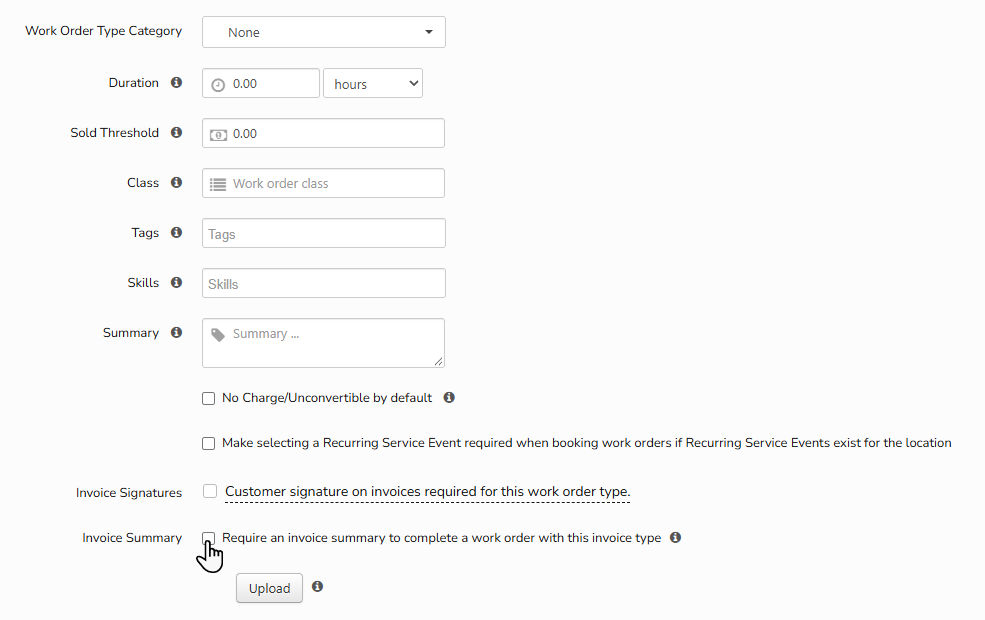
Save your changes.
Note: This change is not retroactive and will only apply to work orders booked with that job type in the future.
Make Invoice Summaries required for a specific work order
If you want to turn on the Invoice Summary requirement for a single work order:
Find the work order using ServiceTitan Search.
Click Edit Work Order
 . The Edit Work Order screen opens.
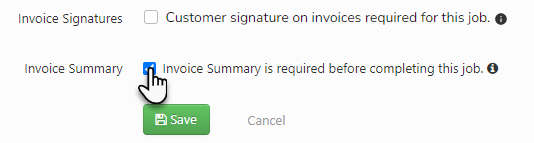
Select Invoice Summary is required before completing this work order.
Note: If the technician has the Invoice Summary is Required permission enabled, they will need to fill out the summary regardless of the work order’s settings.
Save your changes.
FAQ
How do I remove the Description of work section from the payment page when making an online payment?
There is no direct way of removing the Description of work section from the online payment page. However, you can disable the requirement for technicians to enter an invoice summary. This prevents the Description of work section from appearing on the payment page. To disable this requirement, see Make Invoice Summaries a required field.