Overview
Marketing Pro's Meta Ads integration helps track your campaigns and improve your ad performance. ServiceTitan's attribution service automatically pulls in Meta Ads campaign cost so you can measure Return on Investment (ROI) per campaign in Meta. Mapping Meta Ads campaigns to your ServiceTitan campaigns allows you to attribute Meta marketing data to jobs in ServiceTitan.
Who uses this feature
Marketing managers, business owners, and other marketers on your team
Applies to all business types
Applies to all trades
Feature configuration
To get started with Marketing Pro Ads, request a demo by clicking Get Started on our Pro Products page, or reach out to ads@servicetitan.com.
Account configuration is required to use the Meta Ads integration. Please contact Technical Support for details.
Things to know
ServiceTitan pulls all active campaigns from the last 60 days in your Meta Ads account.
You can choose how much customer data is shared with Meta for each account: Privacy-First Mode or Advanced Matching. For more, see Choose how much customer data is shared with Meta.
To stop a customer's data from being used for retargeting, use Advertising Data Suppression.
If auto-mapping is enabled, new campaigns created after the initial setup are automatically mapped to a new ServiceTitan campaign by the same name.
This integration pushes key job events into Meta Ads as conversions as they happen, helping Meta to improve its targeting. For more, see How job events are sent back to Meta.
A list of your customers is sent to your Meta Ads account as an audience. This audience can be used for targeting or Lookalike audience creation. Lookalike audiences are those who share similar characteristics with your current list of customers. For more, see Meta’s About lookalike audiences guide.
This integration does not currently track Facebook Lead Forms or Meta Instant Forms.
Before you begin
You must set up your Meta Ads account before configuring this integration.
Dynamic Call Tracking (DNI) is required to enable the attribution and conversion posting features of the integration. For more, see Dynamic Call Tracking using DNI Integration.
For an ad account to be eligible to connect, three things must be true:
You are an Admin of the ad account.
You are an Admin of the selected Business Account.
The ad account is owned by that Business Account (not just managed or shared).
Note: To check ownership, go to your Business Account, click Ad Accounts, select the account, and confirm it shows Owned by [Your Business].
Configure the Meta Ads integration
Step 1: Connect your account
Go to the top toolbar and click Settings
 .
In the side menu, go to Integrations > Marketing Integrations.
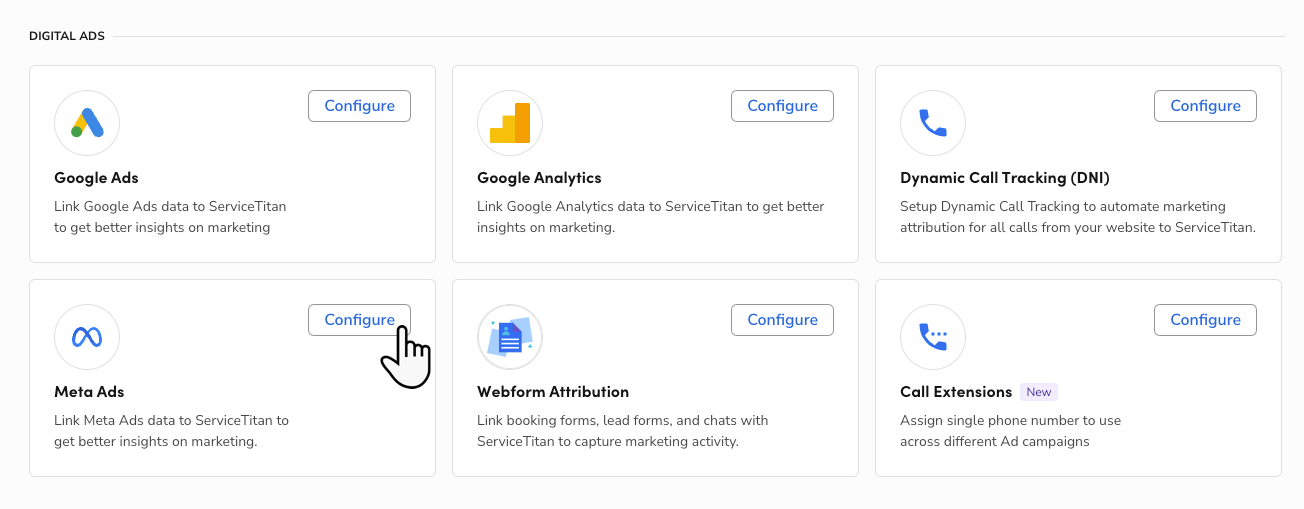
Next to Meta Ads Integration, click Configure.
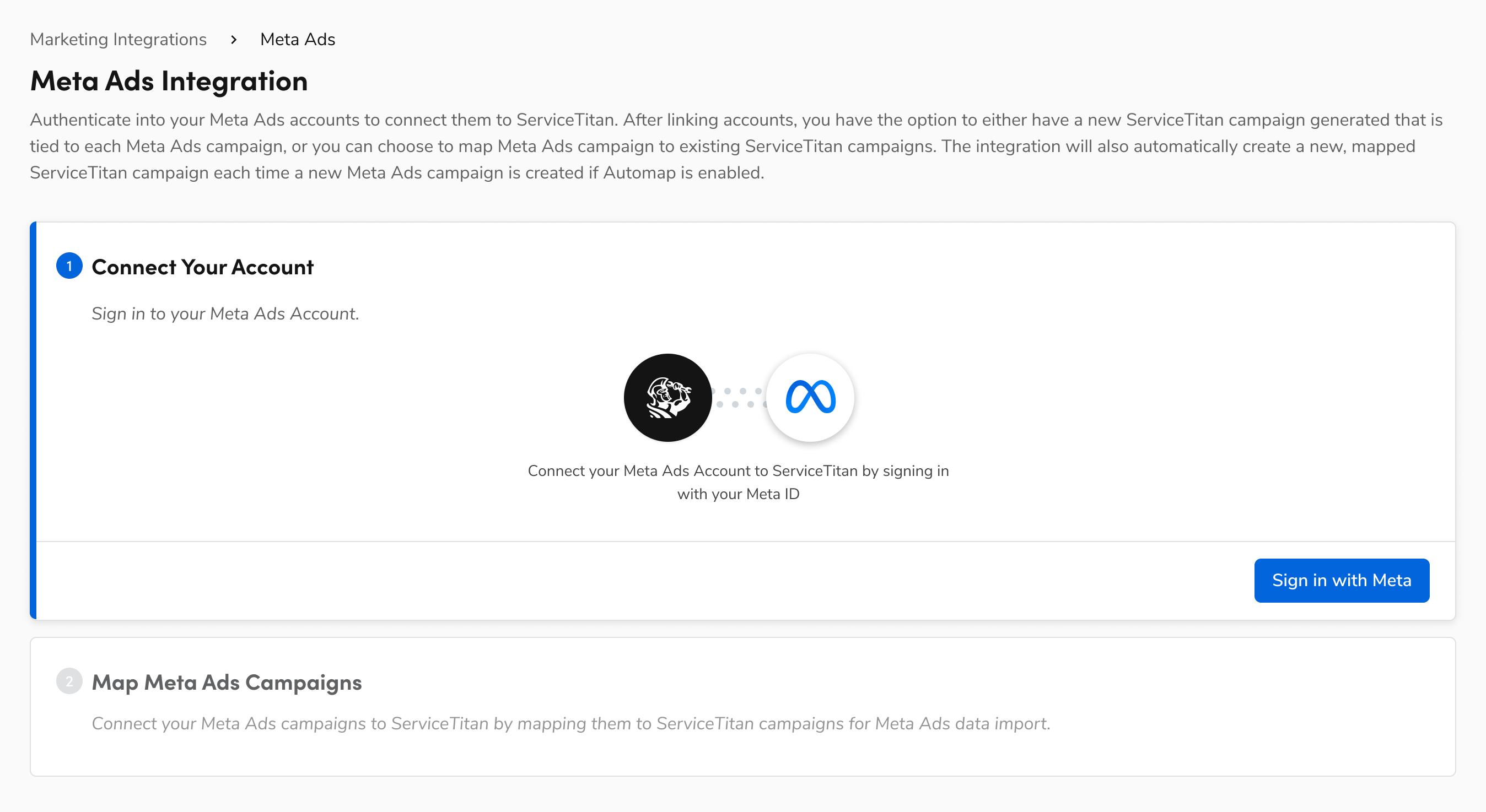
On the Meta Ads Integration screen that opens, click Sign in with Meta.
On the Facebook login screen that opens, sign in with your Meta Business Manager credentials. If you've connected an account before, you won't need to sign in again.
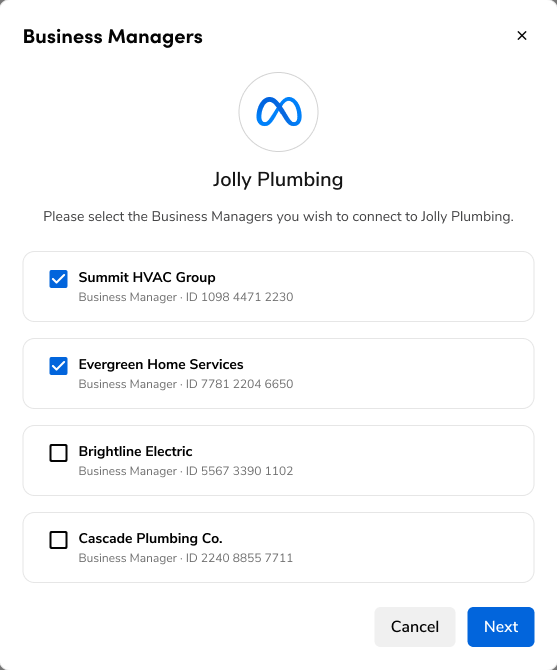
In the Business Managers window, select the Business Managers you want to connect, then click Next.
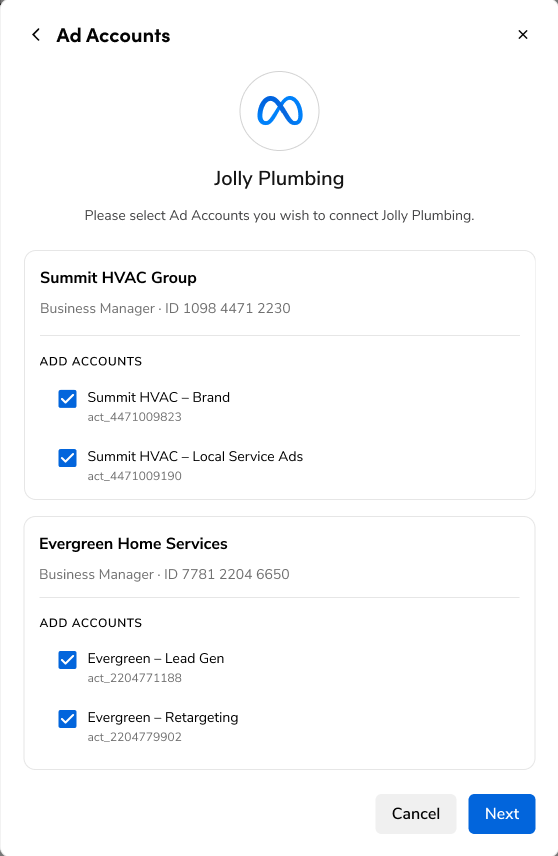
In the Ad Accounts window, select the ad accounts you want to connect. They're listed under each Business Manager. Then click Next.
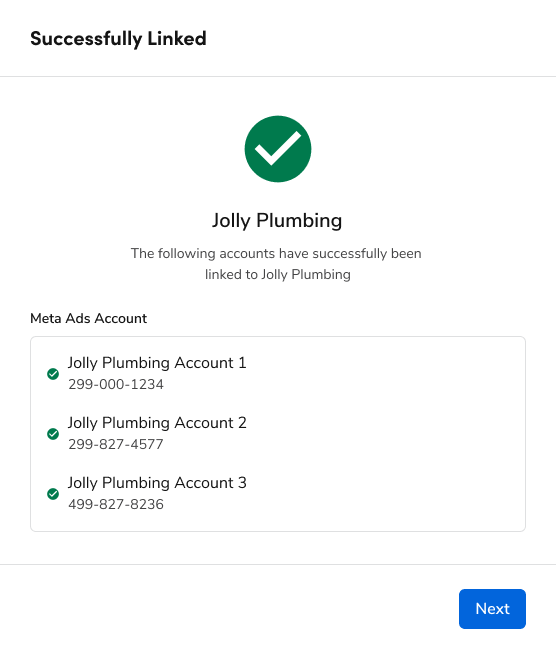
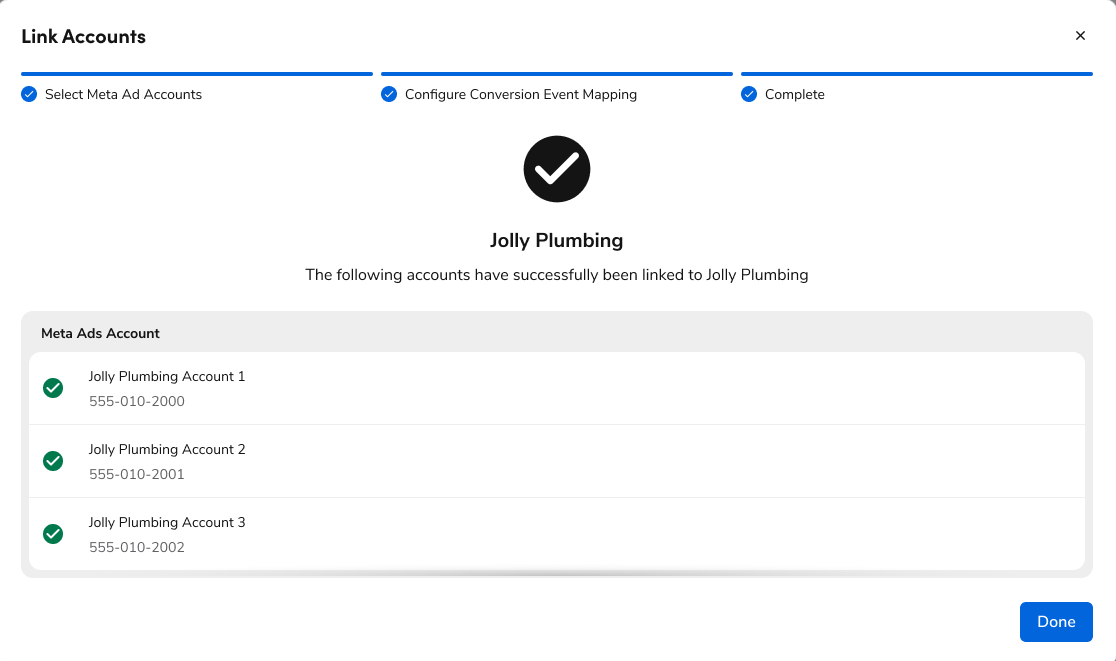
Wait while ServiceTitan links your accounts. The Linking Accounts window shows each account as it's linked. When the Successfully Linked window lists your accounts, click Next.

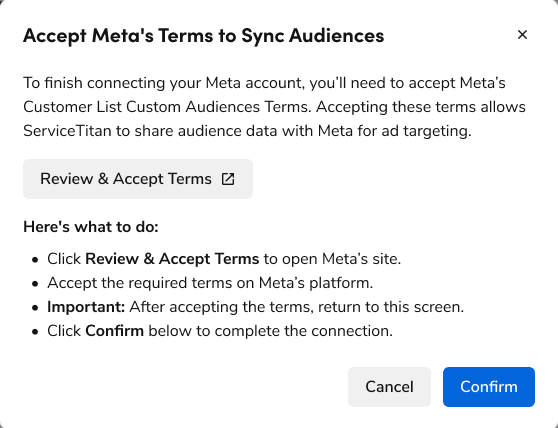
On the terms and conditions screen, click Review and Accept Terms. Meta opens in a new tab. Accept Meta's terms there, then come back and click Confirm.
Note: You can't skip this step. If ServiceTitan can't confirm that the terms were accepted, an error message appears and you can't continue.
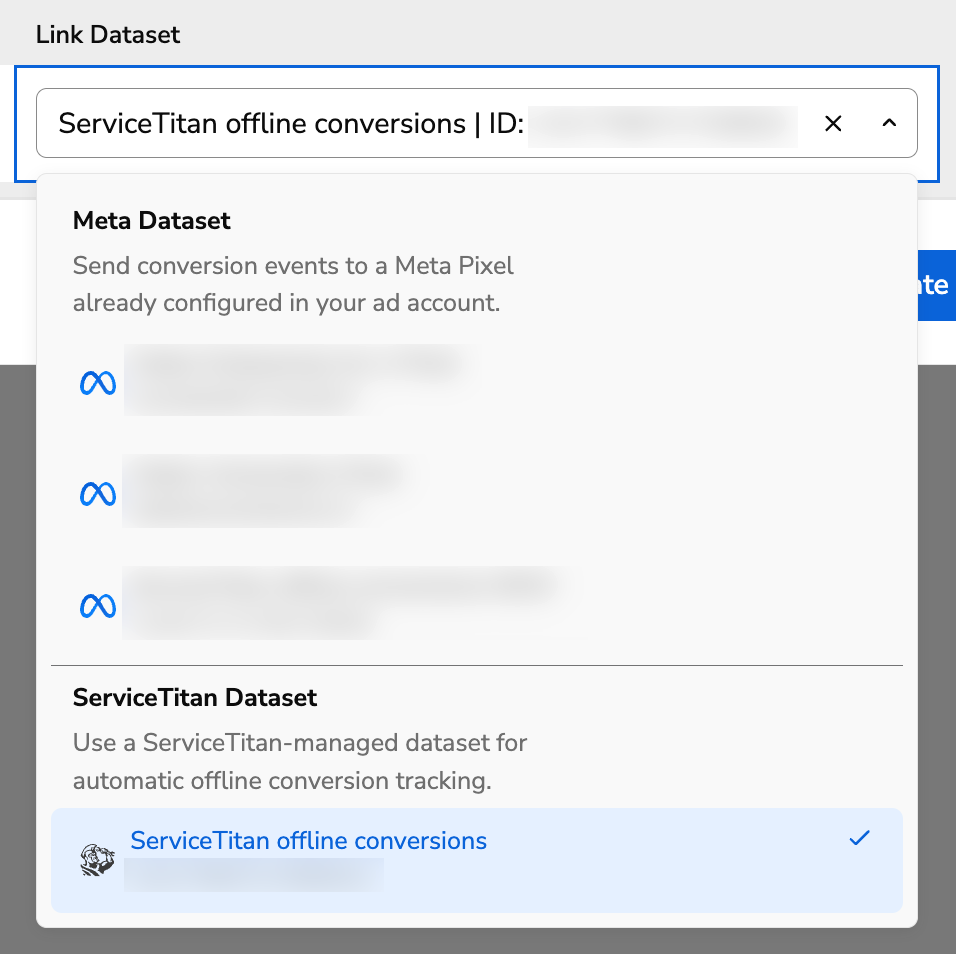
In the Link Accounts window, choose a Dataset for each Meta Ads account, then click Next. A dataset holds the conversion data Meta uses to optimize your campaigns.
To keep the conversion history you already have in Meta, choose your existing dataset.
To start fresh, choose ServiceTitan Dataset. ServiceTitan creates a new dataset named ServiceTitan offline conversions.

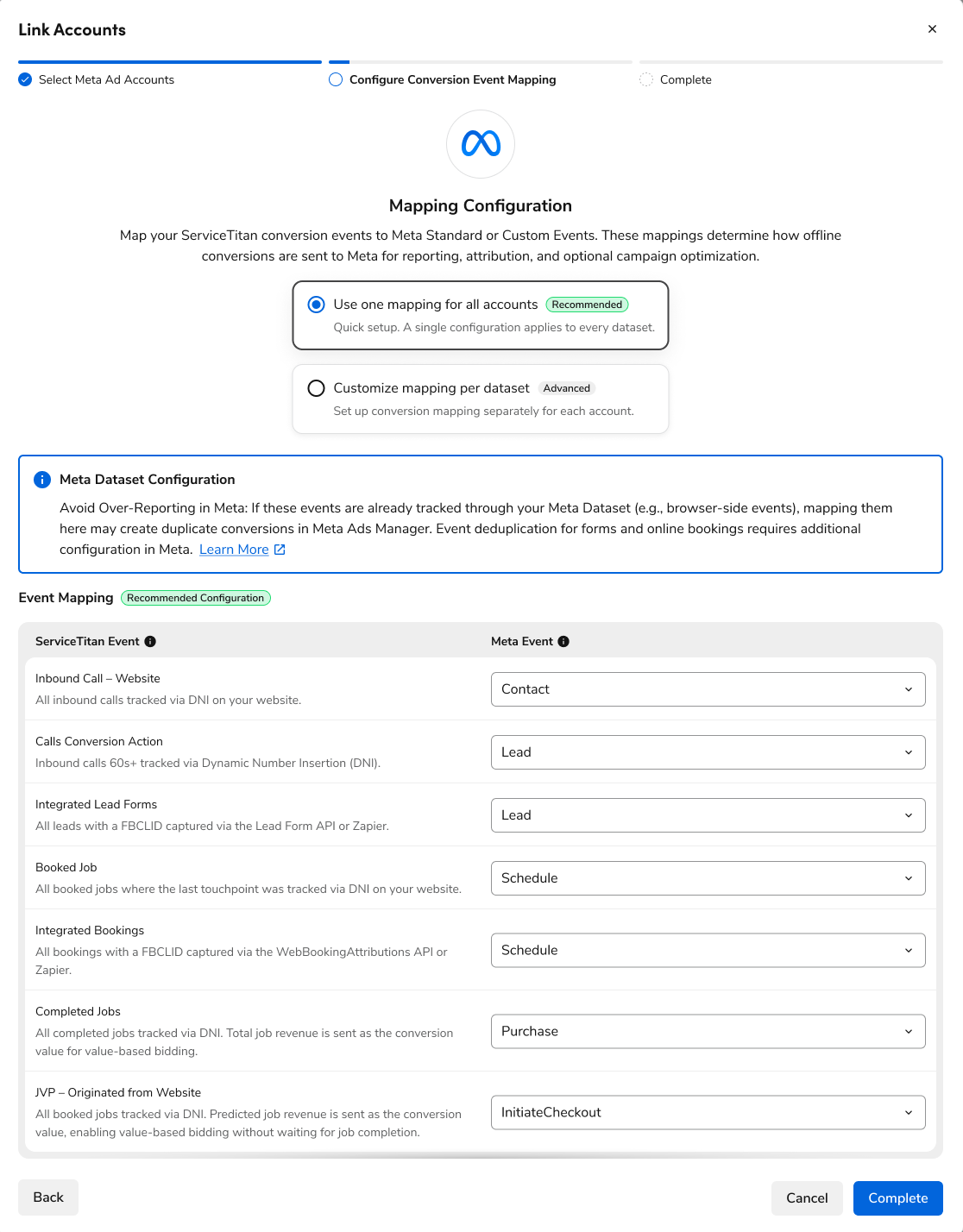
Review the event mapping. Each ServiceTitan event is set to a recommended Meta event, marked Recommended. To change one, choose a different Meta standard event or a ServiceTitan custom event. To go back to the defaults, click Recommended.
If you connected more than one account, choose Use one mapping for all accounts or Customize mapping per dataset. For the options, see How job events are sent back to Meta.
Click Done. A confirmation shows that your accounts are linked, and you go to campaign mapping.
Step 2: Map your Meta Ads campaigns
To keep the accuracy of your data, map each Meta Ads campaign to one ServiceTitan campaign.
To map your campaigns:
In the Map Meta Ads Campaigns section, click Expand for an account.
(Optional) Auto-Map is turned on by default to automatically map any new Meta Ads campaigns detected to a ServiceTitan campaign. To manually map new campaigns, turn off Auto-Map.
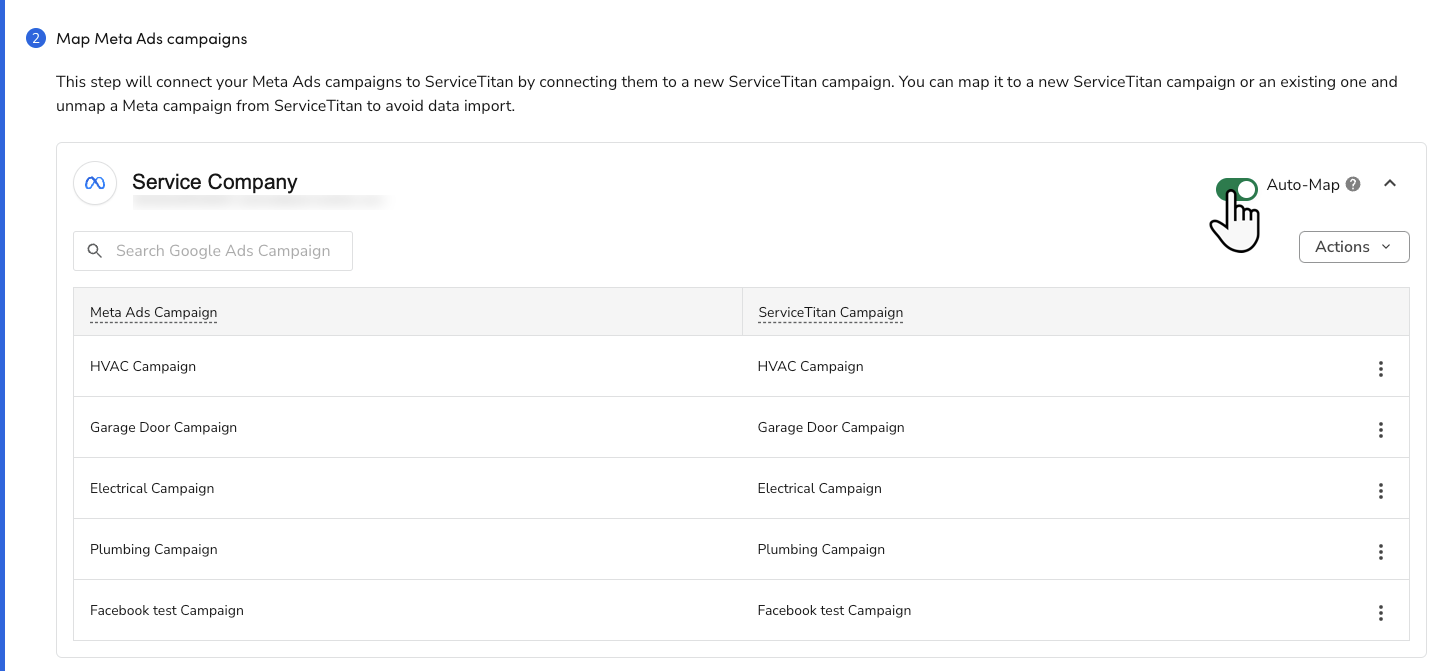
Review and update the campaign mappings as needed. You can:
Unmap Meta Ads campaigns that you don't want to integrate with your ServiceTitan account.
Map Meta Ads campaigns to existing ServiceTitan campaigns.
Map unmapped Meta Ads campaigns to new ServiceTitan campaigns with the same name.
Repeat the steps above for each account.
When finished, click Confirm Mapping.
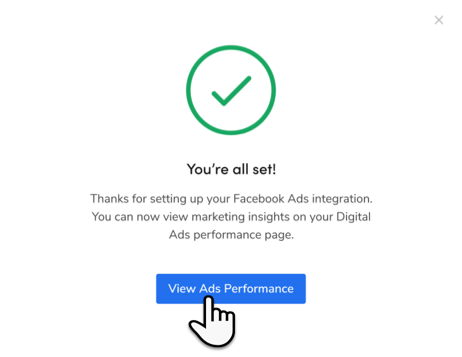
Click View Ads Performance to go to the Ads dashboard.
Unmap Meta Ads campaigns
In the Map Meta Ads Campaigns section, click Action > Unmap Campaigns for the account you want to unmap campaigns for.
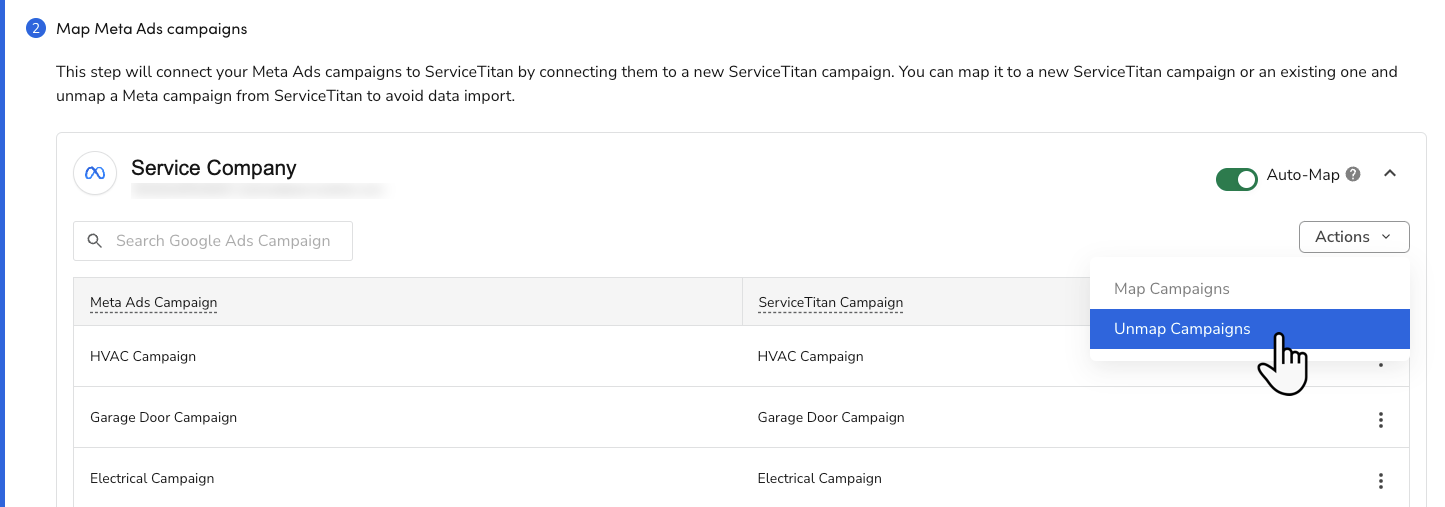
Select the campaigns to unmap and then click Unmap Campaigns.
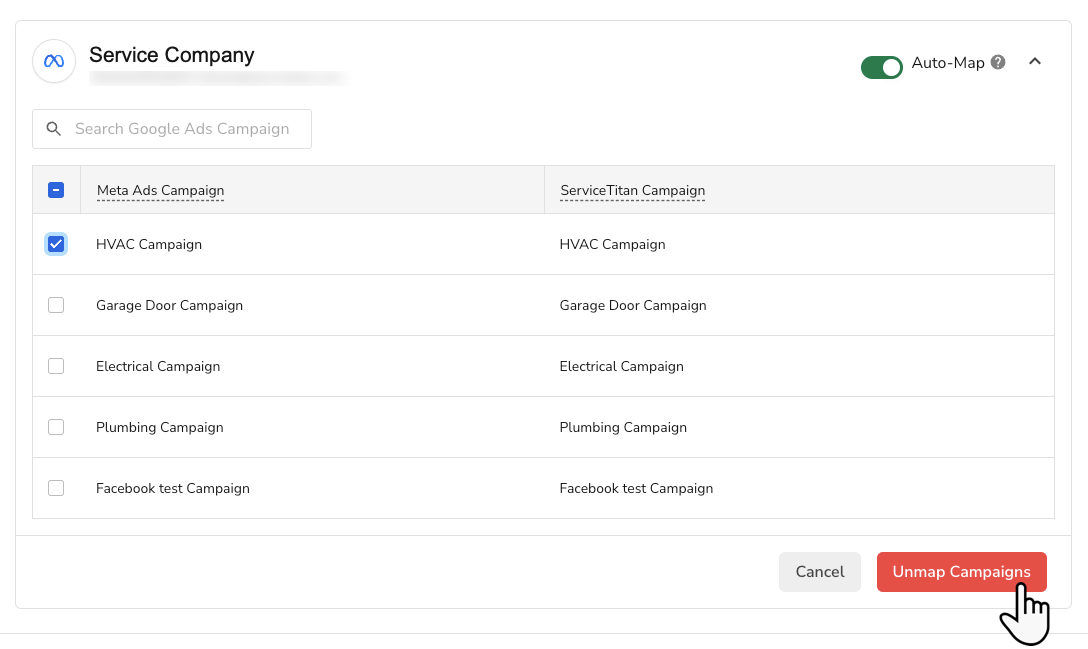
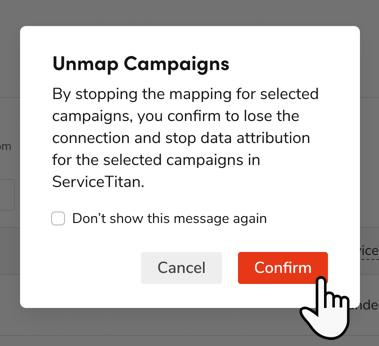
In the Unmap Campaigns pop-up that opens, click Confirm.
Map Meta Ads campaigns to existing ServiceTitan campaigns
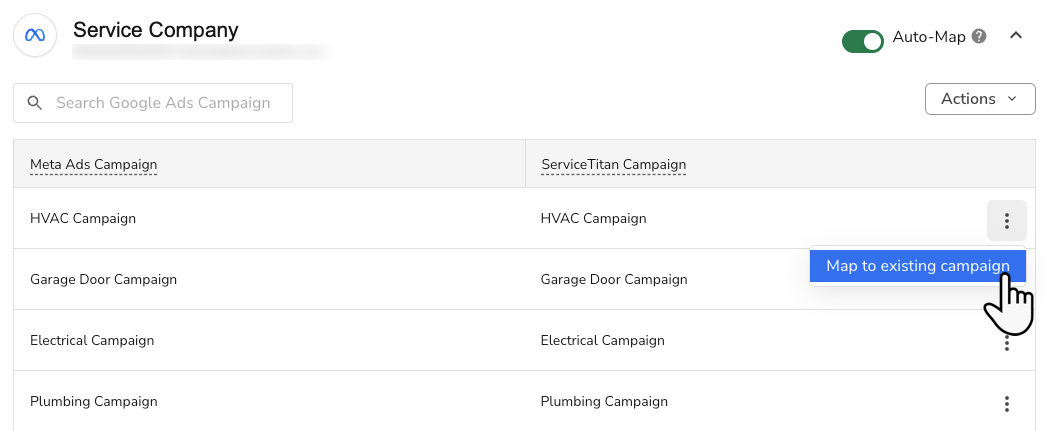
In the Map Meta Ads Campaigns section, click More
 > Map to existing campaign for the Meta Ads campaign you want to map.
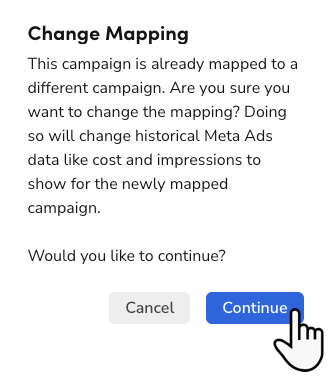
If the campaign is already mapped, click Continue on the Change Mapping pop-up that opens.
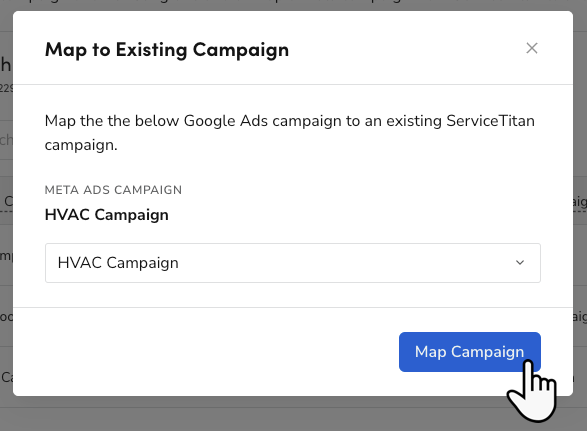
In the Map to existing Campaign pop-up that opens, select the existing ServiceTitan campaign you want to map the Meta Ads campaign to.
Note: ServiceTitan campaigns can only be mapped to one Meta Ads campaign.Click Map Campaign.
Map Meta Ads campaigns to new ServiceTitan campaigns with the same name
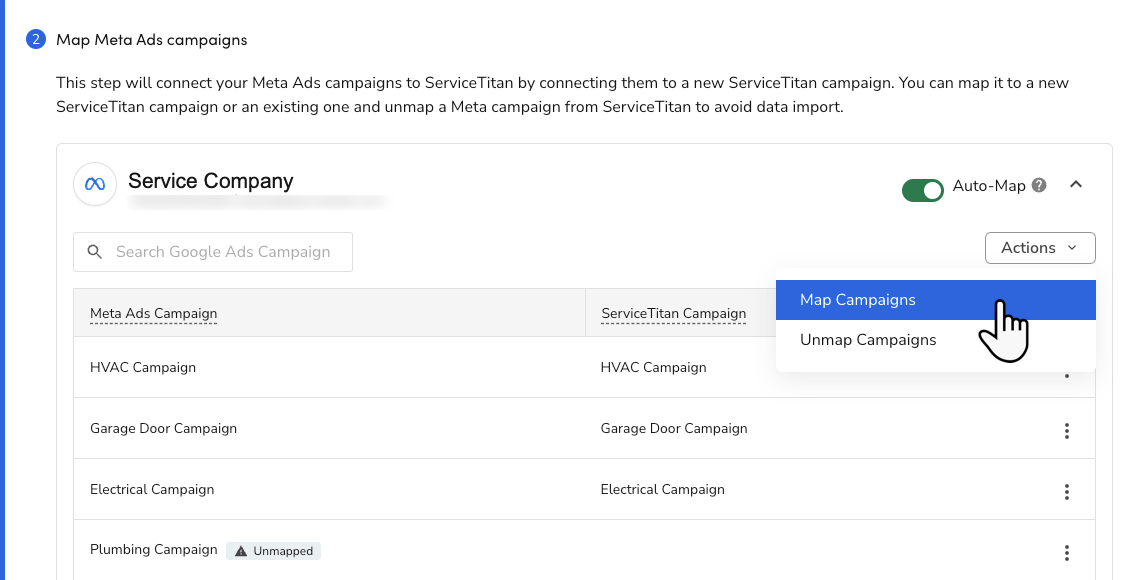
In the Map Meta Ads Campaigns section, click Actions > Map Campaigns for the account you want to map campaigns for.
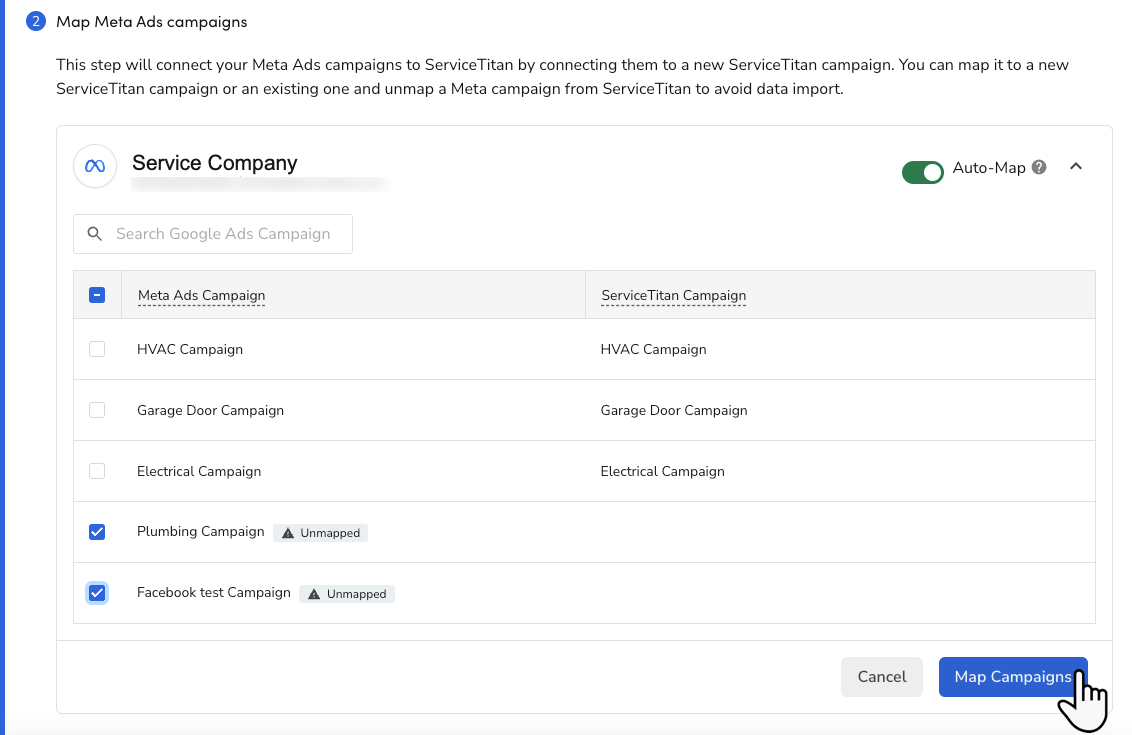
Select the campaigns you want to map to a new ServiceTitan campaign with the same name.
Click Map Campaigns.
Understand campaign mapping status warnings
As you review your campaigns in ServiceTitan, each one will show one of three statuses:
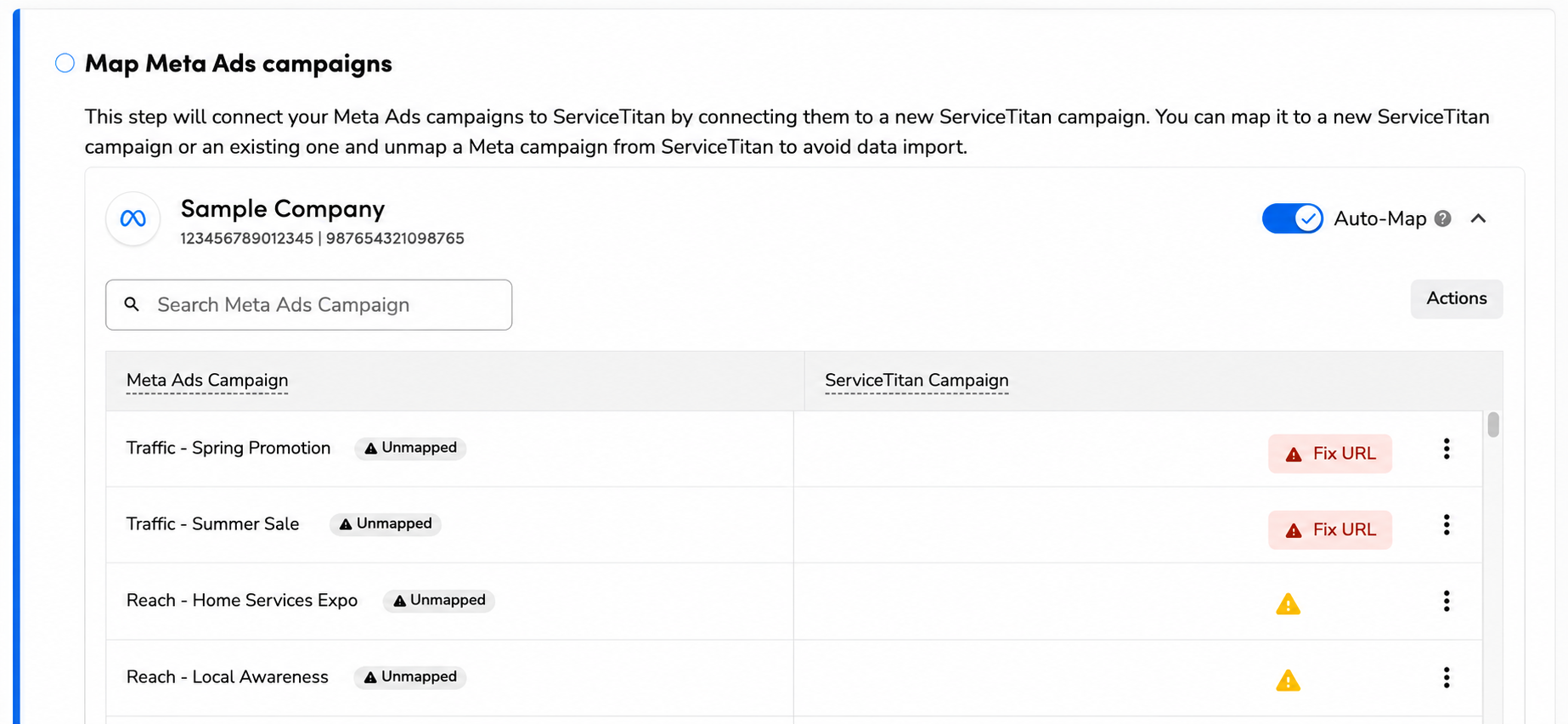
No warning: The campaign URL already has the required UTM parameters, or the campaign has fewer than 20 engagements and will be updated automatically.
URL tracking not supported: The campaign or ad type does not support URLs and UTM tracking natively. Examples include Instant Form ads, product page ads, and Click-to-Call ads, or any ad that doesn't send people to a landing page. Lead campaigns also fall into this category, but when their ads redirect customers to a website or landing page, you can manually append URLs to enable tracking.
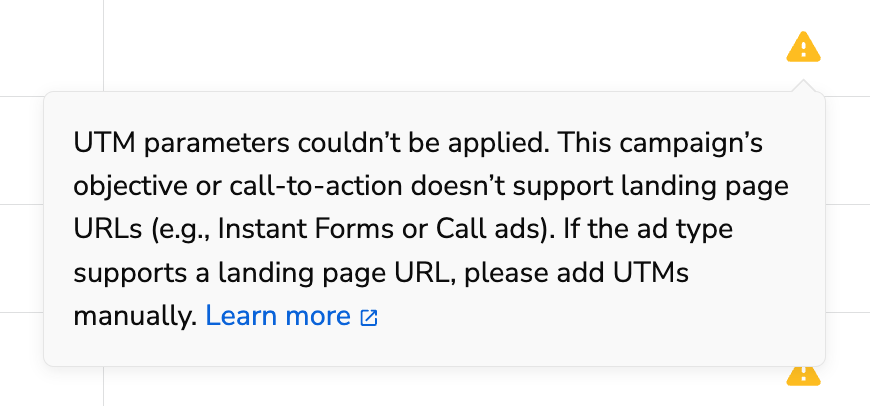
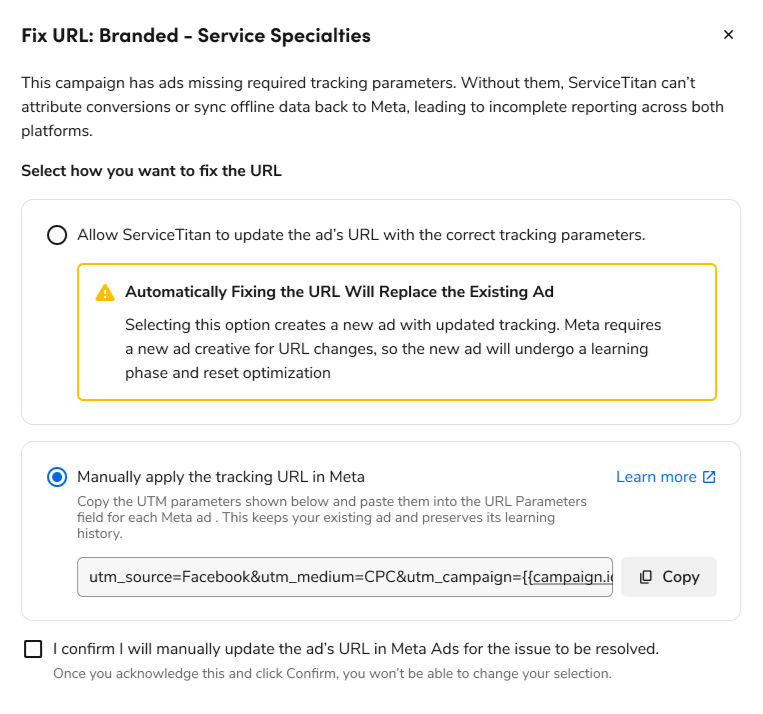
Action required (Fix URL): The campaign supports URLs, but the URL is missing required UTM parameters and the campaign has more than 20 engagements. Click Fix URL and choose how to fix it:
Manual fix (recommended): Choose to apply the tracking URL yourself. Copy the dynamic UTM parameter from ServiceTitan, then paste it into the URL parameters field of each ad in Meta Ads Manager. This doesn't restart Meta's learning phase. For step-by-step instructions, see Why am I seeing a Fix URL warning for my Meta Ads campaign?
Automatic fix: Choose to have ServiceTitan apply the UTMs. ServiceTitan adds them to each ad's Website URL field. This is faster, but it's a major change in Meta, so it restarts Meta's learning phase.
Edit the Meta Ads integration
Go to the top toolbar and click Settings
 .
From the side menu, go to Integrations > Marketing Integrations.
Next to Meta Ads Integration, click Edit.
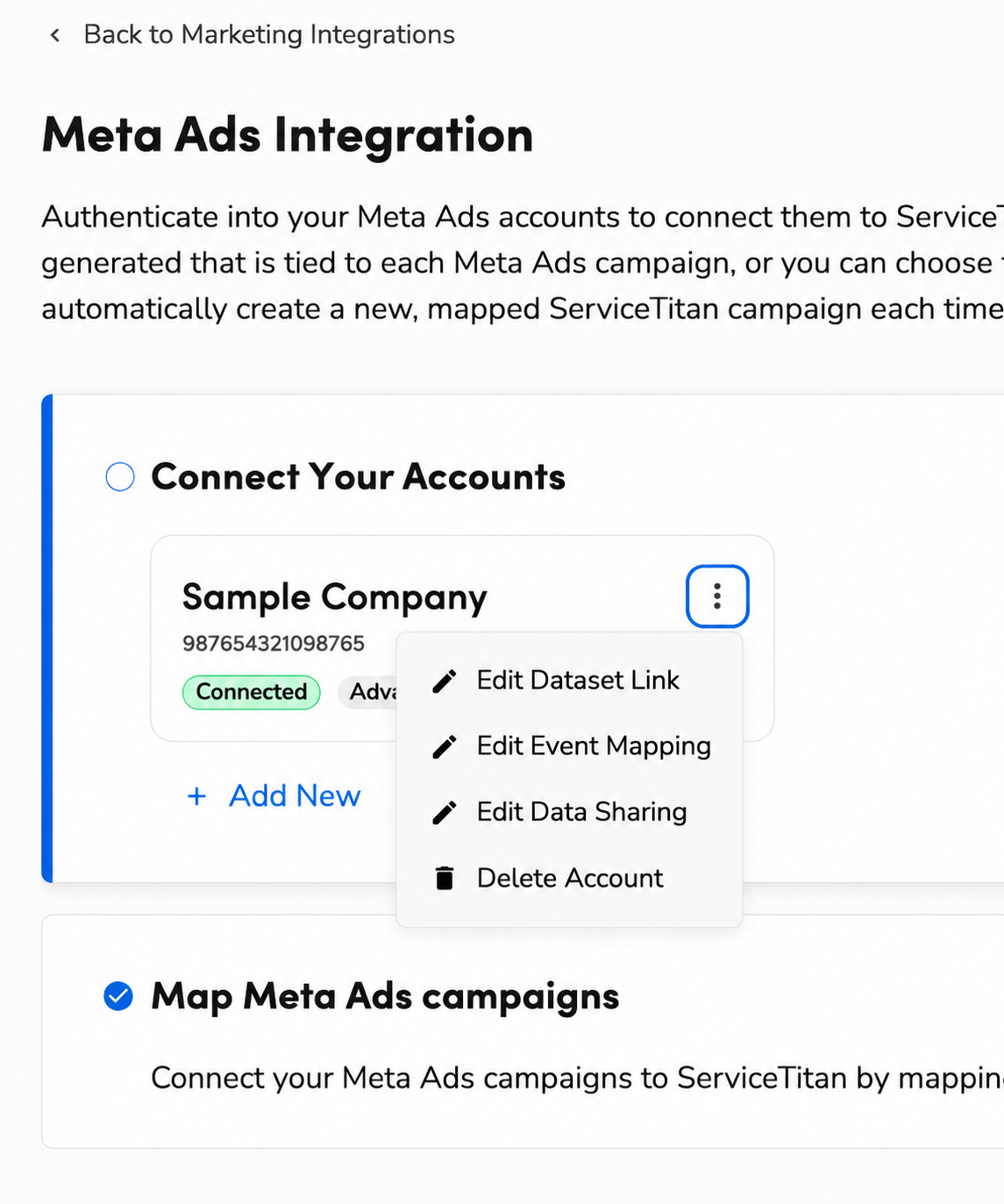
Click into the account you want to change, then click its menu. Choose one of these options:
Edit Data Sharing: choose Privacy-First Mode or Advanced Matching. For more, see Choose how much customer data is shared with Meta.
Edit Event Mapping: change the Meta event each ServiceTitan event is sent as. You can also change the account's dataset.
Delete Account: remove the account. When asked, confirm that you want to remove it.
How tracking and conversions work
How ad clicks are tracked in ServiceTitan
When a customer clicks a Meta ad and lands on a website with Marketing Pro DNI enabled, the Ads attribution system analyzes the URL to identify the source of the visit. If the URL includes the correct UTM parameters, the system assigns phone calls and subsequent jobs to the corresponding Meta Ads campaign.
To simplify this process, the Meta Ads integration automatically adds tracking parameters to each ad in an integrated account:
utm_source=Facebook&utm_medium=CPC&utm_campaign={{campaign.id}}&utm_content={{adset.id}}&sts=Facebook&stm=CPC&stc={{campaign.id}}&stadset={{adset.id}}
Parameter | Value |
|---|---|
utm_source | |
utm_medium | CPC |
utm_campaign | The Meta campaign ID |
utm_content | The Meta ad set ID |
sts | |
stm | CPC |
stc | The Meta campaign ID |
stadset | The Meta ad set ID |
In addition to UTM parameters, Marketing Pro Ads captures the Facebook Click ID (FBCLID). This ID is used when sending conversion events back to Meta Ads.
When calls or form submissions are tracked with the specified UTM parameters, they enter ServiceTitan as follows:
ServiceTitan Campaign Name: Name of the campaign in Meta Ads
ServiceTitan Category: Display
ServiceTitan Source: Facebook
ServiceTitan Medium: CPC
Make sure to name your campaigns in Meta so you can easily identify them in ServiceTitan. For example, you may want to add a prefix of Meta Ads to each campaign name. If Auto-Map is enabled, changing a campaign name in Meta Ads also changes the mapped campaign in ServiceTitan.
Note: This integration enforces the use of the specified UTM parameters and does not allow customization. If you've already configured UTM parameters for your ads, the ServiceTitan integration will overwrite them. Any manual changes to the parameters after completing the integration will also be reverted to the ServiceTitan-supported version.
How job events are sent back to Meta
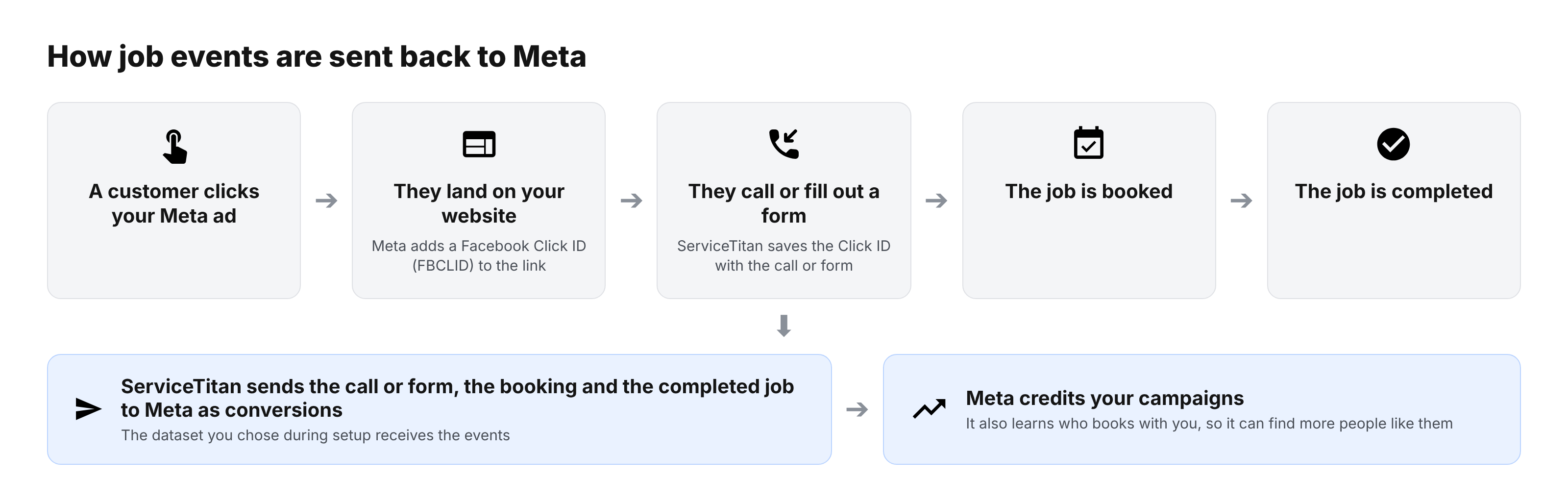
Marketing Pro Ads uses Meta's Offline Conversion Posting mechanism to send conversion events to connected Ad Accounts. Here's how it works:
When a customer visits a website with DNI from a Meta Ad, Meta adds a Facebook Click Identifier (FBCLID) to the URL. If the customer calls a DNI number or submits a web form configured for the automatic form scraper, Marketing Pro captures the FBCLID and assigns it to the call or web form submission.
The call or webform is then sent as a conversion into Meta Ads to the dataset you chose.
All subsequent job events, such as bookings and job completions, are also sent as separate conversion events.
The conversion events sent to Meta Ads are the same as those sent to Google. For more, see Events pushed to Google.
During setup, each ServiceTitan event is mapped to a Meta event. Meta has about 20 standard events, and the integration offers the ones that fit each ServiceTitan event. We recommend Meta standard events: Meta already knows what they mean, so it doesn't need a learning period. You can also send any event as a ServiceTitan custom event.
ServiceTitan event | Recommended Meta event | Other option | Custom event |
|---|---|---|---|
Inbound Call - Website | Contact | Lead | ServiceTitan Inbound Call - Website |
Calls Conversion Action | Lead | Contact | ServiceTitan Calls Conversion Action |
Booked Job | Schedule | Lead | ServiceTitan Booked Job (Originated from Website) |
Integrated Lead Forms | Lead | Contact | ServiceTitan Integrated Lead Forms |
Integrated Bookings | Schedule | Lead | ServiceTitan Integrated Bookings |
JVP - Originated from Website | InitiateCheckout | Purchase | ServiceTitan JVP (Originated from Website) |
Completed Jobs | Purchase | InitiateCheckout | ServiceTitan Completed Jobs Conversion Action |
To send an event as a custom event, open its Meta event list and, under Create Custom Event, choose the ServiceTitan option.
Choose how much customer data is shared with Meta
Each connected Meta Ads account has its own data sharing setting. To change it, see Edit the Meta Ads integration.
Privacy-First Mode: sends only the Facebook Click ID, marked for restricted data use. No personal identifiers are sent. New accounts start on this option.
Advanced Matching: also sends identifiers such as the customer's email address and phone number. This helps Meta match conversions to its users, so it can find more people like your customers. This is the recommended option.
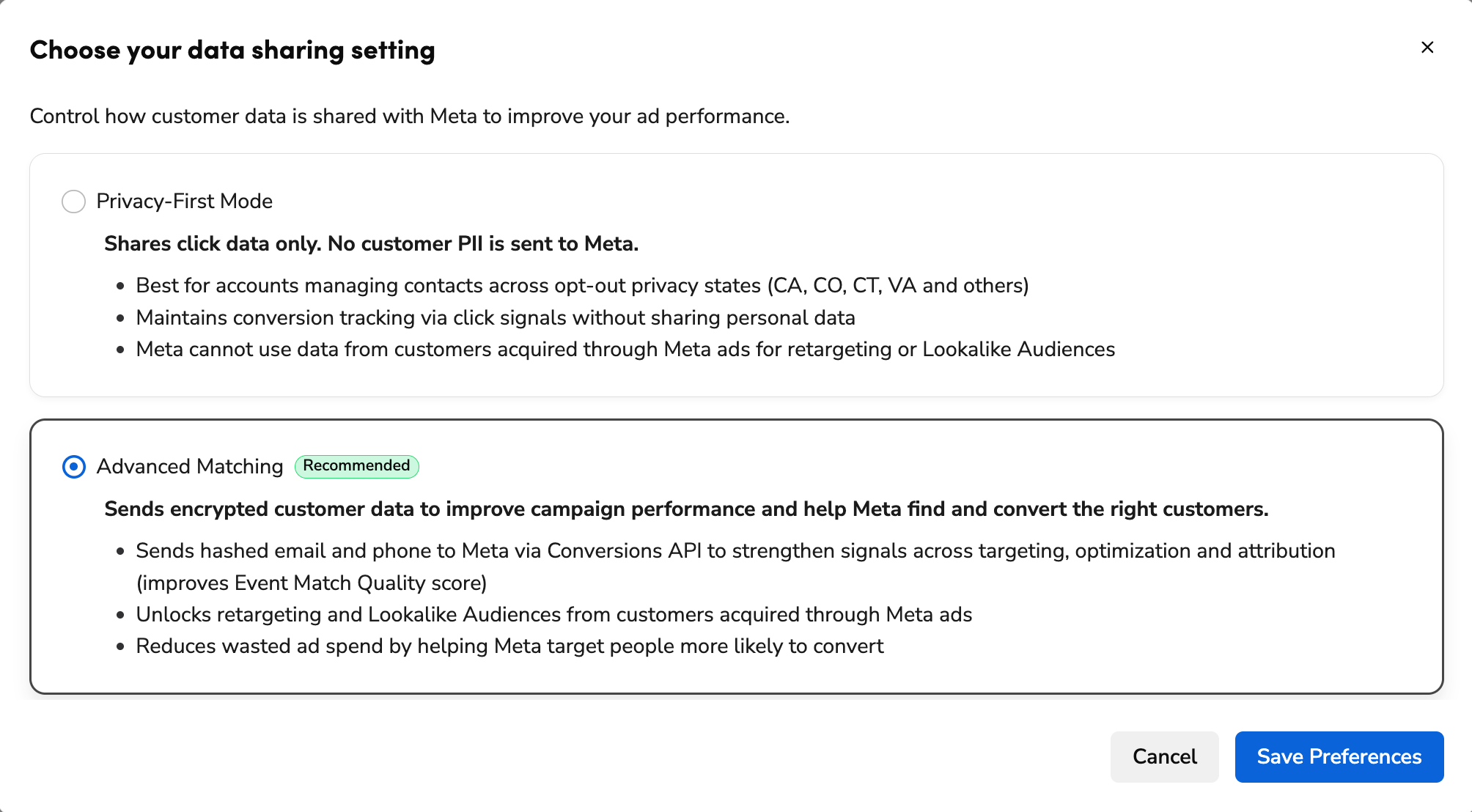
Note: If a customer opted out of advertising data sharing, their data is marked restricted even when the account uses Advanced Matching.
Understand your results in Meta Ads
After the integration is running, you may notice that Meta credits fewer of your bookings to campaigns than you expect. This is normal. Here are the main reasons why.
Reason | Details |
|---|---|
Delivery is not the same as attribution | ServiceTitan sending an event to Meta and Meta crediting that event to a campaign are two different things. You may see 100 events delivered to Meta but only 10 attributed to a specific campaign. This does not mean the integration is broken. |
Meta uses a 7-day attribution window | Meta only credits a conversion to a campaign if the customer books within seven days of clicking the ad. If a customer clicks an ad today and books a job two weeks from now, the booking is still sent to Meta, but it will not be credited to the campaign. |
Meta needs to match your customer to a profile | For a conversion to show up in Meta's campaign reports, Meta must match your customer to a Meta user profile using email, phone number, or the Facebook Click ID. If a customer's contact information cannot be matched, the conversion will not appear in your campaign reports. |
Meta's algorithm needs enough conversions to learn | If you want to use booked jobs as a Meta optimization goal, aim for 15 to 25 conversions per week at minimum, with 50 or more per week for best results. Below the minimum, Meta's learning algorithm may have trouble finding your target audience. |
Offline events track different data than website events | This integration sends offline events, like booked jobs, to your dataset. It matches customers by contact information (Facebook Click ID, phone, or email). Website events, like clicks and form submissions, are tracked on your website using browser cookies. If you want both, you need to set up website tracking for your dataset in addition to this integration. |
Conversions show in Events Manager but not in campaign reporting | Check that the dataset you chose for the integration is selected at the ad set level in Meta. This setting can't be changed after the ad set is published. |
Note: Even when booked jobs are not your optimization goal, sending this data still helps Meta improve audience quality and ad delivery for your account.