Overview
You can combine multiple business units (BUs) into a business unit group to make it easier to apply changes across multiple BUs at once. When you add BUs to a business unit group, adjustments made to the base capacity of the business unit group apply to all BUs within the group.
Who uses this feature
Administrators, managers, and owners
Primarily benefits Residential Service and Commercial Service business types
Feature configuration
Account configuration is required to use this feature. Please contact Technical Support for details.
The Access settings permission is required to use this feature. Please contact the account administrator on your team.
Things to know
A BU can only belong to one business unit group. If a BU is currently assigned to a business unit group and you want to use it in a different group, remove it from the current group first.
If you have Arrival Windows enabled, make sure each BU you want to add to the business unit group has the same arrival windows. This ensures capacity is shown properly in Get Adaptive Availability.
The Activate Capacity and Deactivate Capacity buttons only affect capacity for Adjustable Capacity Planning (ACP). With Adaptive Capacity, clicking Deactivate simply separates the BUs from the group so that Get Adaptive Availability and Capacity Reporting treat them individually rather than as a group.
Use cases
Plumbing companies often group their service and maintenance departments together, since their technicians can work both service and maintenance jobs.
Create a business unit group for Adaptive Capacity
Go to the top toolbar and click Settings
 .
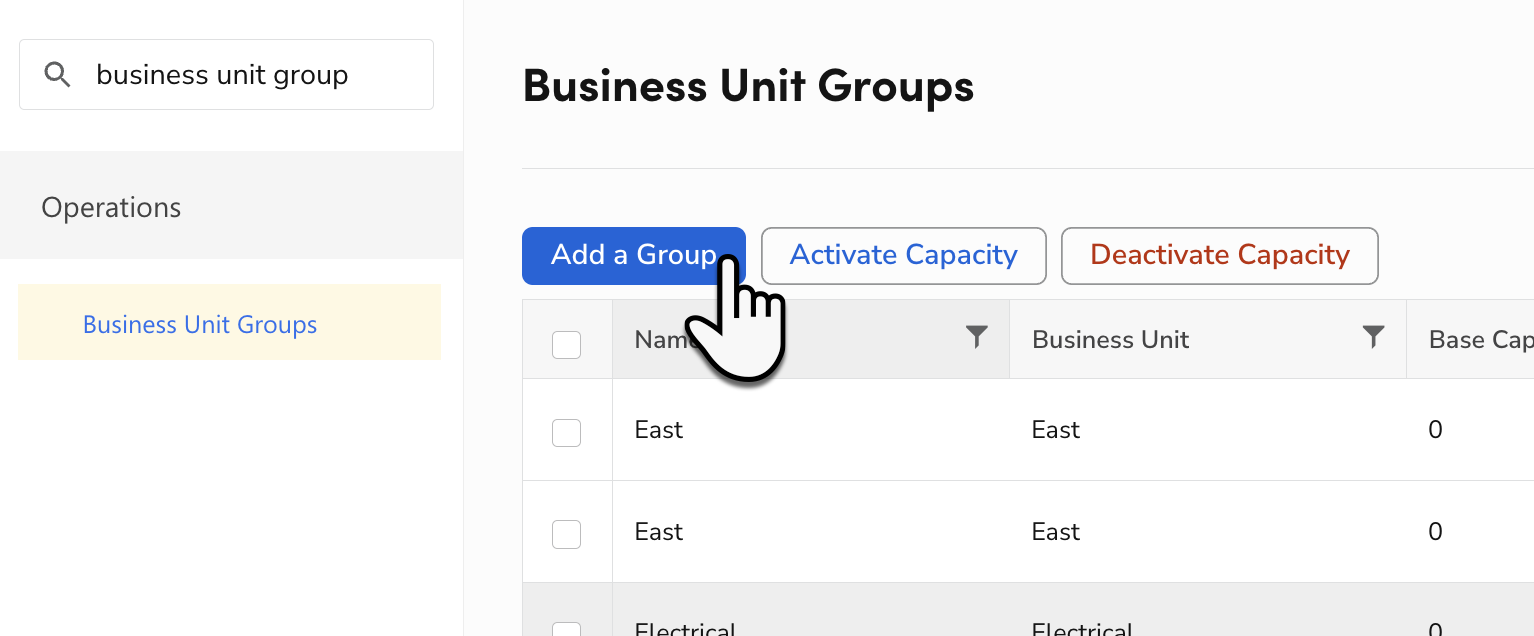
.In the side panel, go to Operations > Business Unit Groups.
Click Add a Group.
On the Add a Business Unit Group screen that opens:
Enter a Name for the business unit group.
Leave zero as the Base Capacity number.
Note: The Base Capacity field only affects Adjustable Capacity Planning (ACP). It does not affect capacity for Adaptive Capacity.
Click the Business Unit dropdown and select the BUs you want to add to the business unit group.
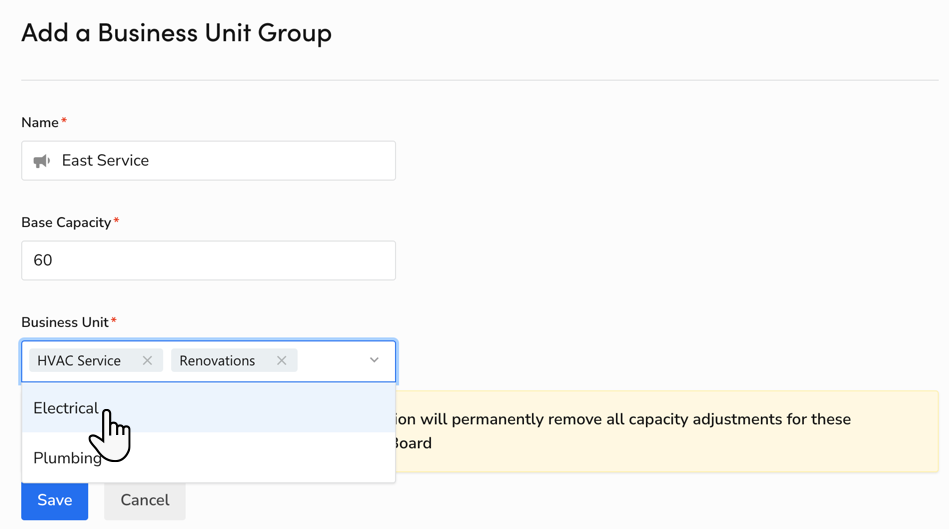
When finished, click Save.