Overview
Webchat is an AI chat widget you add to your website so visitors can book a job without calling or texting. Webchat is configured natively in Virtual Agent, alongside your voice and text agents. It gives your website 24/7 booking coverage and keeps chats next to your calls and texts in Virtual Agents.
Who uses this feature
Administrators, Office employees
Feature configuration
Webchat is currently in Early Access, available for specific accounts. It is subject to change.
Contact your Customer Success Manager (CSM) or Pro Product team to confirm your account is eligible.
Adaptive Capacity is required for proper booking parameters.
Things to know
You or someone on your team needs access to your website's code — you'll need to add a short code snippet to your site.
If you currently use the legacy Scheduling Pro Chat to Book widget, please consider switching over to the new Virtual Agent powered Webchat.
Please note that this does not affect, and is completely separate from, the Live Services Human Chat service offered by ServiceTitan.
If your Virtual Agent settings are not available, reach out to Pro Product team for assistance.
Step-by-step setup instructions
Step 1: Customize your Virtual Agent
Go to Virtual Agents > Agent Settings.
If you’re already using Virtual Agents, you can configure your Webchat Settings on an existing Agent. If you are in Agent Settings for the first time, you can edit your default agent.
Give the agent a name and complete the basic chatbot setup (personas, transcript, skills and capabilities, and job types and dispatch fees). See Configure your Voice Agent Settings for more information.
Step 2: Preview and test in Agent Settings
Select the Inbound Webchat.
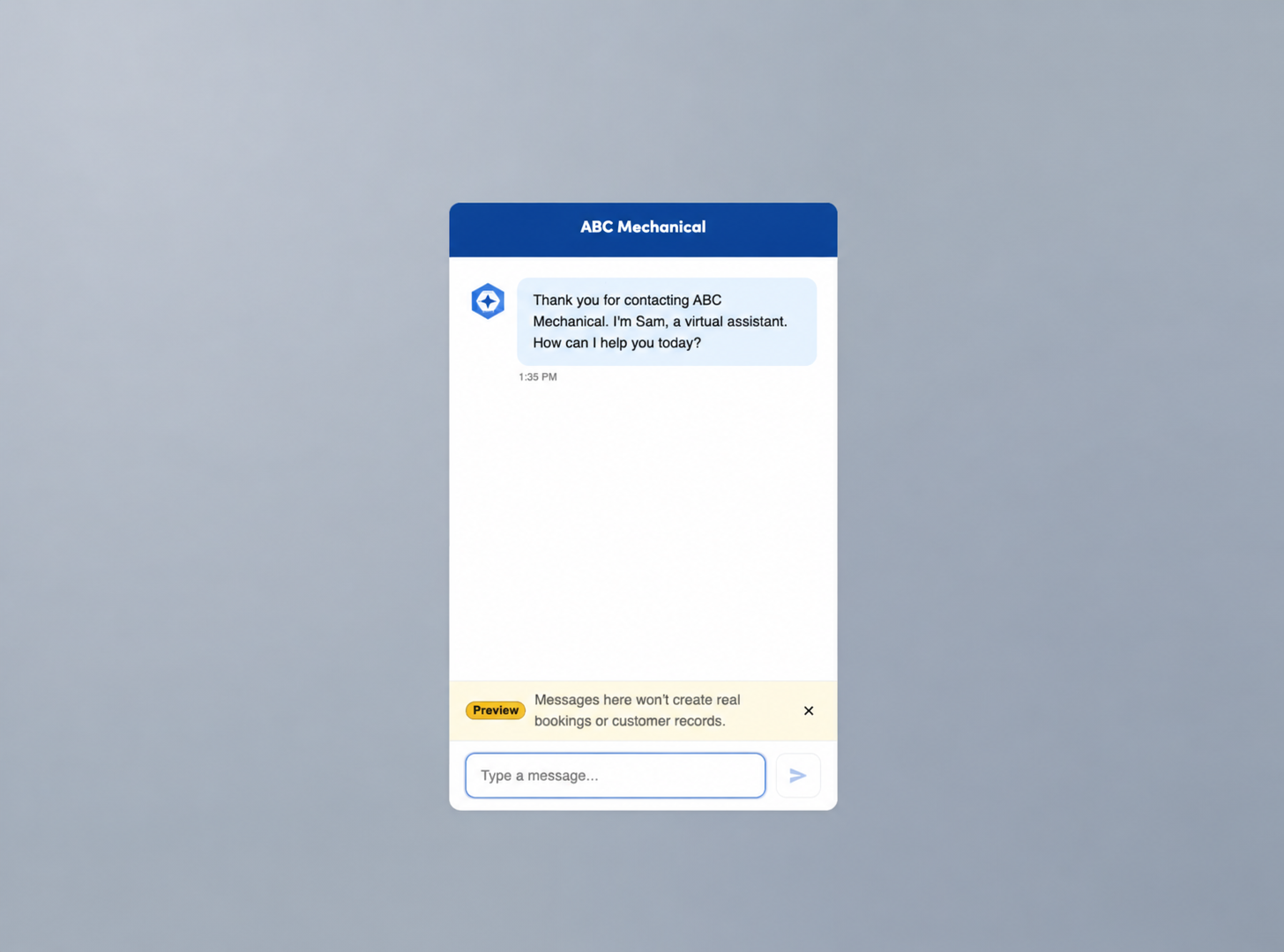
Use the preview panel to test sample conversations before the widget goes live on your website.
.png?sv=2026-02-06&spr=https&st=2026-11-07T16%3A16%3A51Z&se=2026-11-07T16%3A29%3A51Z&sr=c&sp=r&sig=pCtfU1CHB8lzX4dac%2BhusQchT7SW3xoZdWGvjFV69lw%3D)
Confirm the chatbot responds the way you expect
Step 3: Generate and install the embed snippet
From the webchat agent's settings, retrieve your embeddable code snippet.
.png?sv=2026-02-06&spr=https&st=2026-11-07T16%3A16%3A51Z&se=2026-11-07T16%3A29%3A51Z&sr=c&sp=r&sig=pCtfU1CHB8lzX4dac%2BhusQchT7SW3xoZdWGvjFV69lw%3D)
Choose whether the chat window should open automatically or stay closed by default.
Send the snippet to your website developer and have them include it in your website.
Step 4: Confirm the widget appears
Visit your live website and confirm the chat bubble or window appears.
Start a test conversation and confirm it reaches your webchat agent.
If the widget does not appear, check with your website maintainer that the CSP header (if any) allows the ServiceTitan chat addresses, and confirm the snippet was pasted without modification.
What customers/end-users see
The chat widget with a color theme you chose in Virtual Agents.
Visitors interact with the chatbot in a normal chat conversation and can book a job directly through it.
Where conversations appear
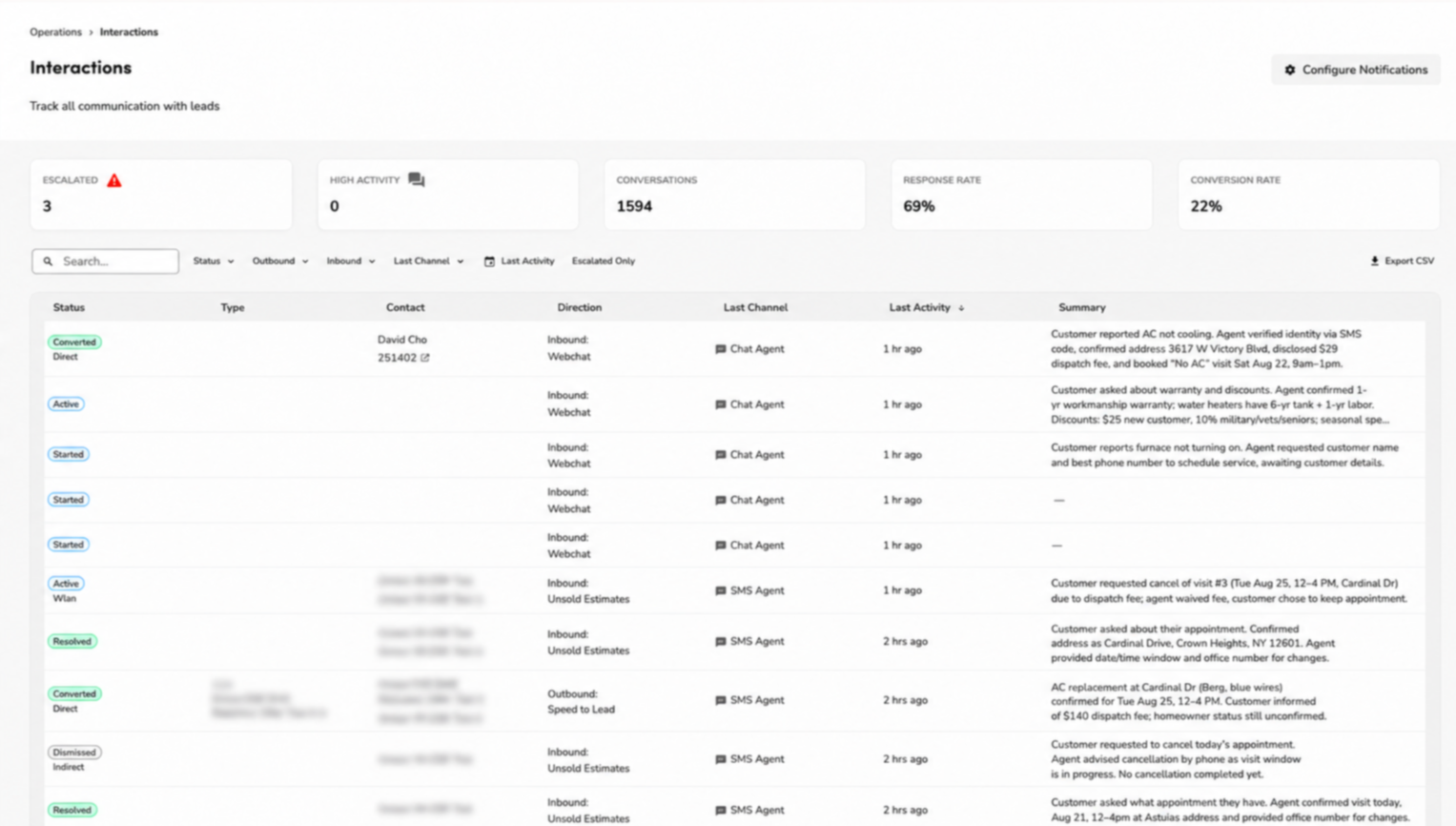
Every Webchat conversation is routed into Interactions, next to your voice and text conversations. Your team reviews webchat activity in the same place they already review calls and texts — there is no separate Scheduling Pro chat inbox to check for new Webchat conversations.
FAQ
Are task types supported in web chat?
Task type is not currently supported in web chat. This capability is coming soon.
Can I set an opening and closing message for my web chat agent?
You may configure your web chat agent's "closing" and "opening" message in the Inbound Webchat module. The agent will start and end its conversation with this opening message and closing message, respectively.
Does "Allow new callers to match existing addresses" apply to web chat?
No. This setting does not apply to web chat since web chat interactions are not phone-based. Web chat has its own identity verification feature instead: the address number is masked by default, and customers must verify their identity via a one-time password sent by SMS to the phone number on file before the address number is revealed.
Can I send payment links via SMS in web chat?
Not yet — sending payment links via SMS is not currently supported in web chat. This capability is coming soon.
Can I still use the Scheduling Pro scheduler link with web chat?
For customers using web chat who also want Scheduling Pro abandoned-session follow-ups, Scheduling Pro will include a toggle letting tenants choose between a prefilled-link follow-up or Speed to Lead. This feature is coming soon.