Overview
The Notice of Cancellation (NOC) date is the last day a homeowner can cancel without penalty.
Set up your contract templates to calculate this date for each signer from their own signing date. The date appears when the signer opens the signing view, based on the day they sign.
Who uses this feature
Administrators
Applies to all business types
Primarily benefits Roofing/Exterior trades
Feature configuration
This feature is available to all accounts that have Contracts enabled.
Things to know
Each signer gets their own NOC date. One signer's date never changes another signer's date.
The date doesn't appear in the Contract Builder preview. It depends on when each person opens it to sign.
Weekends and federal holidays don't count by default.
ServiceTitan calculates and prints the date. Your company decides how to handle cancellation requests.
Best practices
Work with your legal counsel to choose the starting date and number of days. Requirements vary by state.
Use the signing date for right-to-cancel windows. A contract created on July 14 and signed on July 19 shows a deadline of July 17 with a three-day window from the created date. That deadline has already passed.
Write the contract text so it reads correctly before the date appears. For example, use 3 days after the day you sign. The final date appears in the signed PDF.
Use one form question for the household when the same rule applies to every signer.
Send a test contract before you use the template with customers.
Use cases
A homeowner signs from their email several days after you send the contract. The NOC date starts from the day they sign.
Two homeowners sign on different days. Each gets their own NOC date, and the second date doesn't replace the first.
Your contract gives homeowners over 65 a longer window. A yes or no form question sets the number of days.
A contract package includes shared pages plus a state page. Conditional logic shows the right state page for the job.
A sales professional countersigns the contract. The countersigner slot has no NOC date.
Step 1: Choose the starting date
Your template can start the count from one of these dates:
Signing date: Each signer's own completed signature date.
Contract created date: The day the contract record is created for the job.
Contract send date: The most recent day the contract was emailed or prepared for in-person signing.
A date in a form: A date field in a form, such as today's date or a date a user enters.
Use the signing date when the cancellation window runs from the day the customer signs.
Step 2: Add a form question for age-based rules
Do this step only if the number of days depends on an answer, such as whether a homeowner is over 65. Add a yes or no question to the form or fillable fields. You don't need a birthdate.
Pattern | How it works | Use when |
|---|---|---|
One question for the household | Ask Is any homeowner over 65? Every signer's calculation uses the answer. | The same rule applies to every signer. |
One question per signer | Ask Is signer 1 over 65? and Is signer 2 over 65? Map each answer to that signer's field. | Each signer needs their own number of days. |
Note: Fill out the form before you assign signers. Label each question as signer 1 or signer 2 so ServiceTitan can match it to the right signer slot.
Step 3: Add the NOC date field for each signer
Go to the top toolbar and click Settings.
In the side panel, go to Operations > Document Templates.
Open the contract template you want to edit.
Add an E-Sign component
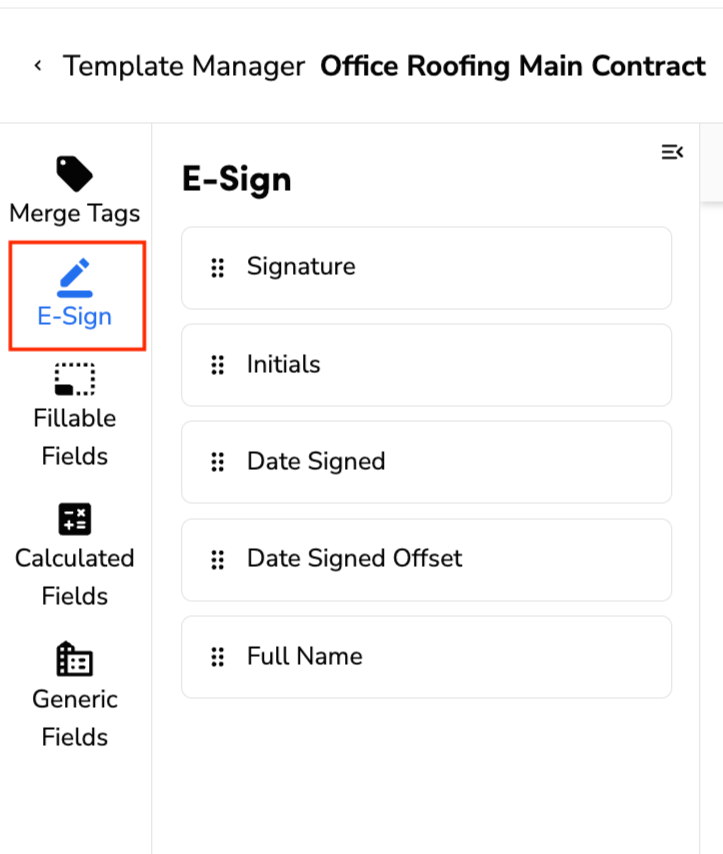
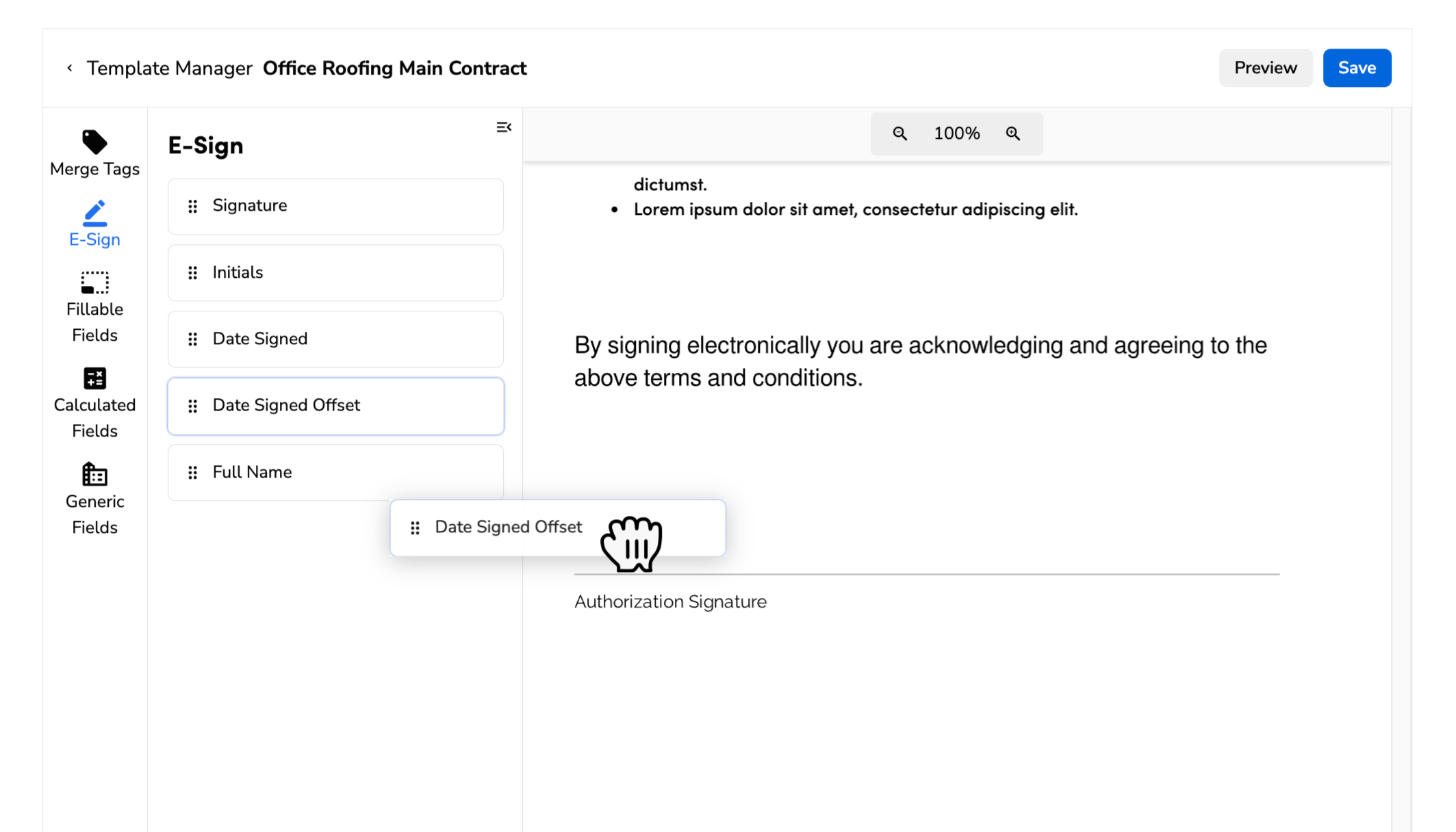
Drag and drop Date Signed Offset to the template from the list
Select the signer in the Recipient field.
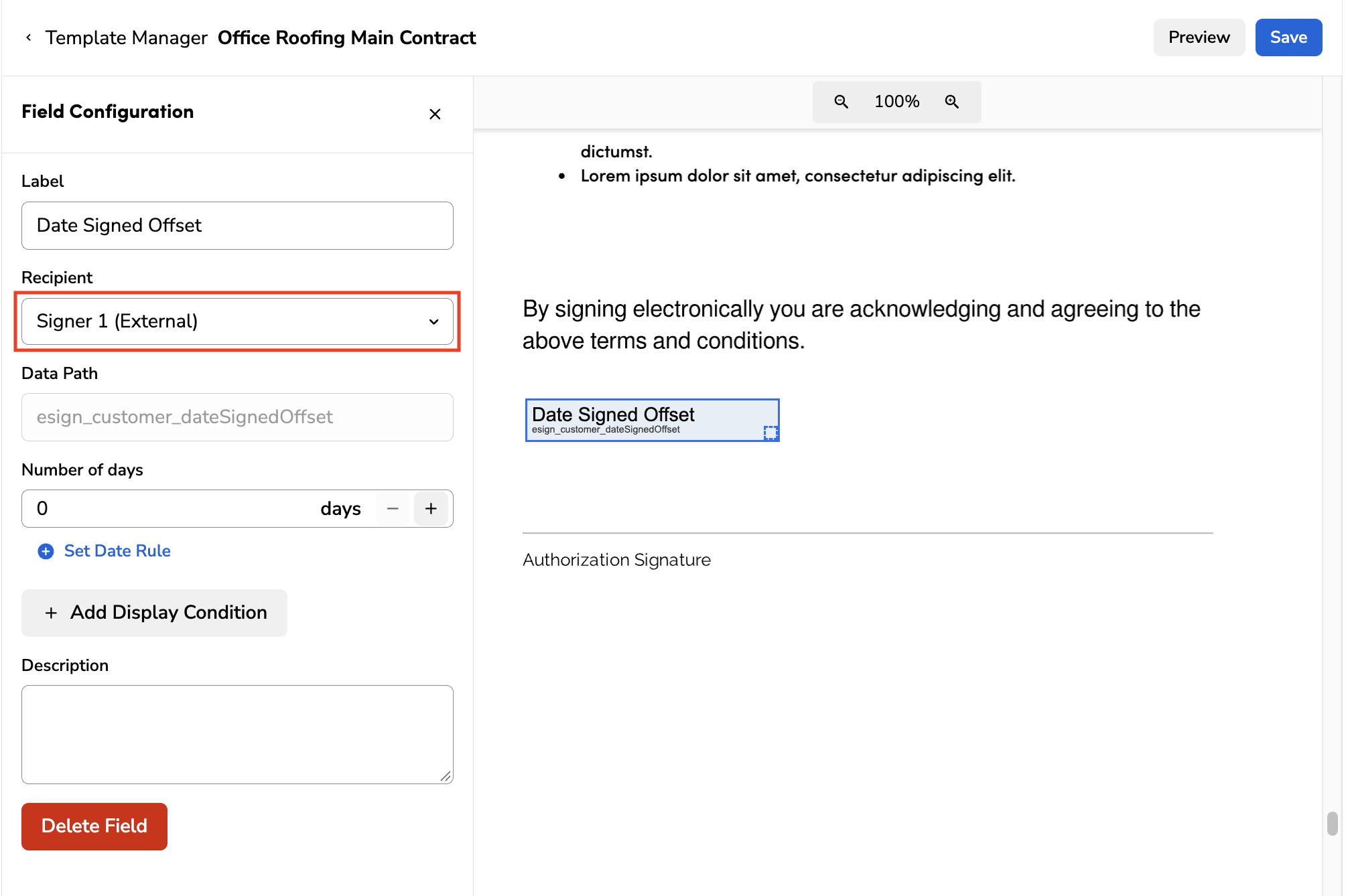
Under Date Signed Offset Rules, enter the number of days to add. You can enter up to 365 days.
.png?sv=2026-02-06&spr=https&st=2026-11-12T06%3A22%3A15Z&se=2026-11-12T06%3A36%3A15Z&sr=c&sp=r&sig=omv%2BrrKPnPokOgBmmYfhfzpsxT%2FGFHAV%2BH3ZFmdIMw8%3D)
To change the number of days based on a form answer, add a condition. For example, if the answer is yes, use 5 days. Otherwise, use 3 days.
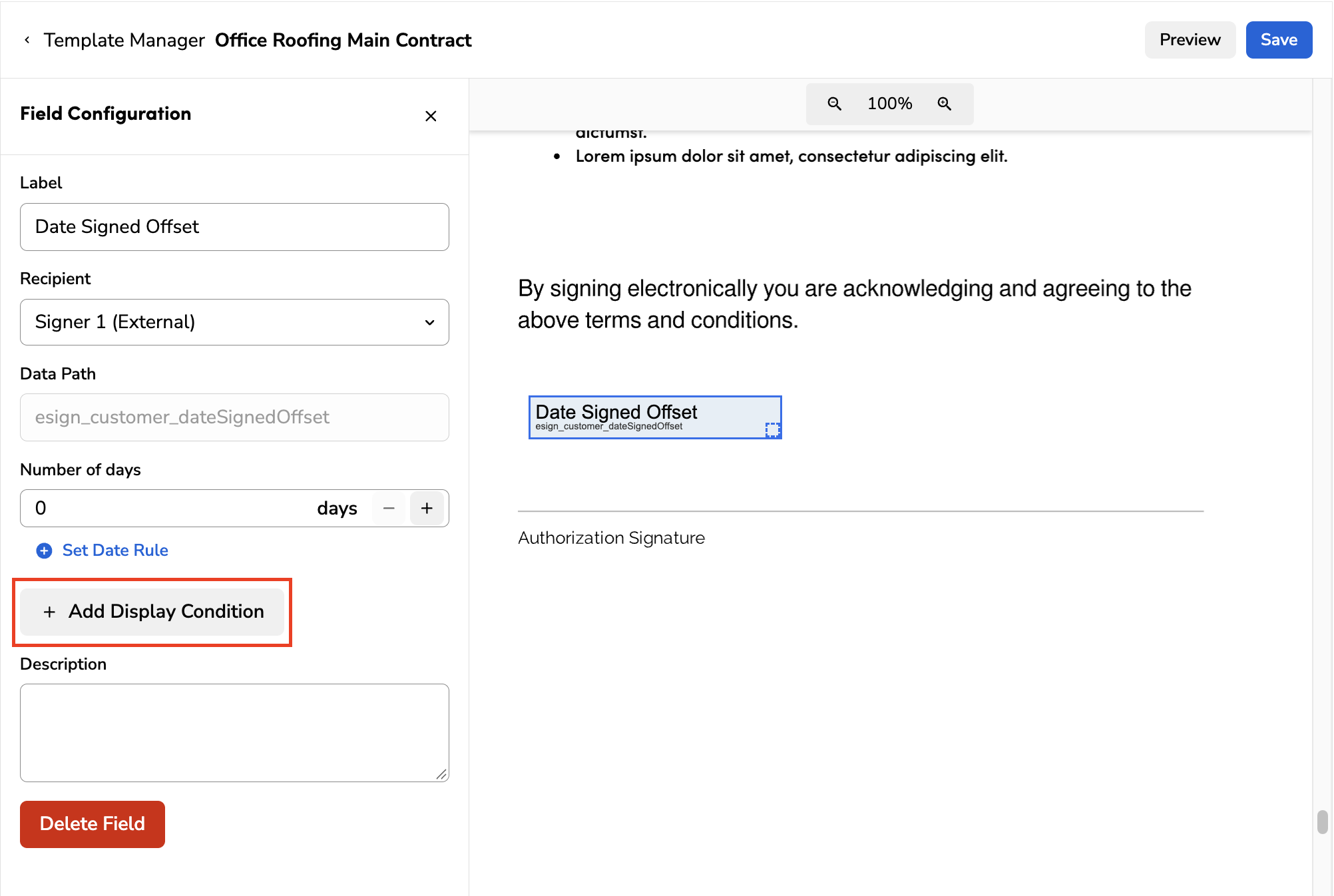
Repeat for each signer who needs a NOC date. Use the same condition for every signer for the household pattern, or tie each field to that signer's own question.
When finished, save and publish the template.
Note: Don't add a NOC date field to the countersigner slot. ServiceTitan doesn't calculate a date for a slot without a field.
Step 4: Write the contract language
Write the text around the date so it reads correctly before the signer sees the date. ServiceTitan adds the calculated date to the signed PDF.
Step 5: Test the template
Create a test contract that uses your template and send it to your own email.
Complete signing for each case you need. Test one signer, two signers on different days, a signer who meets your age condition, and a signing that spans a weekend or holiday.
Confirm each date matches the signer's calendar day.
[insert non-GIF screenshot]
Understand how the date is calculated
ServiceTitan works out the number of days when the contract is created. It works out the calendar date when the signer opens the signing view. The signer can't edit the date, and it doesn't change after signing.
Count the days
The count starts the day after the signer signs. If a signer signs Monday at 1 p.m. with a three-business-day window, Tuesday, Wednesday, and Thursday count. The window ends at the end of Thursday.
The contract shows only the calendar date, never a time of day.
Weekends and federal holidays don't count by default.
You can enter an offset of up to 365 days.
Set the signer's time zone
ServiceTitan uses each signer's own calendar day. It picks the time zone in this order:
The signer's device time zone
The location time zone for the customer or job
The business unit time zone
The time zone setting for your account
UTC, as a last resort