Overview
Schedule Parts Follow-Up is an outbound Virtual Agent automation that contacts customers when a part for their job arrives, so they can book the follow-up appointment themselves. Administrators set up a campaign that watches for a "parts ready" signal, confirms the job is eligible, and reaches out through your chosen channel. It reduces manual dispatcher outreach and shortens the wait between a part arriving and the technician returning.
Who uses this feature
Administrators and managers who configure Virtual Agent campaigns
Tailored for Plumbing, Heating, Electrical and Garage
Feature configuration
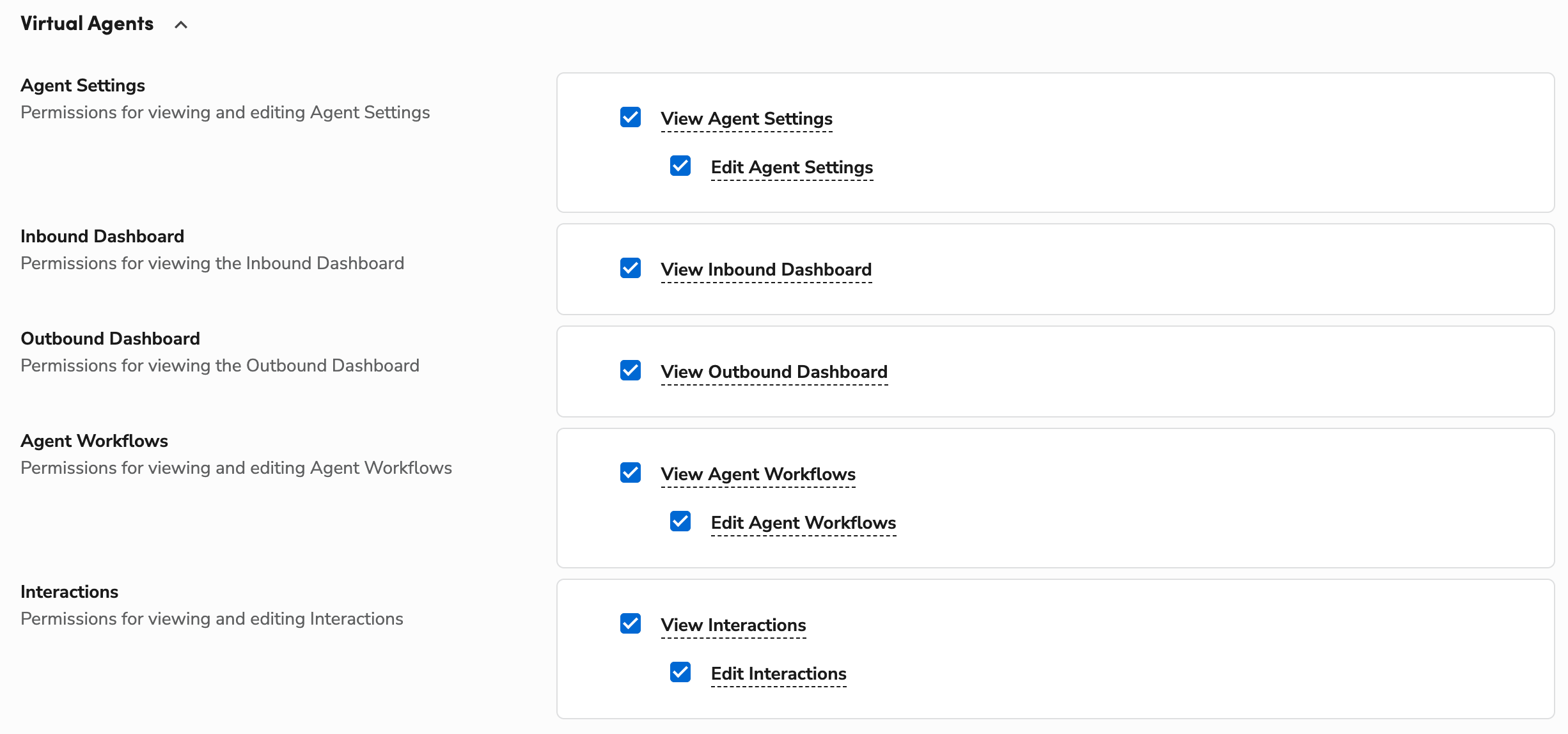
To use this feature, ensure you have access to SMS and Voice Agents. Please reach out to your PAM and CSM if you do not see the Virtual Agents available, and Agent Workflows enabled.
The Agent Workflows Edit permission is required to set up a campaign. Please contact the account administrator on your team.
Dispatch Pro is required to use the Dispatch Pro Rule trigger path (see Step 1).
Things to know
A campaign uses one trigger path — Job Tag Applied or a Dispatch Pro rule. The two are mutually exclusive, and both produce the same outreach.
The follow-up appointment inherits the same job type and duration as the original job.
When a Purchase Order is linked to the job, the agent names the specific part in the outreach (for example, "your compressor has arrived"). Without a linked PO, the agent uses general wording.
Jobs without a phone number on the customer record are skipped, and no outreach is sent.
Jobs that already have a Scheduled appointment are skipped, since the follow-up is assumed to be booked.
Voice is not yet available as an outreach channel.
Best practices
Link Purchase Orders to jobs so the agent can reference the specific part by name, which makes the outreach clearer to the customer.
Keep customer phone numbers current, since jobs without a number are skipped.
For Dispatch Pro rule campaigns, refine which jobs qualify in the Dispatch Pro Rule Builder — audience criteria live there, not in the Virtual Agent campaign.
Use cases
A dispatcher flags a job as "parts ready" with a tag, and the customer receives a text within minutes to book their return visit — no manual call required.
A team using Dispatch Pro rules identifies parts-ready jobs automatically, so follow-up outreach happens without anyone tagging jobs by hand.
Set up a Schedule Parts Follow-Up campaign
Set up a campaign from the Goals library in Virtual Agent Settings. Find the Schedule Parts Follow-Up card and click to create a campaign. The wizard walks you through the steps below.
Step 1: Choose your trigger source
A campaign uses one trigger path or the other — they are mutually exclusive, and both produce the same outreach.
Trigger | How it fires |
|---|---|
Fires in real time when a user applies a configured tag to a job. Best when your team manually flags jobs as parts-ready. | |
Dispatch Pro Rule | Fires when a rule in the Dispatch Pro Console evaluates a job and matches. Best for automated, rule-based identification of parts-ready jobs with no manual tagging. Manage rules in Settings > Dispatch Pro > Console Settings > Rules. For more, see Adjust rule settings for Dispatch Pro Console. |
Step 2: Configure technician assignment
This setting controls whose availability the customer is offered when scheduling.
Option | Behavior |
|---|---|
Any technician (default) | The customer sees availability for any qualified technician. |
Use assigned technician | The customer sees availability only for the technician already assigned to the job. |
Step 3: Choose the agent and message
Select or create an AI agent. The agent's name, brand, and closing message appear in the outreach.
Confirm the channel. SMS Agent is selected by default.
Review the message. The editor is pre-filled with a default template that pulls in your brand and job details. Edit it if you want.
The default SMS message uses merge fields that are replaced with your real details when the message sends. For example, {{Brand.Name}} becomes your company name and {{Job.Type}} becomes the customer's job type:
Hi! It's [Agent Name] from {{Brand.Name}}. Great news — the part for your {{Job.Type}} service has arrived! We're ready to complete your work. Feel free to reply and suggest a time that works for you.
Step 4: Activate the campaign
Set the campaign Status to Active. The automation begins running for qualifying jobs on the next trigger event.
What the customer experiences
Once the campaign is active, the Virtual Agent reaches out through your selected channel to schedule the follow-up appointment for the work the parts are intended for.
The customer receives a text from your brand, suggests a time, and the agent confirms the appointment.
The conversation references the job type, and — when a Purchase Order is linked to the job — the specific part name.
The follow-up appointment uses the same job type and duration as the original job.
The workflow ends when any of these happens:
A follow-up appointment is scheduled — by the agent, the customer, or your team directly in ServiceTitan.
The job status changes to Completed.
The customer opts out.
The interaction reaches its time limit with no response.
Where to see results
Each conversation the campaign starts appears as a row on the Interactions page in Virtual Agent Settings. To see only these conversations, use the filters on the Interactions page. For more, see Use Interactions in Outbound Virtual Agents.
Click any row to open the details drawer. For Schedule Parts Follow-Up interactions, the drawer shows:
Job Status: The current status of the originating job in ServiceTitan.
Tag / Rule: The tag name or Dispatch Pro Console rule that triggered the automation.
Parts and Job Context: The part name (from a linked Purchase Order), job type, assigned technician, and a link to the originating job.
Follow-Up Appointment: A link to the scheduled appointment, or "Not yet scheduled" if pending.
Conversation: The full SMS thread.