Things to know
This article describes recommended workflows to prevent certain customers from receiving Reputation Management review request surveys.
Several workflows are available to prevent Reputation Management Review Requests from being sent to specific customers:
Build a review request survey to exclude a tag
Create a manual request survey
Prevent customers from receiving job notifications
Workflows
Build a review request survey to exclude a tag
To stop a customer from receiving any job-related notifications, deselect the Job Notifications option for all contact methods in their profile. This disables all job notifications, including confirmations, reminders, and dispatch updates, not just review requests.
If you only want to prevent review requests while keeping the other notifications, you can temporarily deselect Job Notifications right before completing the job if the review request is triggered with the job completion. You can then turn it back on later, if needed.
In the top toolbar, click Settings
 .
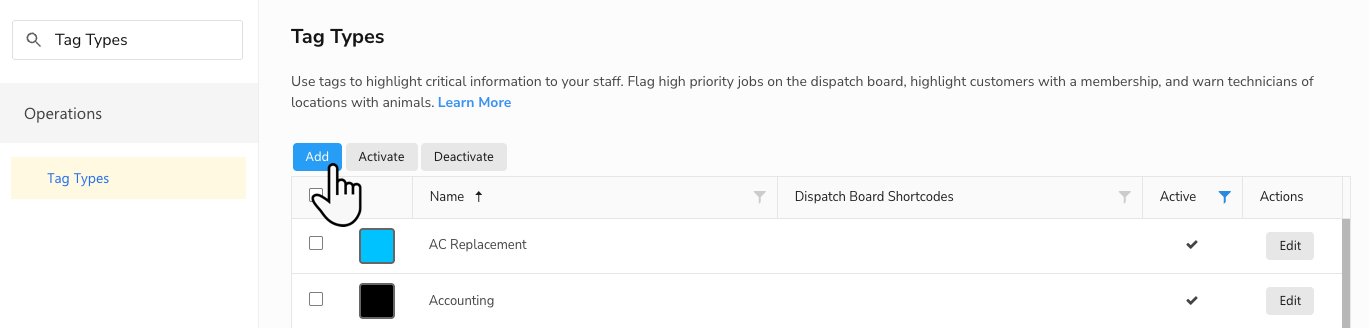
.In the side panel, go to Operations > Tag Types.
Click Add to create a new tag specifically to prevent customers from receiving Reputation surveys.
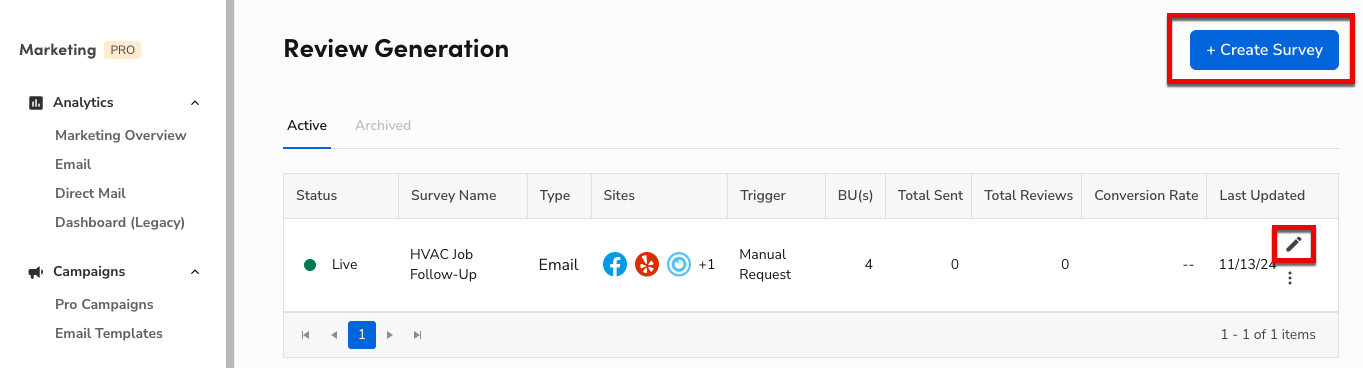
Go to Marketing > Review Generation to access your Reputation surveys.
If there's an existing survey you'd like to edit, click Edit
 for that survey, or click + Create Survey to make a new survey.
 Note: This only works for surveys created using the Advanced Setup.
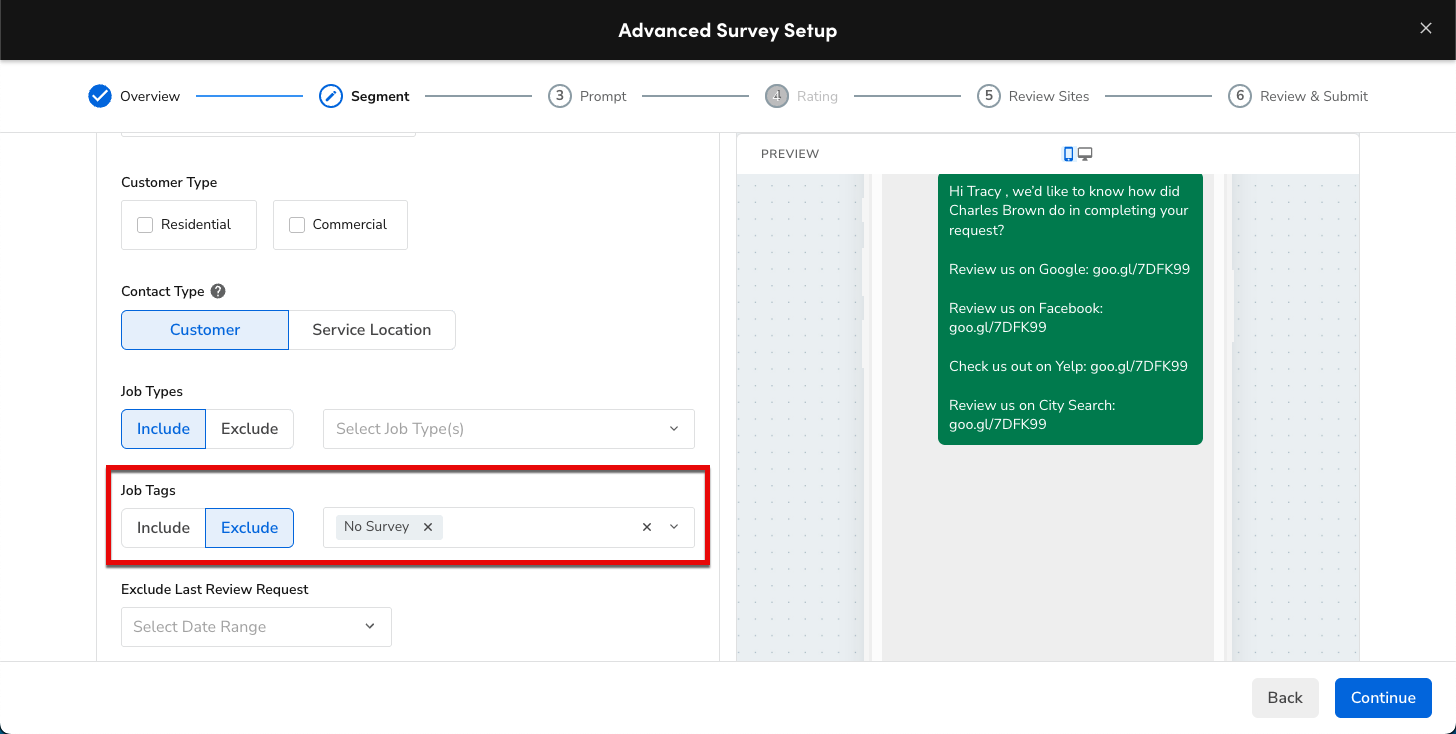
On the Segment step of the advanced survey builder, select the tag you created in Step 3 and click Exclude.
If updating an existing survey, click Update Survey to save your changes. Otherwise, finish creating the new survey.
After the exclusion tag is successfully saved in the survey, CSRs can tag specific jobs with it prior to the job being completed so that the review request doesn't get sent. You can also set up a one-field form to auto-tag a job with the exclusion tag, and then if a technician completes that form on a job, the tag automatically applies so the customer doesn't receive a review request.
For more information on how to create a form, see Create a form in ServiceTitan.
Create a manual request survey
To have even more control over every review request, you can set up a manual trigger survey so that CSRs and technicians have to manually click Request Review on the job record to send the survey.
To create a manual request survey:
Go to Marketing > Review Generation to access your Reputation surveys.
If there's an existing survey you'd like to edit, click Edit
for that survey, or click + Create Survey to make a new survey.On the Overview step, change the Trigger to Manual Request.
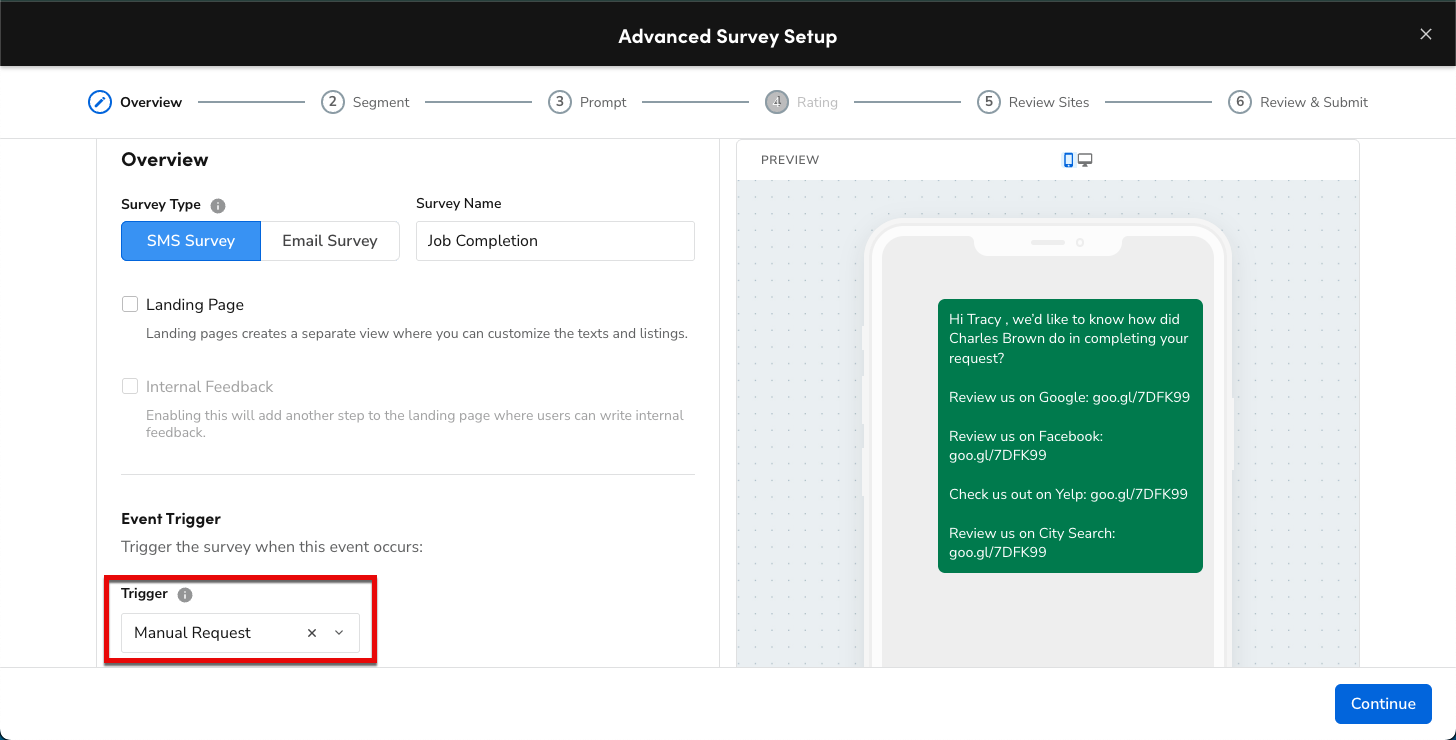
If updating an existing survey, click Update Survey to save your changes. Otherwise, finish creating the new survey.
CSRs and technicians can now click Request Review on the job record to trigger the review request. For more, see Request customer reviews from the job record and Request customer reviews from a job on ServiceTitan Mobile.
Prevent customers from receiving job notifications
To stop a customer from receiving any job-related notifications, deselect the Job Notifications option for all contact methods in their profile. This disables all job notifications, including confirmations, reminders, and dispatch updates, not just review requests.
If you only want to prevent review requests while keeping the other notifications, you can temporarily deselect Job Notifications right before completing the job if the review request is triggered with the job completion. You can then turn it back on later, if needed.
Open the customer's record before their job is completed.
Note: If your reputation survey is set to send to the location contact, go to their Location Record instead.
Click Edit
next to Contact Methods. 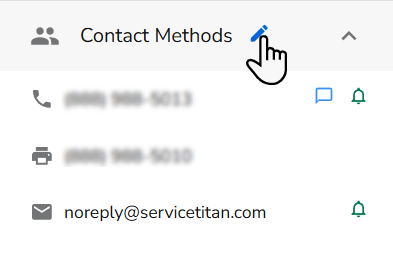
Click
 to expand the Notifications section for the relevant contact method.
Deselect the Job Notifications option for the contact methods you don't want to receive notifications.
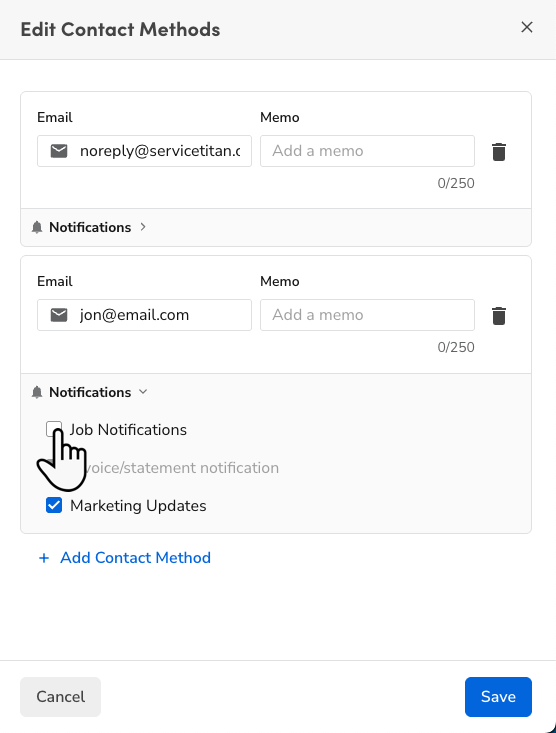
Click Save to confirm the changes.