Overview
The Google Ads network has sophisticated audience targeting that allows Ad campaigns to learn from clicks and hit conversion goals set on an advertiser's website. ServiceTitan's Google Ads Integration helps you track and import data to calculate the Return on Investment (ROI) of your Google Ads campaigns.
Who uses this feature
Marketing managers, business owners, and other marketers on your team
Primarily for Residential Service & Replacement and Commercial Service & Replacement business types
Feature configuration
To get started with Marketing Pro Ads, request a demo on our Pro Products page, or reach out to your Customer Success Manager (CSM) or Pro Account Manager.
Account configuration is required to use this feature. Please contact Technical Support for details.
Things to know
The Google Ads integration isn't complete until Google Analytics and Dynamic Call Tracking using DNI are also configured.
After Google Ads is integrated, ServiceTitan creates a campaign for each Google Ads campaign using the exact same name.
Google Ads imports conversions to the date of the ad impression. ServiceTitan shows the data for the date of the transaction. For a list of events pushed to Google, see Events pushed to Google.
When someone visits your website from an ad click, the URL displays a Google Click ID (GCLID). When the visitor calls a DNI number, ServiceTitan stores that GCLID and assigns it to the caller. If that call is classified as a Lead, ServiceTitan sends it as a conversion into Google Ads using the GCLID. For example, if someone clicks an ad, goes to your website, calls the number, and that call ends in a status of Booked or Unbooked, ServiceTitan posts the conversion. If someone takes those same steps, but they're outside of the service area and the call ends in a status of Excused. ServiceTitan won't send it as a conversion into Google Ads.
The Google Ads integration classifies the following events as Leads:
Booked phone calls
Unbooked phone calls over 60 seconds that aren't excused
Excused calls where the excused reason is set to Is Lead
Abandoned or excused calls where the customer booked a job within seven days of the call
Lead forms received from the API or Zapier
Bookings received from the API or Zapier
Manual Calls
When the first conversion happens, ServiceTitan creates a Phone Call Conversion Action then starts sending conversions to it. On the Google Ads side, no action is needed to receive conversions. To avoid duplicate counts, conversions aren't sent for Call Extensions. This is because Google tracks those with their default Call from Ads conversion action.
Set up Google Ads Integration with DNI
To better measure your Google Ads performance in ServiceTitan, configure your websites and the ServiceTitan call tracking solution using Dynamic Number Insertion (DNI).
Step 1: Integrate Google Ads data to ServiceTitan
You can connect Google Ads to ServiceTitan in two ways:
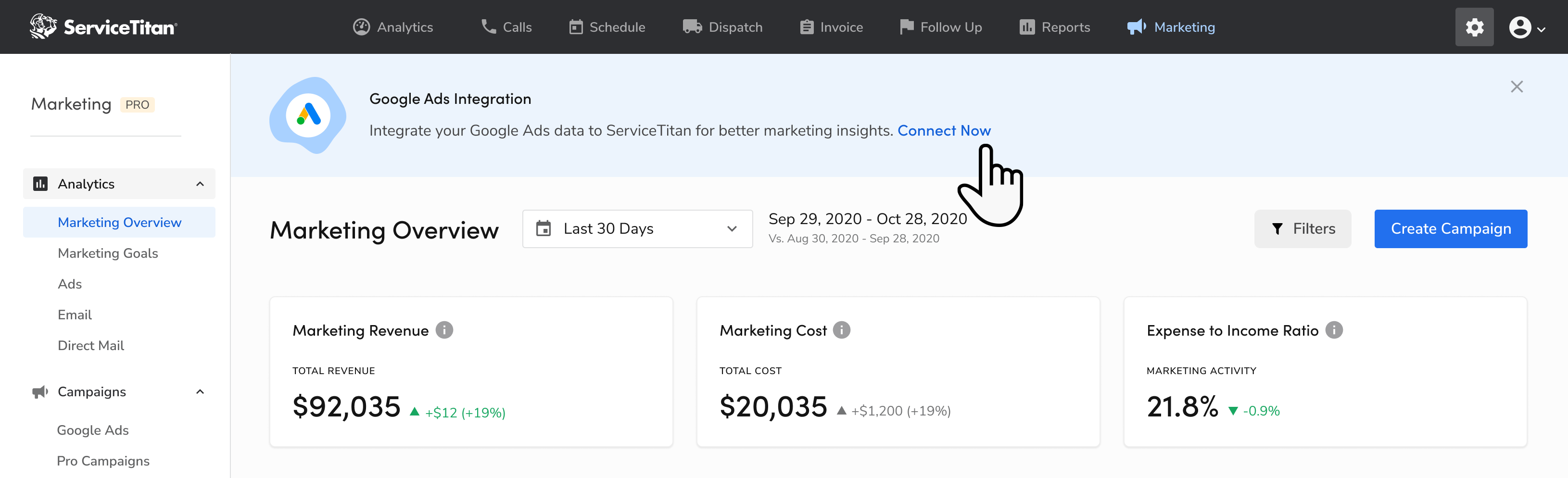
From Analytics:
Go to the top toolbar and click Marketing.
On the Marketing Overview screen, click Connect Now.
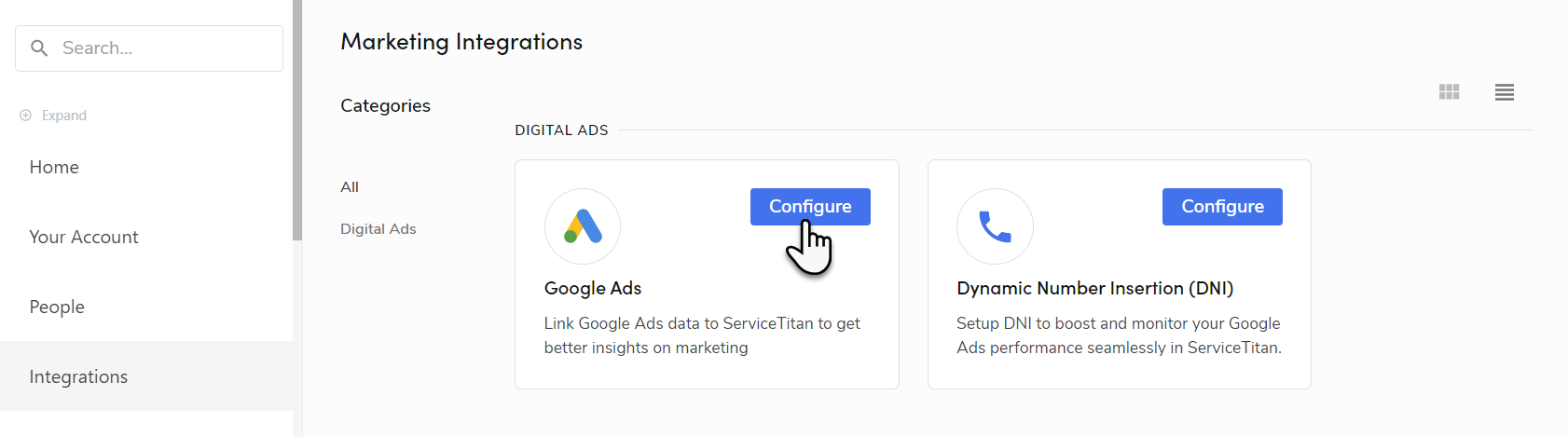
From Settings:
Go to the top toolbar and click Settings
 > Integrations > Marketing Integrations.
Next to Google Ads, click Configure.
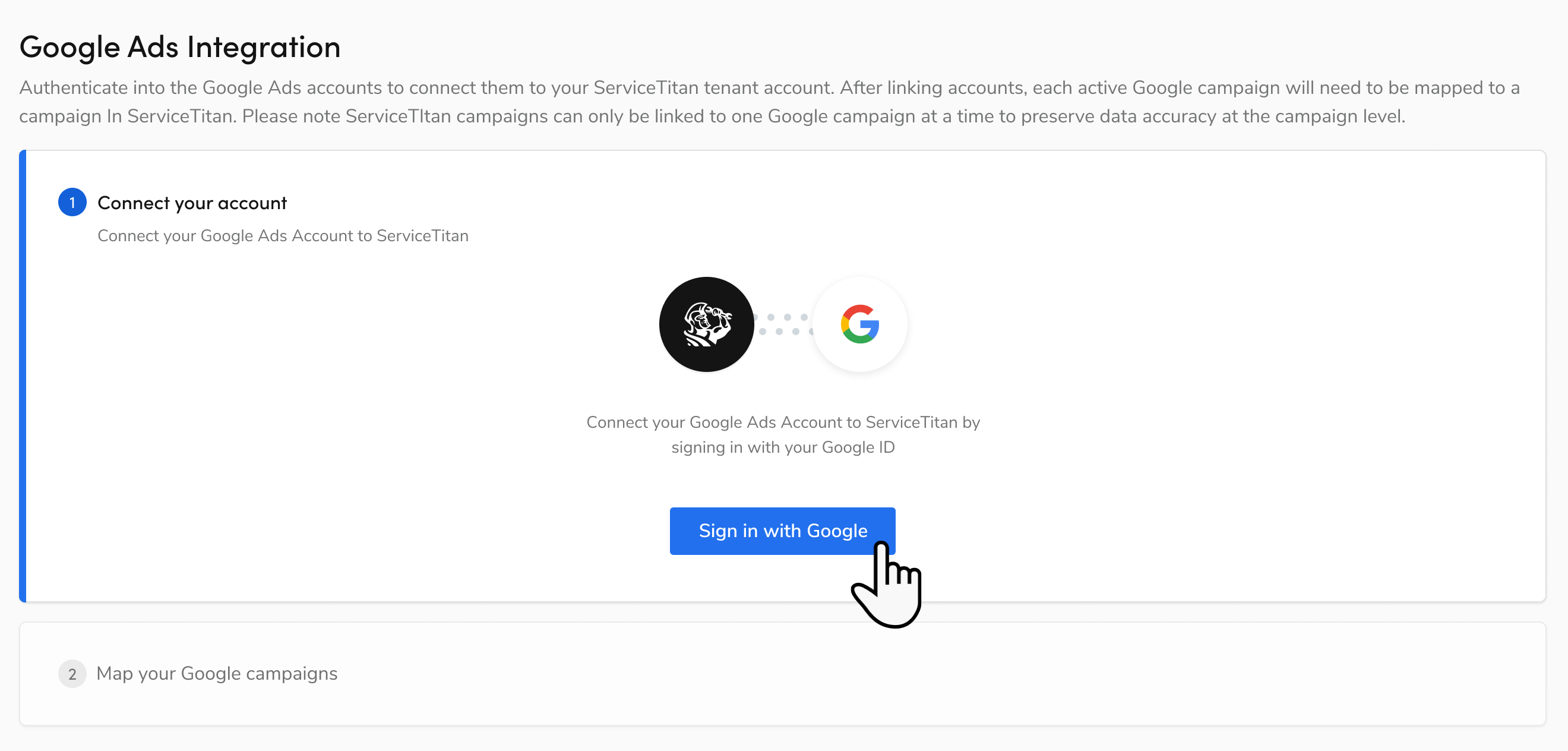
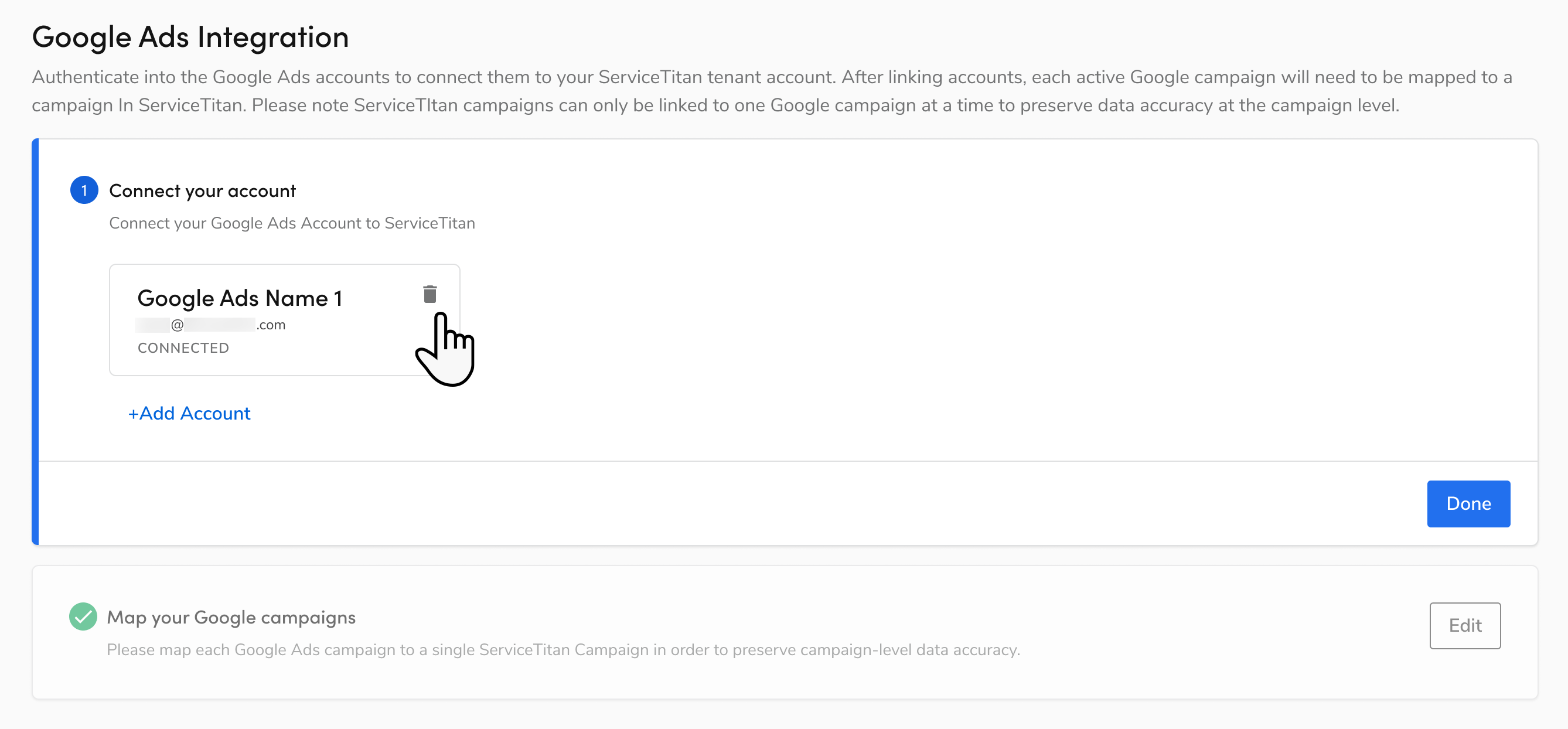
On the Google Ads Integration screen that opens, click Sign in with Google.
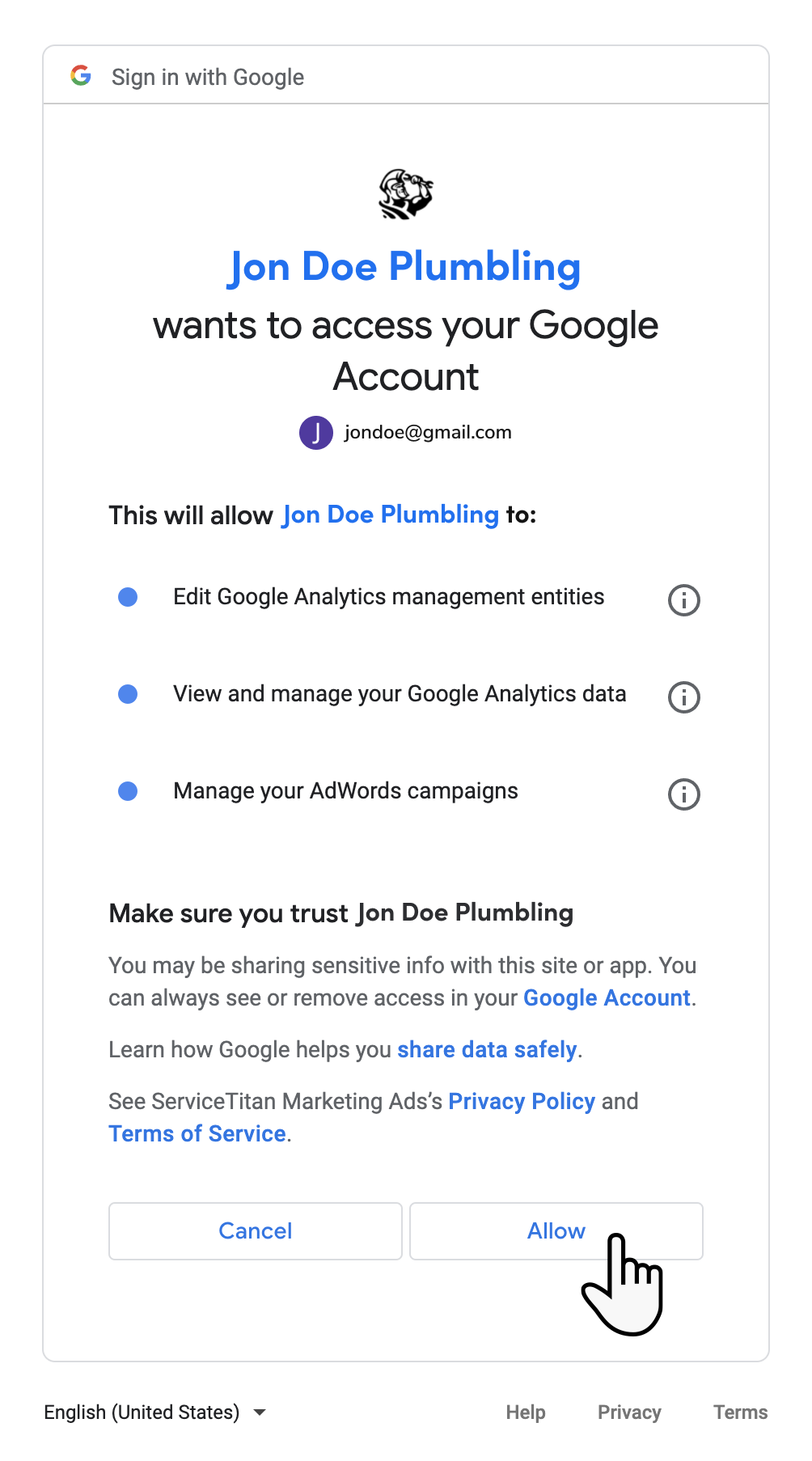
Choose your Google account to sign in with, then click Allow. This gives ServiceTitan access to your Google account.
Select your Google Ads account then click Link.
Note: ServiceTitan connects to all Google Ads accounts connected to your Google ID.
.png?sv=2026-02-06&spr=https&st=2026-11-07T16%3A08%3A51Z&se=2026-11-07T16%3A27%3A51Z&sr=c&sp=r&sig=TrmN5bVC2FbK97RMf5Df%2B9YPXPiy7ibo8SWzGYTv91c%3D)
When finished, click Next.
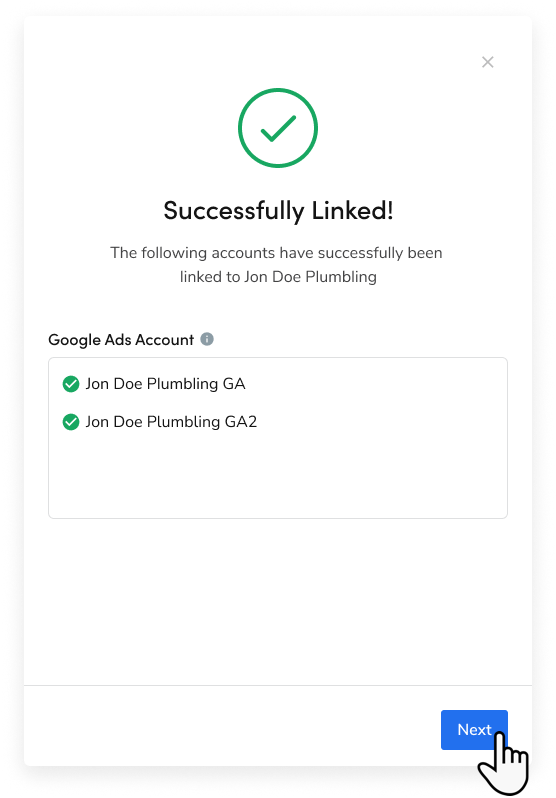
Step 2: Map your Google Ads campaigns
To map your Google Ads campaigns, link your ServiceTitan account to your Google Ads account. To keep the accuracy of your data, map each Google Ads campaign to one ServiceTitan campaign:
In the Map Google Ads campaigns section, click Expand
 .
Auto-Map is enabled by default. With Auto-Map enabled, every time a new campaign is created in Google Ads, a new ServiceTitan campaign with the same name is automatically created and mapped to the Google Ads campaign.
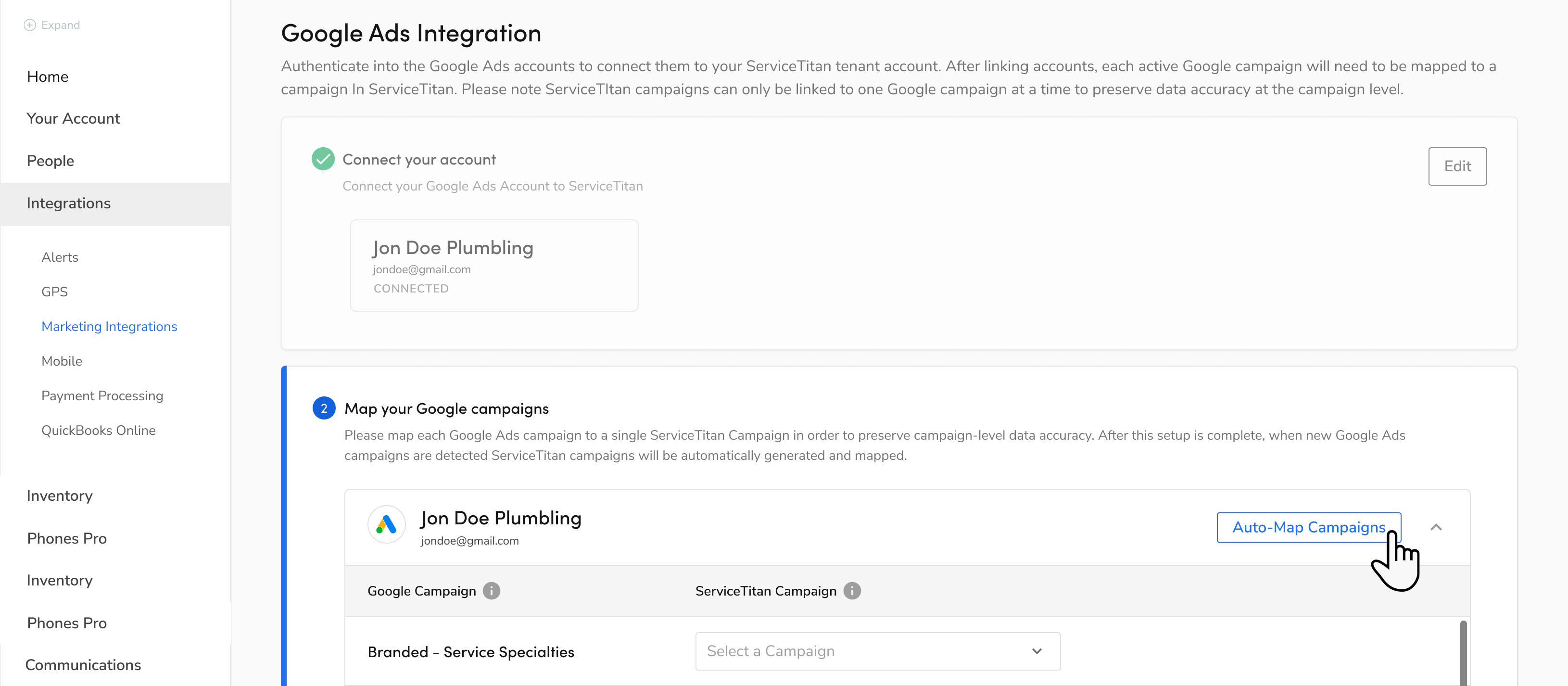
Note: ServiceTitan only shows active campaigns. This includes any campaign that has had an impression over the last year. It also includes any campaign that was created within the last 30 days.
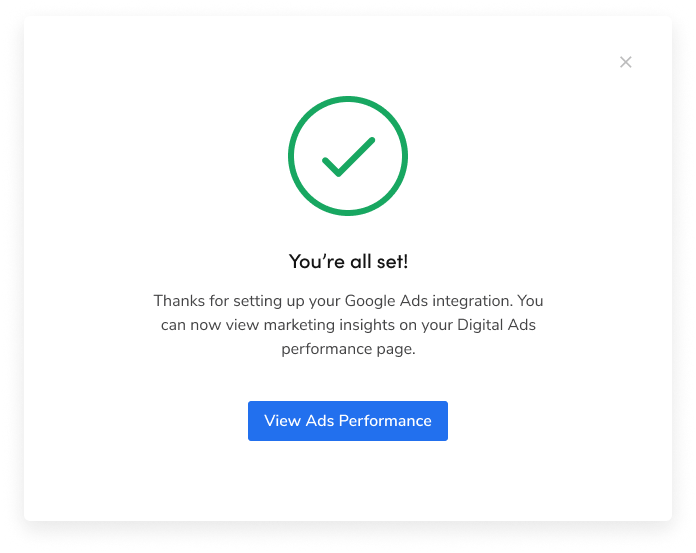
If you only have one Google Ads account that is shared across multiple ServiceTitan accounts, you may want to turn off Auto-Map. With Auto-Map disabled, go to Settings > Integrations > Marketing Integrations and edit the Google Ads Integration. On the Google Ads Integration screen, click Edit next to Map Google Ads campaigns then select More > Map to existing campaign next to a ServiceTitan campaign to manually map it.When finished, click Finish.
Click View Ads Performance to go to the Ads dashboard.
Note: New campaigns created after the first manual map are automatically mapped to a new ServiceTitan campaign by the same name. If you want to rename a campaign, you can do so in Settings > Operations > Campaigns. When you rename a campaign in ServiceTitan, it won't be overwritten by Google Ads.
Edit Google Ads Integration
Go to the top toolbar and click Settings
> Integrations > Marketing Integrations.Next to Google Ads, click Configure.
On the Google Ads Integration screen that opens, click Edit.
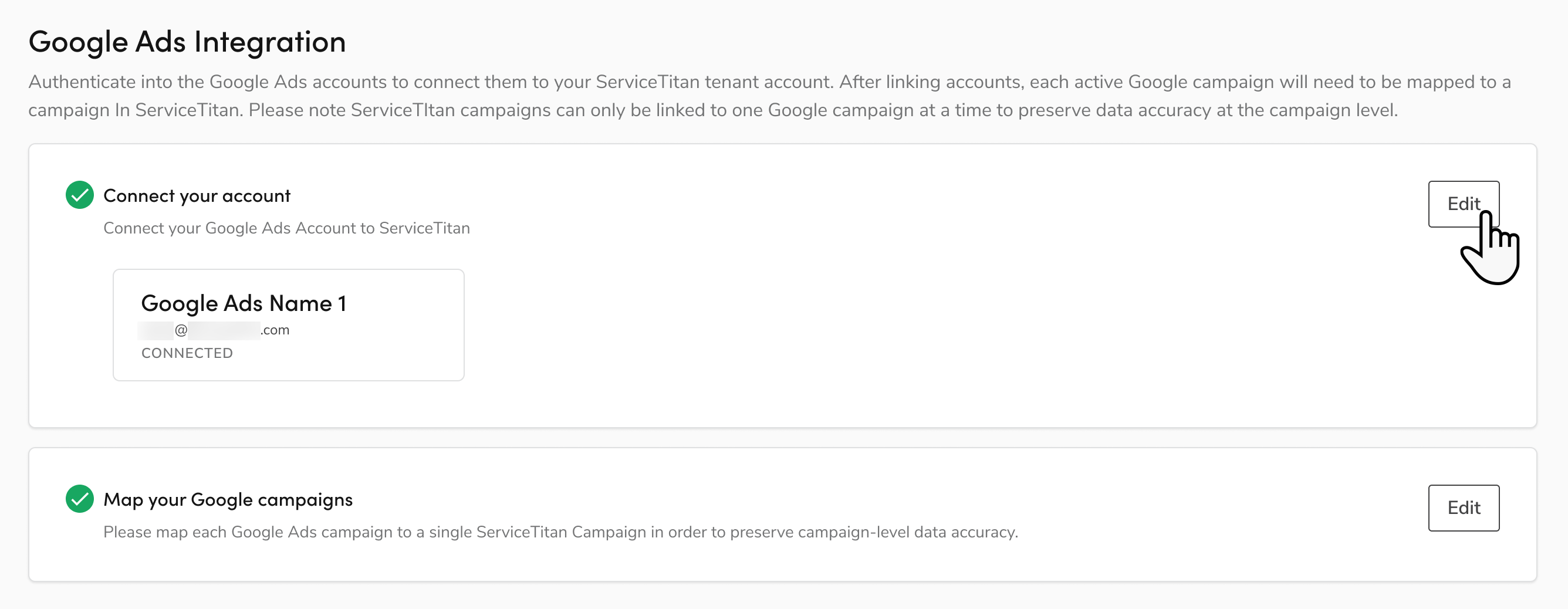
Update configuration details as needed.
Remove Google Ads Integration
Go to the top toolbar and click Settings
> Integrations > Marketing Integrations.Next to Google Ads, click Configure.
On the Google Ads Integration screen that opens, click Edit.
Click Delete
 and confirm the Google account removal.
Events pushed to Google
After you've set up the Marketing Ads features and an eligible event action is generated in ServiceTitan, the following conversions get pushed to Google:
Note: Each event will be set as a primary or secondary conversion action. For more, see About primary and secondary conversion actions.
Event | Description |
|---|---|
ServiceTitan Inbound Call - Website | All inbound calls tracked through Dynamic Call Tracking (DNI) on a website. This is set as a secondary conversion action by default. |
ServiceTitan Inbound Call - Extension | All inbound calls tracked through call extension phone numbers. For this to work, ServiceTitan phone numbers must be added to both the Google Ads campaigns and their corresponding ServiceTitan linked campaigns. This is set as a secondary conversion action by default. |
ServiceTitan Calls Conversion Action | All lead calls tracked through DNI on a website. Lead calls are calls longer than 60 seconds that are not excused. This is set as a primary conversion action by default. |
ServiceTitan Lead Call - Extension | All lead calls tracked through call extension phone numbers. Lead calls are calls longer than 60 seconds that are not excused. For this to work, ServiceTitan phone numbers must be added to both the Google Ads campaigns and their corresponding ServiceTitan linked campaigns. This is set as a secondary conversion action by default. |
ServiceTitan Booked Job - Originated from Website | All booked jobs where the last touchpoint before the booking was tracked through DNI on a website. This is set as a secondary conversion action by default. |
ServiceTitan Booked Job - Originated from Call Extension | All booked jobs where the last touchpoint before the booking was tracked through a call extension phone number. For this to work, ServiceTitan phone numbers must be added to both the Google Ads campaigns and their corresponding ServiceTitan linked campaigns. This is set as a secondary conversion action by default. |
ServiceTitan Integrated Lead Forms | All Leads with a GCLID populated through the "Marketing Ads Lead Form API endpoint" or "Create Lead Attribution Form" Zapier action. This is set as a secondary conversion action by default. |
ServiceTitan Integrated Bookings | All Bookings with a GCLID populated through the "Marketing WebBookingAttributions API endpoint" or "Create Lead Attribution Booking" Zapier action. This is set as a secondary conversion action by default. |
If you're using Ads Optimizer, the following events also get pushed to Google:
Event | Description |
|---|---|
ServiceTitan Completed Jobs Conversion Action | All completed jobs where the last touchpoint before the booking was tracked through DNI on a website. This is set as a primary conversion action by default. The Total Revenue for the completed job is sent as the conversion value for this action. |
ServiceTitan Call Extension Completed Job Conversions | All completed jobs where the last touchpoint before the booking was tracked through a call extension phone number. For this to work, ServiceTitan phone numbers must be added to both the Google Ads campaigns and their corresponding ServiceTitan linked campaigns. This is set as a primary conversion action by default. The Total Revenue from the completed job is sent as the conversion value for this action. |
ServiceTitan JVP (Originated from Website) | All booked jobs where the last touchpoint before the booking was tracked through DNI on a website. This is set as a secondary conversion action by default. If Job Value Predictor (JVP) is activated for a campaign, then this is set as a primary conversion action for jobs attributed to that campaign. The predicted Revenue for the booked job is sent as the conversion value for this action. This makes it a powerful way to use Value Based Bidding without having to wait for the job to be completed before uploading the value to Google Ads. |
ServiceTitan JVP (Originated from Call Extension) | All booked jobs where the last touchpoint before the booking was tracked through a call extension phone number. This is set as a secondary conversion action by default. If Job Value Predictor (JVP) is activated for a campaign, then this is set as a primary conversion action for jobs attributed to that campaign. The predicted Revenue for the booked job is sent as the conversion value for this action. This makes it a powerful way to use Value Based Bidding without having to wait for the job to be completed before uploading the value to Google Ads. |
Enable Enhanced Conversions for Leads
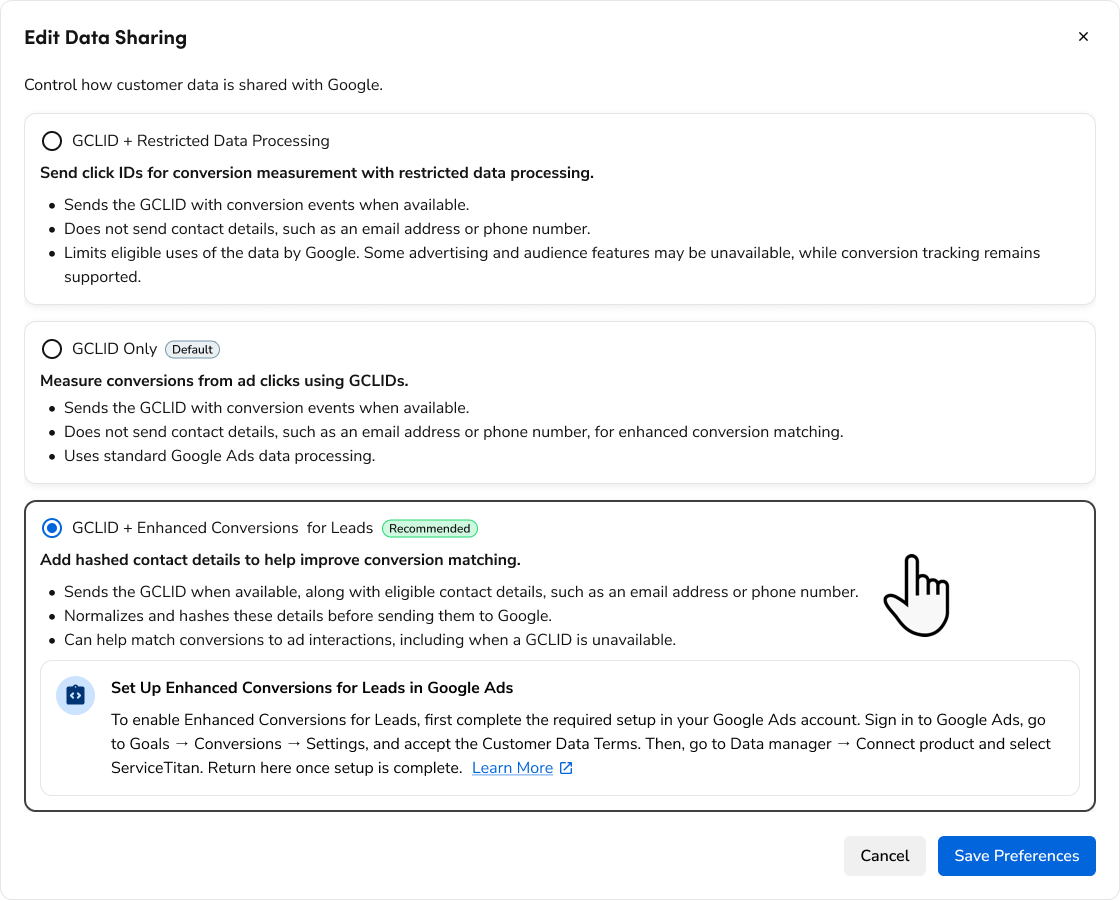
Enhanced Conversions for Leads sends hashed customer information with eligible conversions uploaded from ServiceTitan to Google Ads. This helps Google match conversions to ad interactions, improving conversion measurement and reporting accuracy.
Note: Before you begin, make sure Google Ads is connected to ServiceTitan. For details, see Step 1: Integrate Google Ads data to ServiceTitan.
Set up in Google Ads
Sign in to your Google Ads account.
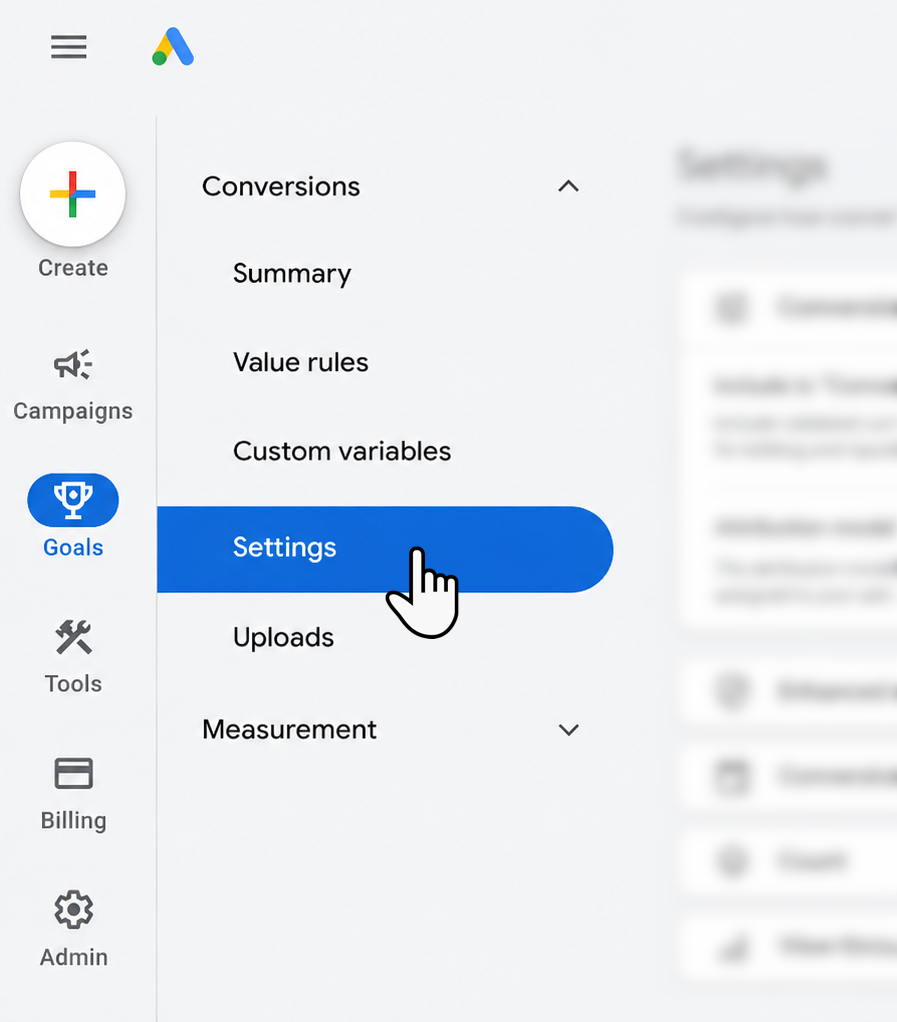
Go to Goals > Conversions > Settings and accept the Customer Data Terms.
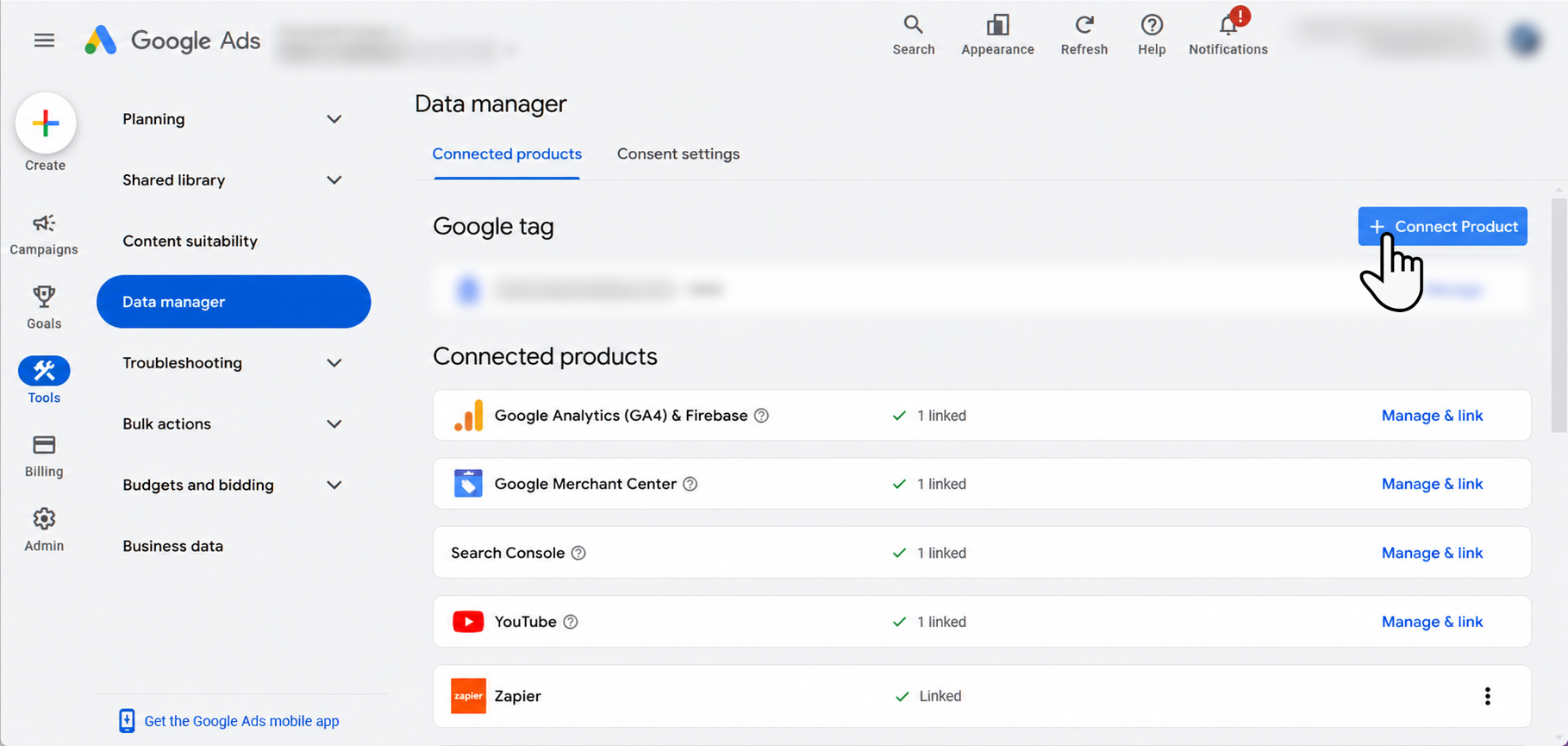
Go to Data manager > Connect product and select ServiceTitan.
Enable in ServiceTitan
Go to the top toolbar and click Settings
> Integrations > Marketing Integrations.Next to Google Ads, click Configure.
On the Google Ads Integration screen, select Data sharing options.
.png?sv=2026-02-06&spr=https&st=2026-11-07T16%3A08%3A51Z&se=2026-11-07T16%3A27%3A51Z&sr=c&sp=r&sig=TrmN5bVC2FbK97RMf5Df%2B9YPXPiy7ibo8SWzGYTv91c%3D)
Select GCLID + Enhanced Conversions for Leads.
FAQ
Can I use Marketing Pro Ads with my existing Google Ads account?
Yes, you can link your existing Google Ads account to Marketing Pro Ads.
Can I link multiple Google Ads accounts for different businesses to the same ServiceTitan account?
Yes, you can link multiple Google Ads accounts to a single ServiceTitan account. To easily distinguish between them, we recommend using a clear naming convention. For example, if you have Business A and Business B, you can start each of Business A’s campaigns with an A and each of Business B’s campaigns with a B.
You can then sort your campaigns alphabetically in ServiceTitan to track each business’s performance.
Should I disable regular tracking conversions in Google Ads after integrating with Marketing Pro Ads?
You can choose to keep or disable your non-ServiceTitan conversions in Google Ads. ServiceTitan does not edit or affect your existing Google Ads conversations.
Can I monitor two separate Google Ads accounts on our dashboard, or can I only connect one?
Yes, you can connect and monitor multiple Google Ads accounts in Marketing Pro.