Overview
The invoice record contains details about the invoice such as customer details, payments, technicians, and tasks. You can also make edits to the invoice record. This walkthrough will familiarize you with each section of the invoice.
Note: Depending on your account's configuration, you might see one or more of the following:
Items and Pricing instead of Pricebook.
Customer instead of Homeowner.
Procurement instead of Inventory.
The names are different, but everything works the same way. For more, see Commercial Personalization Platform - FAQ.
Who uses this feature
Administrators, office employees, managers, accountants, and bookkeepers
Applies to all business types
Applies to all trades
Feature configuration
Account configuration is required to use this feature. Please contact Technical Support for details.
Invoices permissions are required to use this feature. Please contact the account administrator on your team.
Invoice header

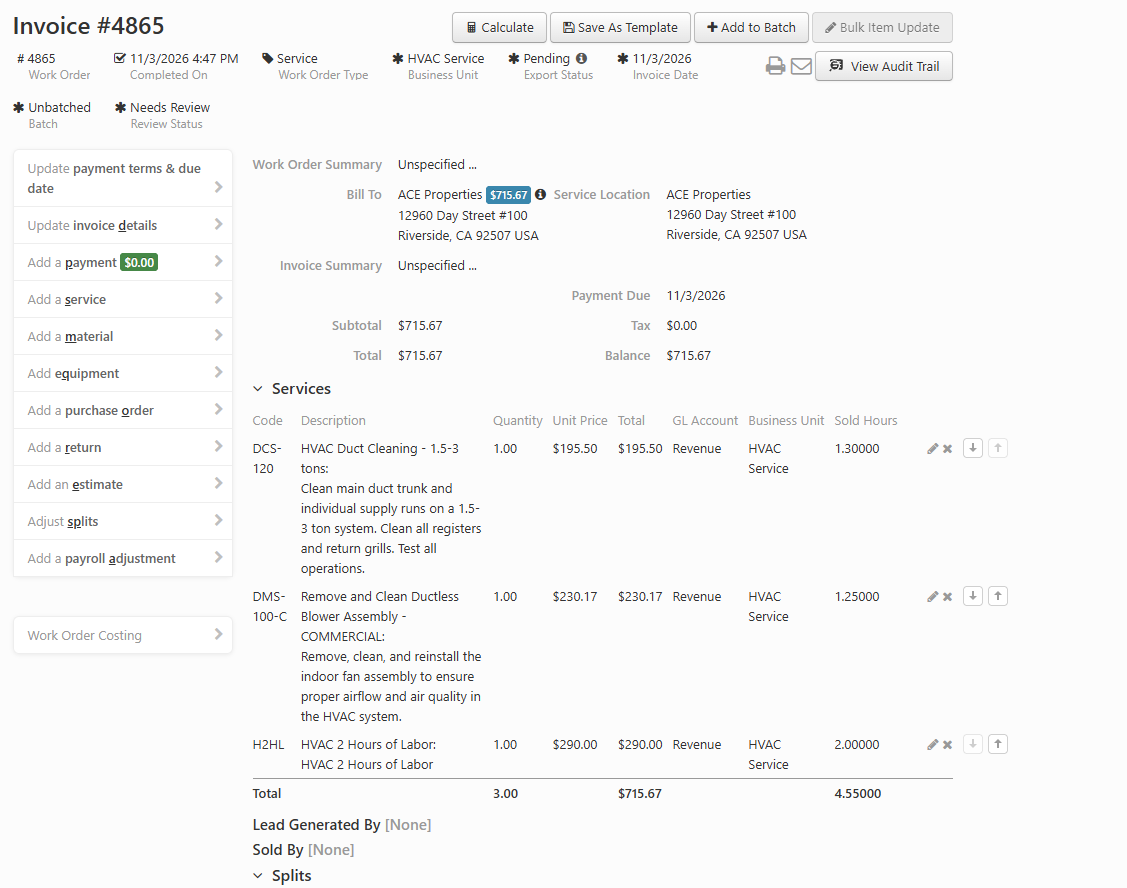
The invoice header includes:
Invoice # (at the top) | By default, the invoice number matches the work order number. You can also click Invoice Details to enter your own invoice number. |
|---|---|
Work Order # | The work order tied to the invoice. The Work order # is created by ServiceTitan. To maintain best accounting practices, you cannot delete an invoice or change which invoice is tied to which work order.
|
Completed On | The work order status is In Progress, Completed On, or Canceled. The Completed On date and time shows when a service was performed. This date and time is generated either when you click Complete Work Order or when the technician taps Finish. |
Work Order Type | The type of work order performed at a service location. |
Business Unit | Business unit assigned to the work order. |
Status | There are three invoice statuses: Pending, Posted, and Exported. |
Invoice Date | The date that the office has confirmed that work is complete. This is also the date that drives most accounting reports since it is when the revenue earned on a work order is recorded. You can configure your account so the invoice date defaults to the work order completion date. If this configuration is not set up, the invoice date remains blank until you fill it out. |
Batch | If the invoice is batched, this displays the batch number. If the invoice has not yet been batched, this displays Unbatched. |
Invoice actions
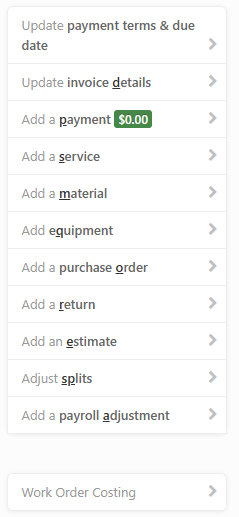
On the invoice record, there is an actions menu on the left side of your screen. This menu allows you to:
Add service items to the invoice
Add material items to the invoice
Add equipment items to the invoice
Customer and work order details
The customer and work order details section of the invoice record shows information such as customer name, billing and service address, work order and invoice summary, and invoice total.
The customer and work order details includes:
Work Order Summary | Entered when creating a work order. Use the work order summary to provide details about the work order, customer, or location site. |
|---|---|
Bill To | Bill To customer name and billing address. If a customer has a balance for other invoices, the total balance displays in a blue box next to the Bill To name.
|
Service Location | Name and address where the work is being performed (this may be the same as the bill to customer name and billing address, or there may be a tenant or family member at the service location).
|
Invoice Summary | Summary of work performed. Click Update invoice details to enter an invoice summary. |
Payment Due Date | The date the invoice payment is due. |
Subtotal | The subtotal is the sum of invoice items before tax is calculated. |
Tax | Taxes are calculated according to the tax zones you have configured. |
Total | The invoice subtotal plus sales tax. |
Balance | The outstanding amount the customer owes on the invoice. Note: If the customer has a balance for other invoices, the total balance amount displays next to the Bill To name. |

Payments
The Payments sections of the invoice record shows the payment history for the invoice.

Note: The Payments section is on the invoice record only if payments have been made on the invoice.
The Payments section includes:
Paid On | The date the payment is recorded. |
|---|---|
Type | The type of payment that is received. Payments can be made in the form of cash, check, or credit. |
Auth. Code | If a credit card transaction is processed through ServiceTitan, you can see the authorization code here.
|
Check No. | Check number if this is a check payment. |
Status | Status shows whether the payment is pending, batched, posted, or exported. Note: The payment status is not necessarily the same as the invoice status. You can batch, post, and export payments separately from the invoice. |
Memo | A note about the payment. |
Batch # | Where the payment is batched. |
Amount | Amount Total customer payments applied to the invoice. |
Services
In the Services section of the invoice record, you can find a list of the service items. The section includes all billable items on the invoice such as services and chargeable materials.
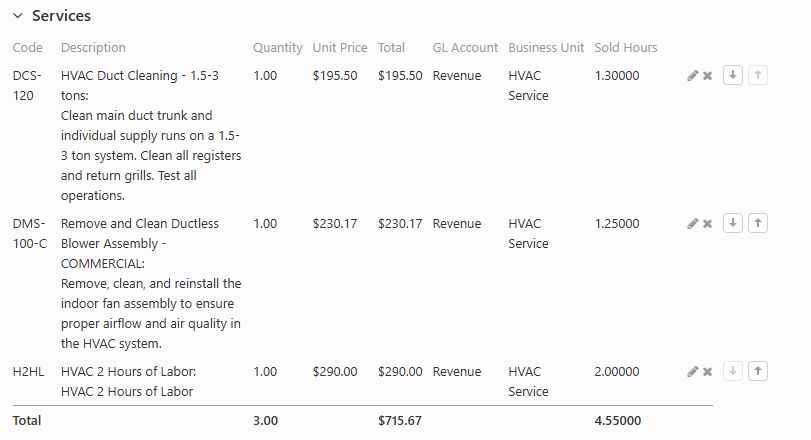
The Services section includes:
Code | The pricebook code of the task. |
|---|---|
Name | Name of the invoice item from Items and Pricing.
|
Description | Description of the invoice item from Items and Pricing. |
Quantity | The quantity being sold to the customer. |
Unit Price | Unit price of the invoice item from Items and Pricing. |
Total | Total price of the invoice item (Unit Price x Quantity). |
GL Account | General Ledger (GL) Account assigned to the task. |
Materials
In the Materials section of the invoice record, you can find a list of the invoice line items for materials.
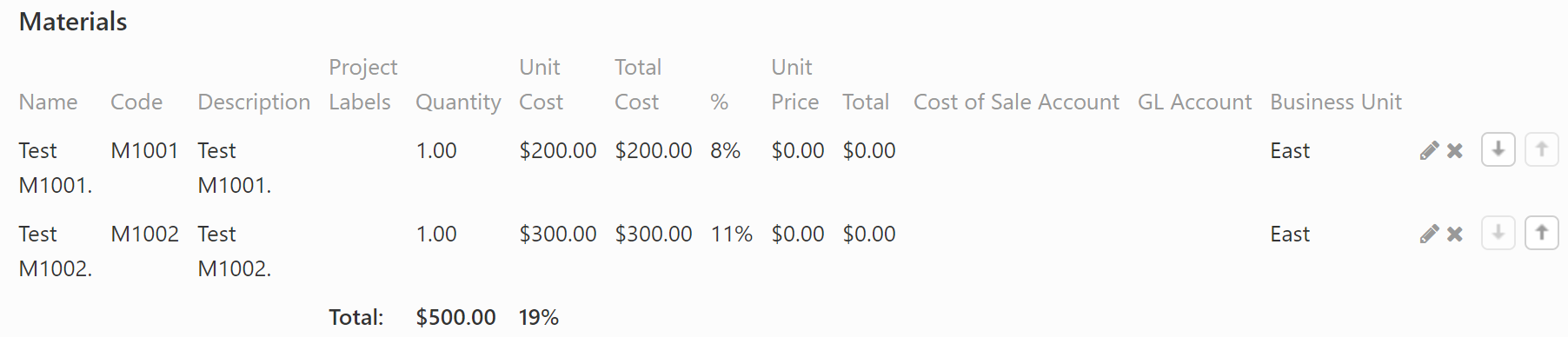
The Materials section includes:
Name | Name of the invoice item from Items and Pricing. |
|---|---|
Code | Item and Pricing code of the material item |
Description | Description of the invoice item from from Items and Pricing. |
Quantity | The quantity being sold to the customer. |
Cost | Cost of the material from from Items and Pricing.
|
Technician | Technician who used the material. |
Inventory Location | The inventory location of the material item. Note: If you use truck replenishment or inventory management, make sure to assign an inventory location for the item to let the system where you took the material from. Account configuration is required to use this feature. To update your account, please contact your success or implementation manager for details. |
General Ledger Account | General Ledger account assigned to the material. |
Business Unit | Business unit assigned to the material. |
Sold By and Splits
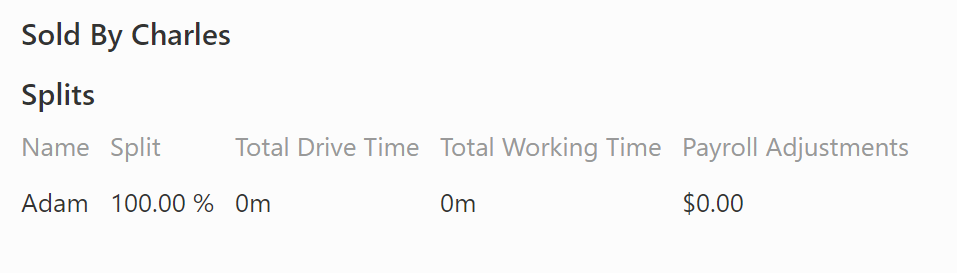
The Sold By and Splits section includes:
Sold By | The technician credited with selling the work order estimate. This is typically a sales technician. |
|---|---|
Splits | Technicians credited with performing the work. Splits lists all the technicians assigned to the work order. |
Name | Technician name. |
Split | The technician's percent of the work order split.
|
Total Drive Time | The time from dispatch to arrival at the job site. |
Total Working Time | Total number of work order hours the technician logged. . |
Payroll Adjustments | Any payroll adjustments made on the invoice.
|
FAQ
Creating and viewing invoices
Can I have multiple locations on a single invoice?
No, you can't have one invoice assigned to multiple locations with different work orders.
The only exceptions are membership invoices and project invoices:
You can apply the membership invoice to all locations on a customer level. In this case, you will have multiple locations on the membership invoice's service location. However, you can't select multiple customer locations. You can apply the membership invoice to all locations or only to one.
You can create a project invoice that won't be linked to a specific work order. However, since all the work orders on a project will have the same service location, the invoice will also have only one service location.
How do I locate the ID associated with my invoice in ServiceTitan?
The invoice ID is the set of numbers at the end of the URL when viewing the invoice in ServiceTitan. For example, if you are viewing an invoice and the ServiceTitan URL is https://go.servicetitan.com/#/EditInvoice/1234567, then the invoice ID is 1234567.
Why does the price on the invoice not match the price on the estimate?
The estimate and invoice prices may not match because the tax zone changed. This change affected the tax calculation, making the invoice total not the same as the estimate total.
How can an invoice be created without a work order? How can I remove the outstanding balance?
An invoice without an attached work order is usually a membership invoice, a project invoice, or a point of sale (POS) invoice. A membership invoice can remain open even if the membership got deleted.
For more on creating a project invoice, see Add an invoice to a project.
For more on creating a membership invoice, see Sell a membership without booking a job.
For more on creating a point of sale invoice, see Process point of sale transactions from the office.
To resolve the issue of an outstanding balance on a membership invoice, remove the items on the membership invoice.
Why is an invoice not appearing on the customer profile?
An invoice does not appear on the customer's record if the associated work order is still in progress. The invoice will appear after marking the work order as Complete.
Tax on invoices
How can I edit a tax on the invoice if the invoice has a payment?
To edit tax on the invoice:
See Update the tax zone of an invoice: recommended workflow if you are editing the invoice tax zone.
See Set invoice line items as taxable if you want to make an invoice item taxable.
How is tax subtotal calculated on an invoice?
The tax subtotal is based on items marked as Taxable in your pricebook and the tax zone assigned to the invoice. If you notice any discrepancies on the tax subtotal in your invoice, check your Pricebook items first to see if some are marked Taxable and some are not.
Why is tax not charged on an invoice?
Tax may not be charged if the service or equipment is not set as taxable in the pricebook. Go to Settings > Pricebook > Services or Settings > Pricebook > Equipment, and click into the service or equipment. Ensure the box beside the Taxable field is checked.
How can I make residential customers taxable by default in ServiceTitan?
While commercial customers can be set to taxable by default, residential customers are automatically marked as non-taxable when created in ServiceTitan. This default setting residential customers cannot be changed at present. You must manually set the residential customer to be taxable. For more, see Set a Customer Record as Non-Taxable.
Customer balances, discounts, and deposits
When does customer balance update?
Pending invoices for uncompleted work orders don't affect a customer's balance. The balance is only updated after the work order is marked as complete and the invoice has a date assigned.
Why is the invoice balance not updated even after payment was collected?
Pending invoices for uncompleted work orders don't affect a customer's balance. The balance is only updated after the work order is marked as complete and the invoice has a date assigned.
How do I hide membership discounts on one customer's invoice?
To hide membership savings from appearing on invoices for one specific customer, create a duplicate membership type. In this new membership type, disable the Show membership savings on customer-facing invoices option. Assign this new type to your specific customer.
Why are all payments going into customer deposits and then to undeposited funds, even for cash payments on the retail side?
This happens when the customer has the deposit workflow enabled. All payments always flow through the customer deposit account first.
If you apply the payment to an invoice right away, it gets removed from the deposit account. The system creates a journal entry that offsets the payment against accounts receivable.
This process works the same for all payment types, including cash and retail payments.
What does the amount next to the customer name on the invoice record mean?
The amount next to the customer's name on the invoice record represents the customer's total balance across all invoices. This includes all overdue invoices.
Want to learn more?
See Invoicing